






Consume ScrapingBee OData Feeds in PowerBuilder

The CData API Server produces secure feeds of ScrapingBee data that you can consume in PowerBuilder DataWindows. The API Server supports the major Web services, including OData, Atom, JSON, HTML, CSV, TSV, and RSS. It also supports the major authentication schemes and SSL.
This article shows how to create a DataWindow that uses the CData API Server to retrieve data.
Set Up the API Server
Follow the steps below to begin producing secure ScrapingBee OData services:
Deploy
The API Server runs on your own server. On Windows, you can deploy using the stand-alone server or IIS. On a Java servlet container, drop in the API Server WAR file. See the help documentation for more information and how-tos.
The API Server is also easy to deploy on Microsoft Azure, Amazon EC2, and Heroku.
Connect to ScrapingBee
After you deploy the API Server, provide authentication values and other connection properties needed to connect to ScrapingBee by clicking Settings -> Connections and adding a new connection in the API Server administration console.
Using API Key Authentication
ScrapingBee uses API key authentication. To obtain an API key:
- Sign in to your ScrapingBee account at https://app.scrapingbee.com
- Navigate to the Dashboard and locate your API key in the top section.
- Copy the API key for use in the connection string.
After obtaining your API key, set the following connection properties:
- AuthScheme: Set this to APIKey.
- APIKey: Set this to your ScrapingBee API key.
Example Connection String
Profile=C:\profiles\ScrapingBee.apip;AuthScheme=APIKey;ProfileSettings="APIKey=your_api_key";
Connecting to ScrapingBee
Once the authentication is configured, you can connect to ScrapingBee and query data from any of the available tables. All tables require at least one input parameter (such as a search query or product ID) to retrieve data.
You can then choose the ScrapingBee entities you want to allow the API Server access to by clicking Settings -> Resources.
Additionally, click Settings -> Server and change the following settings for compatibility with PowerBuilder:
- Default Format: Select XML (Atom) in the menu.
- Default Version: Select 2.0 in the menu.
Authorize API Server Users
After determining the OData services you want to produce, authorize users by clicking Settings -> Users. The API Server uses authtoken-based authentication and supports the major authentication schemes. Access can also be restricted based on IP address; by default, only connections to the local machine are allowed. You can authenticate as well as encrypt connections with SSL.
Create a Profile for ScrapingBee
Follow the steps below to use the Database Painter tool to create a database profile for the OData API of the API Server. In the Database Painter, you can graphically manipulate data as well as execute SQL queries.
- Click Tools -> Database Painter.
- Right-click the OData node and click New Profile.
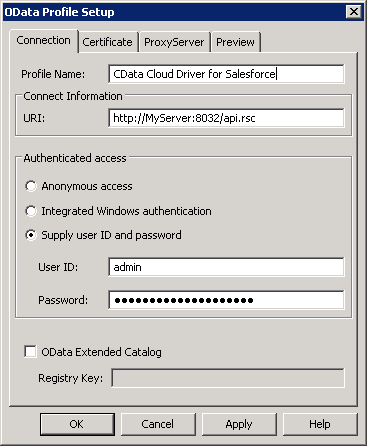
- In the Database Profile Setup dialog, enter the following:
- Profile Name: Enter a user-friendly name for the profile.
- URI: Enter the URL to the OData endpoint of the API Server. This URL will resemble the one below:
http://MyServer:8080/api.rsc
- Supply User Id and Password: Click this option to use HTTP Basic authentication. Note that the API Server also supports Windows authentication.
- User Id: Enter the name of an user in the API Server.
- Password: Enter the authtoken of an user in the API Server.
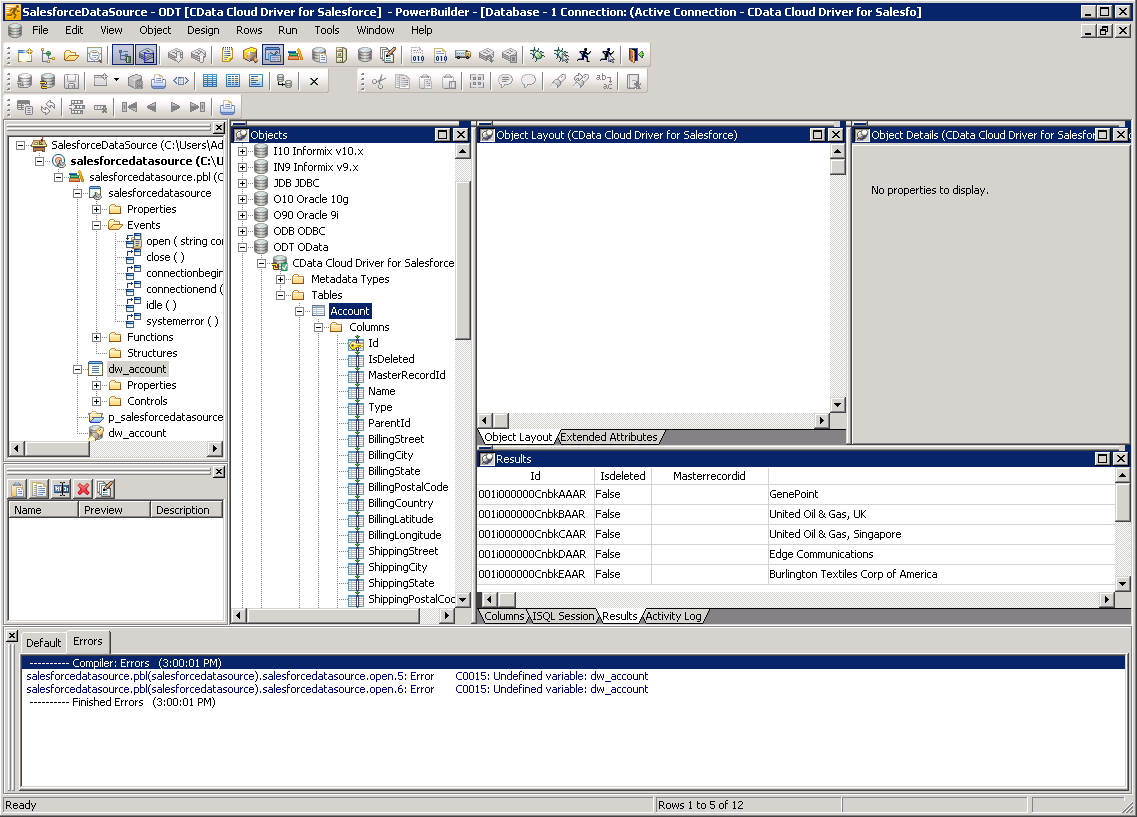
- To view and modify a table, right-click a table and then click Edit Data -> Grid.
Using ScrapingBee Data with PowerBuilder Controls
You can use standard PowerBuilder objects to connect to OData feeds and execute queries. The following example shows how to retrieve ScrapingBee data into a DataWindow.
You can add the following code to the open method:
SQLCA.DBMS = "ODT"
SQLCA.DBParm = "ConnectString='URI=http://MyServer:8080/api.rsc;UID=MyAPIUser;PWD=MyAuthtoken'";
CONNECT USING SQLCA;
dw_googlesearchresults.SetTransObject(SQLCA);
dw_googlesearchresults.Retrieve();