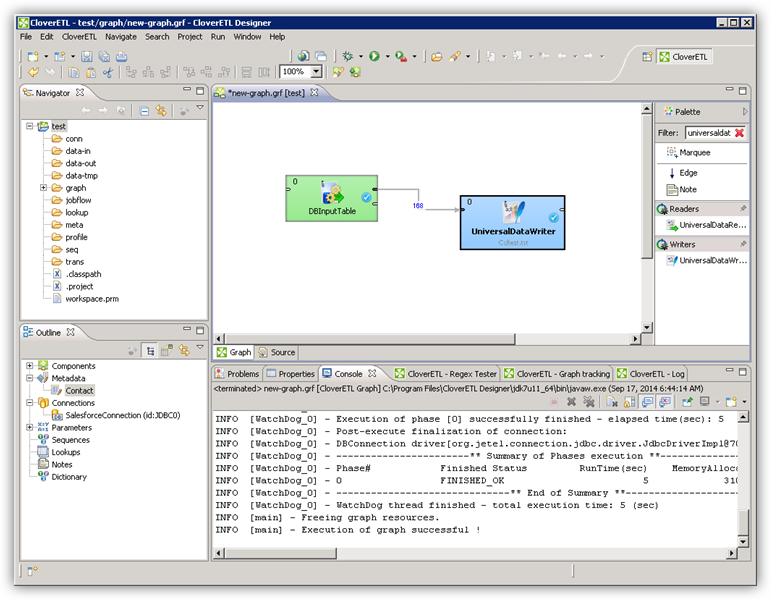
Connect to ServiceDesk Plus Data in CloverDX (formerly CloverETL)

The CData JDBC Driver for ServiceDesk Plus enables you to use the data transformation components in CloverDX (formerly CloverETL) to work with ServiceDesk Plus as sources. In this article, you will use the JDBC Driver for ServiceDesk Plus to set up a simple transfer into a flat file. The CData JDBC Driver for ServiceDesk Plus enables you to use the data transformation components in CloverDX (formerly CloverETL) to work with ServiceDesk Plus as sources. In this article, you will use the JDBC Driver for ServiceDesk Plus to set up a simple transfer into a flat file.
Connect to ServiceDesk Plus as a JDBC Data Source
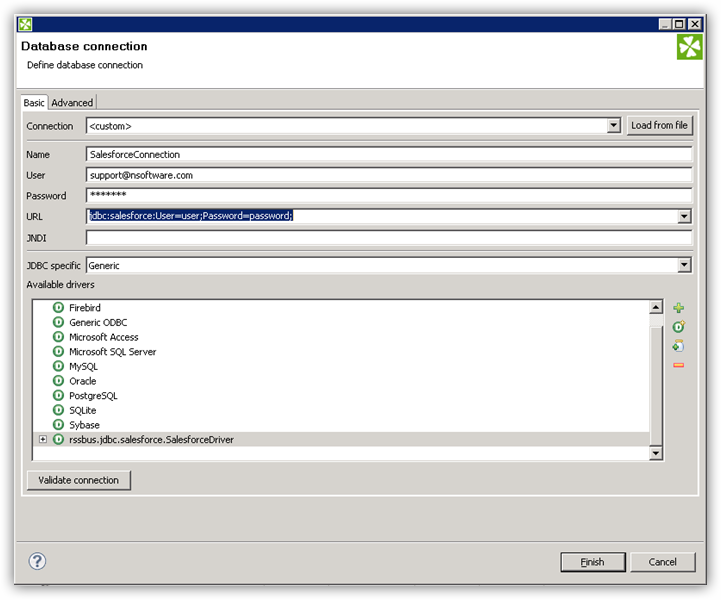
- Create the connection to ServiceDesk Plus data. In a new CloverDX graph, right-click the Connections node in the Outline pane and click Connections -> Create Connection. The Database Connection wizard is displayed.
- Click the plus icon to load a driver from a JAR. Browse to the lib subfolder of the installation directory and select the cdata.jdbc.api.jar file.
- Enter the JDBC URL.
Using OAuth Authentication
ServiceDeskPlus uses Zoho OAuth 2.0 for secure authentication. To set up OAuth access:
- Register your application in the Zoho Developer Console at https://api-console.zoho.com
- Configure your redirect URI to match your application setup
- Note your Client ID and Client Secret from the application settings
After setting the following connection properties, you are ready to connect:
- AuthScheme: Set this to OAuth.
- OAuthClientId: Set this to your Zoho application Client ID.
- OAuthClientSecret: Set this to your Zoho application Client Secret.
- Scope: Set this to the required ServiceDeskPlus permissions (default includes read access to requests, problems, assets, and projects).
- Domain: Set this to your ServiceDeskPlus domain
- Portal: Set this to your ServiceDeskPlus portal
Example Connection String
Profile=C:\profiles\ServiceDeskPlus.apip;ProfileSettings="Portal=itdesk;Domain=.in;Scope=SDPOnDemand.requests.READ SDPOnDemand.problems.READ SDPOnDemand.assets.READ SDPOnDemand.projects.READ";AuthScheme=OAuth;OAuthClientId=your_client_id;OAuthClientSecret=your_client_secret;
Built-in Connection String Designer
For assistance in constructing the JDBC URL, use the connection string designer built into the ServiceDesk Plus JDBC Driver. Either double-click the JAR file or execute the jar file from the command-line.
java -jar cdata.jdbc.api.jar
Fill in the connection properties and copy the connection string to the clipboard.

A typical JDBC URL is below:
jdbc:api:Profile=C:\profiles\ServiceDeskPlus.apip;ProfileSettings="Portal=itdesk;Domain=.in;Scope=SDPOnDemand.requests.READ SDPOnDemand.problems.READ SDPOnDemand.assets.READ SDPOnDemand.projects.READ";AuthScheme=OAuth;OAuthClientId=your_client_id;OAuthClientSecret=your_client_secret;
Query ServiceDesk Plus Data with the DBInputTable Component
- Drag a DBInputTable from the Readers selection of the Palette onto the job flow and double-click it to open the configuration editor.
- In the DB connection property, select the ServiceDesk Plus JDBC data source from the drop-down menu.
- Enter the SQL query. For example:
SELECT , FROM AnnouncementComments WHERE AnnouncementId = '12345'
Write the Output of the Query to a UniversalDataWriter
- Drag a UniversalDataWriter from the Writers selection onto the jobflow.
- Double-click the UniversalDataWriter to open the configuration editor and add a file URL.
- Right-click the DBInputTable and then click Extract Metadata.
- Connect the output port of the DBInputTable to the UniversalDataWriter.
- In the resulting Select Metadata menu for the UniversalDataWriter, choose the AnnouncementComments table. (You can also open this menu by right-clicking the input port for the UniversalDataWriter.)
- Click Run to write to the file.