






How to Seamlessly Import ServiceDesk Plus Data into IBM SPSS Modeler

IBM SPSS Modeler is a powerful data mining and predictive analytics platform that enables organizations to extract valuable insights from their data. By connecting ServiceDesk Plus data data to SPSS Modeler via the CData API Driver for ODBC, you can leverage real-time access for advanced data mining, predictive modeling, and statistical analysis.
This guide takes you through the steps of connecting IBM SPSS Modeler to ServiceDesk Plus data, enabling seamless data import, preparation, and analysis. With the CData API Driver for ODBC, you can unlock the full potential of your ServiceDesk Plus data data within IBM SPSS Modeler for actionable insights.
Overview
Here is an overview of the steps:
- CONFIGURE THE ODBC DRIVER: Set up a connection to ServiceDesk Plus data in the CData API Driver for ODBC by entering the required connection properties.
- SET UP ODBC CONNECTION IN SPSS MODELER: Establish the ODBC connection within IBM SPSS Modeler by selecting the configured DSN.
- IMPORT AND PROCESS DATA: Import the ServiceDesk Plus data data into SPSS Modeler, then review, filter, transform, and prepare the data for predictive analytics and statistical modeling.
Configure the ServiceDesk Plus DSN Using the CData ODBC Driver
To start, configure the DSN (Data Source Name) for ServiceDesk Plus data in your system using the CData ODBC Driver. Download and install a 30-day free trial with all the features from here.
Once installed, launch the ODBC Data Source Administrator:
- On Windows: Search for ODBC Data Source Administrator in the Start menu and open the application.
- On Mac: Open Applications, go to Utilities, and select ODBC Manager.
- On Linux: Use the command line to launch ODBC Data Source Administrator or use unixODBC if installed.
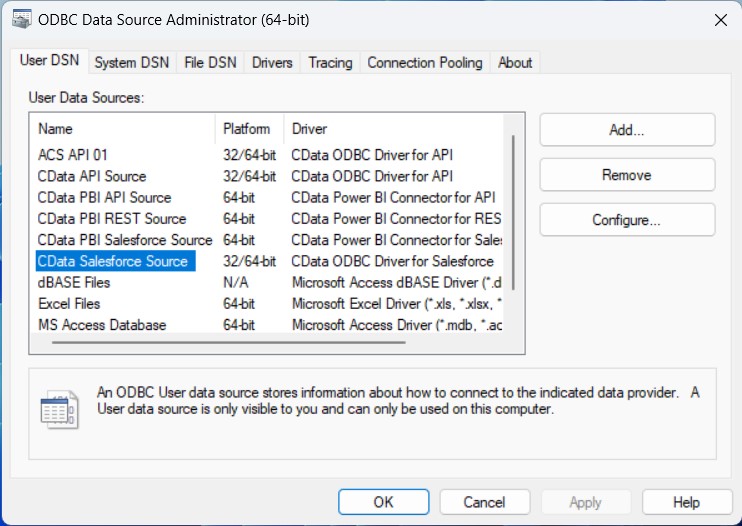
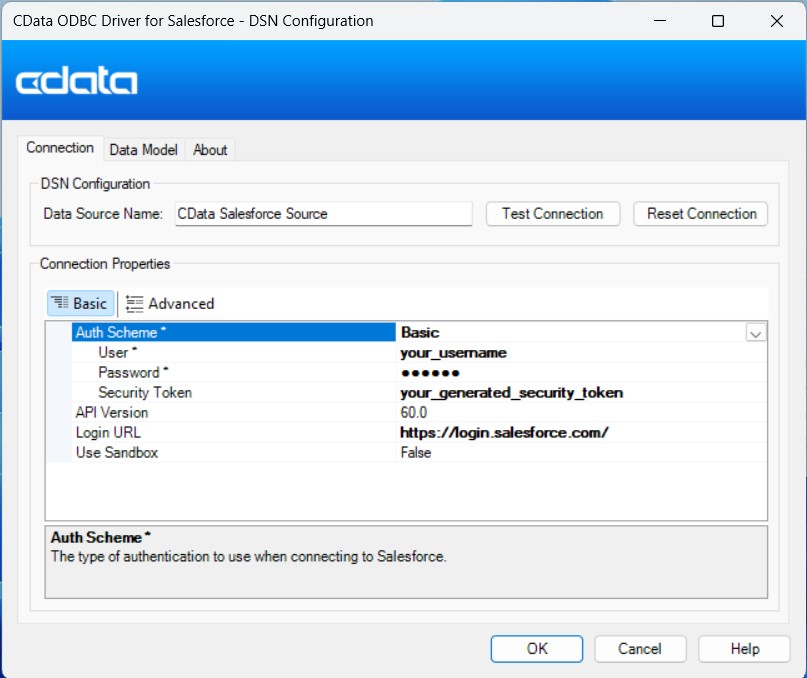
Once launched, double-click on the CData ServiceDesk Plus data Source and enter the required values to establish a connection:
Using OAuth Authentication
ServiceDeskPlus uses Zoho OAuth 2.0 for secure authentication. To set up OAuth access:
- Register your application in the Zoho Developer Console at https://api-console.zoho.com
- Configure your redirect URI to match your application setup
- Note your Client ID and Client Secret from the application settings
After setting the following connection properties, you are ready to connect:
- AuthScheme: Set this to OAuth.
- OAuthClientId: Set this to your Zoho application Client ID.
- OAuthClientSecret: Set this to your Zoho application Client Secret.
- Scope: Set this to the required ServiceDeskPlus permissions (default includes read access to requests, problems, assets, and projects).
- Domain: Set this to your ServiceDeskPlus domain
- Portal: Set this to your ServiceDeskPlus portal
Example Connection String
Profile=C:\profiles\ServiceDeskPlus.apip;ProfileSettings="Portal=itdesk;Domain=.in;Scope=SDPOnDemand.requests.READ SDPOnDemand.problems.READ SDPOnDemand.assets.READ SDPOnDemand.projects.READ";AuthScheme=OAuth;OAuthClientId=your_client_id;OAuthClientSecret=your_client_secret;
Setup an ODBC Connection in IBM SPSS Modeler
After configuring the DSN, it's time to connect to it in IBM SPSS Modeler:
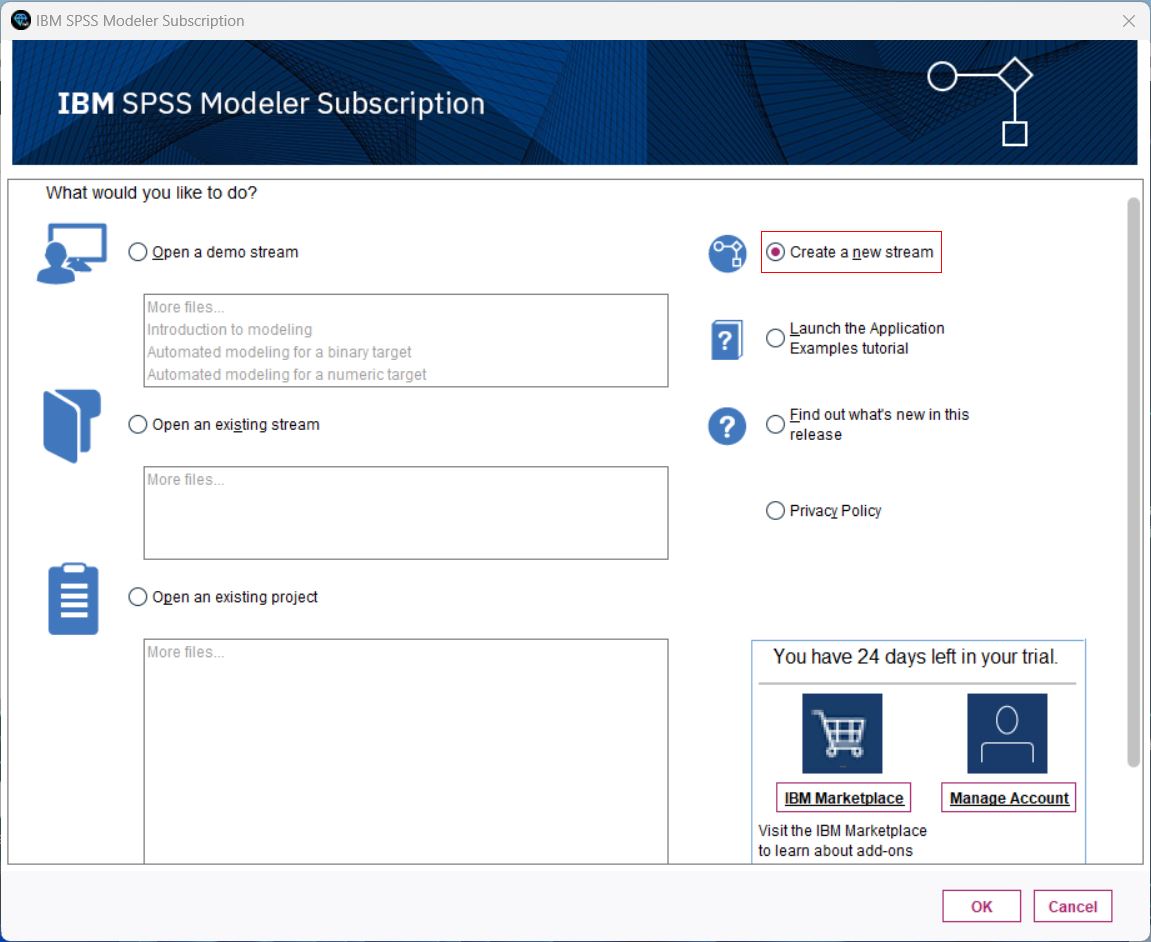
- Launch IBM SPSS Modeler, log in, and create a new stream.
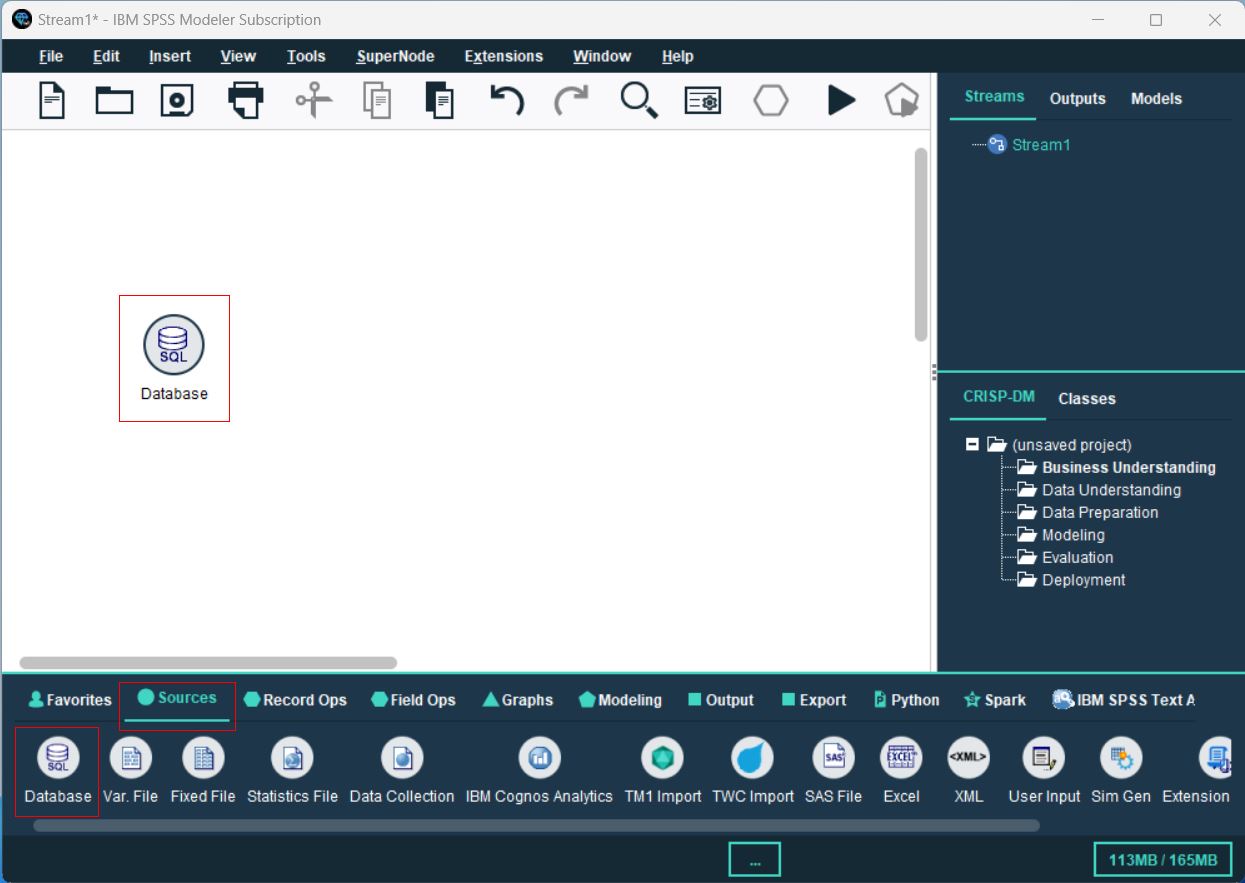
- From the Sources palette, locate the Database node, and drag it onto the canvas.
- Double-click the Database node to open the configuration dialog. Select
, browse to select the configured DSN, then click OK. - In the Database dialog, browse to select the table(s) you’d like to import, preview the data, and click OK to finalize.
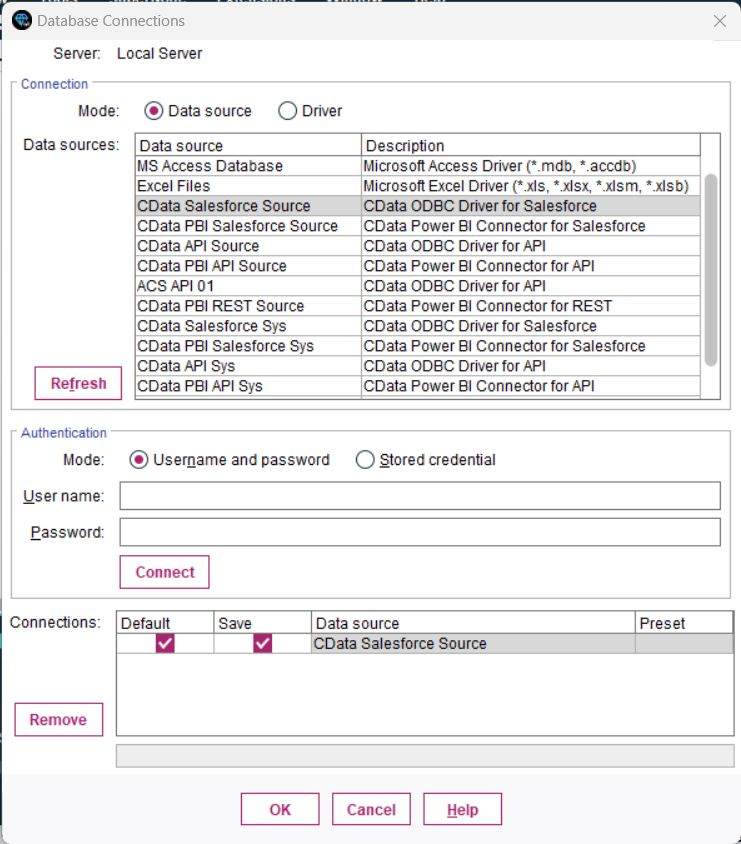
You are now ready to process and analyze the ServiceDesk Plus data data in IBM SPSS Modeler.
Process Data: Filter, Categories, and Model
Once the tables are imported, you can refine, filter, categorize, and model your ServiceDesk Plus data data in SPSS Modeler:
- Filtering: Double-click your Database connection, go to the Filter section, and select/deselect fields to focus on relevant data. This improves processing speed and model accuracy.
- Set Data Types and Roles: Categorize your fields and assign roles to each data type by navigating to the Types section.
- Perform a Basic Analysis: Drag and drop the Analysis node next to your Database node, connect them, and click the Play button to run the stream and analyze the data.
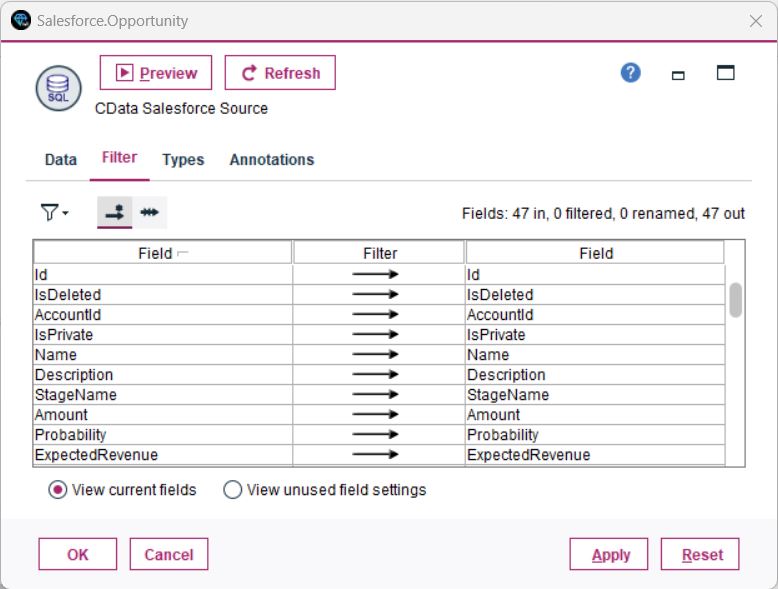
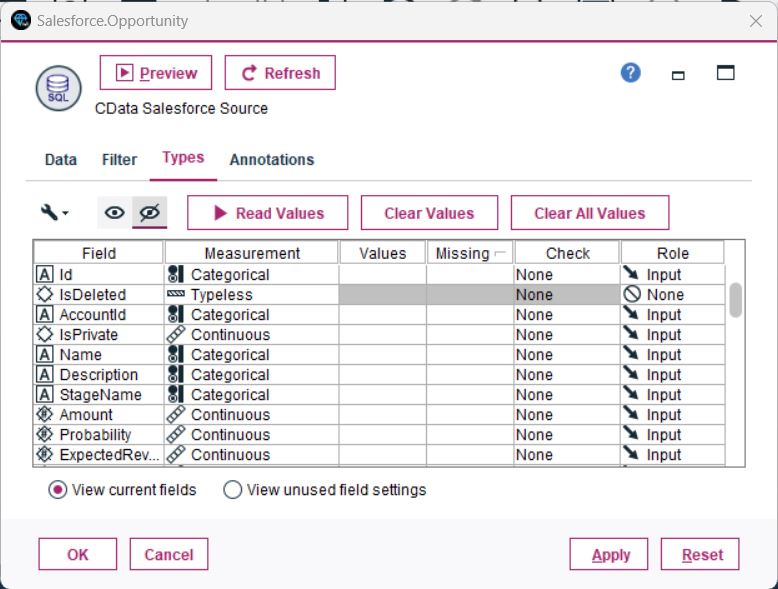
You have now performed a simple analysis, enabling SPSS Modeler to process and display insights from your database.
Unlock the Potential of Your ServiceDesk Plus Data with CData
With the CData API Driver for ODBC, connecting ServiceDesk Plus data data to IBM SPSS Modeler is seamless. Start your free trial today and unlock the full potential of your real-time data for advanced analytics and decision-making.