






Use Databricks Agent Bricks to Talk to Your ServiceNow Data via CData Connect AI
Databricks Agent Bricks is a fully managed, production-ready framework within the Databricks platform for building, deploying, and orchestrating AI agents. Agent Bricks enables teams to compose Supervisor Agents that coordinate external tools and data sources, including MCP Servers, to automate complex enterprise workflows with live, real-time data.
CData Connect AI offers a dedicated cloud-to-cloud interface for connecting to ServiceNow data. Databricks Agent Bricks can authenticate securely against the CData Connect AI MCP Server without requiring user interaction. This allows Supervisor Agents to query and act on your ServiceNow data autonomously, all without the need for data replication to a natively supported database.
In this guide, you will set up an OAuth App in CData Connect AI, configure an MCP Server connection in Databricks, and create a Supervisor Agent in Agent Bricks that queries live ServiceNow data through the Connect AI MCP Server.
About ServiceNow Data Integration
CData simplifies access and integration of live ServiceNow data. Our customers leverage CData connectivity to:
- Get optimized performance since CData uses the REST API for data and the SOAP API for schema.
- Read, write, update, and delete ServiceNow objects like Schedules, Timelines, Questions, Syslogs and more.
- Use SQL stored procedures for actions like adding items to a cart, submitting orders, and downloading attachments.
- Securely authenticate with ServiceNow, including basic (username and password), OKTA, ADFS, OneLogin, and PingFederate authentication schemes.
Many users access live ServiceNow data from preferred analytics tools like Tableau, Power BI, and Excel, and use CData solutions to integrate ServiceNow data with their database or data warehouse.
Getting Started
Prerequisites
Before you begin, ensure you have the following:
- A Databricks workspace with access to the Mosaic AI — Agent Bricks feature.
- A CData Connect AI account. Sign up for a free trial if you don’t have one.
- At least one data source connected to your CData Connect AI account.
Step 1: Create an OAuth App in CData Connect AI
Databricks Agent Bricks uses OAuth Machine-to-Machine (M2M) authentication to connect to the CData Connect AI MCP Server. This requires creating a service-based OAuth App in your CData Connect AI account to generate a Client ID and Client Secret.
- Click the Gear icon () in the top-right corner of Connect AI to open Settings.
- Navigate to OAuth Apps and click + Create App. The Create OAuth App dialog appears.
- Enter the following settings:
- Name — Enter a descriptive name for the OAuth app (e.g., DatabricksOAuth).
- Authentication Flow — Select Service-based (client credentials).
- Callback URL — Since there is no callback URL required for M2M, enter a placeholder URL such as https://localhost/callback.
- User — Select the CData Connect AI user account under which this OAuth app will run and access your ServiceNow data.
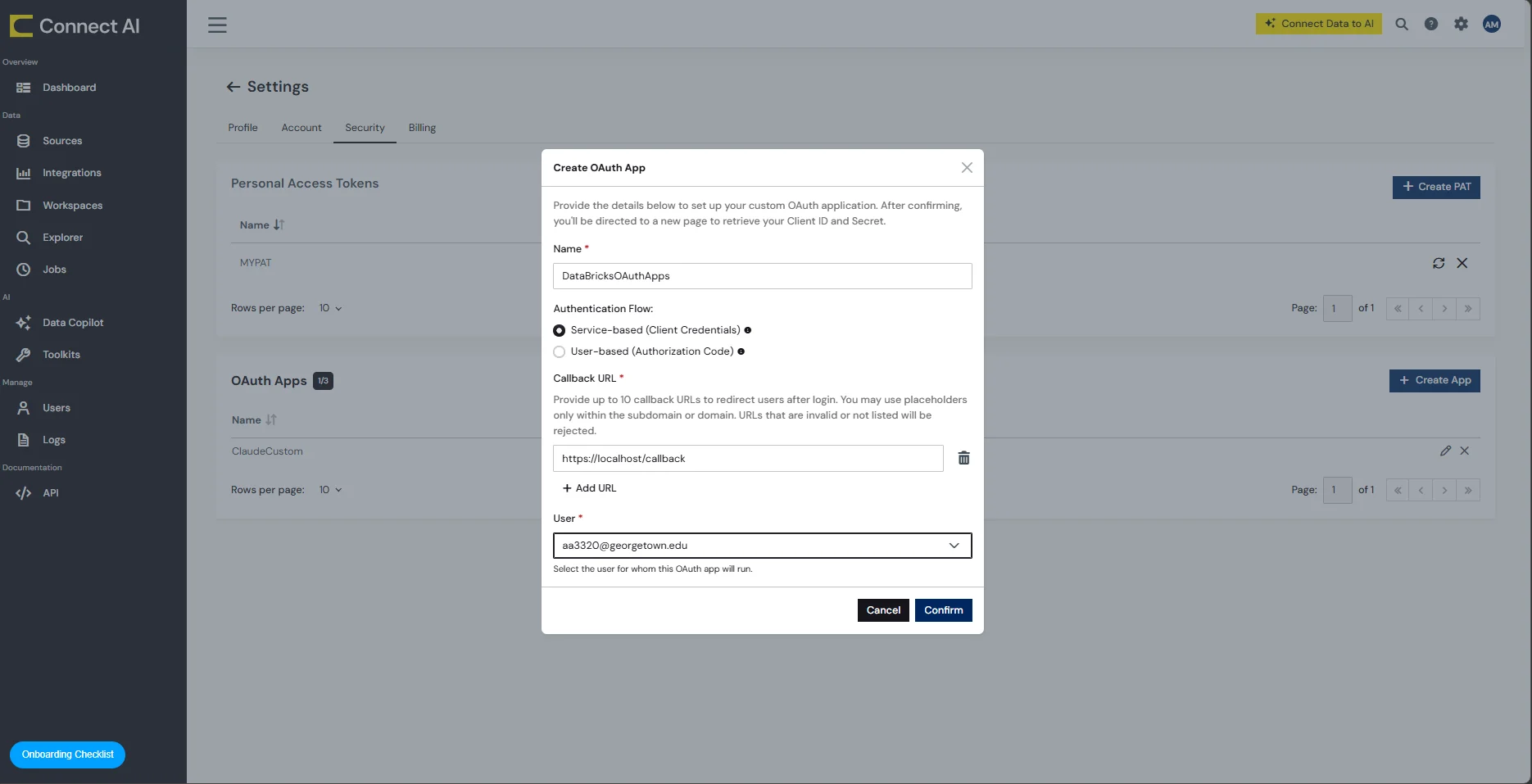
- Click Confirm. CData Connect AI creates the OAuth App and generates a Client ID and Client Secret.
- Copy both the Client ID and Client Secret values. You will need them in the next step.
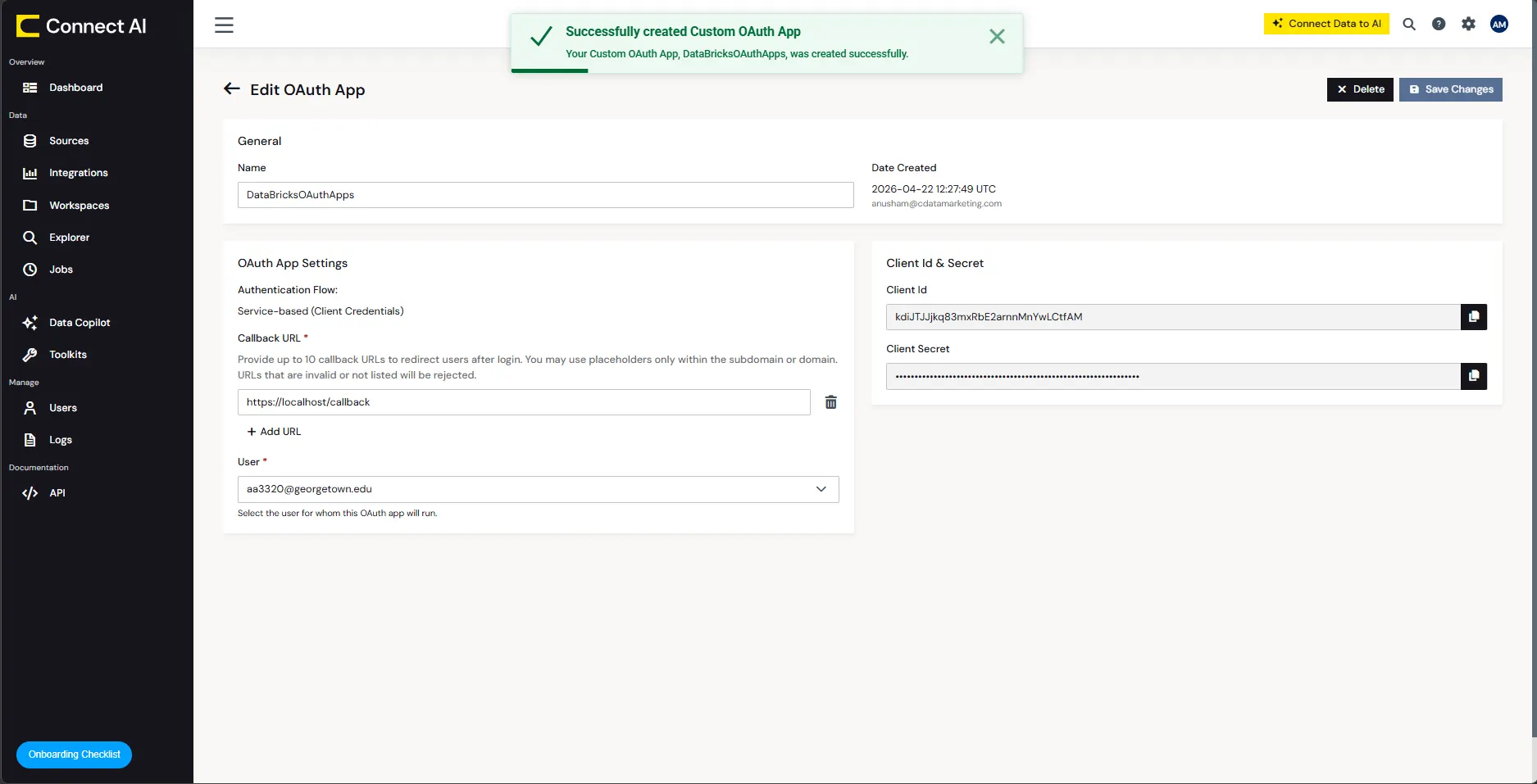
Step 2: Create an MCP Server Connection in Databricks
With your OAuth App credentials in hand, you can now create an HTTP connection in Databricks Unity Catalog that points to the CData Connect AI MCP Server and authenticates using OAuth M2M.
- Open your Databricks workspace and navigate to the Catalog tab.
- Click the + icon and select Create connection from the drop-down list.
- In Step 1: Connection basics, enter the following:
- Connection name — Enter a user-defined name for this connection (e.g., CData Connect AI MCP).
- Connection type — Select HTTP.
- Auth type — Select OAuth Machine to Machine.
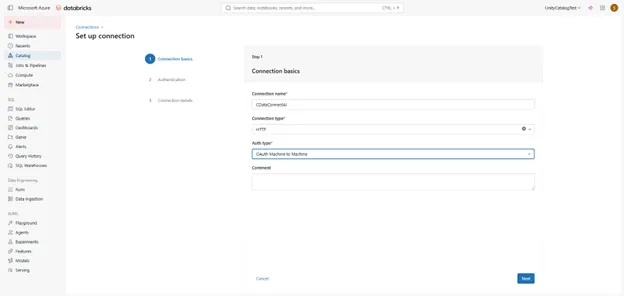
- Click Next.
- In Step 2: Authentication, enter the following:
- Host — Enter https://mcp.cloud.cdata.com.
- Port — Leave the default port.
- Client Secret — Enter the Client Secret you copied from the OAuth App.
- Client ID — Enter the Client ID you copied from the OAuth App.
- OAuth scope — Leave blank.
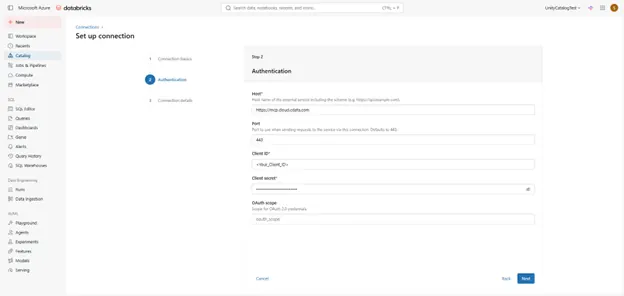
- Click Next.
- In Step 3: Connection details, enter the following:
- Token endpoint — Enter https://cloud-login.cdata.com/oauth/token.
- Base path — Enter /mcp.
- Is MCP connection — Select (enable) this option.
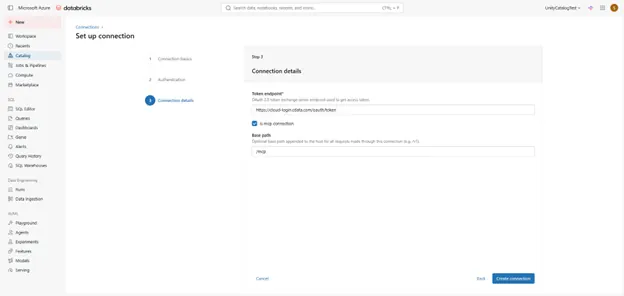
- Click Create connection. Databricks creates and validates the MCP Server connection.
Step 3: Create a Supervisor Agent in Agent Bricks
With the MCP Server connection established in Databricks, you can now create a Supervisor Agent in Agent Bricks that uses CData Connect AI as a tool to access your live ServiceNow data.
- In your Databricks workspace, navigate to the Agents tab.
- Click Create Agent.
- Select Supervisor Agent as the agent type.
- In the Create Supervisor Agent dialog, enter the following:
- Name — Enter a name for your agent.
- Description — Enter a description of what this agent does.
- Under Configure Agents, add a tool with the following settings:
- Type — Select External MCP Server.
- Unity Catalog connection — Select the MCP Server connection you created in the previous step.
- Describe the content — Enter a description of what this MCP connection provides.
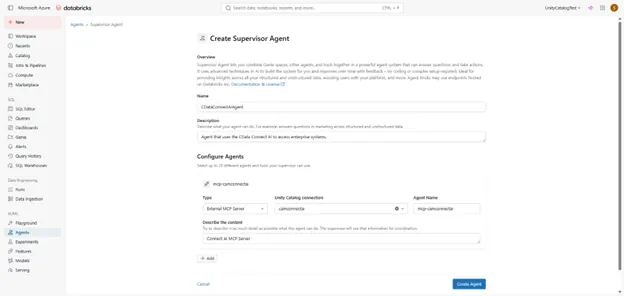
- Click Create Agent. Agent Bricks provisions your Supervisor Agent.
Step 4: Explore Live ServiceNow Data with Agent Bricks
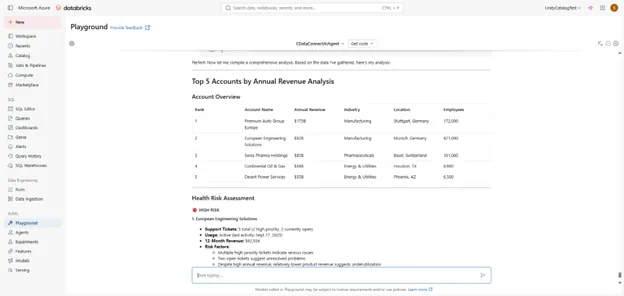
Your Supervisor Agent is now configured and ready to query live ServiceNow data through the CData Connect AI MCP Server. Use the Agent Bricks Playground to test natural language queries against your ServiceNow data.
- On your agent’s page, click Open in Playground.
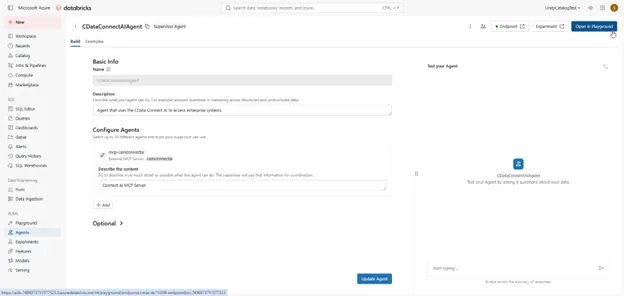
-
Enter a natural language prompt to query your ServiceNow data.
Refer to CData’s prompt library for prompt ideas for your data source.
Get CData Connect AI
To get live data access to 350+ SaaS, Big Data, and NoSQL sources directly from your cloud applications, try CData Connect AI today!