






Integrate Snowflake with JetBrains RubyMine using CData JDBC Drivers

CData JDBC Driver for Snowflake offer standardized JDBC connectivity to 200+ data sources, allowing developers to treat SaaS and cloud APIs as relational databases. By integrating these drivers into JetBrains RubyMine, user can connect IDE directly to external systems like CRM or ERP platforms, enabling SQL based data access and real-time querying.
RubyMine is a advanced IDE for Ruby and Rails development that offers advanced coding assistance, debugging, and database tools. Through CData JDBC integration, developers can link RubyMine with Snowflake for easy access to live Snowflake data.
Overview
Here is a quick overview of the integration process:
- Set Up Environment: Configure the Ruby interpreter in RubyMine
- Install JDBC Driver: Add the CData JDBC Driver for Snowflake to RubyMine's database configuration
- Connect: Establish a live connection to Snowflake and begin querying Snowflake data
About Snowflake Data Integration
CData simplifies access and integration of live Snowflake data. Our customers leverage CData connectivity to:
- Reads and write Snowflake data quickly and efficiently.
- Dynamically obtain metadata for the specified Warehouse, Database, and Schema.
- Authenticate in a variety of ways, including OAuth, OKTA, Azure AD, Azure Managed Service Identity, PingFederate, private key, and more.
Many CData users use CData solutions to access Snowflake from their preferred tools and applications, and replicate data from their disparate systems into Snowflake for comprehensive warehousing and analytics.
For more information on integrating Snowflake with CData solutions, refer to our blog: https://www.cdata.com/blog/snowflake-integrations.
Getting Started
Configure the Ruby Interpreter in RubyMine
After installing the Ruby interpreter, open RubyMine and configure the environment.
- Create a New Empty Project
- Select the interpreter for example, C:\Ruby34-x64\bin uby.exe
- Click Create to initialize the project
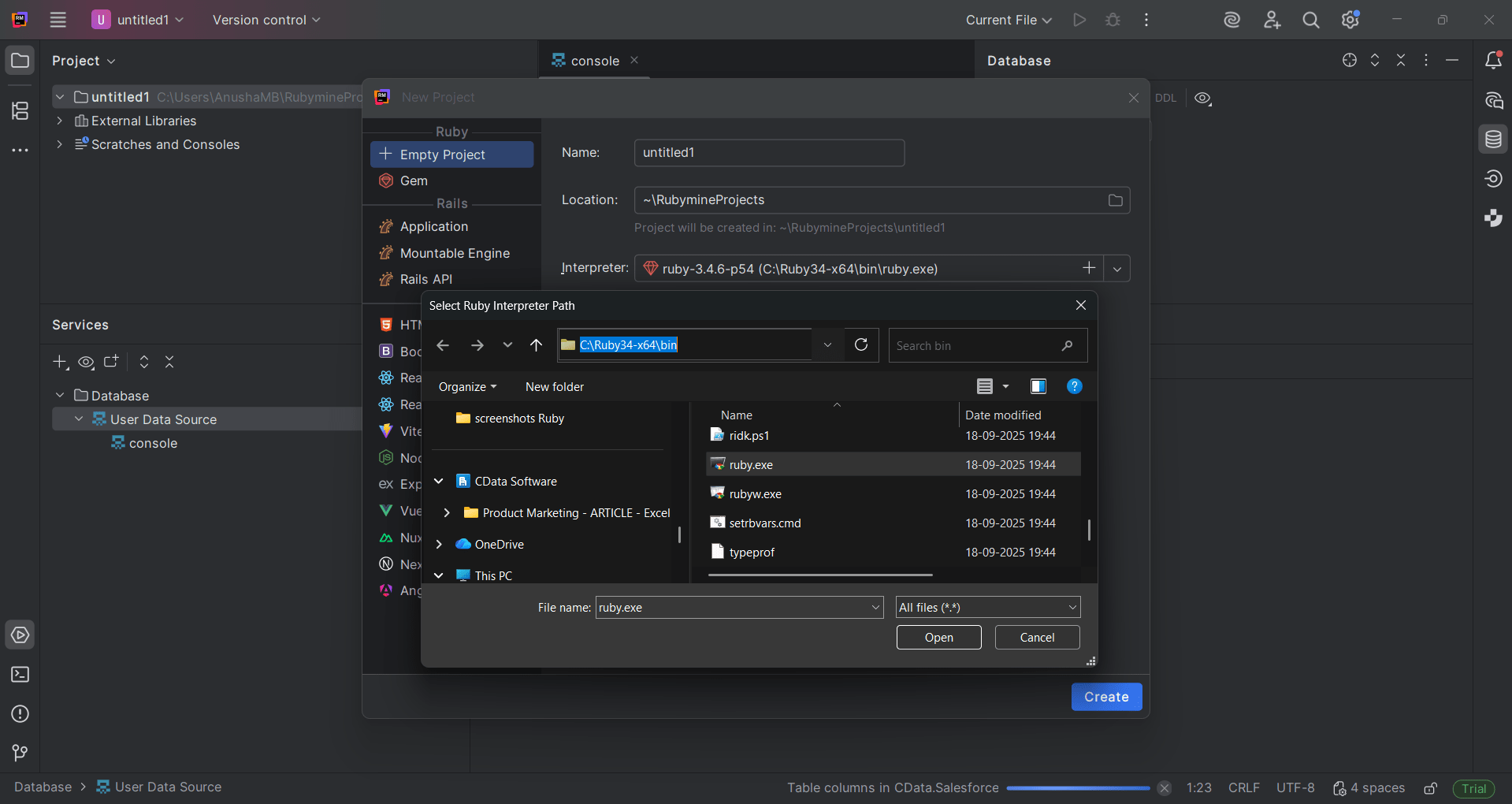
Add the CData JDBC Driver for Snowflake
Next, configure the CData JDBC Driver for Snowflake within RubyMine.
- Go to View, select Tool Windows and click Database to open the database panel
- Click the "+" icon and choose Driver from the dropdown
- In the Data Sources and Drivers window:
- Provide a Name for the driver (e.g., CData Snowflake JDBC)
- Click "+" in the Driver Files section and select Custom JARs
- Locate and open the cdata.jdbc.snowflake.jar file
- Set the Class to cdata.jdbc.snowflake.SnowflakeDriver
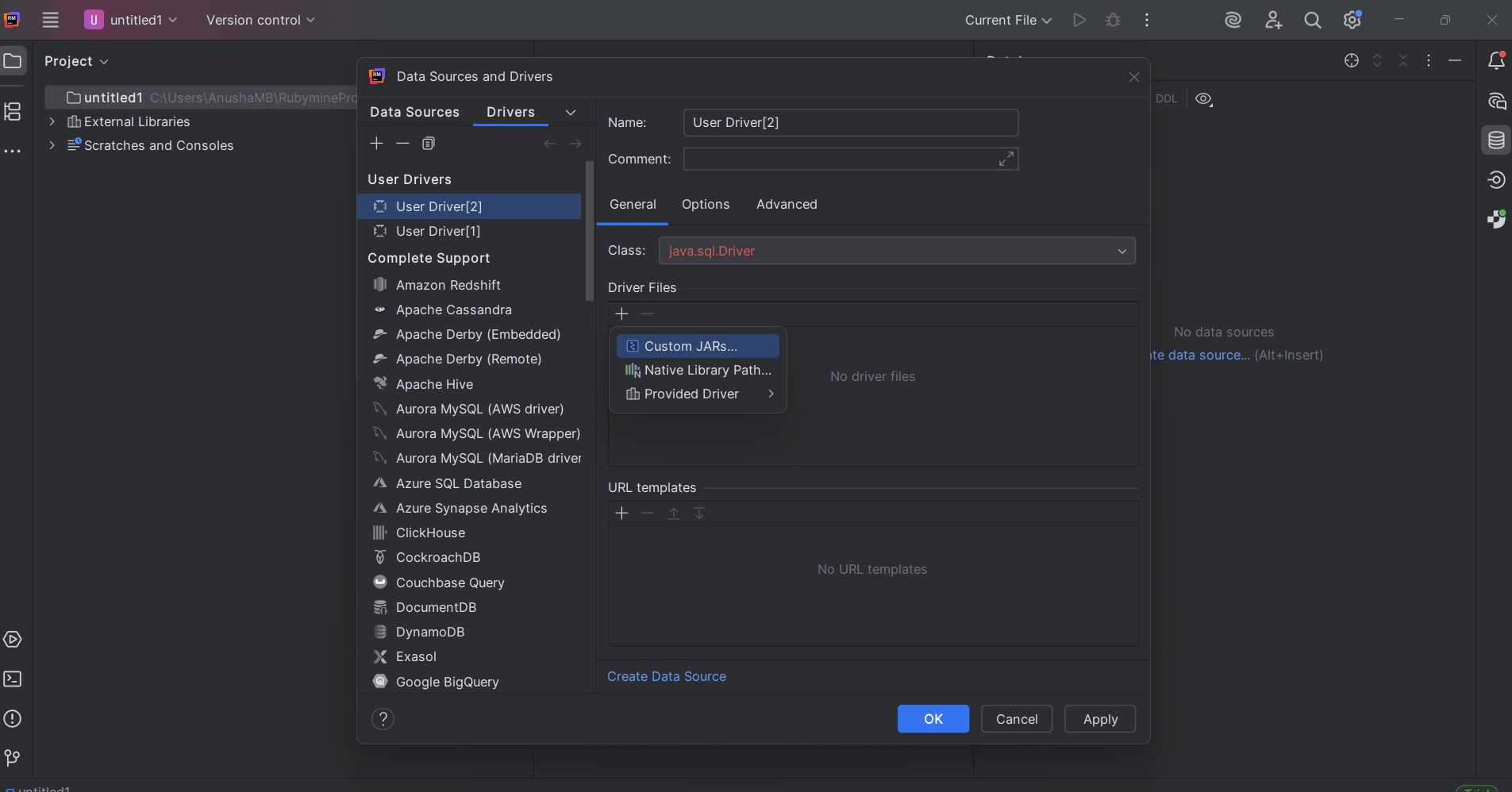
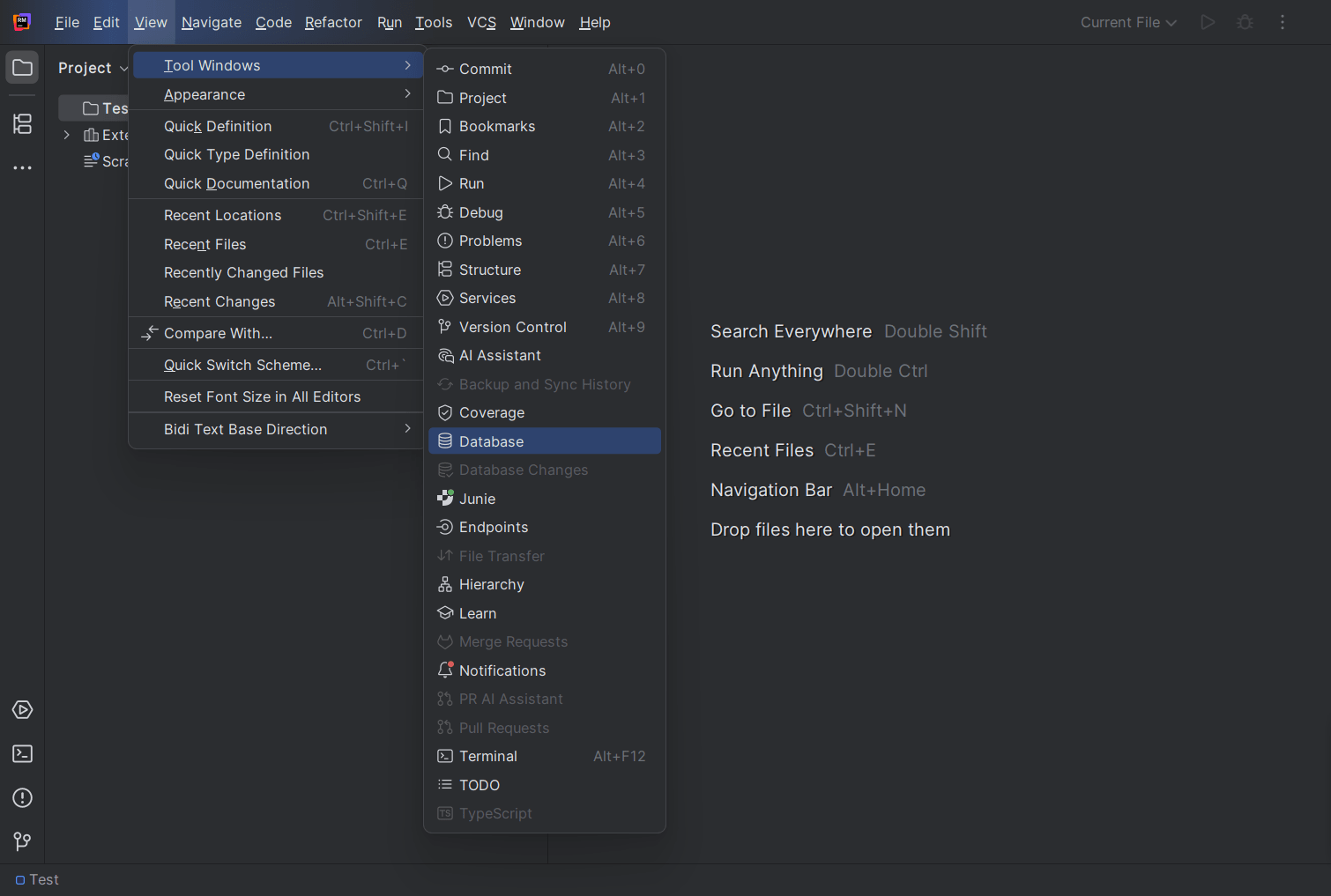
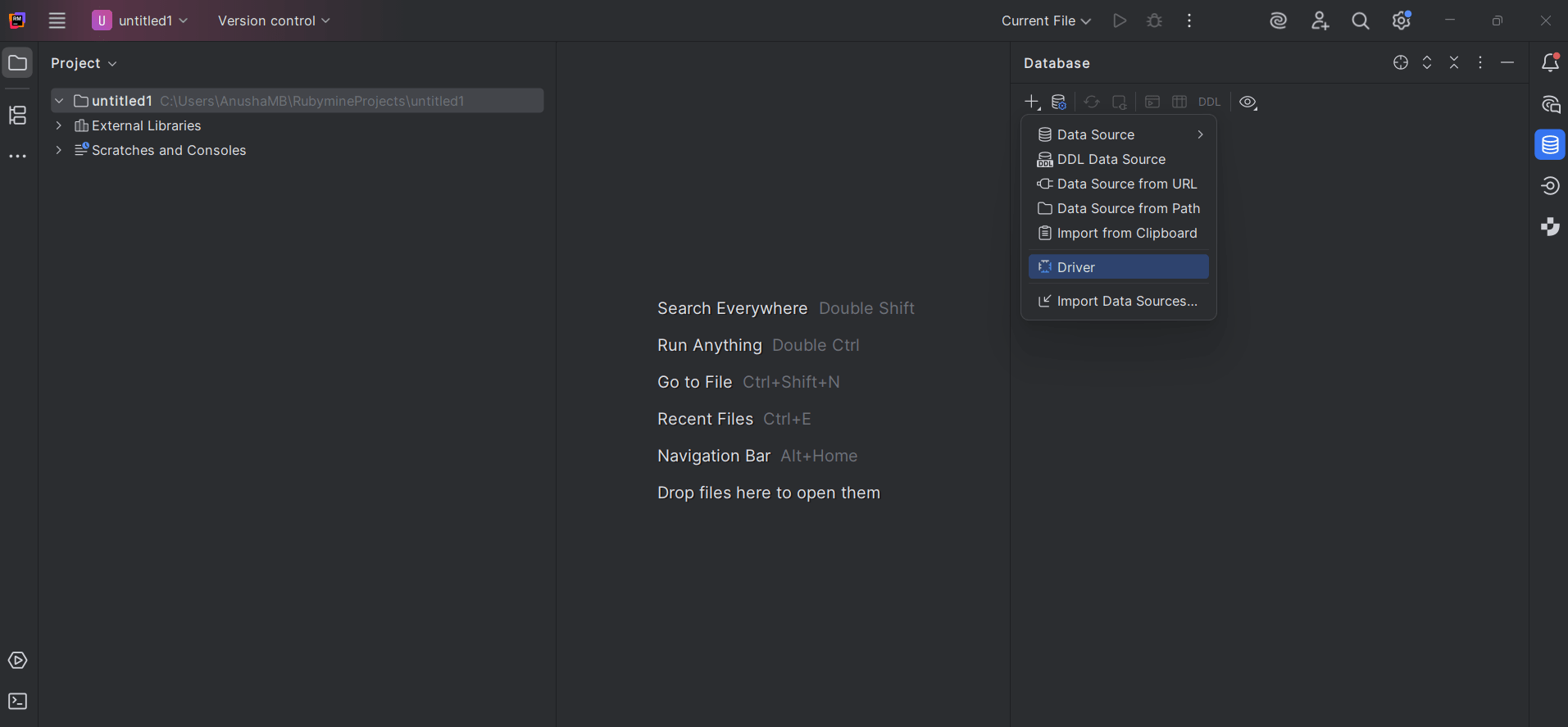
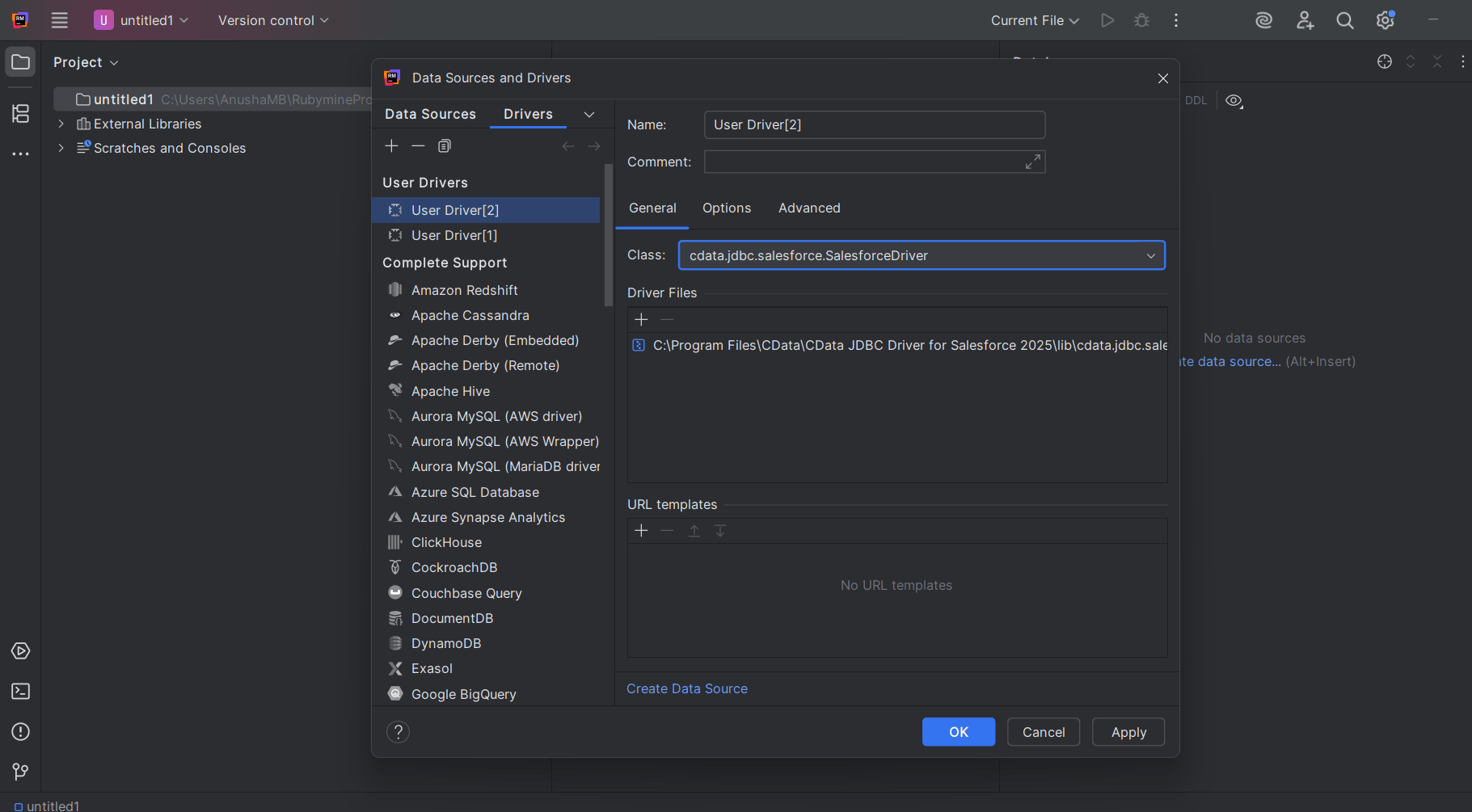
Create the Snowflake data source
- Click Create Data Source and choose the newly created driver
- In the connection window, confirm that the selected driver is correct
- Enter your connection details:
- Name: Snowflake Connection
- URL: jdbc:snowflake:User=username;Password=password;
- Username and Password: User Snowflake credentials
- Click Test Connection. If successful, click OK to save

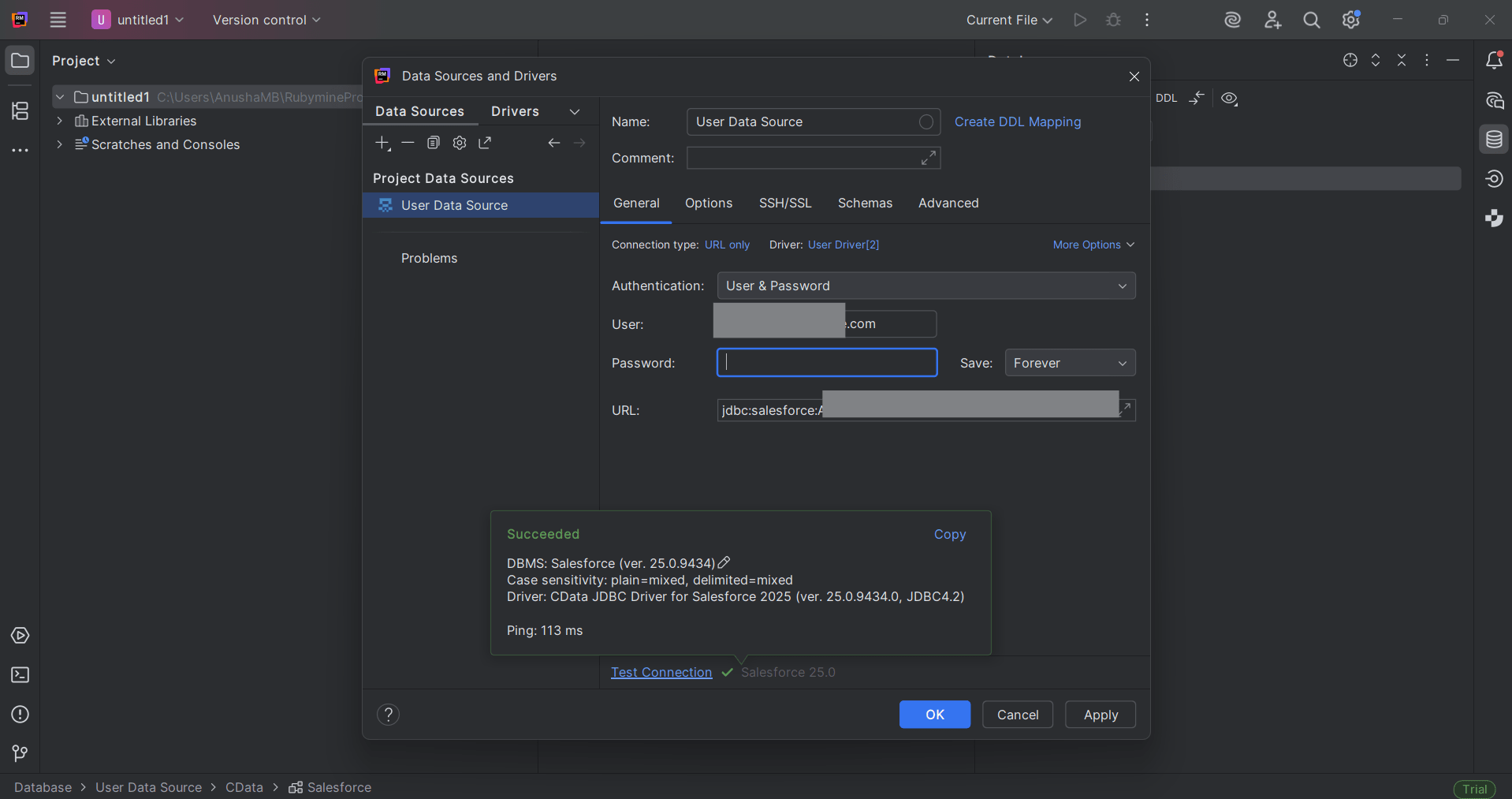
Query live Snowflake data
Once the connection is established, you can query live Snowflake data directly within RubyMine.
- Open the Database Console
- Run SQL queries, for example:
SELECT * FROM Snowflake data_Table LIMIT 10;
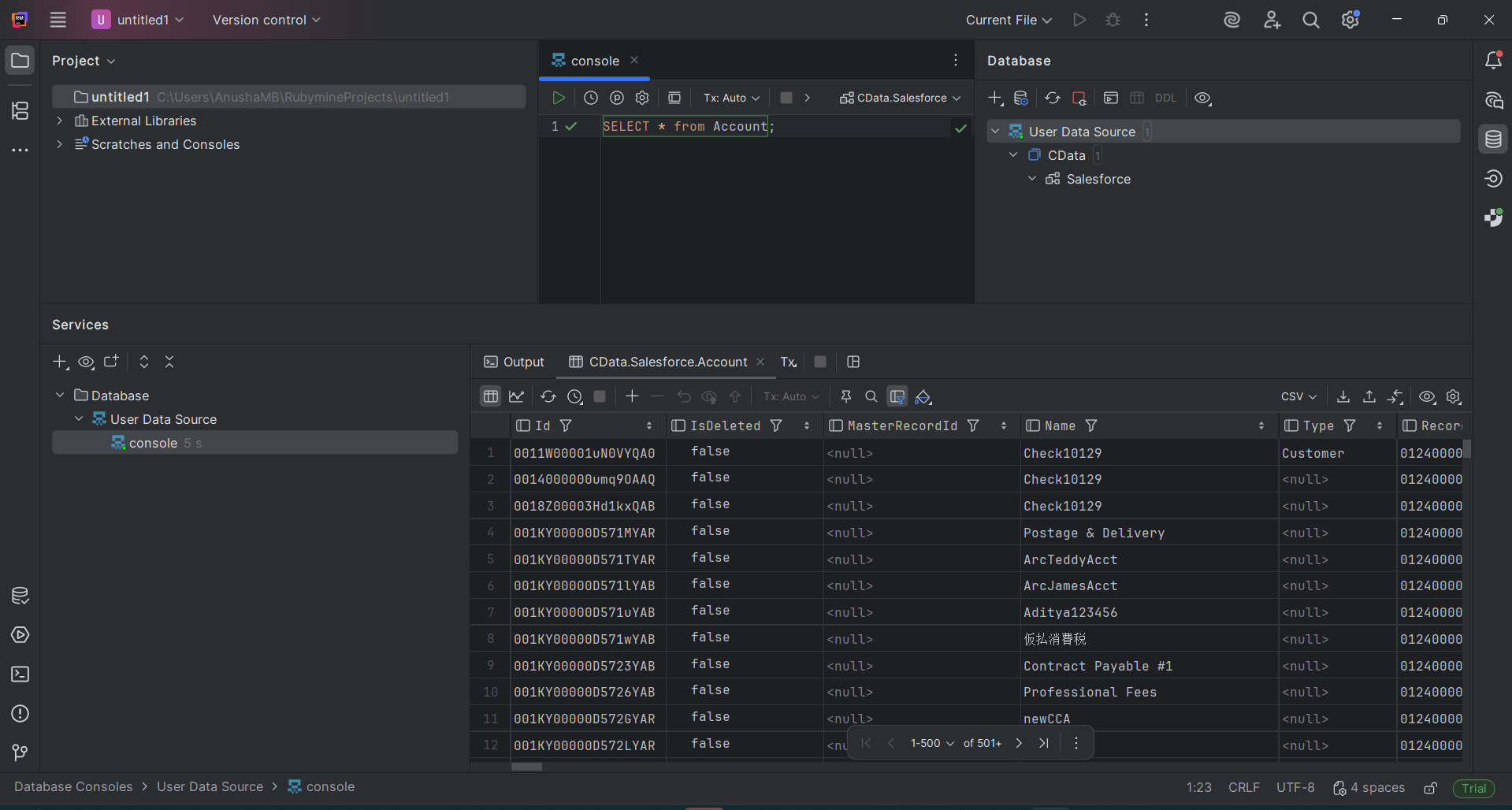
Developers can now easily access and manipulate Snowflake data using SQL inside RubyMine bridging code development and live data access in one unified environment.
Connect RubyMine to 300+ Data Sources with CData
CData JDBC Drivers bring real time data connectivity to your development environment. With support for over 300+ sources, including CRM, ERP, analytics, and cloud APIs, developers can query, visualize, and build data driven applications without leaving their IDE.
Start your 30-day free trial to experience the full potential of live data connectivity.
Ready to get started?
Download a free trial of the Snowflake Driver to get started:
Download NowLearn more:
 Snowflake JDBC Driver
Rapidly create and deploy powerful Java applications that integrate with Snowflake.
