






Build Semantic Layer Views for Spotify Data in APOS Live Data Gateway

APOS Live Data Gateway (LDG) is a data connection and data transformation solution that enables live data connectivity and expanded data source options for SAP Analytics Cloud and other SAP solutions. When paired with CData Connectors, users can build semantic layer views for live Spotify data, enabling real-time analytics on Spotify just like working with a relational database.
With built-in optimized data processing, the CData Connector offers unmatched performance for interacting with live Spotify data. When you issue complex SQL queries to Spotify, the driver pushes supported SQL operations, like filters and aggregations, directly to Spotify and utilizes the embedded SQL engine to process unsupported operations client-side (often SQL functions and JOIN operations). Its built-in dynamic metadata querying allows you to work with and analyze Spotify data using native data types.
Download and Install the Connector Files
In order to access Spotify data through the APOS Live Data Gateway, you will need to download the connector files from APOS and install them on the machine hosting the Live Data Gateway. An APOS representative can deliver the necessary files.
- Install the CData DLL file (System.Data.CData.API.dll) to the APOS Live Data Gateway installation directory (C:\Program Files\Live Data Gateway\Admin\ by default).
- Install the CData JAR file (cdata.jdbc.api.jar) to the ConnectionTest_lib folder in the installation directory (C:\Program Files\Live Data Gateway\Admin\ConnectionTest_lib\ by default).
- Install the CData JAR file (cdata.jdbc.api.jar) to the lib folder in the Web UI installation directory (e.g.: C:\LDG_WebUI\lib\)
Configuring the Spotify Connection String
Before establishing the connection to Spotify from the APOS Live Data Gateway, you need to configure the Spotify JDBC Connection String.
Built-in Connection String Designer
For assistance in constructing the JDBC Connection String, use the connection string designer built into the Spotify JDBC Driver. Either double-click the JAR file or execute the jar file from the command-line.
java -jar cdata.jdbc.api.jar
Fill in the connection properties and copy the connection string to the clipboard.
Using OAuth Authentication
Spotify uses OAuth 2.0 for authentication. You will need to create an application in the Spotify Developer Dashboard to obtain your client credentials.
Setting Up Your Spotify Application
- Visit the Spotify Developer Dashboard.
- Log in with your Spotify account and click Create app.
- Provide an app name, description, and set a Redirect URI (e.g.,
http://localhost:33333
for desktop applications). - Copy your Client ID and Client Secret from the app settings.
Connection Properties
After setting the following connection properties, you are ready to connect:
- AuthScheme: Set this to OAuth.
- InitiateOAuth: Set this to GETANDREFRESH. You can use InitiateOAuth to manage the process to obtain the OAuthAccessToken.
- OAuthClientId: Set this to your Spotify application's Client ID.
- OAuthClientSecret: Set this to your Spotify application's Client Secret.
- Scope: Set this to the required OAuth scopes (space-separated). The default includes all read scopes needed for the tables in this profile.
- CallbackURL: Set this to the Redirect URI configured in your Spotify application (e.g., http://localhost:33333).
Example Connection String
Profile=C:\profiles\Spotify.apip;AuthScheme=OAuth;InitiateOAuth=GETANDREFRESH;OAuthClientId=your_client_id;OAuthClientSecret=your_client_secret;CallbackURL=http://localhost:33333;
Available OAuth Scopes
- user-read-private: Read access to user's subscription details and explicit content settings.
- user-read-email: Read access to user's email address.
- user-library-read: Read access to a user's saved tracks, albums, episodes, shows, and audiobooks.
- playlist-read-private: Read access to user's private playlists.
- playlist-read-collaborative: Read access to collaborative playlists the user follows.
- user-follow-read: Read access to the list of artists the current user follows.
- user-read-playback-state: Read access to a user's player state (device, current track, progress).
- user-read-currently-playing: Read access to a user's currently playing content.
- user-read-playback-history: Read access to a user's recently played tracks.
- user-top-read: Read access to a user's top artists and tracks.

Your connection string will look similar to the following:
jdbc:API:Profile=C:\profiles\Spotify.apip;AuthScheme=OAuth;InitiateOAuth=GETANDREFRESH;OAuthClientId=your_client_id;OAuthClientSecret=your_client_secret;CallbackURL=http://localhost:33333;
Connecting to Spotify & Creating a Semantic Layer View
After installing the connector files and configuring the connection string, you are ready to connect to Spotify in the Live Data Gateway Admin tool and build a semantic layer view in the Live Data Gateway Web UI.
Configuring the Connection to Spotify
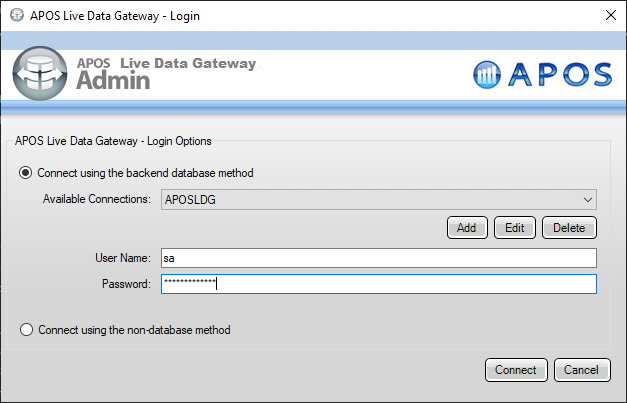
- Log into your APOS Live Data Gateway Manager
- If you haven't already, update your APOS LDG license file
- Click File -> Configurations
- Click on the "..." Menu for the License
- Select the license file from the APOS team that includes your CData Connector license
- In the APOS Live Data Gateway Manager, click "Add"
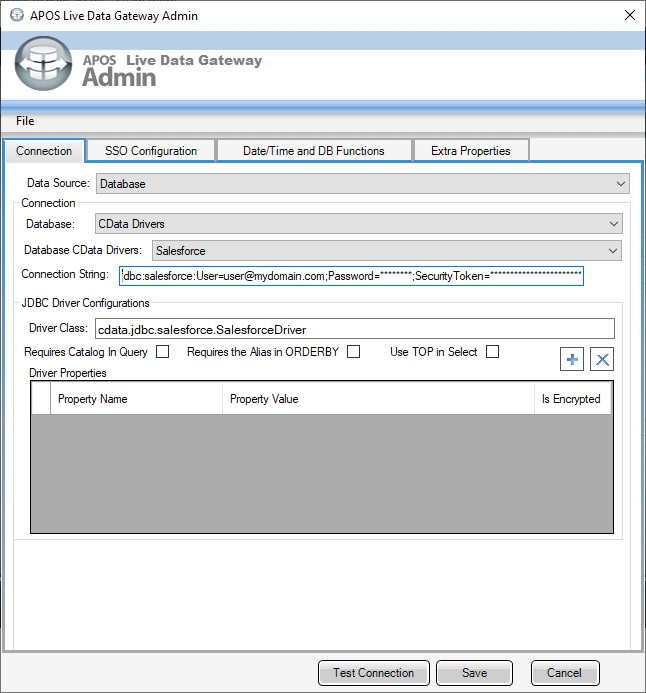
- In the APOS Live Data Gateway On the Connection tab, configure the connection:
- Set Data Source to "Database"
- Set Database to "CData Drivers"
- Set Database CData Drivers to "Spotify"
- Set Connection String to the connection string configured earlier (e.g.:
jdbc:API:Profile=C:\profiles\Spotify.apip;AuthScheme=OAuth;InitiateOAuth=GETANDREFRESH;OAuthClientId=your_client_id;OAuthClientSecret=your_client_secret;CallbackURL=http://localhost:33333;
- Set Driver Class to "cdata.jdbc.api.APIDriver" (this should be set by default)
- Click Test Connection
- Click Save
- Give your connection a unique prefix (e.g. "api")
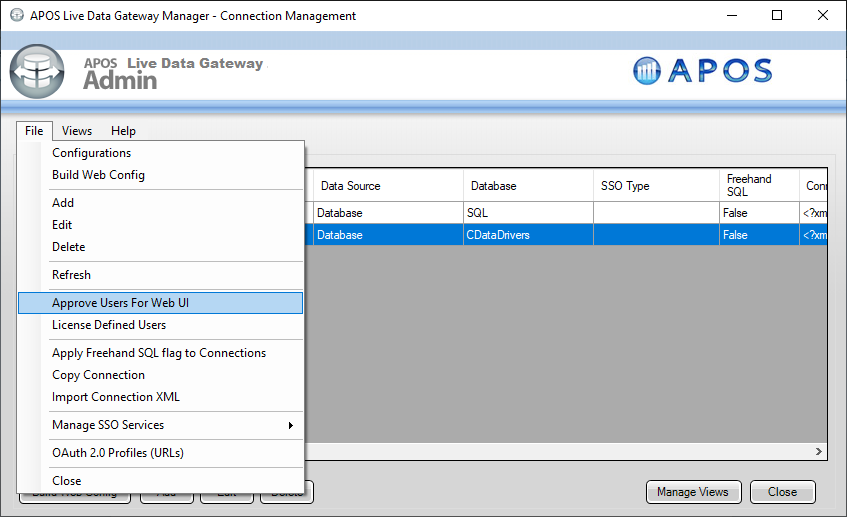
- Highlight the newly created connection and click File -> "Approve Users For Web UI"
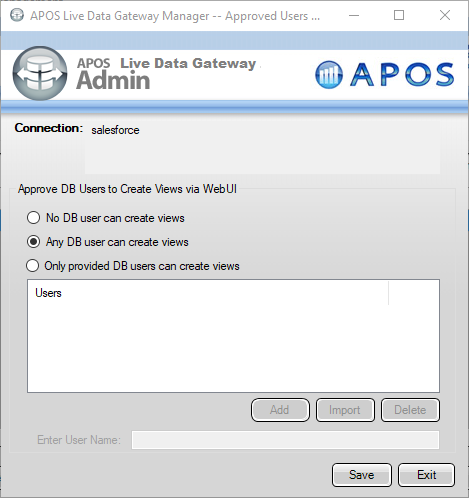
- Approve the appropriate DB users to create views and click "Save"
At this point, we are ready to build our semantic layer view in the Live Data Gateway Web UI.
Creating a Semantic Layer View
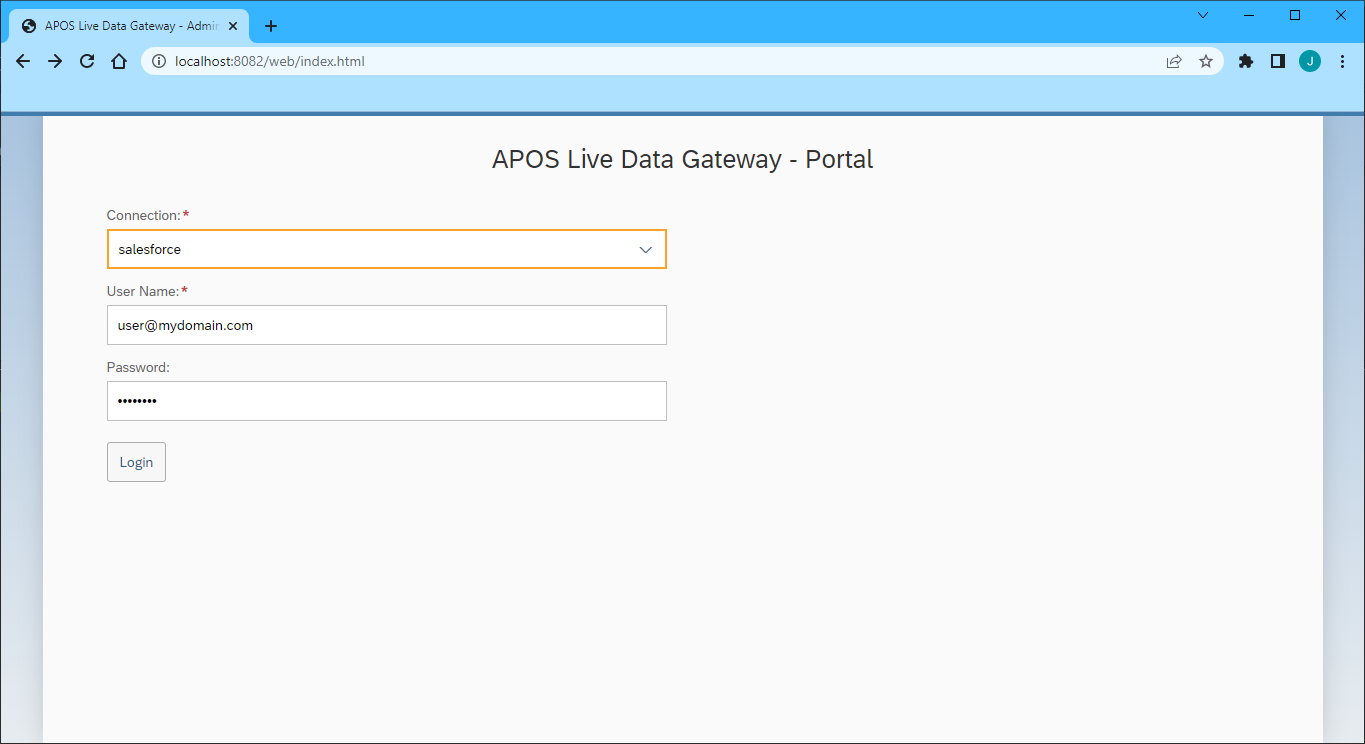
- In your browser, navigate to the APOS Live Data Gateway Portal
- Select a Connection (e.g. "api")
- Since Spotify does not require a User or Password to authenticate, you may use whatever values you wish for User Name and Password
- Click "Login"
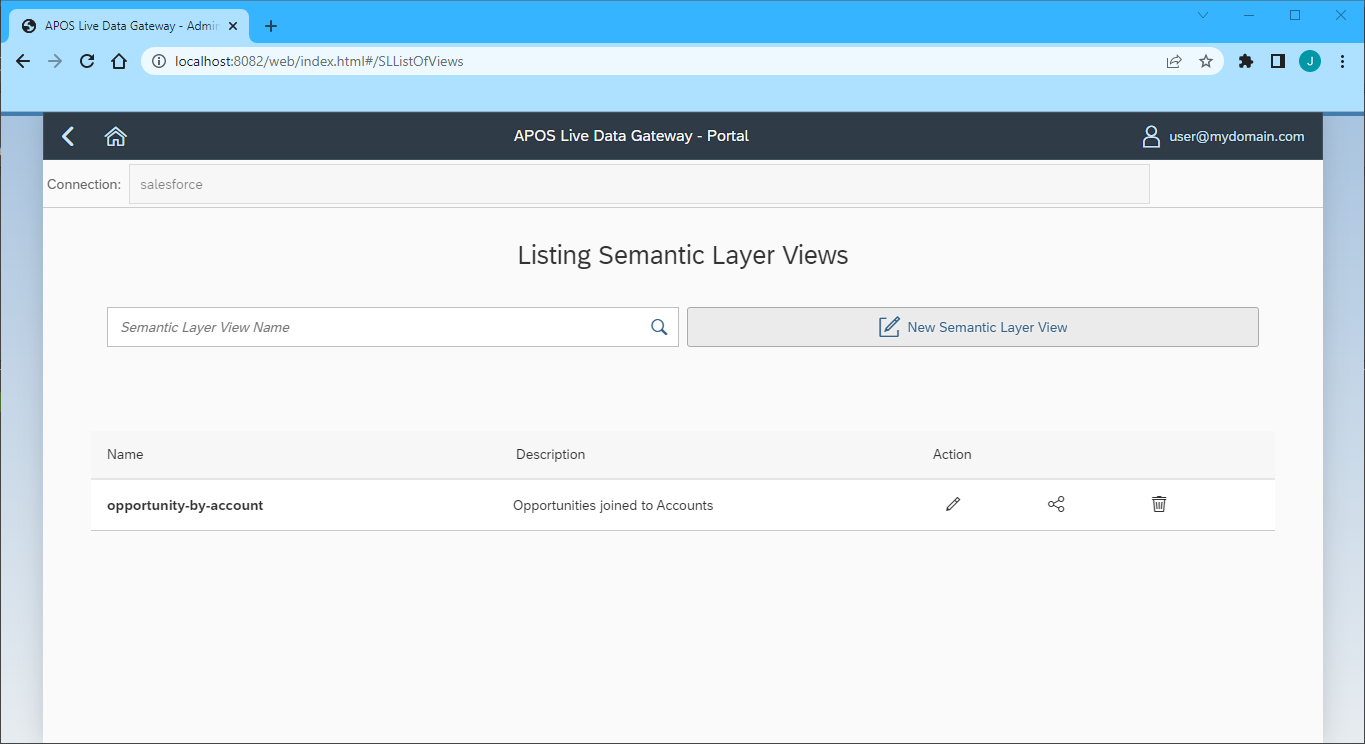
- Once connected, click "Semantic Layer" to create a new semantic layer view
- Click "New Semantic Layer View"
- Set the Semantic Layer View Prefix and Semantic Layer View Name
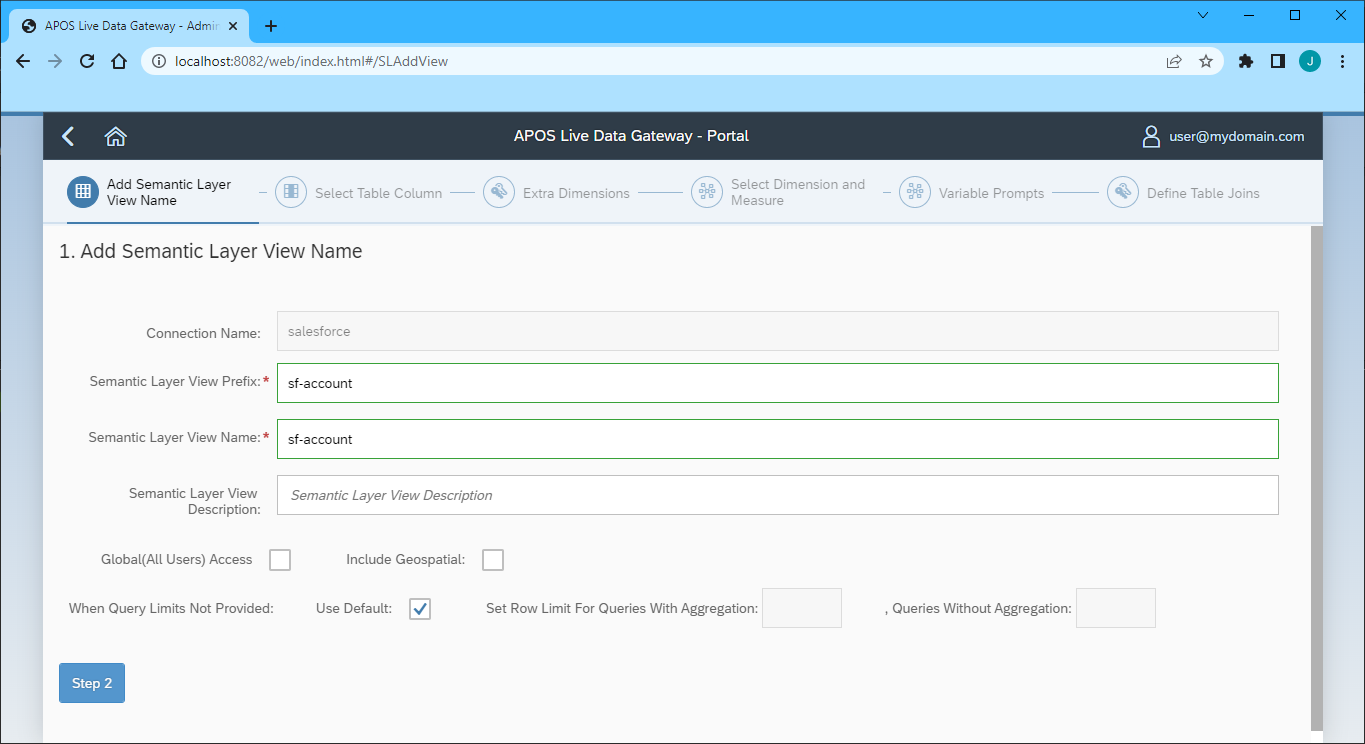
- Click "Step 2"
- Select the table(s) and column(s) you wish to include in your view
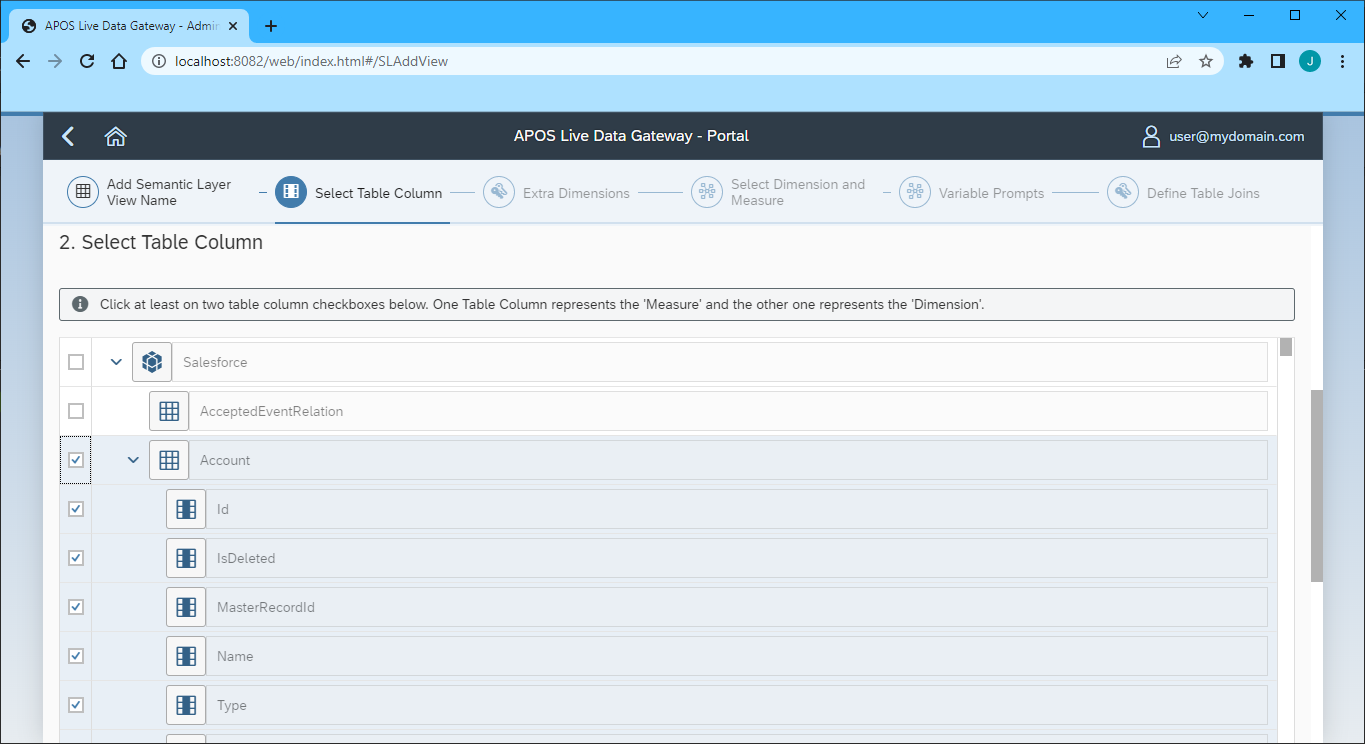
- Click "Step 3"
- Select the Measures from the available table columns
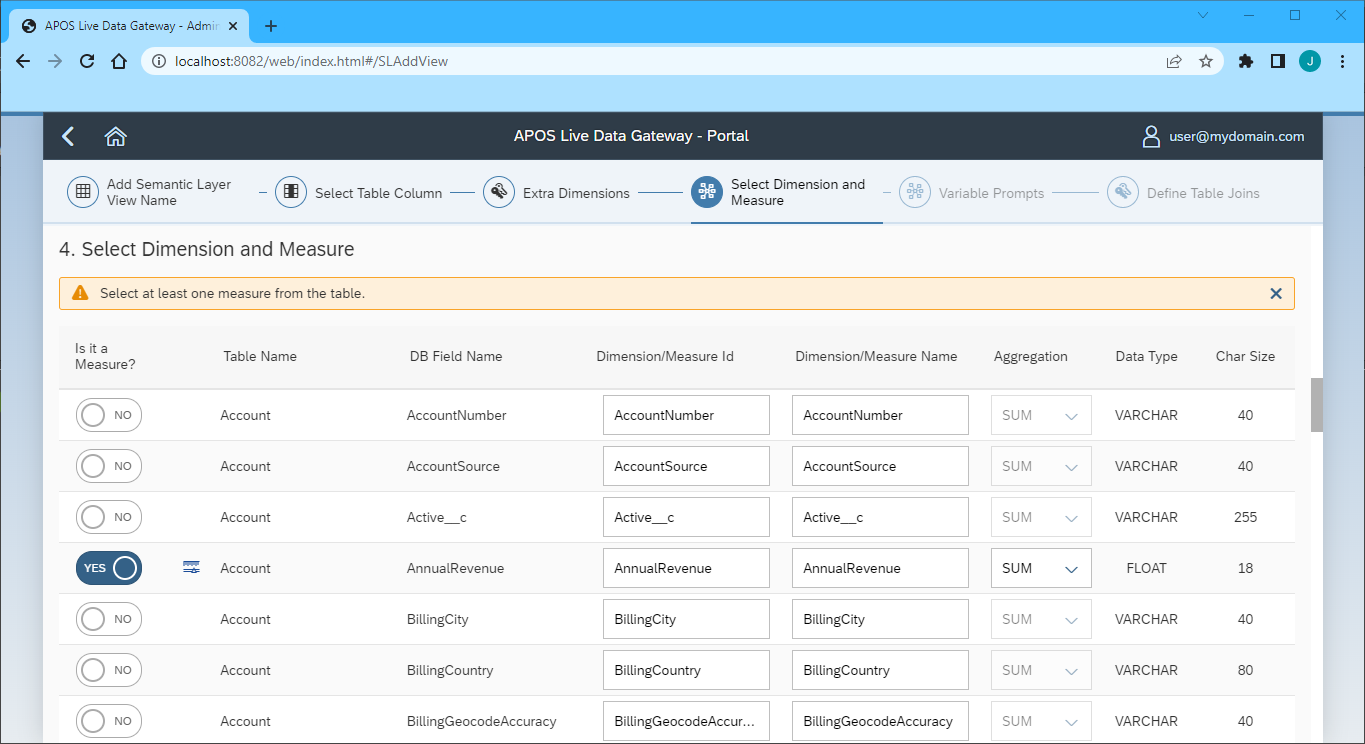
- Click "Step 5" (we skipped the "Extra Dimensions" step)
- Add any Variable Prompts
- Click "Step 6"
- Define any Table Joins
- Click "Review"
- Review you semantic layer view and click "Save"
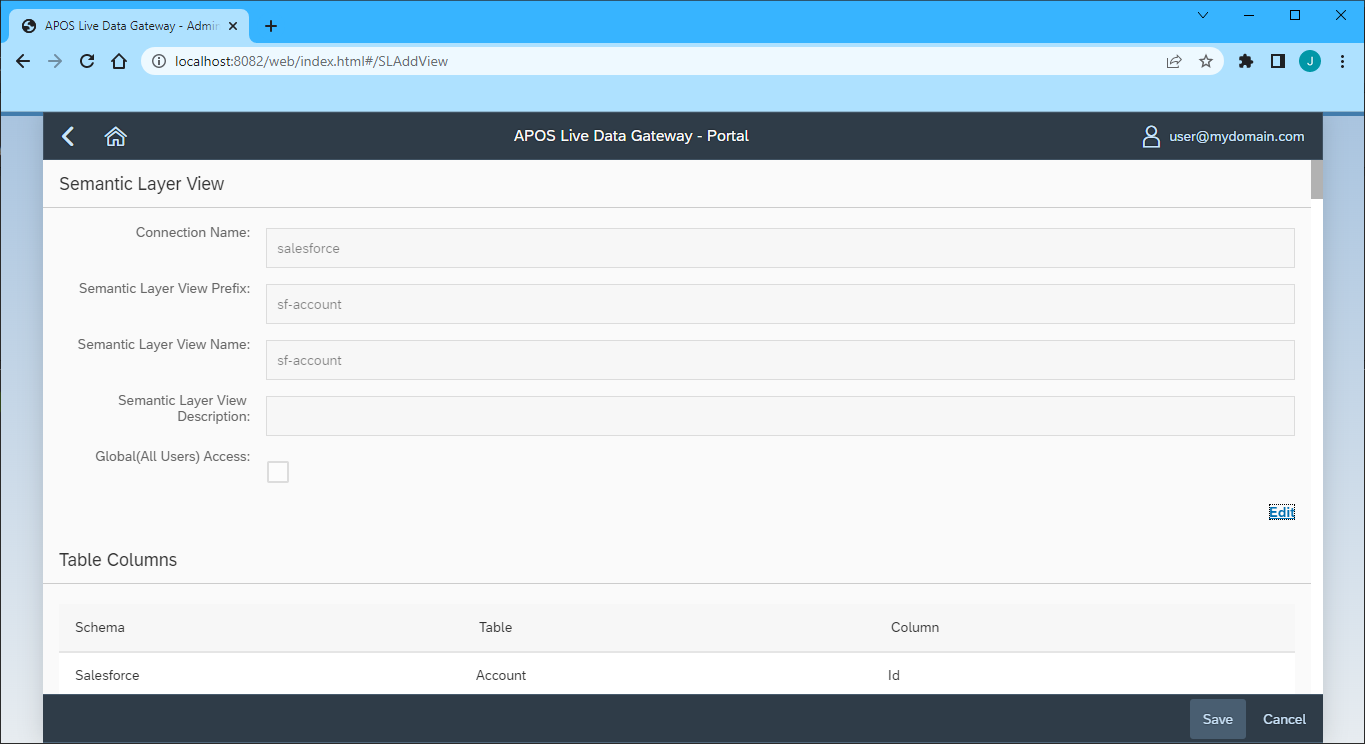
With the Semantic Layer View created, you are ready to access your Spotify data through the APOS Live Data Gateway, enabling real-time data connectivity to Spotify data from SAP Analytics Cloud and other SAP solutions.
More Information & Free Evaluation
Please visit APOS Systems - APOS Solutions - Request Evaluation Software to request evaluation software or email [email protected] for more information on working with your live Spotify data in APOS Live Data Gateway.