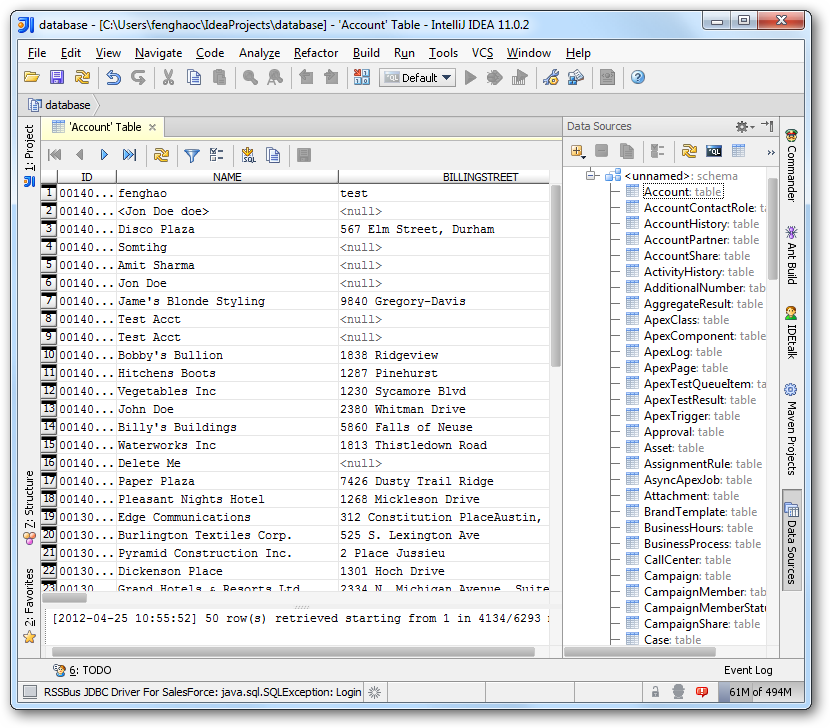
How to connect to Spotify Data from IntelliJ

The CData JDBC Driver for Spotify enables you to access Spotify as a JDBC data source, providing integration with rapid development tools in IDEs. This article shows how to use the data source configuration wizard to connect to Spotify data in IntelliJ.
Create a JBDC Data Source for Spotify
Follow the steps below to add the driver JAR and define connection properties required to connect to Spotify data.
- In the Data Sources window, right-click and then click Add Data Source -> DB Data Source.
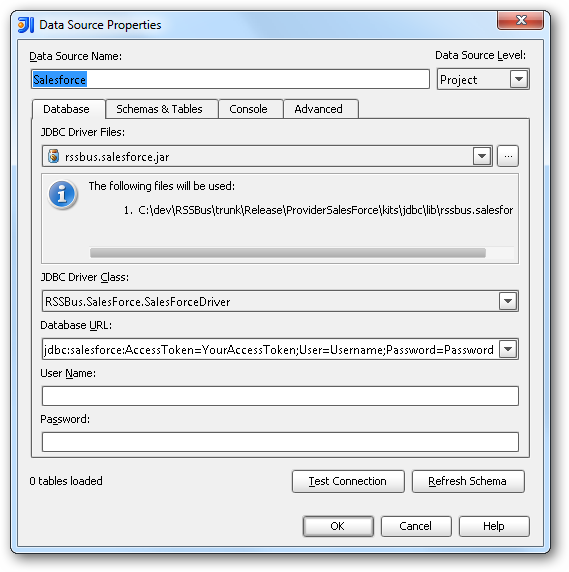
In the Data Source Properties dialog that appears, the following properties are required:
- JDBC Driver Files: Click the button next to this menu to add the JDBC Driver file cdata.jdbc.api.jar, located in the installation directory.
- JDBC Driver Class: In this menu, select cdata.jdbc.api.APIDriver from the list.
Database URL: Enter the connection URL in the JDBC URL property. The URL must start with jdbc:api: and includes connection properties separated with semicolons.
Using OAuth Authentication
Spotify uses OAuth 2.0 for authentication. You will need to create an application in the Spotify Developer Dashboard to obtain your client credentials.
Setting Up Your Spotify Application
- Visit the Spotify Developer Dashboard.
- Log in with your Spotify account and click Create app.
- Provide an app name, description, and set a Redirect URI (e.g.,
http://localhost:33333
for desktop applications). - Copy your Client ID and Client Secret from the app settings.
Connection Properties
After setting the following connection properties, you are ready to connect:
- AuthScheme: Set this to OAuth.
- InitiateOAuth: Set this to GETANDREFRESH. You can use InitiateOAuth to manage the process to obtain the OAuthAccessToken.
- OAuthClientId: Set this to your Spotify application's Client ID.
- OAuthClientSecret: Set this to your Spotify application's Client Secret.
- Scope: Set this to the required OAuth scopes (space-separated). The default includes all read scopes needed for the tables in this profile.
- CallbackURL: Set this to the Redirect URI configured in your Spotify application (e.g., http://localhost:33333).
Example Connection String
Profile=C:\profiles\Spotify.apip;AuthScheme=OAuth;InitiateOAuth=GETANDREFRESH;OAuthClientId=your_client_id;OAuthClientSecret=your_client_secret;CallbackURL=http://localhost:33333;
Available OAuth Scopes
- user-read-private: Read access to user's subscription details and explicit content settings.
- user-read-email: Read access to user's email address.
- user-library-read: Read access to a user's saved tracks, albums, episodes, shows, and audiobooks.
- playlist-read-private: Read access to user's private playlists.
- playlist-read-collaborative: Read access to collaborative playlists the user follows.
- user-follow-read: Read access to the list of artists the current user follows.
- user-read-playback-state: Read access to a user's player state (device, current track, progress).
- user-read-currently-playing: Read access to a user's currently playing content.
- user-read-playback-history: Read access to a user's recently played tracks.
- user-top-read: Read access to a user's top artists and tracks.
Built-in Connection String Designer
For assistance in constructing the JDBC URL, use the connection string designer built into the Spotify JDBC Driver. Either double-click the JAR file or execute the jar file from the command-line.
java -jar cdata.jdbc.api.jar
Fill in the connection properties and copy the connection string to the clipboard.

A typical JDBC URL is the following:
jdbc:api:Profile=C:\profiles\Spotify.apip;AuthScheme=OAuth;InitiateOAuth=GETANDREFRESH;OAuthClientId=your_client_id;OAuthClientSecret=your_client_secret;CallbackURL=http://localhost:33333;
Edit and Save Spotify Data
To discover schema information, right-click the data source you just created and click Refresh Tables. To query a table, right-click it and then click Open Tables Editor.