






Stream Spotify Data into Apache Kafka Topics

Apache Kafka is an open-source stream processing platform that is primarily used for building real-time data pipelines and event-driven applications. When paired with the CData API Driver for JDBC, Kafka can work with live Spotify data. This article describes how to connect, access and stream Spotify data into Apache Kafka Topics and to start Confluent Control Center to help users secure, manage, and monitor the Spotify data received using Kafka infrastructure in the Confluent Platform.
With built-in optimized data processing, the CData JDBC Driver offers unmatched performance for interacting with live Spotify data. When you issue complex SQL queries to Spotify, the driver pushes supported SQL operations, like filters and aggregations, directly to Spotify and utilizes the embedded SQL engine to process unsupported operations client-side (often SQL functions and JOIN operations). Its built-in dynamic metadata querying allows you to work with and analyze Spotify data using native data types.
Prerequisites
Before connecting the CData JDBC Driver for streaming Spotify data in Apache Kafka Topics, install and configure the following in the client Linux-based system.
- Confluent Platform for Apache Kafka
- Confluent Hub CLI Installation
- Self-Managed Kafka JDBC Source Connector for Confluent Platform
Define a New JDBC Connection to Spotify data
- Download CData API Driver for JDBC on a Linux-based system
- Follow the given instructions to create a new directory extract all the driver contents into it:
- Create a new directory named Spotify
mkdir API
- Move the downloaded driver file (.zip) into this new directory
mv APIJDBCDriver.zip API/
- Unzip the CData APIJDBCDriver contents into this new directory
unzip APIJDBCDriver.zip
- Create a new directory named Spotify
- Open the Spotify directory and navigate to the lib folder
ls
cd lib/
- Copy the contents of the lib folder of the CData API Driver for JDBC into the lib folder of Kafka Connect JDBC. Check the Kafka Connect JDBC folder contents to confirm that the cdata.jdbc.api.jar file is successfully copied into the lib folder
cp -r /path/to/CData API Driver for JDBC/lib/* /usr/share/confluent-hub-components/confluentinc-kafka-connect-jdbc/lib/
cd /usr/share/confluent-hub-components/confluentinc-kafka-connect-jdbc/lib/
- Install the CData Spotify JDBC driver license using the given command, followed by your Name and Email ID
java -jar cdata.jdbc.api.jar -l
- Enter the product key or "TRIAL" (In the scenarios of license expiry, please contact our CData Support team)
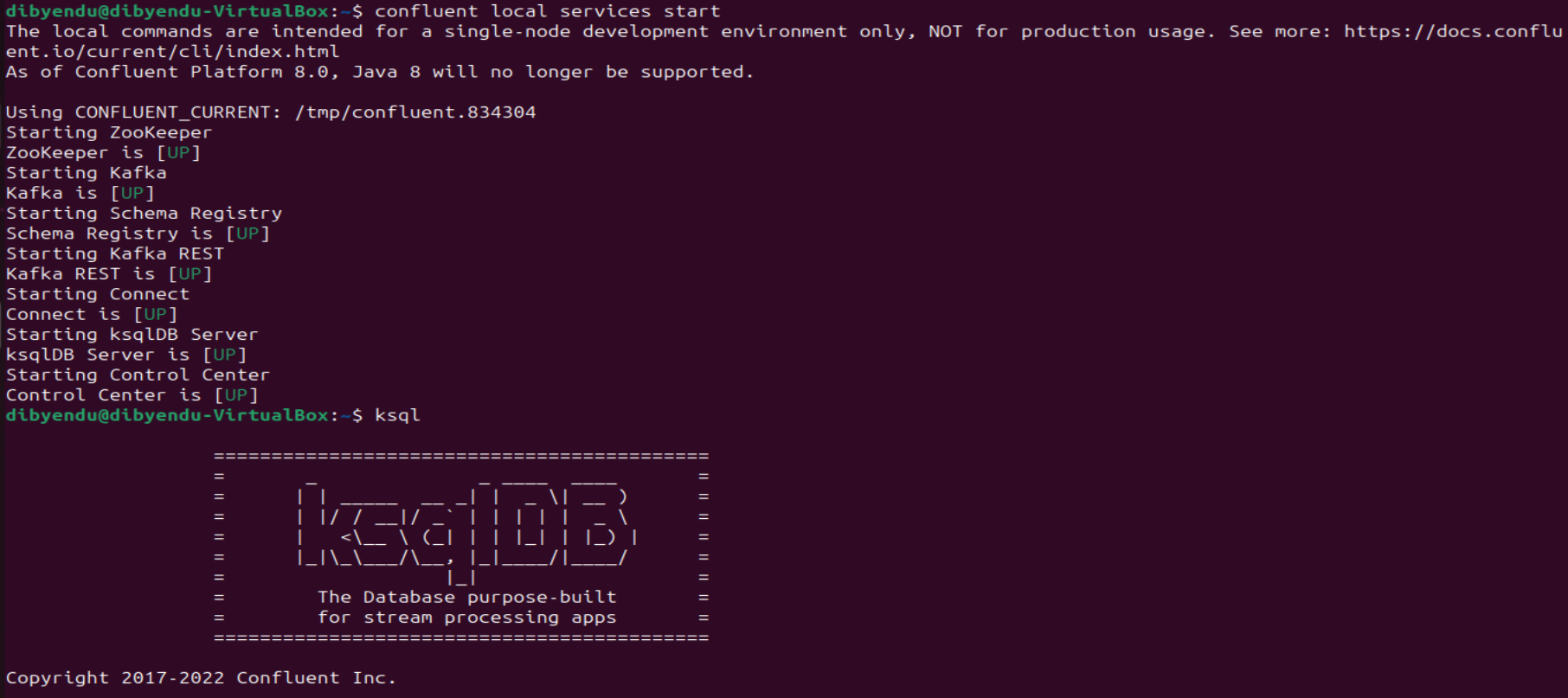
- Start the Confluent local services using the command:
confluent local services start
This starts all the Confluent Services like Zookeeper, Kafka, Schema Registry, Kafka REST, Kafka CONNECT, ksqlDB and Control Center. You are now ready to use the CData JDBC driver for Spotify to stream messages using Kafka Connect Driver into Kafka Topics on ksqlDB.
- Create the Kafka topics manually using a POST HTTP API Request:
 curl --location 'server_address:8083/connectors'
	--header 'Content-Type: application/json'
	--data '{
		"name": "jdbc_source_cdata_api_01",
		"config": {
			"connector.class": "io.confluent.connect.jdbc.JdbcSourceConnector",
			"connection.url": "jdbc:api:Profile=C:\profiles\Spotify.apip;AuthScheme=OAuth;InitiateOAuth=GETANDREFRESH;OAuthClientId=your_client_id;OAuthClientSecret=your_client_secret;CallbackURL=http://localhost:33333;",
		"topic.prefix": "api-01-",
		"mode": "bulk"
		}
	}'
Let us understand the fields used in the HTTP POST body (shown above):
- connector.class: Specifies the Java class of the Kafka Connect connector to be used.
- connection.url: The JDBC connection URL to connect with Spotify data.
Built-in Connection String Designer
For assistance in constructing the JDBC URL, use the connection string designer built into the CData API Driver for JDBC. Either double-click the JAR file or execute the jar file from the command-line.
java -jar cdata.jdbc.api.jar
Fill in the connection properties and copy the connection string to the clipboard.
Using OAuth Authentication
Spotify uses OAuth 2.0 for authentication. You will need to create an application in the Spotify Developer Dashboard to obtain your client credentials.
Setting Up Your Spotify Application
- Visit the Spotify Developer Dashboard.
- Log in with your Spotify account and click Create app.
- Provide an app name, description, and set a Redirect URI (e.g.,
http://localhost:33333
for desktop applications). - Copy your Client ID and Client Secret from the app settings.
Connection Properties
After setting the following connection properties, you are ready to connect:
- AuthScheme: Set this to OAuth.
- InitiateOAuth: Set this to GETANDREFRESH. You can use InitiateOAuth to manage the process to obtain the OAuthAccessToken.
- OAuthClientId: Set this to your Spotify application's Client ID.
- OAuthClientSecret: Set this to your Spotify application's Client Secret.
- Scope: Set this to the required OAuth scopes (space-separated). The default includes all read scopes needed for the tables in this profile.
- CallbackURL: Set this to the Redirect URI configured in your Spotify application (e.g., http://localhost:33333).
Example Connection String
Profile=C:\profiles\Spotify.apip;AuthScheme=OAuth;InitiateOAuth=GETANDREFRESH;OAuthClientId=your_client_id;OAuthClientSecret=your_client_secret;CallbackURL=http://localhost:33333;
Available OAuth Scopes
- user-read-private: Read access to user's subscription details and explicit content settings.
- user-read-email: Read access to user's email address.
- user-library-read: Read access to a user's saved tracks, albums, episodes, shows, and audiobooks.
- playlist-read-private: Read access to user's private playlists.
- playlist-read-collaborative: Read access to collaborative playlists the user follows.
- user-follow-read: Read access to the list of artists the current user follows.
- user-read-playback-state: Read access to a user's player state (device, current track, progress).
- user-read-currently-playing: Read access to a user's currently playing content.
- user-read-playback-history: Read access to a user's recently played tracks.
- user-top-read: Read access to a user's top artists and tracks.

- topic.prefix: A prefix that will be added to the Kafka topics created by the connector. It's set to "api-01-".
- mode: Specifies the mode in which the connector operates. In this case, it's set to "bulk", which suggests that the connector is configured to perform bulk data transfer.
This request adds all the tables/contents from Spotify as Kafka Topics.
Note: The IP Address (server) to POST the request (shown above) is the Linux Network IP Address.
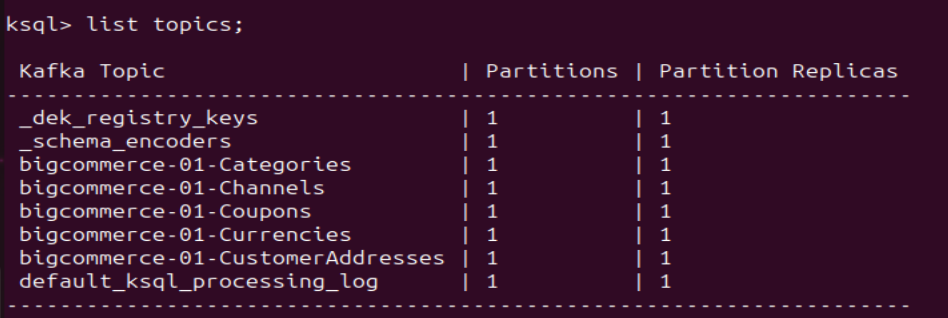
- Run ksqlDB and list the topics. Use the commands:
ksql
list topics;
- To view the data inside the topics, type the SQL Statement:
PRINT topic FROM BEGINNING;
Connecting with the Confluent Control Center
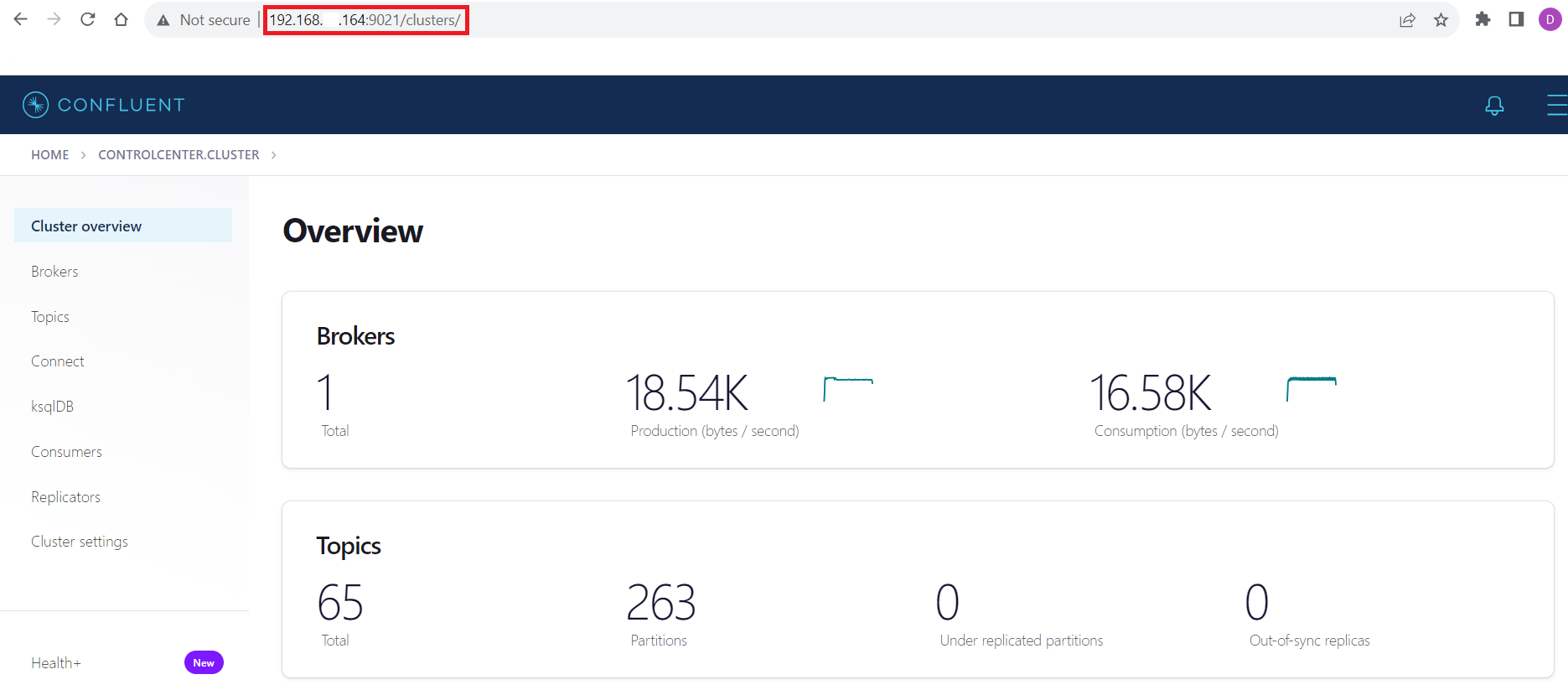
To access the Confluent Control Center user interface, ensure to run the "confluent local services" as described in the above section and type http://<server address>:9021/clusters/ on your local browser.
Get Started Today
Download a free, 30-day trial of the CData API Driver for JDBC and start streaming Spotify data into Apache Kafka. Reach out to our Support Team if you have any questions.