






Using the CData ODBC Driver for Spotify in PyCharm

The CData ODBC Drivers can be used in any environment that supports loading an ODBC Driver. In this tutorial we will explore using the CData ODBC Driver for Spotify from within PyCharm. Included are steps for adding the CData ODBC Driver as a data source, as well as basic PyCharm code to query the data source and display results.
To begin, this tutorial will assume that you have already installed the CData ODBC Driver for Spotify as well as PyCharm.
Add Pyodbc to the Project
Follow the steps below to add the pyodbc module to your project.
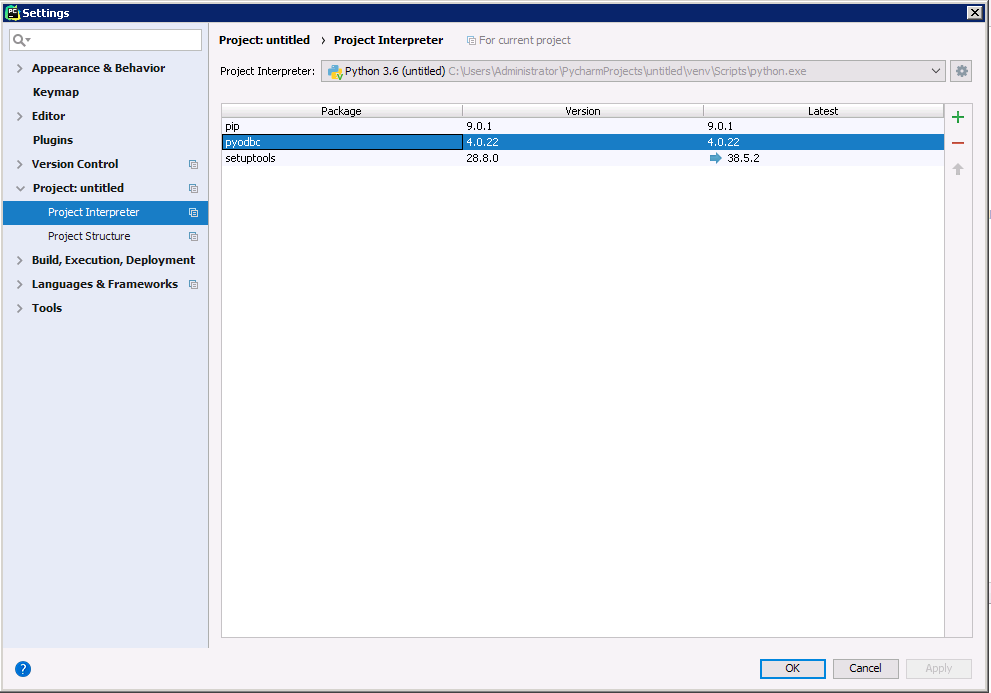
- Click File -> Settings to open the project settings window.
- Click Project Interpreter from the Project: YourProjectName menu.
- To add pyodbc, click the + button and enter pyodbc.
- Click Install Package to install pyodbc.
Connect to Spotify
You can now connect with an ODBC connection string or a DSN. See the Getting Started section in the CData driver documentation for a guide to creating a DSN on your OS.
Using OAuth Authentication
Spotify uses OAuth 2.0 for authentication. You will need to create an application in the Spotify Developer Dashboard to obtain your client credentials.
Setting Up Your Spotify Application
- Visit the Spotify Developer Dashboard.
- Log in with your Spotify account and click Create app.
- Provide an app name, description, and set a Redirect URI (e.g.,
http://localhost:33333
for desktop applications). - Copy your Client ID and Client Secret from the app settings.
Connection Properties
After setting the following connection properties, you are ready to connect:
- AuthScheme: Set this to OAuth.
- InitiateOAuth: Set this to GETANDREFRESH. You can use InitiateOAuth to manage the process to obtain the OAuthAccessToken.
- OAuthClientId: Set this to your Spotify application's Client ID.
- OAuthClientSecret: Set this to your Spotify application's Client Secret.
- Scope: Set this to the required OAuth scopes (space-separated). The default includes all read scopes needed for the tables in this profile.
- CallbackURL: Set this to the Redirect URI configured in your Spotify application (e.g., http://localhost:33333).
Example Connection String
Profile=C:\profiles\Spotify.apip;AuthScheme=OAuth;InitiateOAuth=GETANDREFRESH;OAuthClientId=your_client_id;OAuthClientSecret=your_client_secret;CallbackURL=http://localhost:33333;
Available OAuth Scopes
- user-read-private: Read access to user's subscription details and explicit content settings.
- user-read-email: Read access to user's email address.
- user-library-read: Read access to a user's saved tracks, albums, episodes, shows, and audiobooks.
- playlist-read-private: Read access to user's private playlists.
- playlist-read-collaborative: Read access to collaborative playlists the user follows.
- user-follow-read: Read access to the list of artists the current user follows.
- user-read-playback-state: Read access to a user's player state (device, current track, progress).
- user-read-currently-playing: Read access to a user's currently playing content.
- user-read-playback-history: Read access to a user's recently played tracks.
- user-top-read: Read access to a user's top artists and tracks.
Below is the syntax for a DSN:
[CData API Source]
Driver = CData ODBC Driver for Spotify
Description = My Description
Profile = C:\profiles\Spotify.apip
AuthScheme = OAuth
InitiateOAuth = GETANDREFRESH
OAuthClientId = your_client_id
OAuthClientSecret = your_client_secret
CallbackURL = http://localhost:33333
Execute SQL to Spotify
Instantiate a Cursor and use the execute method of the Cursor class to execute any SQL statement.
import pyodbc

cnxn = pyodbc.connect('DRIVER={CData ODBC Driver for API};Profile = C:\profiles\Spotify.apip;AuthScheme = OAuth;InitiateOAuth = GETANDREFRESH;OAuthClientId = your_client_id;OAuthClientSecret = your_client_secret;CallbackURL = http://localhost:33333;')
cursor = cnxn.cursor()
cursor.execute("SELECT ,  FROM Albums WHERE Id = '4aawyAB9vmqN3uQ7FjRGTy'")
rows = cursor.fetchall()
for row in rows:
  print(row., row.)
After connecting to Spotify in PyCharm using the CData ODBC Driver, you will be able to build Python apps with access to Spotify data as if it were a standard database. If you have any questions, comments, or feedback regarding this tutorial, please contact us at [email protected].