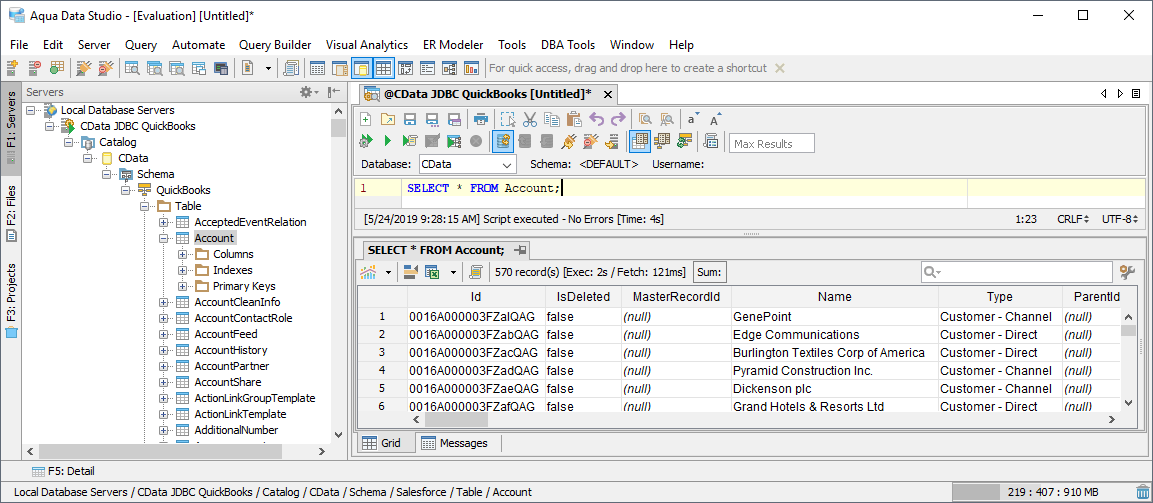
Connect to Strava Data in Aqua Data Studio

The CData JDBC Driver for Strava integrates Strava data with wizards and analytics in IDEs like Aqua Data Studio. This article shows how to connect to Strava data through the connection manager and execute queries.
Create a JDBC Data Source
You can use the connection manager to define connection properties and save them in a new JDBC data source. The Strava data source can then be accessed from Aqua Data Studio tools.
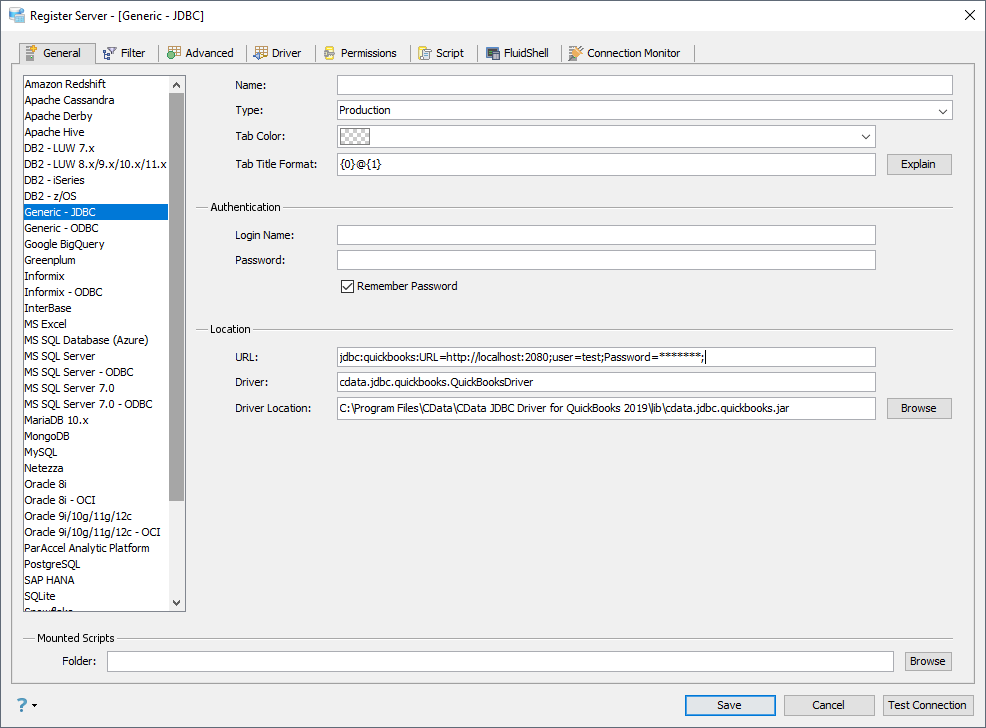
- In Aqua Data Studio, select Register Server from the Servers menu.
- In the Register Server form, select the 'Generic - JDBC' connection.
- Enter the following JDBC connection properties:
- Name: Enter a name for the data source; for example, Strava.
- Driver Location: Click the Browse button and select the cdata.jdbc.api.jar file, located in the lib subfolder of the installation directory.
- Driver: Enter the Driver's class name, cdata.jdbc.api.APIDriver.
URL: Enter the JDBC URL, which starts with jdbc:api: and is followed by a semicolon-separated list of connection properties.
To authenticate to Strava, and connect to your own data or to allow other users to connect to their data, you can use the OAuth standard.
Using OAuth Authentication
You must create a custom OAuth application to connect to Strava. To create a custom OAuth application:
- Log into the Strava API Settings page
- Create a new application or select an existing application
- Set the "Authorization Callback Domain" to your callback URL domain (e.g. localhost)
- Note down the Client ID and Client Secret
After setting the following connection properties, you are ready to connect:
- AuthScheme: Set this to OAuth.
- InitiateOAuth: Set this to GETANDREFRESH. You can use InitiateOAuth to manage the process to obtain the OAuthAccessToken.
- OAuthClientId: Set this to the Client ID from your Strava API application.
- OAuthClientSecret: Set this to the Client Secret from your Strava API application.
- CallbackURL: Set this to the redirect URI matching your application's callback domain.
Example connection string:
Profile=C:\profiles\Strava.apip;AuthScheme=OAuth;InitiateOAuth=GETANDREFRESH;OAuthClientId=your_client_id;OAuthClientSecret=your_client_secret;CallbackURL=http://localhost:33333;
Built-in Connection String Designer
For assistance in constructing the JDBC URL, use the connection string designer built into the Strava JDBC Driver. Either double-click the JAR file or execute the jar file from the command-line.
java -jar cdata.jdbc.api.jar
Fill in the connection properties and copy the connection string to the clipboard.
 A typical JDBC URL is below:
jdbc:api:Profile=C:\profiles\Strava.apip;AuthScheme=OAuth;InitiateOAuth=GETANDREFRESH;OAuthClientId=your_client_id;OAuthClientSecret=your_client_secret;CallbackURL=http://localhost:33333;
Query Strava Data
You can now query the tables exposed.