






Build MVC Applications with Connectivity to Suadeo Data

In this article, we will guide you through the process of utilizing wizards within Visual Studio to seamlessly integrate the CData ADO.NET Provider for Suadeo into a basic MVC (Model, View, Controller) project.
Create the Entity Framework Model
Follow the steps below to save connection properties and map tables to entities in the data model.
- Create a new MVC project in Visual Studio. In this example, the project name is MvcSuadeoApp.
If you are using Entity Framework 6, you will need to take the preliminary step of registering the Suadeo Entity Framework provider for your project. See the "LINQ and Entity Framework" chapter in the help documentation for a guide.
Note that MVC 3 scaffolding and MVC 4 scaffolding do not support Entity Framework 6. You can use your scaffolding with Entity Framework 6 by upgrading to the latest version of MVC.- To add the .edmx file from the designer, right-click your Models folder and click Add New Item. Select ADO.NET Entity Data Model, name the model, and click Add. In this example, the name of the model is SuadeoModel.
- In the Entity Data Model wizard, select the option 'EF Designer from database'. The Entity Data Model wizard is displayed.
- Click New Connection. Select CData Suadeo Data Source in the dialog that is displayed.
Specify the required connection string properties.
The driver uses the OAuth 2.0 Resource Owner Password Credentials (ROPC) grant to authenticate to Suadeo. Authentication occurs directly using your credentials; there is no browser-based authorization flow or refresh token.
Set the following connection properties:
- URL: The base URL of your Suadeo instance.
- User: Your Suadeo username.
- Password: Your Suadeo password.
- AuthenticationName: The name identifier for the authentication configuration in your Suadeo instance. Different authentication names can be configured for different environments or use cases.
When you connect, the driver sends your credentials to the Suadeo OAuth token endpoint, receives an access token, and uses it for all subsequent requests. A new access token is obtained automatically when needed during the session.
A typical connection string is below:
URL=https://mysuadeoinstance;User=username;Password=password;AuthenticationName=your_auth_name;
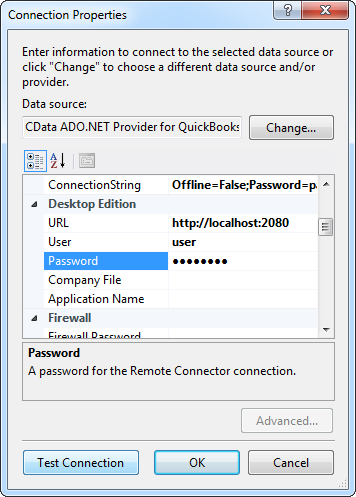
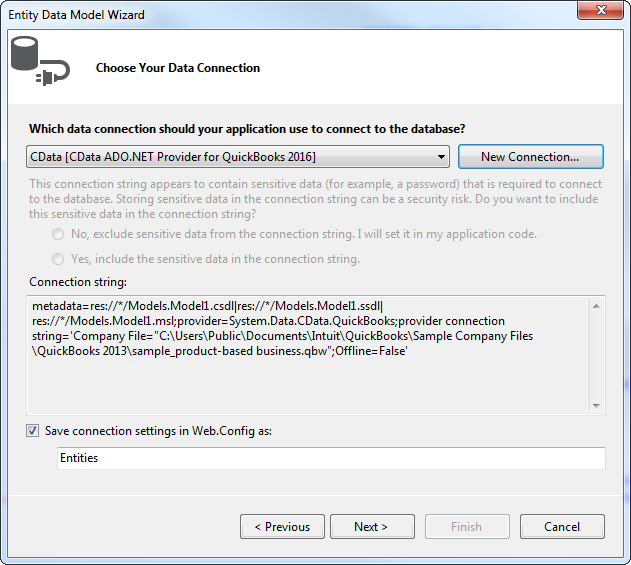
Name the connection and select whether to include sensitive information, such as connection credentials, in the connection string. For simplicity, this example saves sensitive information in Web.config. The connection settings are saved as SuadeoEntities.
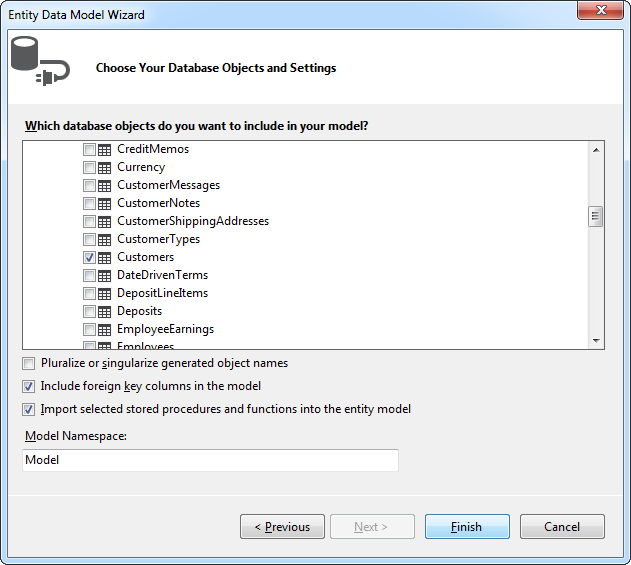
- Select the views you need. In this example, Customers is imported. Also, the option to pluralize object names is deselected in this example. Click Finish to create the .edmx file.
- Build your project to complete this step.
Scaffold the Controller and Views
Once you've established the model and completed the project build, you can employ ASP.NET Scaffolding wizards to generate both the controller and the views.
- In Solution Explorer, right-click the controllers folder and click Add -> Controller. Select MVC 5 Controller with views, using Entity Framework.
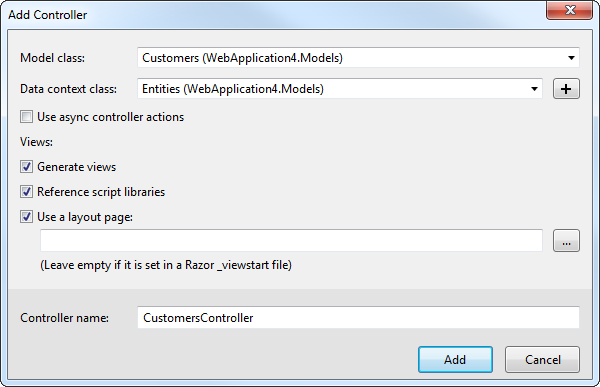
- In the Add Controller dialog that is then displayed, select the following options:
- Model class: Select a table you imported; for example, Customers.
- Data context class: Select your context class.
-
Leave the default values for the other fields.
Ready to get started?
Download a free trial of the Suadeo Data Provider to get started:
Download NowLearn more:
 Suadeo ADO.NET Provider
Rapidly create and deploy powerful .NET applications that integrate with Suadeo.