






Access Live Suadeo Data in AWS Lambda (with IntelliJ IDEA)

AWS Lambda is a compute service that lets you build applications that respond quickly to new information and events. AWS Lambda functions can work with live Suadeo data when paired with the CData JDBC Driver for Suadeo. This article describes how to connect to and query Suadeo data from an AWS Lambda function built with Maven in IntelliJ.
With built-in optimized data processing, the CData JDBC Driver offers unmatched performance for interacting with live Suadeo data. When you issue complex SQL queries to Suadeo, the driver pushes supported SQL operations, like filters and aggregations, directly to Suadeo and utilizes the embedded SQL engine to process unsupported operations client-side (often SQL functions and JOIN operations). In addition, its built-in dynamic metadata querying allows you to work with and analyze Suadeo data using native data types.
Step 1: Gather connection properties and build a connection string
Download the CData JDBC Driver for Suadeo installer, unzip the package, and run the JAR file to install the driver. Then gather the required connection properties.
The driver uses the OAuth 2.0 Resource Owner Password Credentials (ROPC) grant to authenticate to Suadeo. Authentication occurs directly using your credentials; there is no browser-based authorization flow or refresh token.
Set the following connection properties:
- URL: The base URL of your Suadeo instance.
- User: Your Suadeo username.
- Password: Your Suadeo password.
- AuthenticationName: The name identifier for the authentication configuration in your Suadeo instance. Different authentication names can be configured for different environments or use cases.
When you connect, the driver sends your credentials to the Suadeo OAuth token endpoint, receives an access token, and uses it for all subsequent requests. A new access token is obtained automatically when needed during the session.
NOTE: To use the JDBC driver in an AWS Lambda function, you will need a license (full or trial) and a Runtime Key (RTK). For more information on obtaining this license (or a trial), contact our sales team.
Built-in Connection String Designer
For assistance constructing the JDBC URL, use the connection string designer built into the Suadeo JDBC Driver. Double-click the JAR file or execute the jar file from the command line.
java -jar cdata.jdbc.suadeo.jar

Fill in the connection properties (including the RTK) and copy the connection string to the clipboard.
Step 2: Create a project in IntelliJ
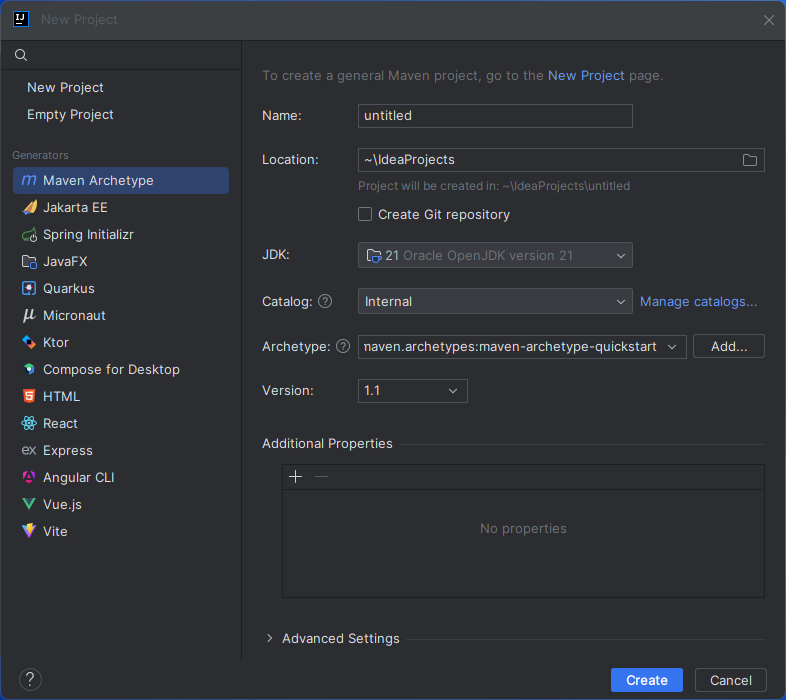
- In IntelliJ IDEA, click New Project.
- Select "Maven Archetype" from the Generators
- Name the project and select "maven.archetypes:maven-archetype-quickstart" Archetype.
- Click "Create"
Install the CData JDBC Driver for Suadeo JAR File
Use the following Maven command from the project's root folder to install JAR file in the project.
mvn install:install-file -Dfile="PATH/TO/CData JDBC Driver for Suadeo 20XX/lib/cdata.jdbc.suadeo.jar" -DgroupId="org.cdata.connectors" -DartifactId="cdata-suadeo-connector" -Dversion="23" -Dpackaging=jar
Add Dependencies
Within the Maven project's pom.xml file, add AWS and the CData JDBC Driver for Suadeo] as dependencies (within the <dependencies> element) using the following XML.
- AWS
<dependency>
   <groupId>com.amazonaws</groupId>
   <artifactId>aws-lambda-java-core</artifactId>
   <version>1.2.2</version> <!--Replace with the actual version-->
</dependency>
- CData JDBC Driver for Suadeo
<dependency>
   <groupId>org.cdata.connectors</groupId>
   <artifactId>cdata-suadeo-connector</artifactId>
   <version>25</version> <!--Replace with the actual version-->
</dependency>
- Maven Shade Plugin to create a fat JAR
<build>
  <plugins>
    <plugin>
      <groupId>org.apache.maven.plugins</groupId>
      <artifactId>maven-shade-plugin</artifactId>
      <version>3.4.1</version>
      <executions>
        <execution>
          <phase>package</phase>
          <goals>
            <goal>shade</goal>
          </goals>
          <configuration>
            <createDependencyReducedPom>false</createDependencyReducedPom>
            <transformers>
              <transformer implementation="org.apache.maven.plugins.shade.resource.ManifestResourceTransformer">
                <mainClass>com.example.CDataLambda</mainClass>
                  <!-- Change to your actual Lambda handler class -->
              </transformer>
            </transformers>
          </configuration>
        </execution>
      </executions>
    </plugin>
  </plugins>
</build>
Create an AWS Lambda Function
For this sample project, we create two source files: CDataLambda.java and CDataLambdaTest.java.
Lambda Function Definition
- Update CDataLambda to implement the RequestHandler interface from the AWS Lambda SDK. You will need to add the handleRequest method, which performs the following tasks when the Lambda function is triggered:
- Constructs a SQL query using the input
- Registers the CData JDBC Driver for Suadeo
- Establishes a connection to Suadeo using JDBC
- Executes the SQL query on Suadeo
- Prints the results to the console
- Returns an output message
-
Use the complete Lambda class below, which includes the imports, class definition, and handleRequest method. Be sure to fill in your connection string values in the DriverManager.getConnection call.
package com.example;

import com.amazonaws.services.lambda.runtime.Context;
import com.amazonaws.services.lambda.runtime.RequestHandler;

import java.sql.Connection;
import java.sql.DriverManager;
import java.sql.ResultSet;
import java.sql.ResultSetMetaData;
import java.sql.SQLException;
import java.sql.Statement;
public class CDataLambda implements RequestHandler < Object, String > {

  @Override
  public String handleRequest(Object input, Context context) {
    String query = "SELECT * FROM " + input;

    String bucketName = "MY_AWS_BUCKET";
    try {
      Class.forName("cdata.jdbc.suadeo.SuadeoDriver");
      cdata.jdbc.suadeo.SuadeoDriver driver = new cdata.jdbc.suadeo.SuadeoDriver();
      DriverManager.registerDriver(driver);
    } catch (SQLException ex) {
      // Registering the driver failed
      throw new RuntimeException("Failed to register JDBC driver", ex);
    } catch (ClassNotFoundException e) {
      // The driver class was not found in the classpath
      throw new RuntimeException("JDBC Driver class not found", e);

    }
    Connection connection = null;
    try {
      connection = DriverManager.getConnection("jdbc:cdata:suadeo:RTK=52465...;URL=https://mysuadeoinstance;User=username;Password=password;AuthenticationName=your_auth_name;");
    } catch (SQLException ex) {
      context.getLogger().log("Error getting connection: " + ex.getMessage());
    } catch (Exception ex) {
      context.getLogger().log("Error: " + ex.getMessage());
    }

    if (connection != null) {
      context.getLogger().log("Connected Successfully!
");
    }

    ResultSet resultSet = null;
    try {
      //executing query
      Statement stmt = connection.createStatement();
      resultSet = stmt.executeQuery(query);

      ResultSetMetaData metaData = resultSet.getMetaData();
      int numCols = metaData.getColumnCount();

      //printing the results
      while (resultSet.next()) {
        for (int i = 1; i <= numCols; i++) {
          System.out.printf("%-25s", (resultSet.getObject(i) != null) ? resultSet.getObject(i).toString().replaceAll("
", "") : null);
        }
        System.out.print("
");
      }
    } catch (SQLException ex) {
      System.out.println("SQL Exception: " + ex.getMessage());
    } catch (Exception ex) {
      System.out.println("General exception: " + ex.getMessage());
    }
    return "v24 query: " + query + " complete";
  }
}
Step 3: Deploy and run the lambda function
Once you build the function in Intellij, you are ready to deploy the entire Maven project as a single JAR file.
- In IntelliJ, use the mvn install command to build the SNAPSHOT JAR file.
Note: The Maven Shade Plugin generates two JARs in the target folder. Always upload the larger -shaded.jar file to AWS Lambda, as it contains all required dependencies.
- Create a new function in AWS Lambda (or open an existing one).
- Name the function, select an IAM role, and set the timeout value to a high enough value to ensure the function completes (depending on the result size of your query).
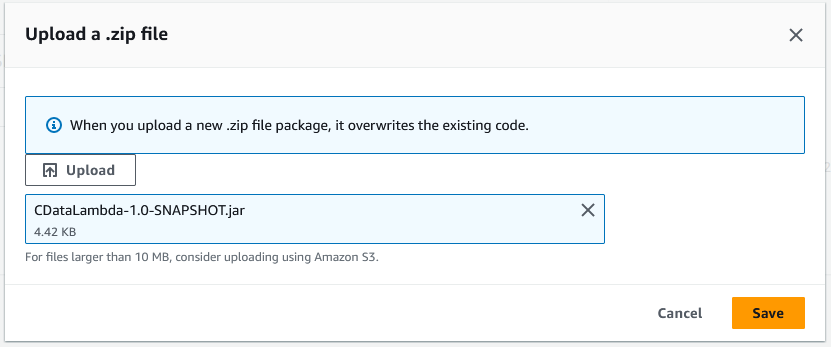
- Click "Upload from" -> ".zip file" and select your SNAPSHOT JAR file.
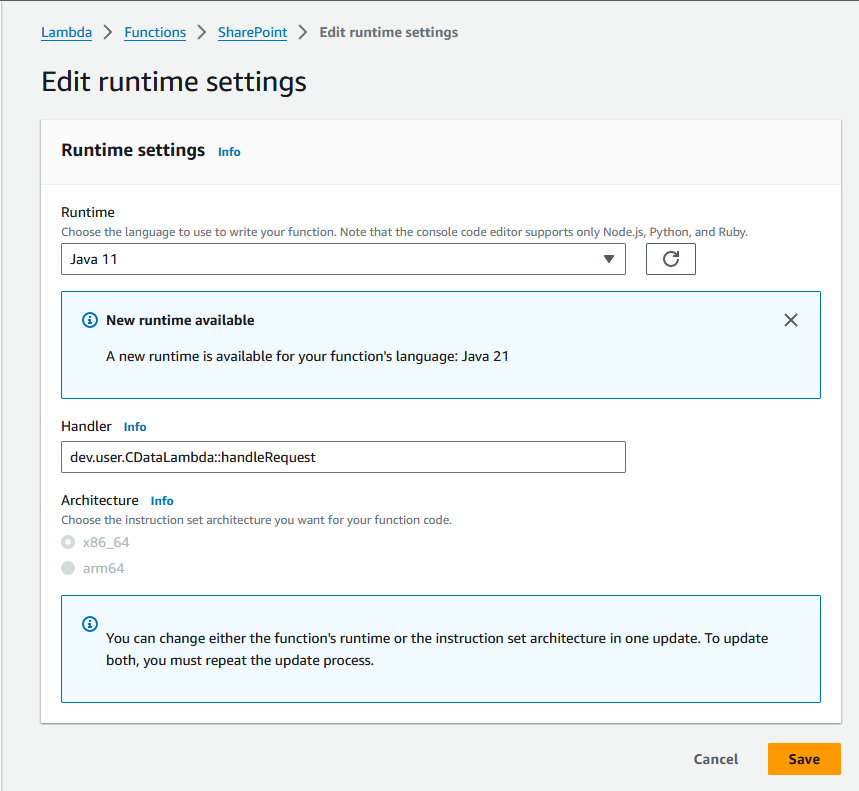
- In the "Runtime settings" section, click "Edit" and set Handler to your "handleRequest" method (e.g. package.class::handleRequest)
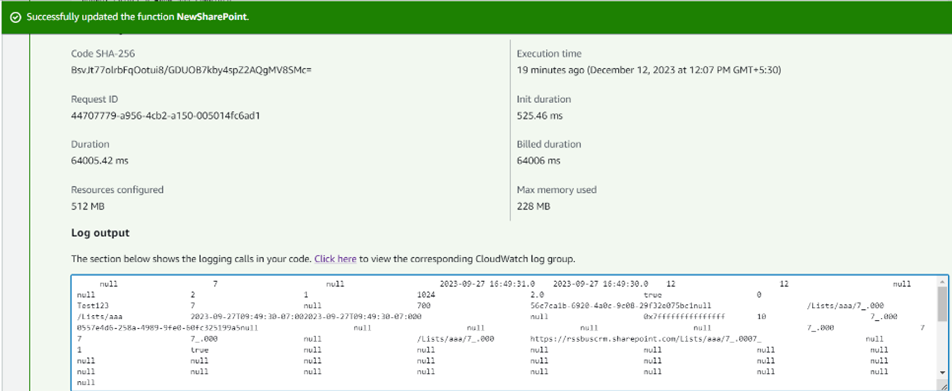
- You can now test the function. Set the "Event JSON" field to a table name and click, click "Test"
Free Trial & More Information
Download a free 30-day trial of the CData JDBC Driver for Suadeo and start working with your live Suadeo data in AWS Lambda. Reach out to our Support Team if you have any questions.
Ready to get started?
Download a free trial of the Suadeo Driver to get started:
Download NowLearn more:
 Suadeo JDBC Driver
Rapidly create and deploy powerful Java applications that integrate with Suadeo.