






Using the CData ODBC Driver for Suadeo in PyCharm

The CData ODBC Drivers can be used in any environment that supports loading an ODBC Driver. In this tutorial we will explore using the CData ODBC Driver for Suadeo from within PyCharm. Included are steps for adding the CData ODBC Driver as a data source, as well as basic PyCharm code to query the data source and display results.
To begin, this tutorial will assume that you have already installed the CData ODBC Driver for Suadeo as well as PyCharm.
Add Pyodbc to the Project
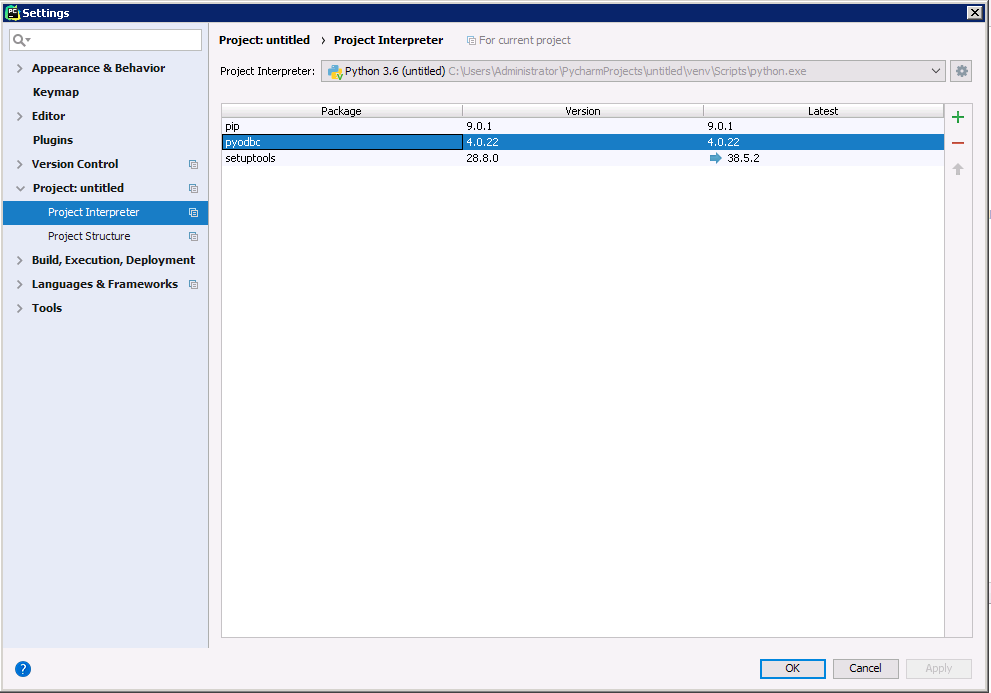
Follow the steps below to add the pyodbc module to your project.
- Click File -> Settings to open the project settings window.
- Click Project Interpreter from the Project: YourProjectName menu.
- To add pyodbc, click the + button and enter pyodbc.
- Click Install Package to install pyodbc.
Connect to Suadeo
You can now connect with an ODBC connection string or a DSN. See the Getting Started section in the CData driver documentation for a guide to creating a DSN on your OS.
The driver uses the OAuth 2.0 Resource Owner Password Credentials (ROPC) grant to authenticate to Suadeo. Authentication occurs directly using your credentials; there is no browser-based authorization flow or refresh token.
Set the following connection properties:
- URL: The base URL of your Suadeo instance.
- User: Your Suadeo username.
- Password: Your Suadeo password.
- AuthenticationName: The name identifier for the authentication configuration in your Suadeo instance. Different authentication names can be configured for different environments or use cases.
When you connect, the driver sends your credentials to the Suadeo OAuth token endpoint, receives an access token, and uses it for all subsequent requests. A new access token is obtained automatically when needed during the session.
Below is the syntax for a DSN:
[CData Suadeo Source]
Driver = CData ODBC Driver for Suadeo
Description = My Description
URL = https://mysuadeoinstance
User = username
Password = password
AuthenticationName = your_auth_name
Execute SQL to Suadeo
Instantiate a Cursor and use the execute method of the Cursor class to execute any SQL statement.
import pyodbc

cnxn = pyodbc.connect('DRIVER={CData ODBC Driver for Suadeo};URL = https://mysuadeoinstance;User = username;Password = password;AuthenticationName = your_auth_name;')
cursor = cnxn.cursor()
cursor.execute("SELECT Id, Name FROM Customers WHERE Status = 'Active'")
rows = cursor.fetchall()
for row in rows:
  print(row.Id, row.Name)
After connecting to Suadeo in PyCharm using the CData ODBC Driver, you will be able to build Python apps with access to Suadeo data as if it were a standard database. If you have any questions, comments, or feedback regarding this tutorial, please contact us at [email protected].
Ready to get started?
Download a free trial of the Suadeo ODBC Driver to get started:
Download NowLearn more:
 Suadeo ODBC Driver
The Suadeo ODBC Driver is a powerful tool that allows you to connect with live data from Suadeo, directly from any applications that support ODBC connectivity.
Access Suadeo data like you would a database - read, write, and update Suadeo 0, etc. through a standard ODBC Driver interface.