






How to Query Live Sugar CRM Data in Perplexity MacOS Desktop

Perplexity is an AI-powered research and answer engine that allows users to combine web search, structured data, and connected tools through a unified conversational interface. With Perplexity Desktop for macOS, users can bring local tools and data sources directly into their workflow using MCP, enabling fast, context-aware insights powered by live data.
Model Context Protocol (MCP) is an emerging, open-source standard for connecting LLMs with external services and enterprise data sources. Using MCP Servers, AI clients such as Perplexity Desktop can securely interact with applications and data, performing actions, retrieving live information, and enabling natural language access to data.
In this article, we guide you through installing the CData MCP Server for Sugar, configuring the connection to Sugar CRM, and interacting with your live Sugar CRM data from Perplexity Desktop.
Step 1: Download and install the CData MCP Server for Sugar
- To begin, download the CData MCP Server for Sugar
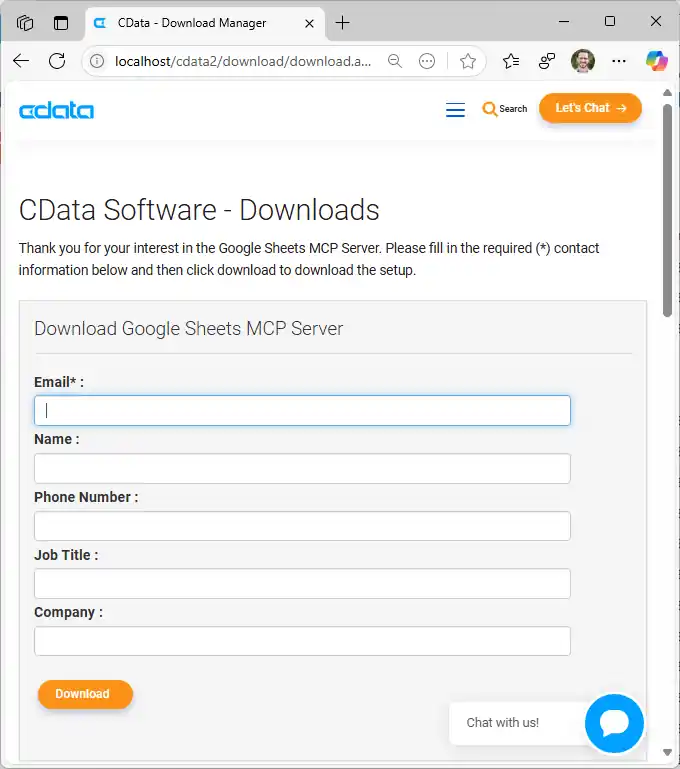
- Find and double-click the installer to begin the installation
- Drag the CData MCP Server app into the Applications folder
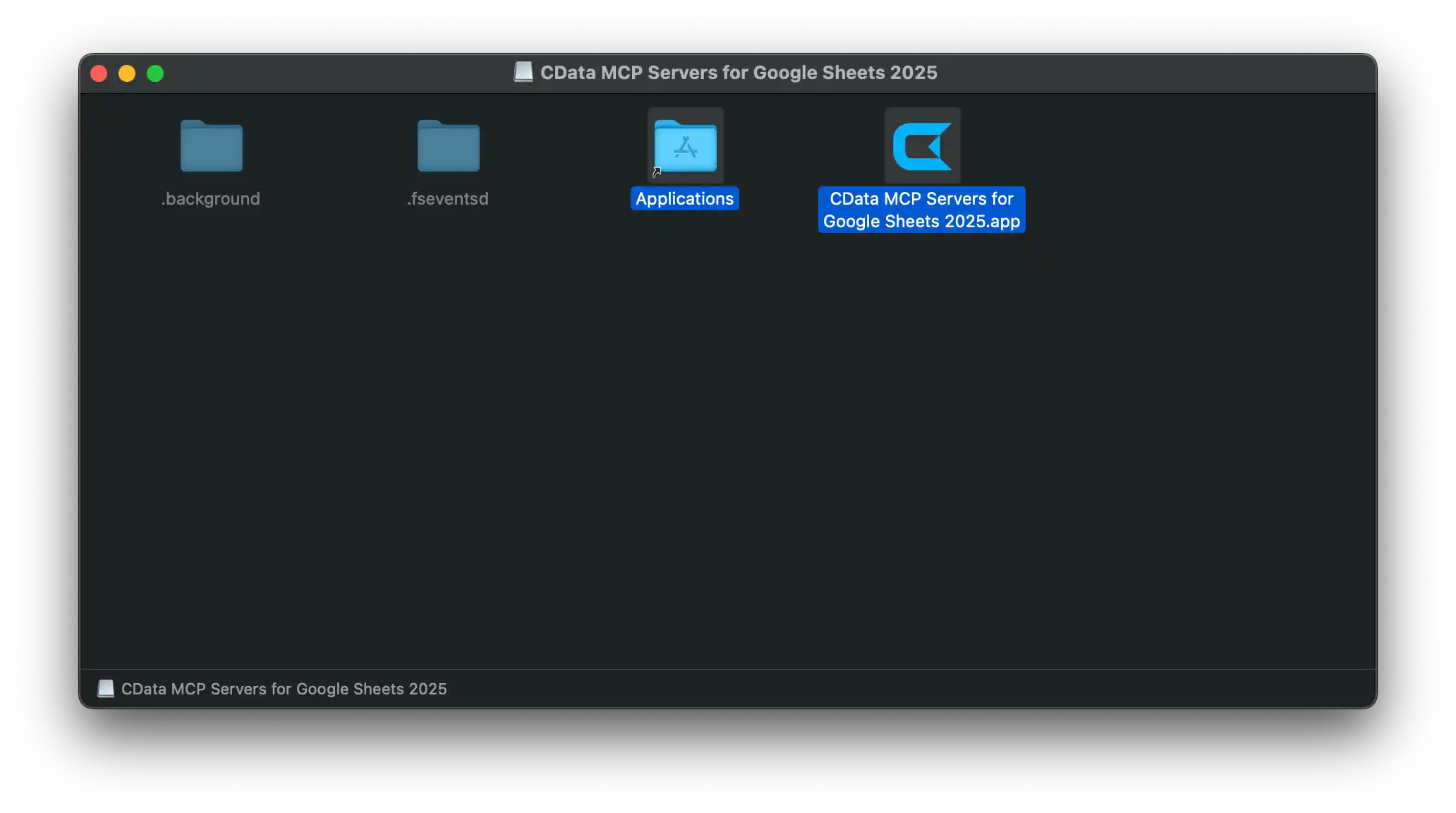
When the installation is complete, you are ready to configure your MCP Server by connecting to Sugar CRM.
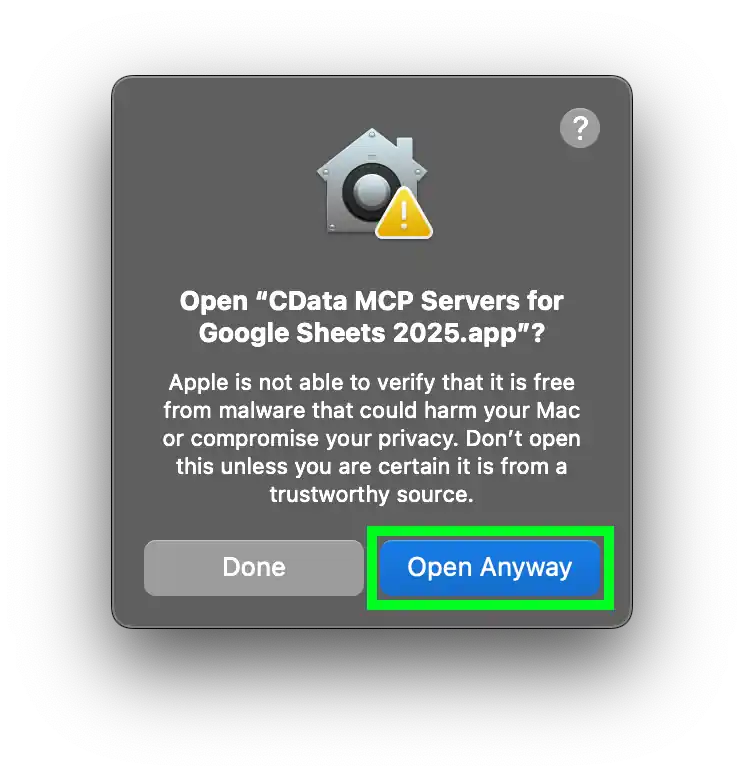
NOTE: Since you downloaded the application from the internet and not the Apple App Store, you may see a warning that the application was not opened because Apple could not verify its security. You may continue with the installation.
Installing a trusted, unverified App
CData's solutions are trusted across the globe by some of the largest software vendors in the world. That said, if you have any concerns about continuing, please consult with your IT and/or security team.
- In the warning message that pops up, click "Done"
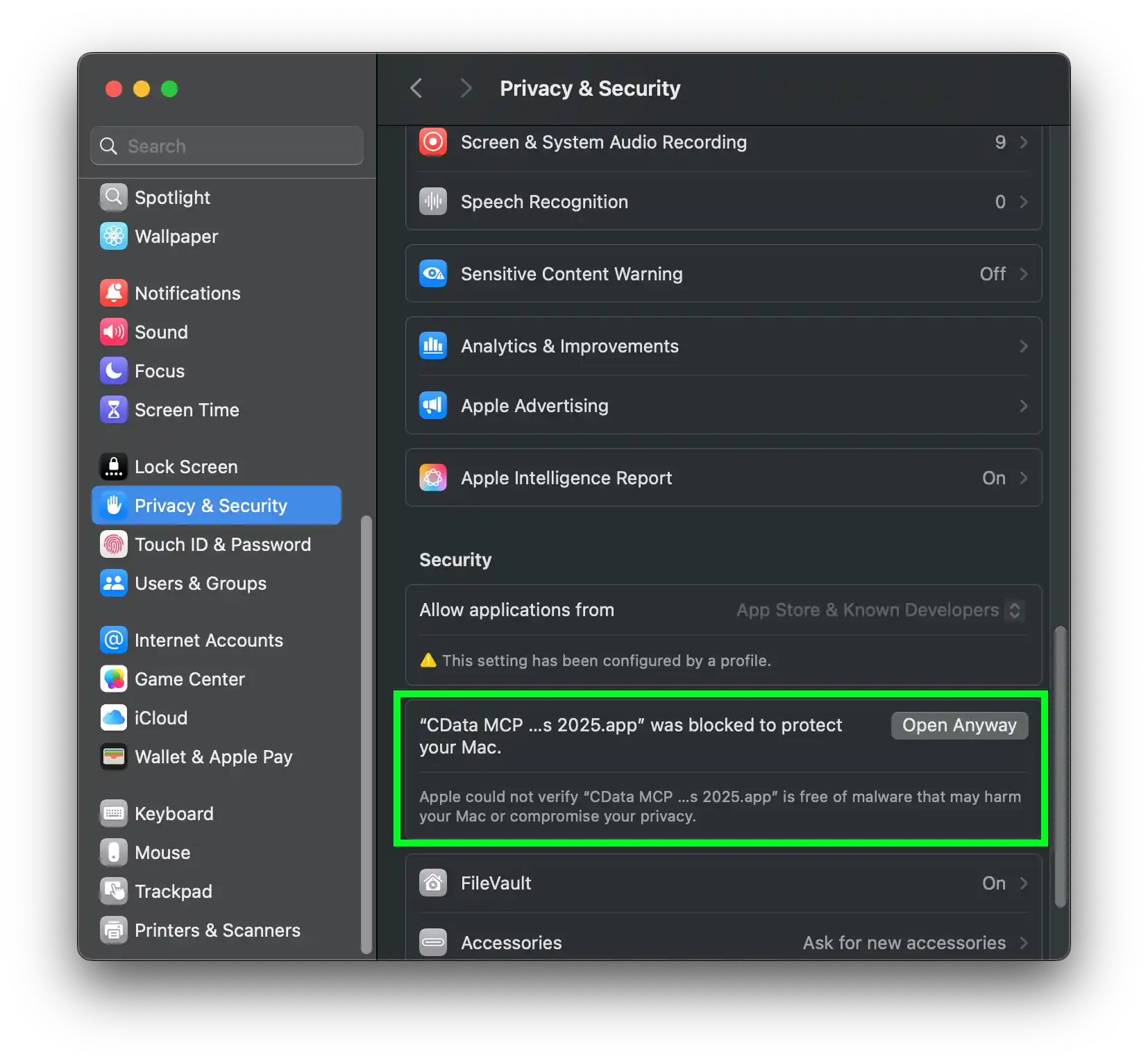
- Open "System Settings" on your machine and navigate to the "Privacy & Security" page
- Scroll down to the "Security" section and click "Open Anyway"
- Authorize the installation (passkey or password)

Step 2: Configure the Connection to Sugar CRM
-
After installation, you can open the CData MCP Server for Sugar from the Applications folder on your mac
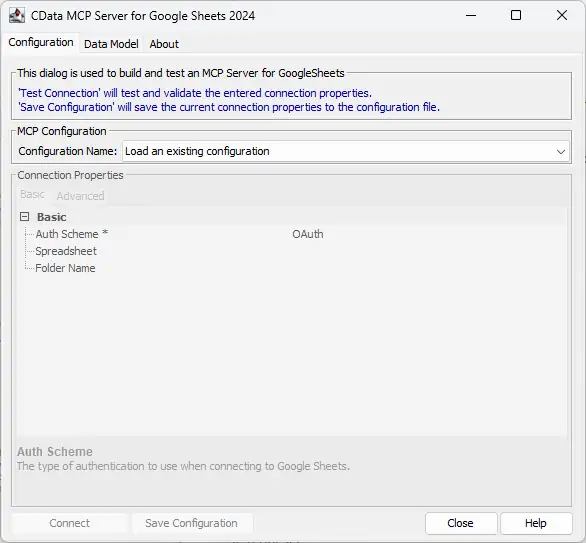
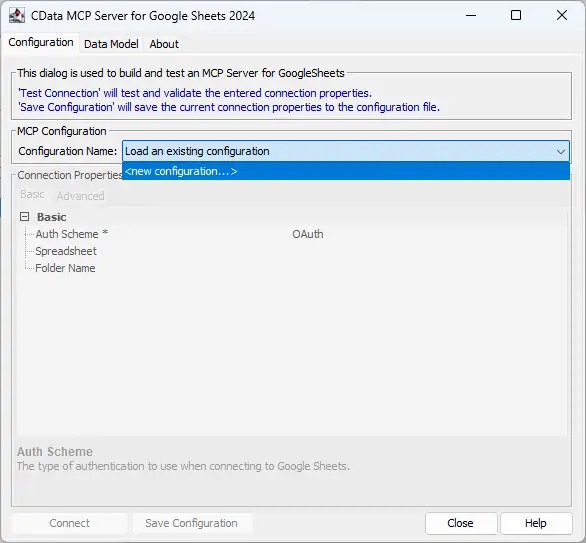
- Click the dropdown menu in MCP Configuration > Configuration Name and select "new configuration"
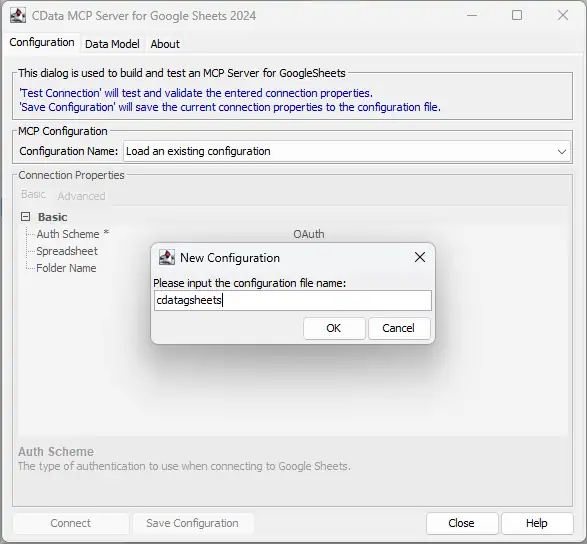
- Name the configuration (e.g. "cdata_sugarcrm") and click "OK"
-
Enter the appropriate connection properties in the configuration wizard.
The User and Password properties, under the Authentication section, must be set to valid SugarCRM user credentials. This will use the default OAuth token created to allow client logins. OAuthClientId and OAuthClientSecret are required if you do not wish to use the default OAuth token.
You can generate a new OAuth consumer key and consumer secret in Admin -> OAuth Keys. Set the OAuthClientId to the OAuth consumer key. Set the OAuthClientSecret to the consumer secret.
Additionally, specify the URL to the SugarCRM account.
Note that retrieving SugarCRM metadata can be expensive. It is advised that you store the metadata locally as described in the "Caching Metadata" chapter of the help documentation.
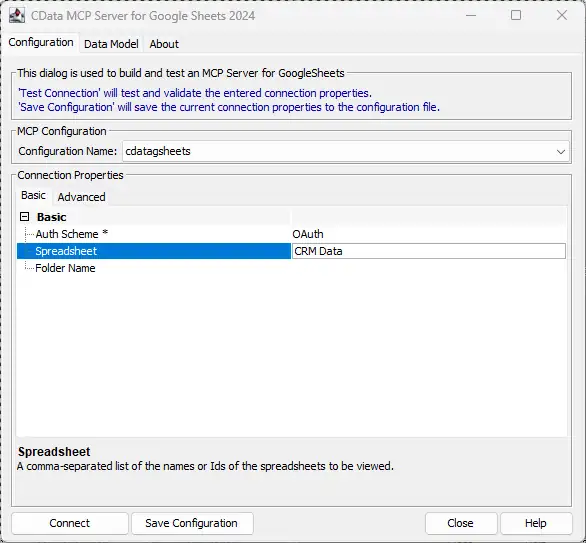
- Click "Connect" to authenticate with Sugar CRM.
- Click "Save Configuration" to save the MCP server
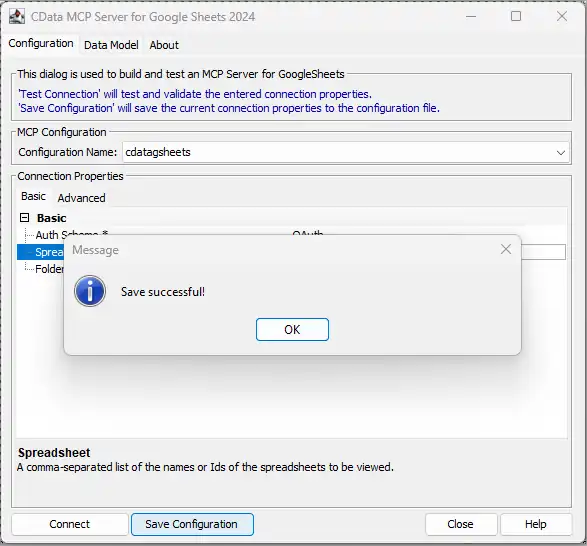
With your MCP Server configured, you are ready to connect it to Perplexity Desktop.
Step 3: Connect the MCP Server to Perplexity Desktop
- Download the Perplexity Desktop application for macOS and sign in with your Pro or Premium account
- Open Settings > Connectors.
If the Perplexity Helper App is not installed, you will be prompted to download it.
Install the Helper App, then restart Perplexity Desktop
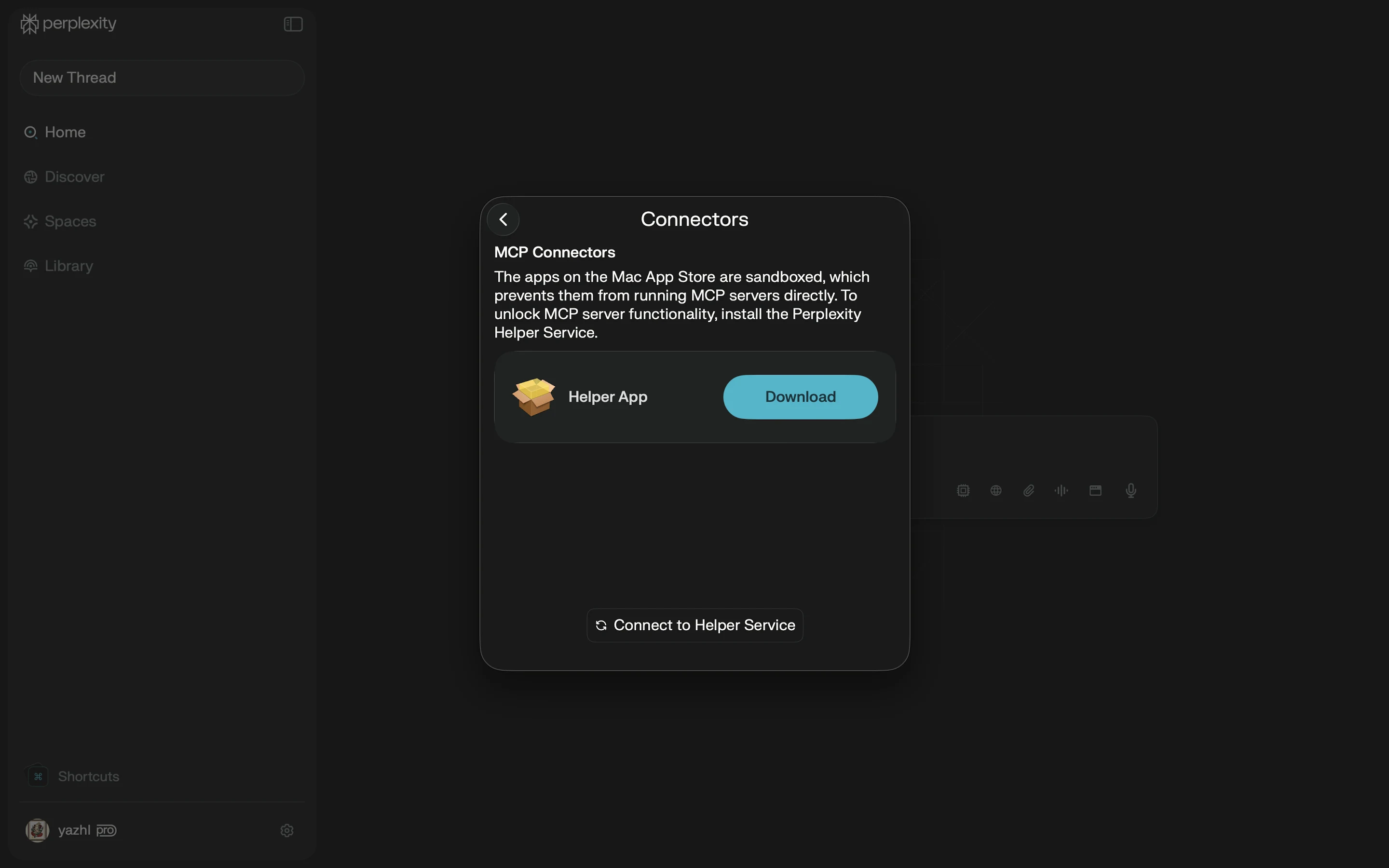
- After restarting, return to Settings > Connectors and click Add Connector
- Select the Simple tab and assign a name for the connector (e.g., "CData Sugar CRM MCP").
In the Command box, enter the absolute path to your MCP Server executable.
For example:
	/Applications/CData MCP Server for Sugar.app/Contents/Payload/jre/Contents/Home/bin/java \
	-jar /Applications/CData MCP Server for Sugar.app/Contents/Payload/lib/cdata.mcp.sugarcrm.jar \
	cdata_sugarcrm
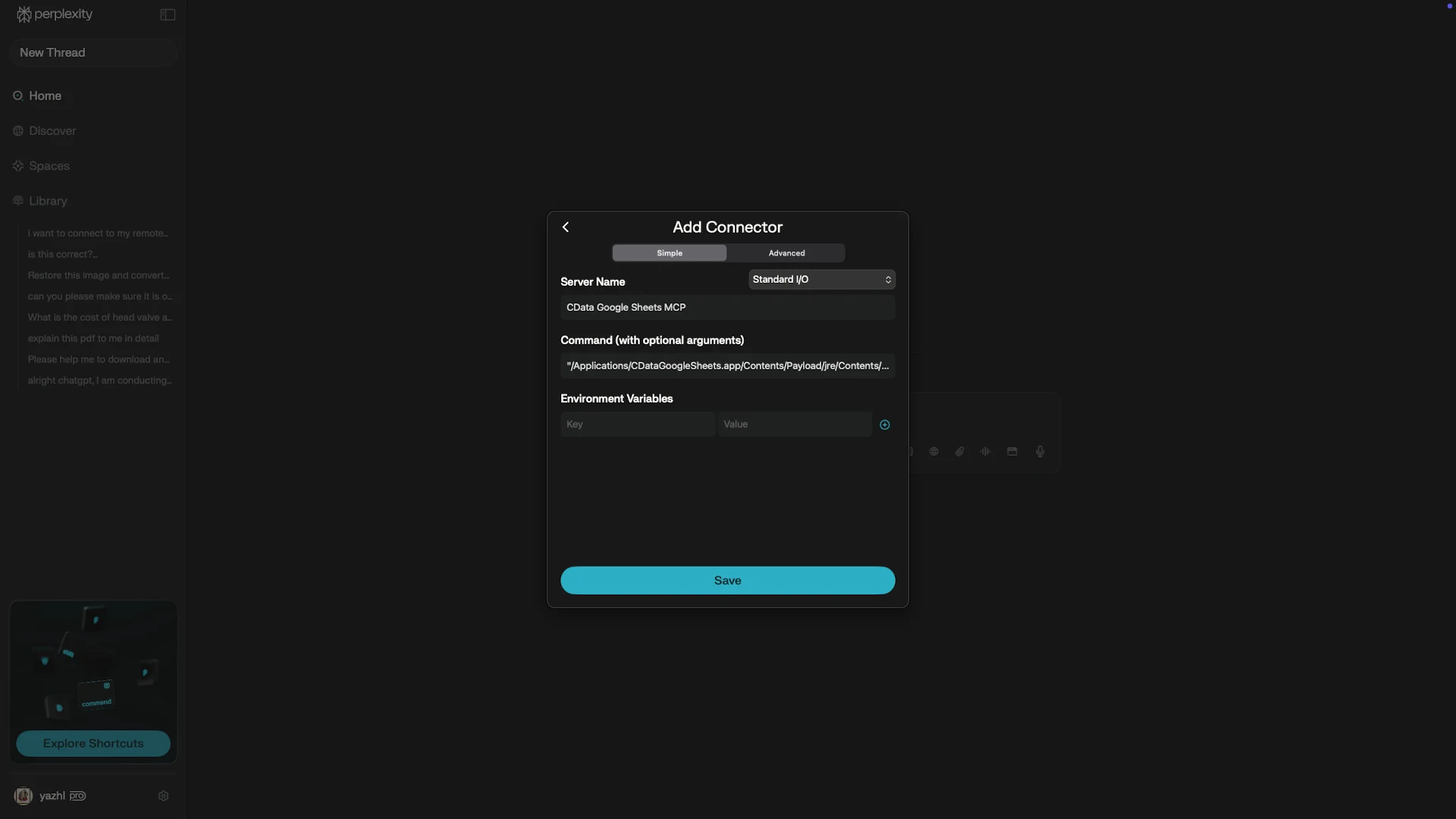
- Click Save.
Your MCP Server should now appear in the connector list with a "Running" status
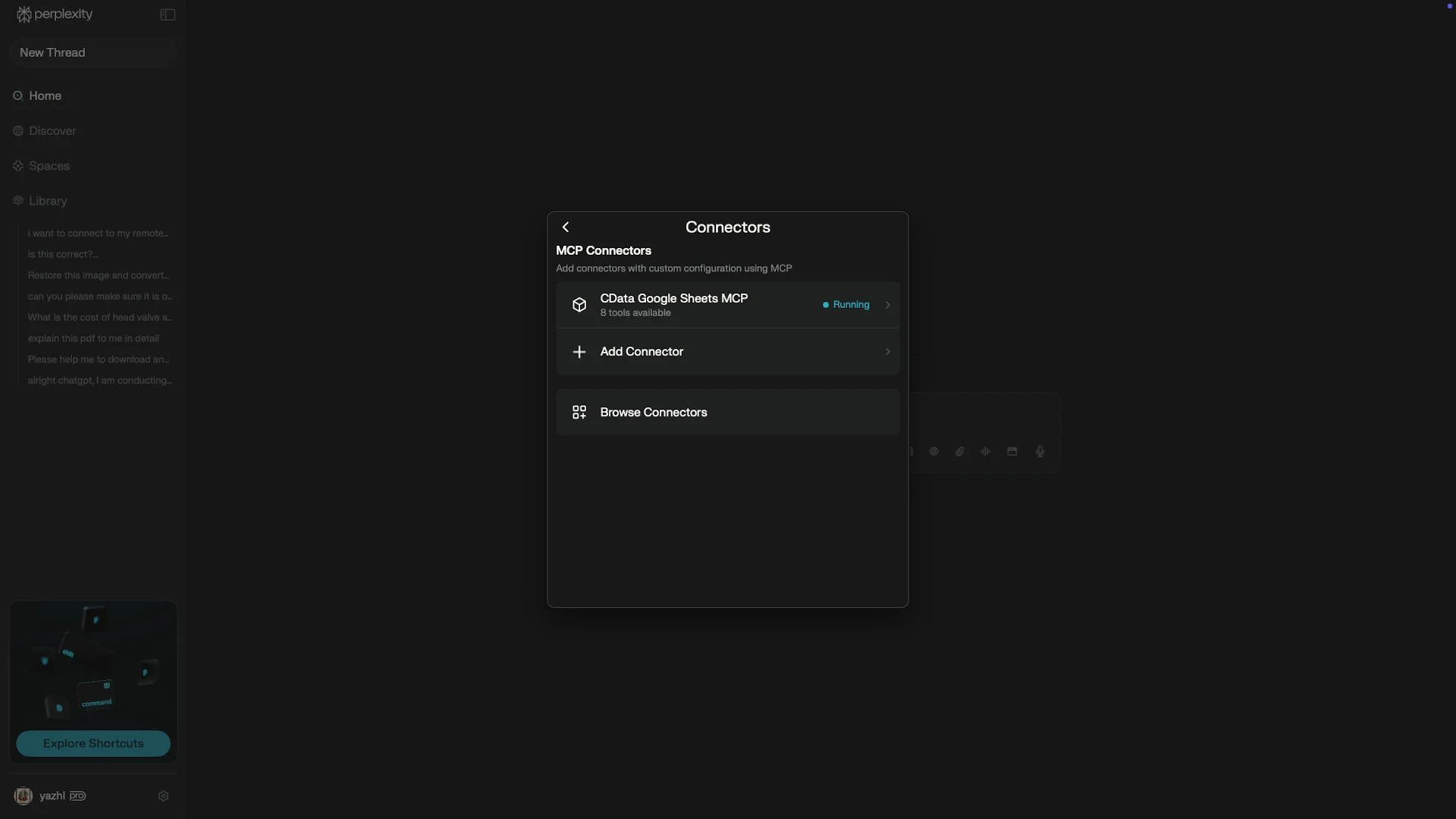
Step 4: Query Your Live Sugar CRM data in Perplexity Desktop
- Open a new chat in Perplexity Desktop.
Click the Sources toggle and enable your MCP Server
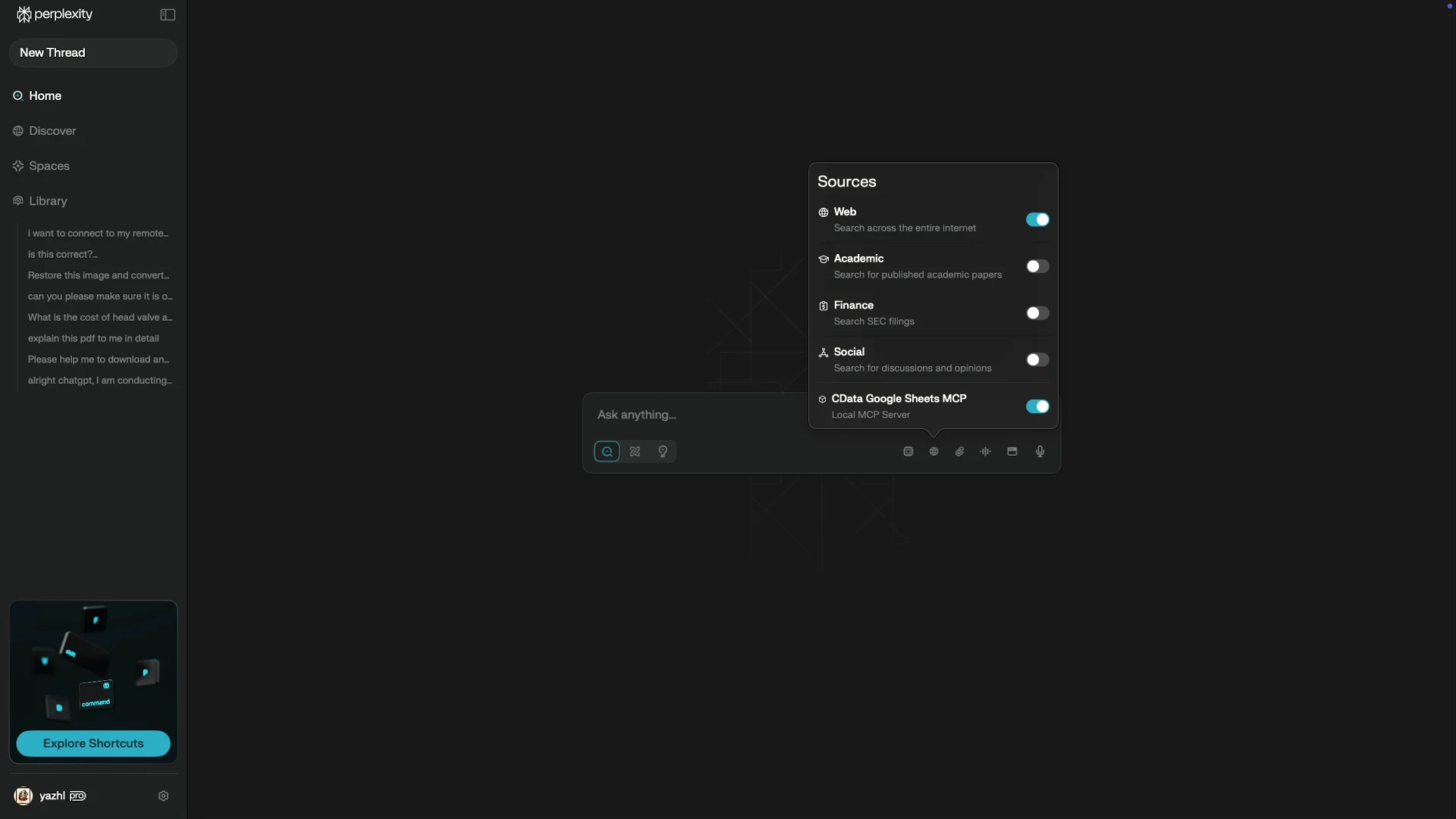
- Start asking questions about your Sugar CRM data.
For example:
"List all the tables available in my Sugar CRM data connection."
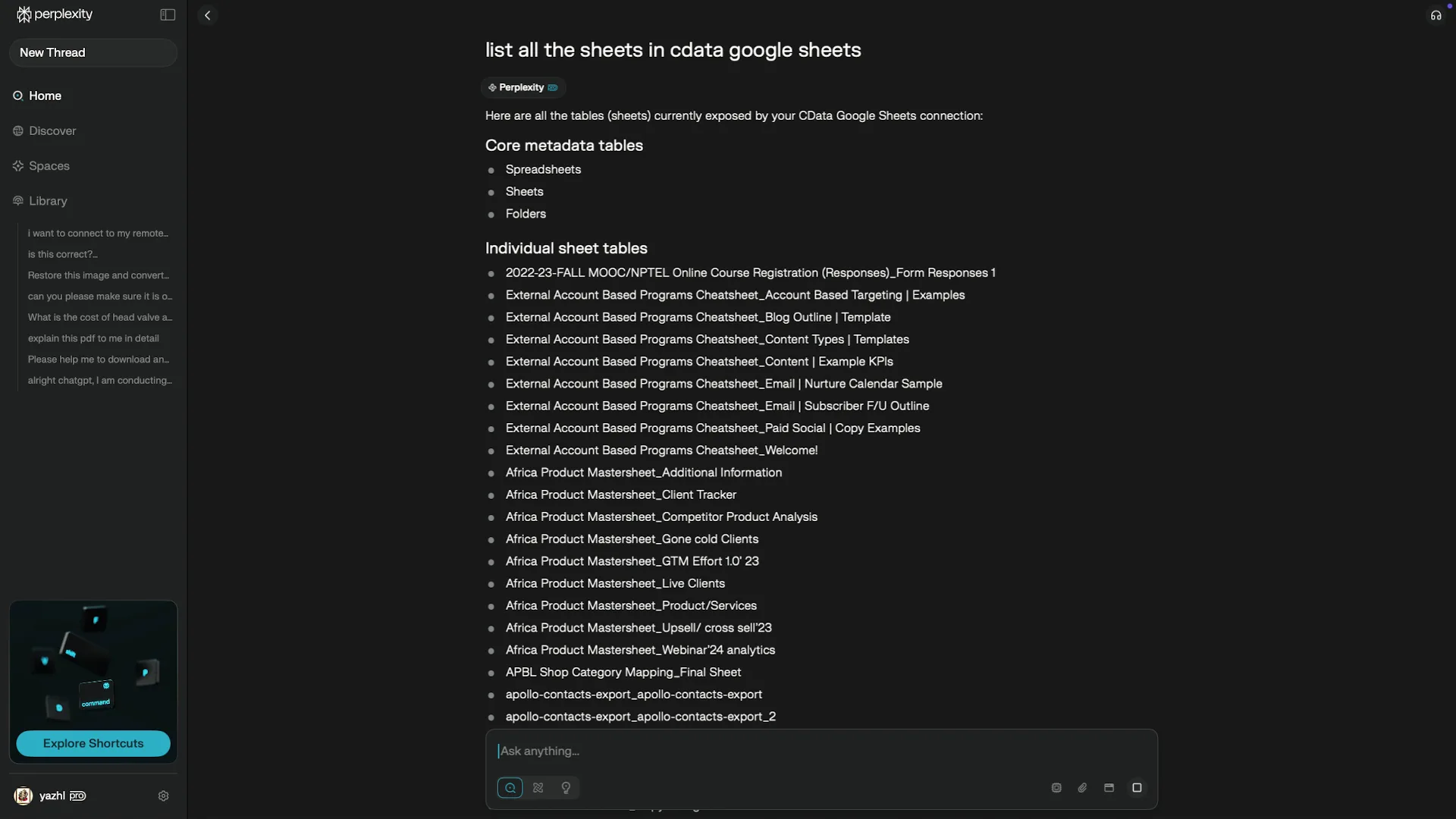
Connect your AI to your Sugar CRM data today!
CData MCP Servers make it simple to connect Perplexity and other LLM clients to real-time enterprise data. Download a free, 30-day trial and join the CData Community to share insights, ask questions, and help shape the future of enterprise-ready AI.
Ready to get started?
Download a free Sugar MCP Server to get started:
Download NowLearn more:
 Sugar MCP Server
The CData MCP Server for Sugar allows you to connect with live Sugar data, directly from LLMs that support MCP.
