






Build AI Agents with SurveyMonkey Data in IBM watsonx Orchestrate using CData Connect AI

IBM watsonx Orchestrate is a no-code and pro-code AI agent platform that lets you rapidly build and deploy intelligent automation workflows. You can design collaborative agents capable of executing real business tasks that connect seamlessly to large language models (LLMs) and enterprise systems.
Agents in watsonx Orchestrate can reason, plan, and integrate with APIs and tools to deliver automated workflows that augment human teams.
CData Connect AI integrates IBM watsonx Orchestrate with over 350+ enterprise data sources and cloud services. With Connect AI, agents can query and act on live SurveyMonkey data in real time — without replication or data movement. Connect AI provides governed, secure access using the Model Context Protocol (MCP) while keeping your data within its original system.
Together, IBM watsonx Orchestrate and CData Connect AI enable you to:
- Build AI agents that interact directly with governed enterprise data through CData's MCP server.
- Manage authentication securely — credentials and tokens remain encrypted and private.
- Query live SurveyMonkey data without copying or replicating it.
- Maintain governance and compliance using CData's unified connectivity platform.
In this article, you will learn how to connect SurveyMonkey to CData Connect AI, import Remote MCP tools into IBM watsonx Orchestrate, and build secure, real-time agent workflows using live SurveyMonkey data.
Prerequisites
- A CData Connect AI account – Sign up for a free trial or log in to your existing account.
- An IBM watsonx Orchestrate account – Start a 30-day free trial.
- A SurveyMonkey account with valid credentials.
- Python 3.x and pip installed for using the IBM watsonx Orchestrate Agent Development Kit (ADK) to manage or import MCP toolkits.
Overview
Here is a quick overview of the steps covered in this article:
- Connect: Add a connection to your SurveyMonkey in CData Connect AI and verify that the connection is successful.
- Build: Create an AI agent in IBM watsonx Orchestrate by authenticating the connection to SurveyMonkey from Connect AI and importing the MCP tools using the ADK.
- Deploy: Deploy and test your AI agent in watsonx Orchestrate to confirm real-time interaction with live SurveyMonkey data through CData Connect AI.
Step 1: Configure SurveyMonkey Connectivity for IBM watsonx
Before connecting IBM watsonx Orchestrate to SurveyMonkey, you must first create a connection to SurveyMonkey in CData Connect AI. This connection enables the Remote MCP server to access live SurveyMonkey data through a secure, governed endpoint.
Note: If you have already added a SurveyMonkey connection in CData Connect AI, you can skip this step and continue to the next section.
1.1 Add a Connection in CData Connect AI
- Log in to CData Connect AI, click Sources in the left panel, and then click Add Connection on top-right.
- Search and select SurveyMonkey from the Add Connection panel.
-
Enter the required authentication properties to connect to SurveyMonkey.
SurveyMonkey uses the OAuth 2 authentication standard. See the Getting Started section in the help documentation for a guide.

- Click Save & Test to validate the connection.
-
Navigate to the Permissions tab on the Add SurveyMonkey Connection
page and update user-based permissions as needed.



1.2 Create a Personal Access Token (PAT)
A Personal Access Token (PAT) is used to authenticate IBM watsonx Orchestrate when connecting to CData Connect AI. It is recommended to create a separate PAT for each integration to maintain fine-grained access control.
- Click the gear icon () in the upper-right corner of the Connect AI interface to open Settings.
- On the Settings page, open the Access Tokens section and click Create PAT.
-
Provide a descriptive name and click Create.

- Note: The PAT is displayed only once at creation. Copy and store it securely for later use when configuring IBM watsonx Orchestrate.
With the connection configured and a PAT generated, you are now ready to connect to live SurveyMonkey data from IBM watsonx Orchestrate and begin importing MCP tools through the Agent Development Kit (ADK).
Step 2: Build an AI Agent with Your SurveyMonkey data
Once the connection to SurveyMonkey is established in CData Connect AI, you can begin building an AI agent in IBM watsonx Orchestrate. This section walks you through adding the connection inside watsonx Orchestrate and configuring authentication for secure access.
2.1 Add a Connection for SurveyMonkey in IBM watsonx Orchestrate
This step links your CData Connect AI Remote MCP server to IBM watsonx Orchestrate to manage the connection to SurveyMonkey through the Agent Development Kit (ADK). Follow the steps below to configure and authenticate it.
- Log in to your IBM watsonx Orchestrate account.
-
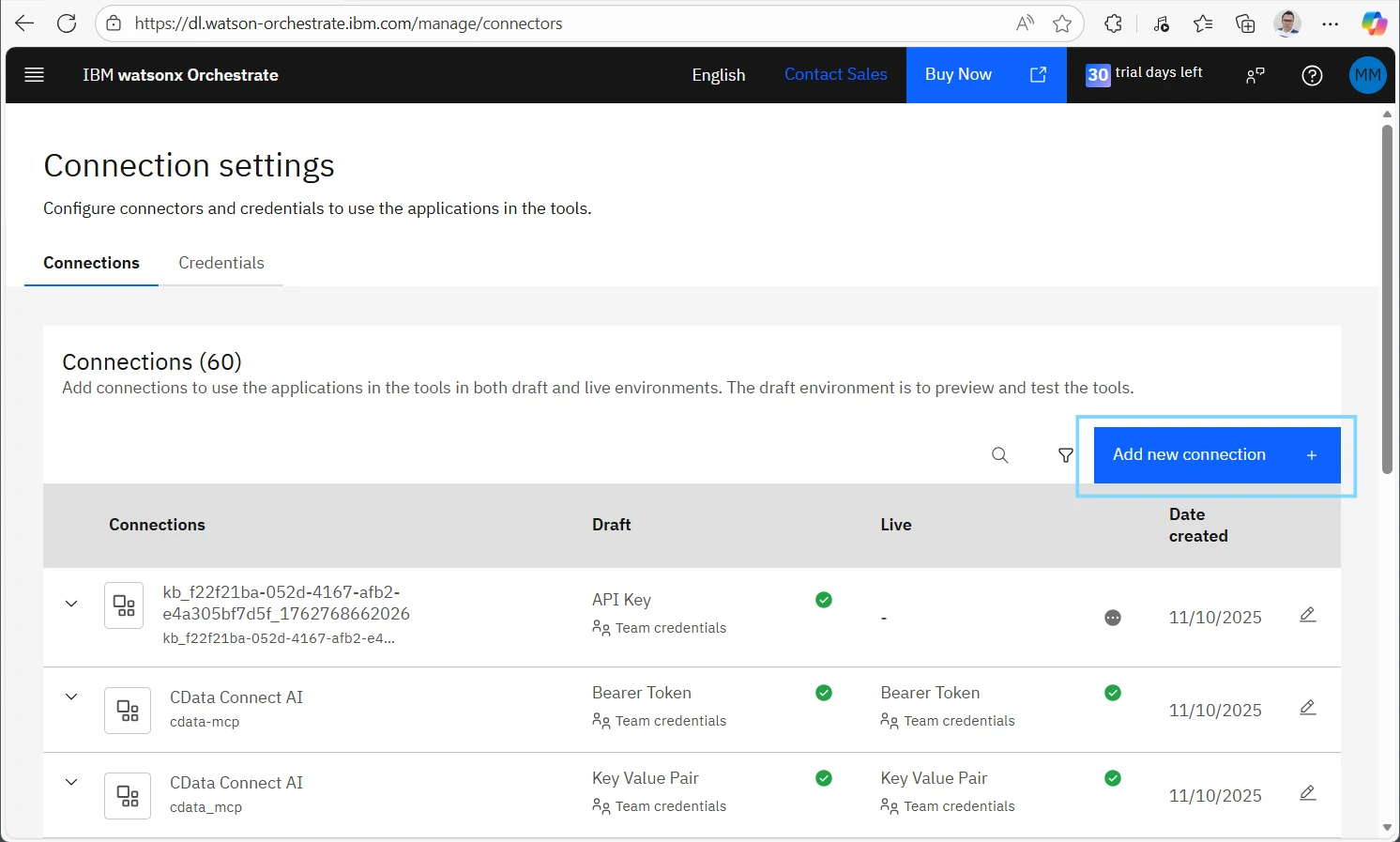
On the home screen, click the three-line Menu icon on the left panel, expand the Manage section, and select Connections.

-
Click Add new connection.
- Under Define connection details, enter a unique Connection ID (for example, mcp-cdata) to identify it later.
-
Enter the Display name as CData Connect AI MCP, then click
Save and continue and confirm the dialog.

-
Under Configure draft connection, select Authentication type as
Key-Value Pair from the drop-down.

- Scroll down to Credential type and select the Team credentials radio button.
-
Enter the following details:
- Key: Enter Authorization.
- Value: Enter your CData Connect AI registered email and Personal Access Token (PAT) from Step 1, separated by a colon (:), and prefixed with the word Basic. For example: Basic [email protected]:DVolmeSplUCJUdXVFdj.

-
Click Connect to establish the connection successfully, then click Next.

-
Under Configure live connection, click Paste draft configuration to copy the settings.

- Repeat the same credential configuration as in the draft connection (Team credentials with the same Key-Value Pair).
-
Click Connect to validate, then click Finish and confirm the dialog to close
the connection setup.

2.2 Install the ADK and Requirements
After adding a connection to SurveyMonkey in CData Connect AI, install the IBM watsonx Orchestrate Agent Development Kit (ADK) to manage and test the connection.
- Install Python 3.x and pip if they are not already installed.
-
Verify the installation by running the following commands in your terminal:
python --version and pip --version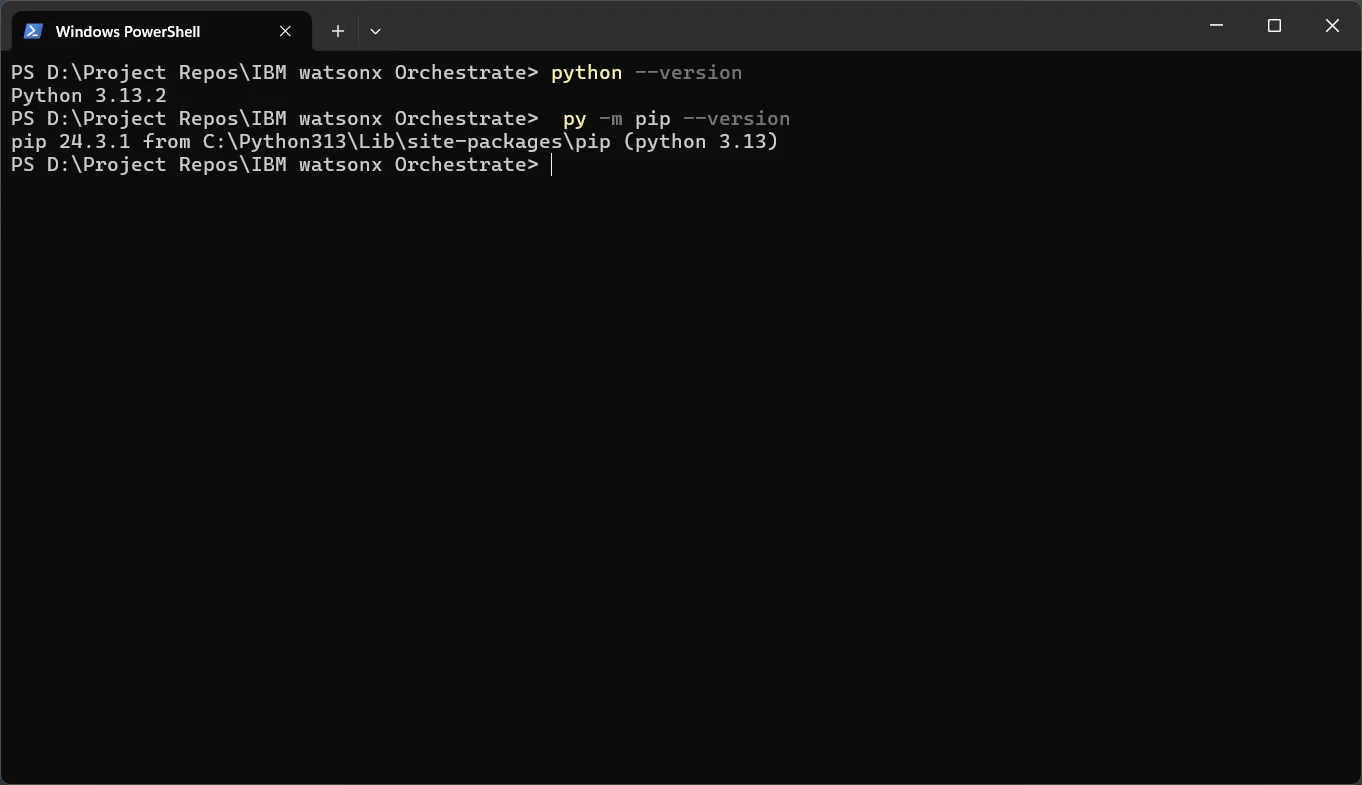
-
Create a project directory and set up a Python virtual environment for the ADK with the following command:
python -m venv venv -
Activate the virtual environment:
On Windows: venv\Scripts\activate
On macOS or Linux: source venv/bin/activate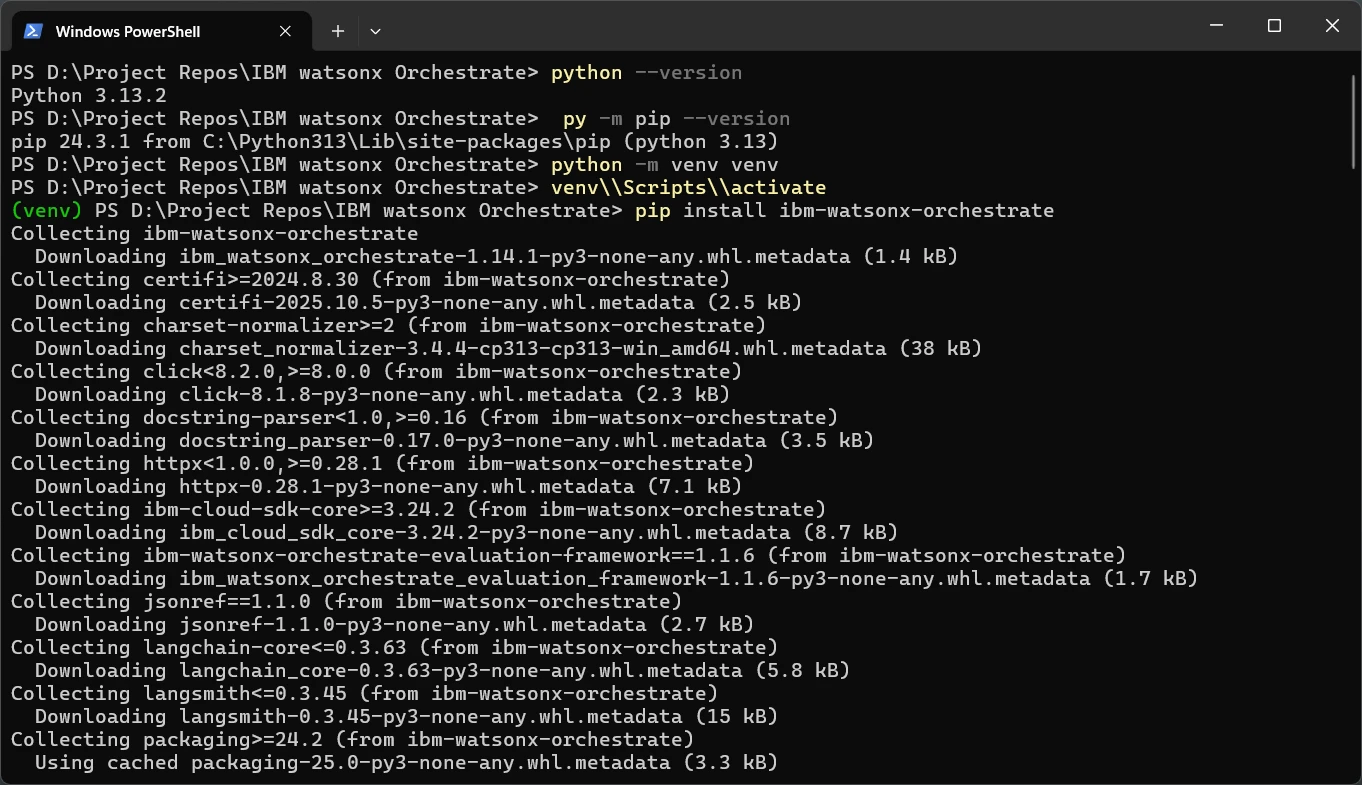
-
With your environment activated, install the ADK:
pip install ibm-watsonx-orchestrate -
After installation, confirm that the ADK is working by running:
orchestrate --help -
If everything is set up correctly, you will see a list of available ADK CLI commands, similar to the screenshot below.

2.3 Connect the ADK to IBM watsonx Orchestrate
Now that the ADK is installed, connect it to your IBM watsonx Orchestrate SaaS instance so you can manage environments and import MCP tools from CData Connect AI.
You need your watsonx Orchestrate API Key and Service Instance URL. Follow these steps:
- Log in back to your IBM watsonx Orchestrate instance.
-
Click the profile icon in the top-right corner, open the menu, and select Settings.

- On the Settings page, open the API details tab and click Generate API key. A pop-up will appear with your new API Key. Copy and save it securely. You will not be able to view it again later.
-
Copy your Service Instance URL.

-
Return to your terminal and run the following command to connect the ADK to your IBM watsonx Orchestrate environment:
orchestrate env add -n <environment-name> -u <service-instance-url> --type mcsp --activate
Parameter Description Example <environment-name> A name for your ADK environment. CData-Env <service-instance-url> Your IBM watsonx Orchestrate Service Instance URL copied from your instance settings. https://api.dl.watson-orchestrate.ibm.com/instances/20250605-1433-1621-306a-df42bcdd849c
Example command:orchestrate env add -n wxO-AWS -u https://api.dl.watson-orchestrate.ibm.com/instances/20250605-1433-1621-306a-df42bcdd849c --type mcsp --activate -
When prompted, paste your API Key into the terminal and press Enter to activate the environment.
Once completed, a confirmation message will appear indicating that your environment has been created and activated.

2.4 Import the Connect AI MCP Server Toolkits into IBM watsonx Orchestrate
Now that your environment is connected and authenticated, you can import the CData Connect AI Remote MCP toolkits into IBM watsonx Orchestrate. This step registers the live SurveyMonkey tools so that your agents can use them directly through the Agent Development Kit (ADK).
- Return to your terminal or command prompt with the virtual environment activated.
-
Run the following command to import the CData Connect AI MCP toolkit:
orchestrate toolkits import --kind mcp --name cdata-mcp --description "CData Connect AI MCP Toolkit" --url "https://mcp.cloud.cdata.com/mcp/" --transport "streamable_http" --tools "getCatalogs,getSchemas,getTables,getColumns,queryData,getProcedures,getProcedureParameters,executeProcedure" --app-id "mcp-cdata" -
Replace the parameters as needed:
Parameter Description Example --name Specifies a name for the imported toolkit. cdata-mcp --description A short description of the toolkit. "CData Connect AI MCP Toolkit" --url The URL of the CData Connect AI MCP server. https://mcp.cloud.cdata.com/mcp/ --transport The communication protocol used for the MCP connection. streamable_http --tools A comma-separated list of tools to import from the CData Connect AI MCP server.
The following Connect AI MCP tools provide metadata and query access for live SurveyMonkey data:- getCatalogs
- getSchemas
- getTables
- getColumns
- queryData
- getProcedures
- getProcedureParameters
- executeProcedure
"getCatalogs,getSchemas,getTables,getColumns,queryData,getProcedures,getProcedureParameters,executeProcedure" --app-id The connection name created earlier in Step 2.1 (for example, mcp-cdata). mcp-cdata - The ADK connects to the CData Connect AI MCP server, validates the available tools, and imports them into your IBM watsonx Orchestrate instance. The process may take up to 30 seconds while the tool schemas are verified.
-
Once the import is complete, confirm that the toolkit is available by running:
orchestrate toolkits list
You have now successfully imported the CData Connect AI MCP toolkits into IBM watsonx Orchestrate. Your agents can now call live SurveyMonkey data through CData Connect AI using the imported MCP tools.

2.5 Create an Agent in IBM watsonx Orchestrate
You are now ready to create an AI agent in IBM watsonx Orchestrate that uses the imported CData Connect AI MCP tools. This agent allows you to query and interact with live SurveyMonkey data directly through the Connect AI integration.
Follow these steps:
-
On the IBM watsonx Orchestrate
Dashboard, click the three-line Menu icon on the left panel, expand
the Build section, and select Agent Builder.

-
On the Build agents and tools page, click the Create agent button in the top-right corner.

-
Select Create from scratch, enter a desired Name (for example, CData Connect AI), add a short Description, and click Create.

-
On the agent's main page, click Toolset in the left panel, then click the Add tool button.

-
Select Add from file or MCP server, then choose Import from MCP server.


-
In the top-left Select MCP server drop-down, choose the MCP toolkit you imported in the previous step (for example, cdata-mcp).

-
Turn on all imported CData Connect AI MCP tools as shown, then click Close to save and exit the dialog.

-
This completes the connection between SurveyMonkey data and IBM watsonx Orchestrate by enabling the imported CData Connect AI tools.

Your agent is now ready to use the CData Connect AI MCP tools to query and process live SurveyMonkey data directly within IBM watsonx Orchestrate. You can now start building workflows, testing SQL-based queries, and automating actions using real-time data through Connect AI.
Step 3: Test and Deploy the Built Agent
Your agent setup is now complete, and you can begin testing it directly in the IBM watsonx Orchestrate preview interface. This step ensures that your CData Connect AI MCP integration is working correctly and that your agent can query live SurveyMonkey data in real time.
-
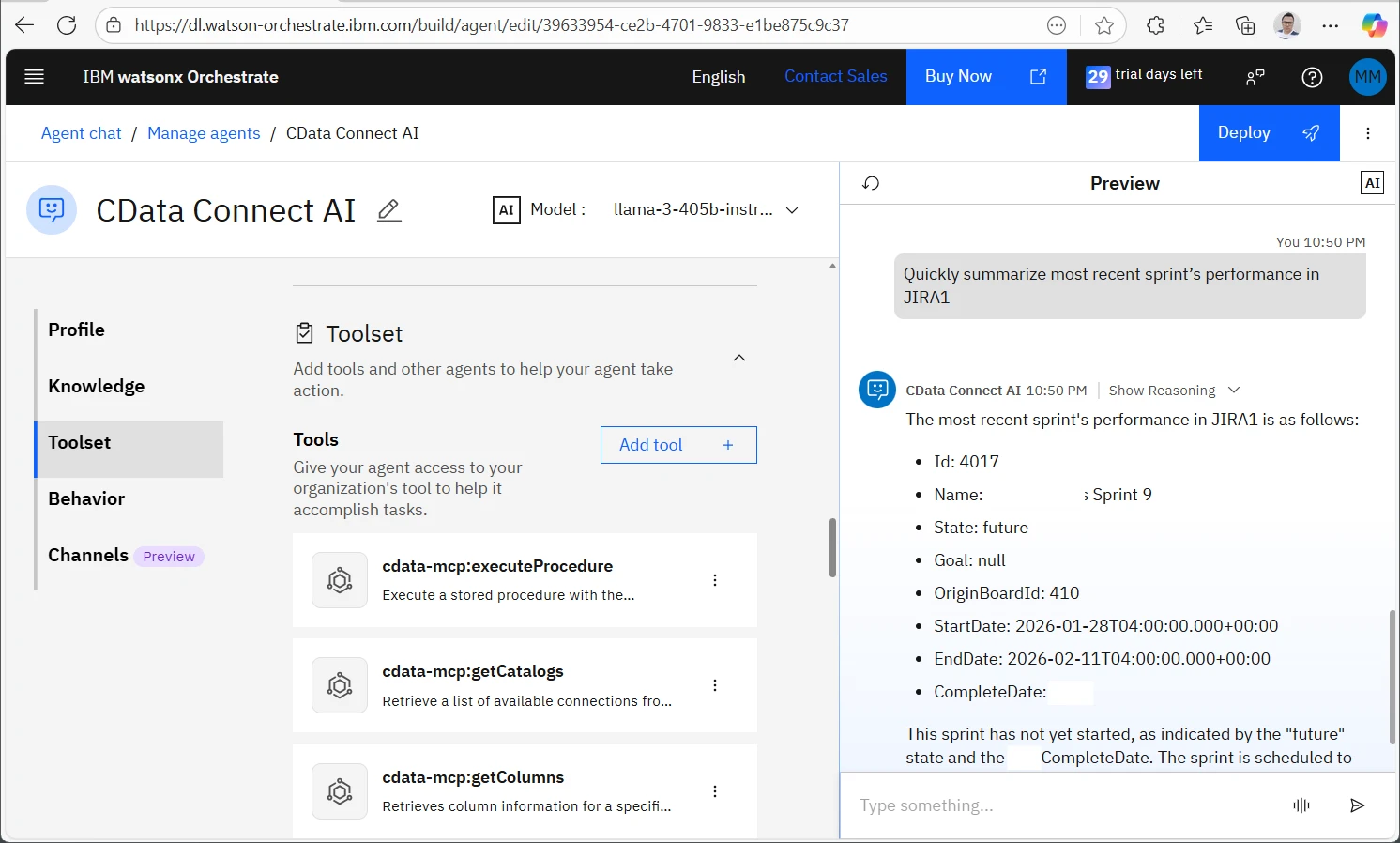
In the agent's Preview chat interface, type List catalogs to view available data
catalogs retrieved through the connected CData MCP server.

-
Next, run a sample query by including your SurveyMonkey catalog name for better context.
For example: Briefly summarize the most recent sprint's performance in the SurveyMonkey catalog.
You can further fine-tune your agent before deployment to improve accuracy, usability, and responsiveness. Here are a few ways to enhance your agent:
- Add natural-language variations — test multiple phrasings of the same request to ensure your agent understands similar intents consistently.
- Refine the agent's description and behavior — update the Description and Behavior fields in Agent Builder for clearer task context and responses.
- Combine more MCP tools or connections — import other CData MCP toolkits or data sources to enable multi-source workflows.
- Test filtering, summaries, and drill-downs — run varied queries in Preview to validate accuracy and performance.
Once you're ready, deploy the agent by clicking the Deploy button at the top to share it with your team and enable access for all users.
Build AI Agents in Minutes with CData Connect AI
With CData Connect AI, you can securely connect and query over 350+ enterprise data sources directly within your AI environments — no data replication or complex setup required. CData's governed SQL-based connectivity makes it easy for tools like IBM watsonx Orchestrate to access, analyze, and automate workflows with real-time data.
Start building your next AI-powered integration today with a free trial of CData Connect AI.
Or better yet, experience it yourself with the live demo — try it now here.
