




Connect to Talkdesk Data from Blazor Apps

Blazor is a framework for developing modern, client-side web UIs using .NET technology. Instead of coding in JavaScript, developers can use the familiar C# language and .NET libraries to build app UIs.
The CData ADO.NET Provider for Talkdesk can be used with standard ADO.NET interfaces, such as LINQ and Entity Framework, to interact with live Talkdesk data. Since Blazor supports .NET Core, developers can use CData ADO.NET Providers in Blazor apps. In this article, we will guide you to build a simple Blazor app that talks to Talkdesk using standard SQL queries.
Install the CData ADO.NET Provider for Talkdesk
CData ADO.NET Providers allow users to access Talkdesk just like they would access SQL Server, using simple SQL queries.
Install the Talkdesk ADO.NET Data Provider from the CData website or from NuGet. Search NuGet for "Talkdesk ADO.NET Data Provider."
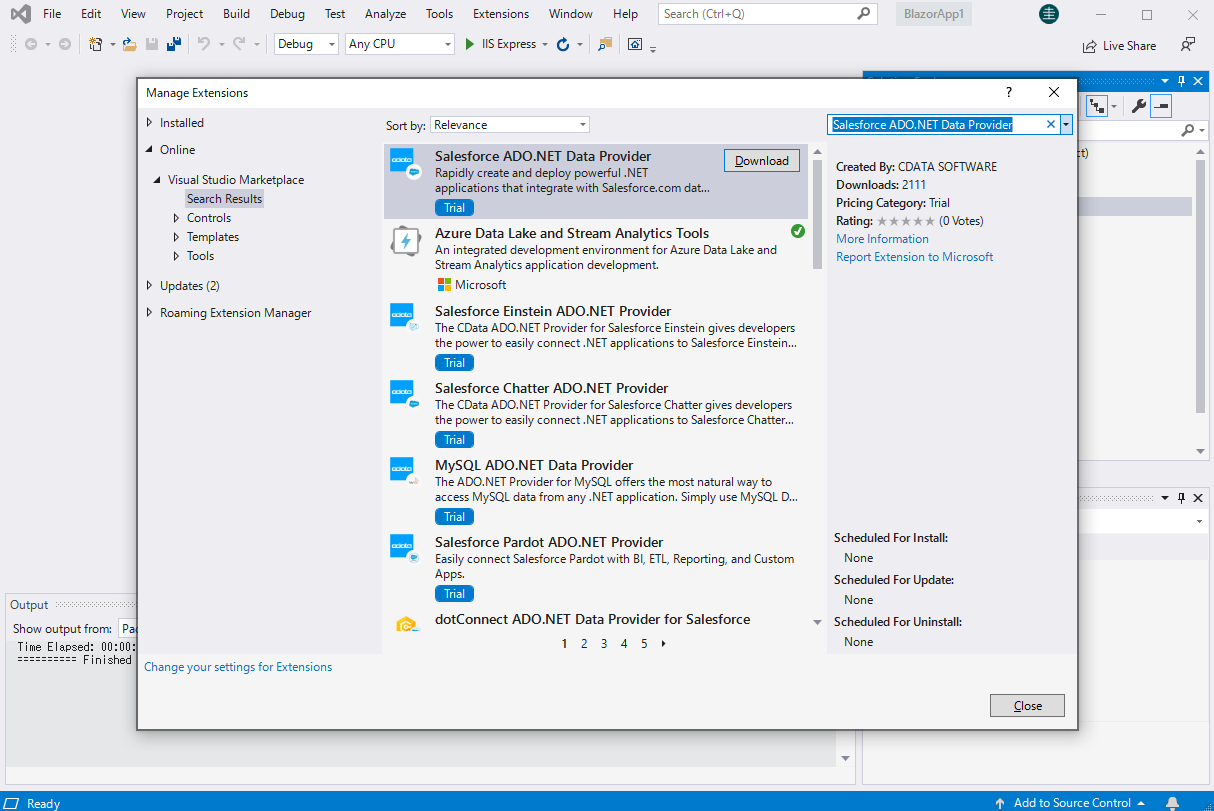
Create a Talkdesk-Connected Blazor App
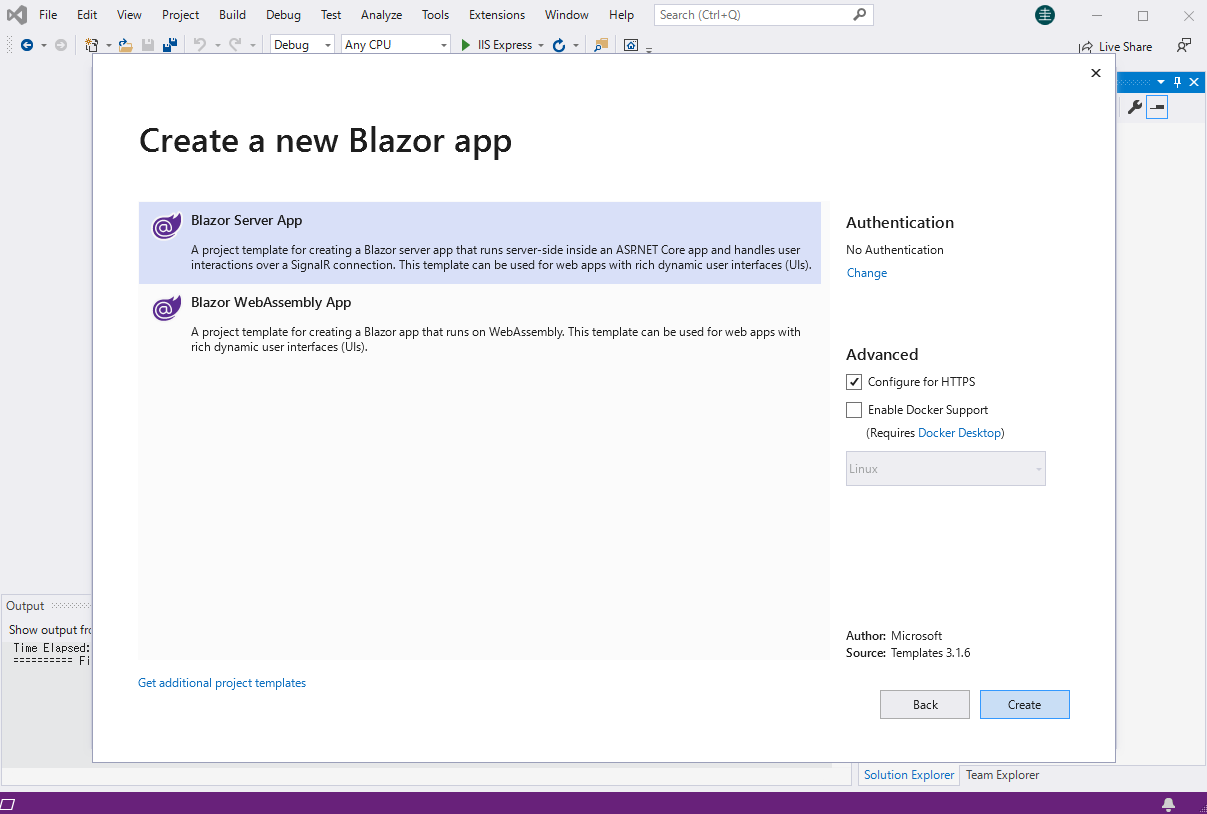
Start by creating a Blazor project that references the CData ADO.NET Provider for Talkdesk
- Create a Blazor project on Visual Studio.
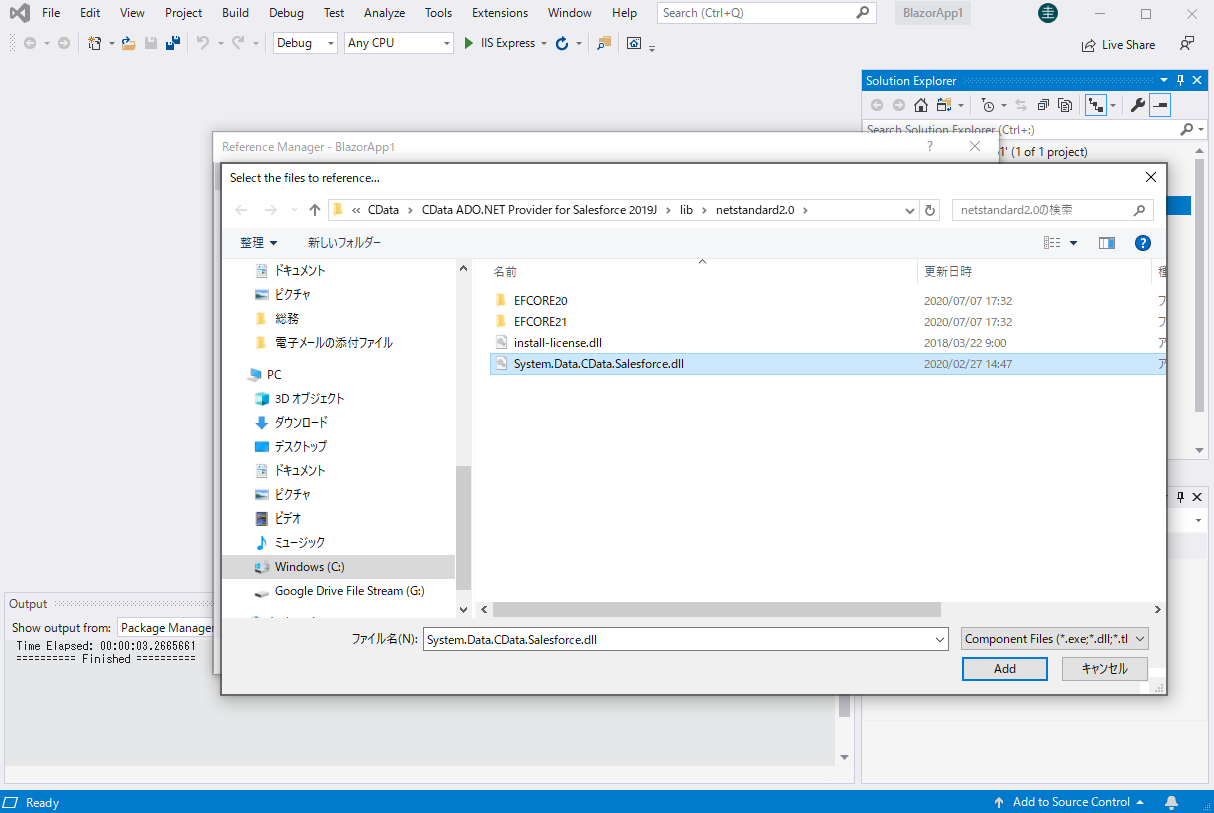
- From the Solution Explorer, right click Dependencies, then click Add Project Reference.
- In the Reference Manager, click the Browse button, and choose the .dll file of the installed ADO.NET Provider (e.g. System.Data.CData.Talkdesk.dll, typically located at C:\Program Files\CData\CData ADO.NET Provider for Talkdesk\lib etstandard2.0).
SELECT Talkdesk Data from the Blazor App
- Open the Index.razor file from the Project page.
- In a TalkdeskConnection object, set the connection string:
Talkdesk uses the OAuth 2.0 Client Credentials grant. There is no browser-based authorization step and no callback URL.
Set the following connection properties:
- AccountName: The name of your Talkdesk account.
- Region: The region where your Talkdesk instance is deployed. Supported values are US (default), EU, CA, AU, UK, and FedRamp.
- OAuthClientId: The Client Id assigned when you registered your custom OAuth application.
- OAuthClientSecret: The Client Secret assigned to your custom OAuth application.
Creating a Custom OAuth Application
- Log in to your Talkdesk account and select OAuth Clients from the navigation menu.
- Click Create OAuth Client and give the client a descriptive name.
- Set Grant Type to Client Credentials.
- Click Add scopes and select the scopes for the data you want to access.
- Click Create and copy the Client Id and Client Secret.
When you connect, the driver automatically requests an access token from Talkdesk, caches it, and refreshes it when it expires. Make sure the scopes selected for the application match the views you plan to query, or the token request can fail.
For example: AccountName=myAccount;Region=US;OAuthClientId=myClientId;OAuthClientSecret=myClientSecret;
- The code below creates a simple Blazor app for displaying Talkdesk data, using standard SQL to query Talkdesk just like SQL Server.
@page "/" @using System.Data; @using System.Data.CData.Talkdesk; <h1>Hello, world!</h1> Welcome to your Data app. <div class="row"> <div class="col-12"> @using (TalkdeskConnection connection = new TalkdeskConnection( "AccountName=myAccount;Region=US;OAuthClientId=myClientId;OAuthClientSecret=myClientSecret;")) { var sql = "SELECT Id, Name FROM Users WHERE Active = 'true'"; var results = new DataTable(); TalkdeskDataAdapter dataAdapter = new TalkdeskDataAdapter(sql, connection); dataAdapter.Fill(results); <table class="table table-bordered"> <thead class="thead-light"> <tr> @foreach (DataColumn item in results.Rows[0].Table.Columns) { <th scope="col">@item.ColumnName</th> } </tr> </thead> <tbody> @foreach (DataRow row in results.Rows) { <tr> @foreach (var column in row.ItemArray) { <td>@column.ToString()</td> } </tr> } </tbody> </table> } </div> </div> - Rebuild and run the project. The ADO.NET Provider renders Talkdesk data as an HTML table in the Blazor app.
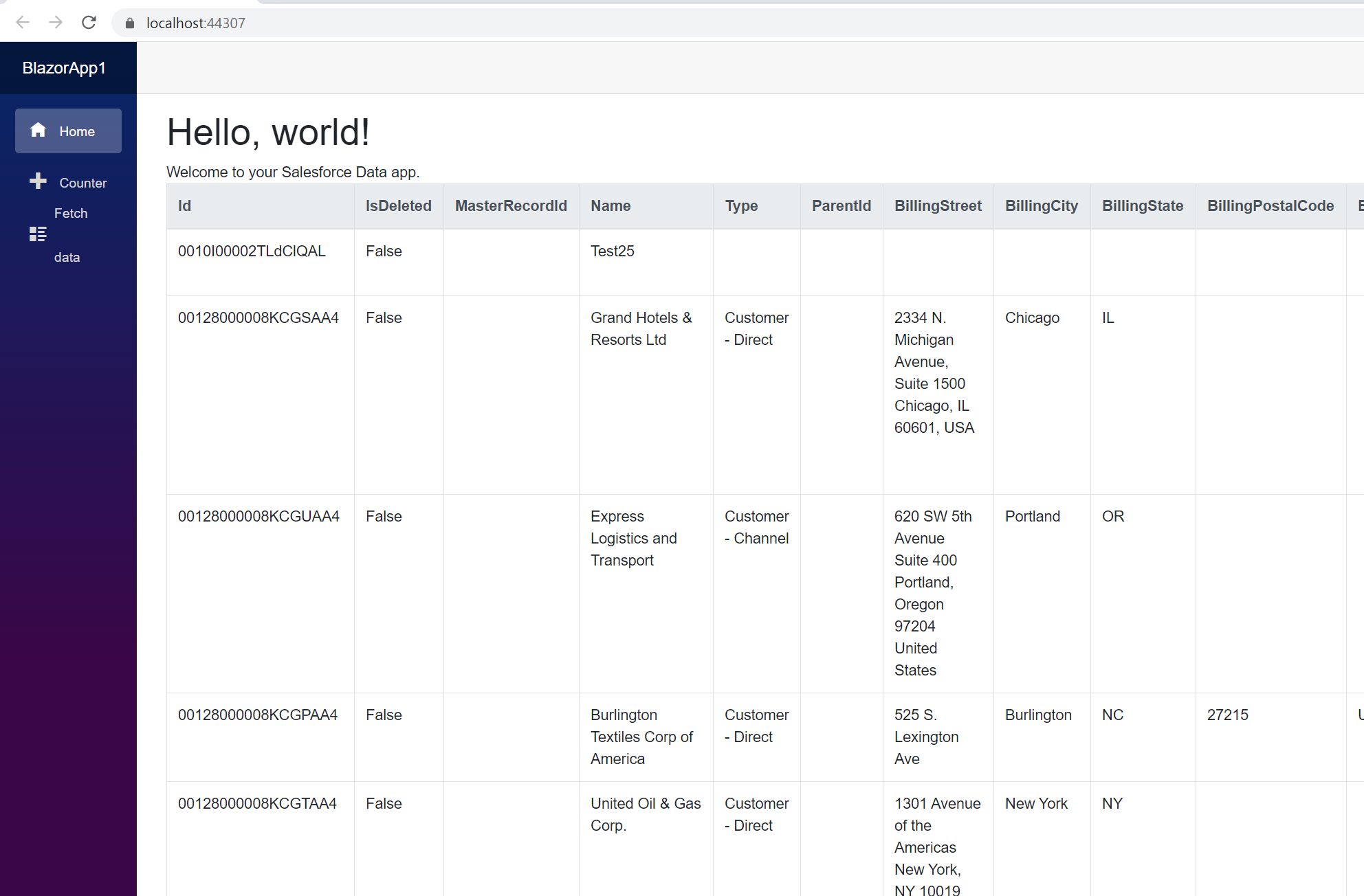
At this point, you have a Talkdesk-connected Blazor app, capable of working with live Talkdesk data just like you would work with a SQL Server instance. Download a free, 30-day trial and start working with live Talkdesk data in your Blazor apps today.
Ready to get started?
Download a free trial of the Talkdesk Data Provider to get started:
Download NowLearn more:
 Talkdesk ADO.NET Provider
Rapidly create and deploy powerful .NET applications that integrate with Talkdesk data including Accounts, Attributes, BillingAccounts, Callbacks, Campaigns, Cases, Contacts, GuardianUsers, Invoices, Products, Subscriptions, Teams, Users, Wallets, and more!