




Access Live Talkdesk Data in Emergent via CData Connect AI

Emergent is an AI-powered development platform that lets users describe what they want to build and have an autonomous agent generate full-stack web applications in real time. Agents can connect to external tools and data sources through MCP to retrieve live data and power their outputs.
By integrating Emergent with CData Connect AI through the built-in MCP (Model Context Protocol) Server, Emergent agents gain governed, real-time access to live Talkdesk data. This enables agents to query, analyze, and visualize Talkdesk data: either by calling MCP tools directly during a session, or by generating a full application wired to live data, all without manual data exports or custom integration code.
This article outlines the steps to configure Talkdesk connectivity in Connect AI, register the CData MCP Server in Emergent, and interact with live Talkdesk data from Emergent.
Step 1: Configure Talkdesk connectivity for Emergent
Connectivity to Talkdesk from Emergent is made possible through CData Connect AI's Remote MCP Server. To interact with Talkdesk data from Emergent, start by creating and configuring a Talkdesk connection in CData Connect AI.
- Log into Connect AI, click Sources, and then click Add Connection
- Select Talkdesk from the Add Connection panel
-
Enter the necessary authentication properties to connect to Talkdesk.
Talkdesk uses the OAuth 2.0 Client Credentials grant. There is no browser-based authorization step and no callback URL.
Set the following connection properties:
- AccountName: The name of your Talkdesk account.
- Region: The region where your Talkdesk instance is deployed. Supported values are US (default), EU, CA, AU, UK, and FedRamp.
- OAuthClientId: The Client Id assigned when you registered your custom OAuth application.
- OAuthClientSecret: The Client Secret assigned to your custom OAuth application.
Creating a Custom OAuth Application
- Log in to your Talkdesk account and select OAuth Clients from the navigation menu.
- Click Create OAuth Client and give the client a descriptive name.
- Set Grant Type to Client Credentials.
- Click Add scopes and select the scopes for the data you want to access.
- Click Create and copy the Client Id and Client Secret.
When you connect, the driver automatically requests an access token from Talkdesk, caches it, and refreshes it when it expires. Make sure the scopes selected for the application match the views you plan to query, or the token request can fail.

- Click Save & Test
- Navigate to the Permissions tab and update user-based permissions



Add a Personal Access Token
A Personal Access Token (PAT) is used to authenticate the connection to Connect AI from Emergent. It is best practice to create a separate PAT for each integration to maintain granular access control.
- Click the gear icon () at the top right of the Connect AI app to open Settings
- On the Settings page, go to the Access Tokens section and click Create PAT
- Give the PAT a descriptive name and click Create
- Copy the token when displayed and store it securely. It will not be shown again

With the Talkdesk connection configured and a PAT generated, Emergent can now connect to Talkdesk data through Connect AI.
Step 2: Configure Connect AI in Emergent
CData Connect AI can be integrated with Emergent in two ways depending on your account tier. Pro and Enterprise users can register the MCP Server directly in the Emergent UI, while free-tier users can describe the integration in natural language and have Emergent's agent build a connected application automatically.
Method 1: Direct MCP Configuration (Pro/Enterprise)
Pro and Enterprise users can register the CData Connect AI MCP Server directly in the Emergent UI. Once registered, agents in any project can call live Talkdesk data through MCP tools without additional setup.
- Sign in to Emergent and create an account if you do not already have one
-
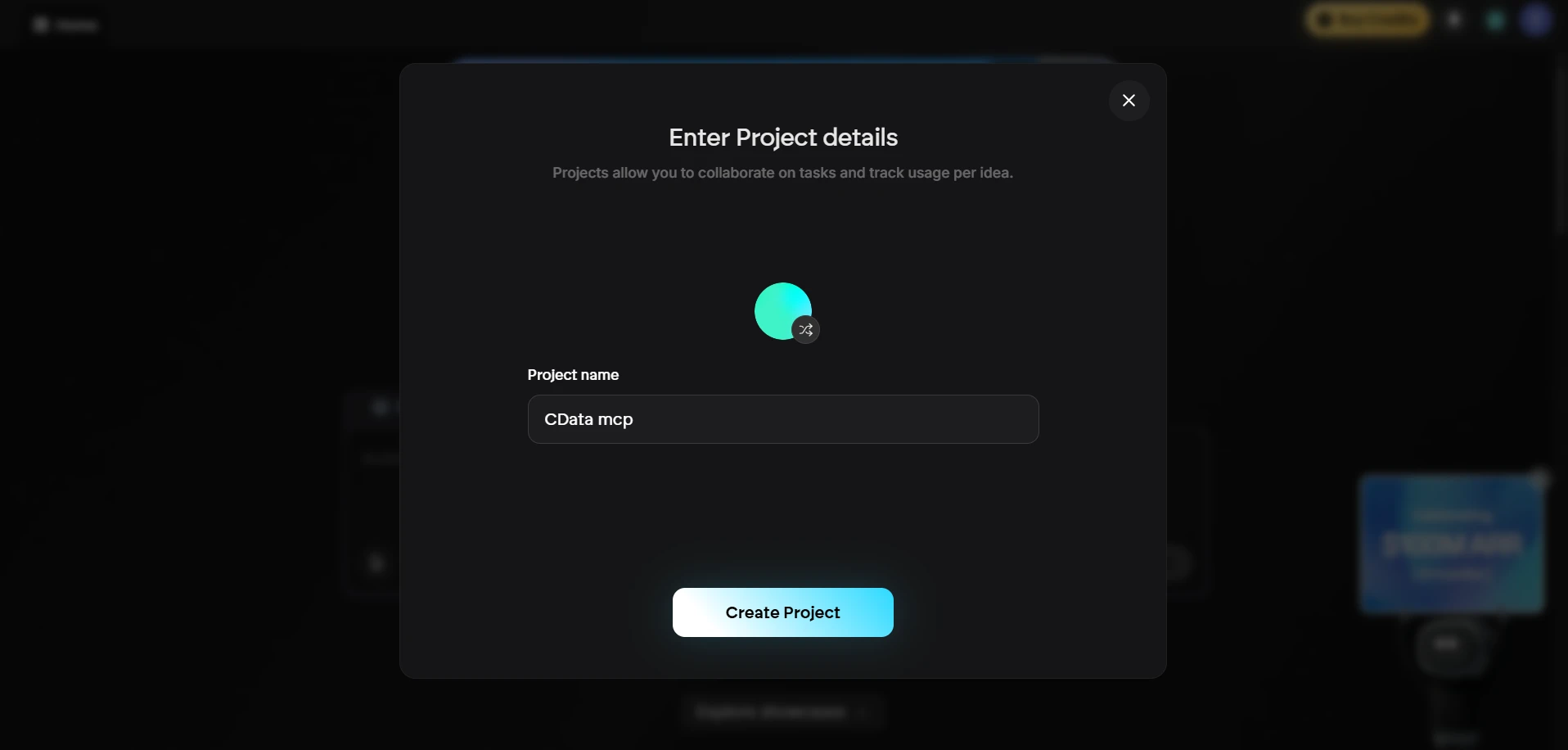
Click to start a new project. Enter a Project Name and click Create Project
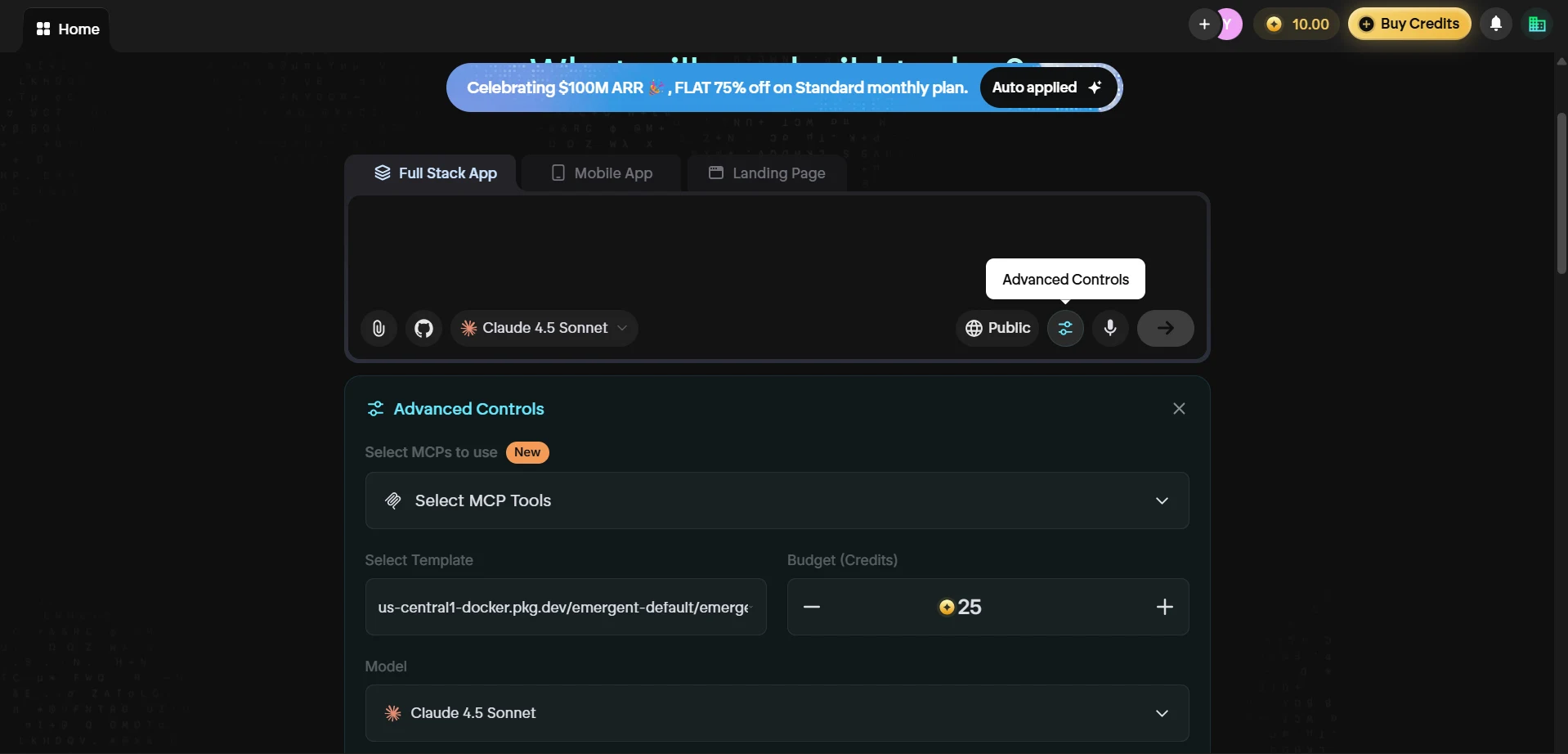
- In the project chat window, select your preferred model from the dropdown (e.g., Claude 4.5 Sonnet)
-
Click the Advanced Controls icon and then click Select MCP Tools to open the MCP configuration panel
-
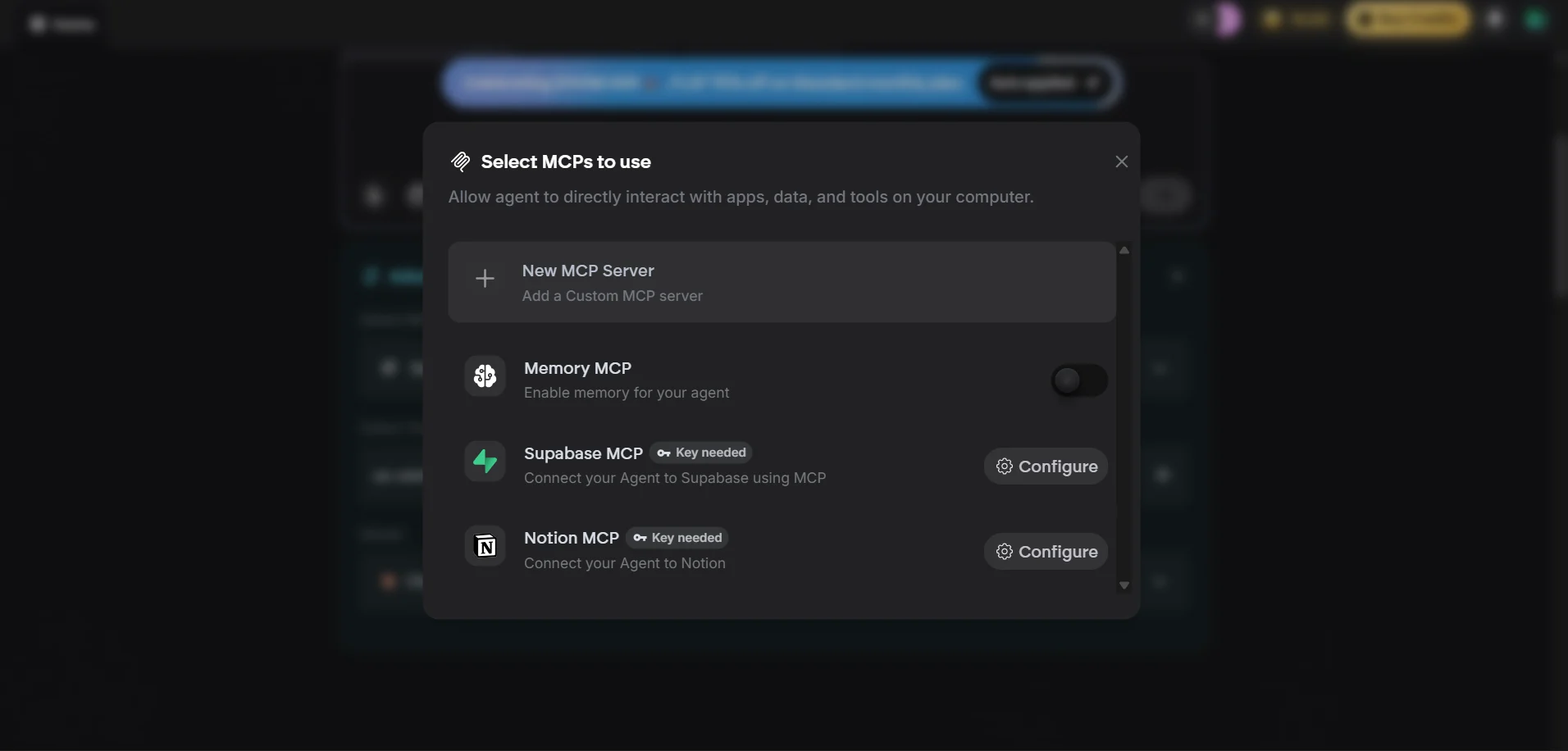
In the Select MCPs to use dialog, click + New MCP Server to add a custom MCP server
-
In the Configure New MCP dialog, fill in the following:
- MCP Name: cdata-mcp
- Description: (optional) A brief description of the server
- JSON Configuration: Paste the following, replacing base64-encode-email-pat with your Base64-encoded email:PAT string:
{
    "mcpServers": {
        "cdata-mcp": {
            "args": [
                "-y",
                "mcp-client",
                "connect",
                "https://mcp.cloud.cdata.com/mcp"
            ],
            "command": "npx",
            "env": {
                "MCP_HEADERS": "{\"Authorization\":\"Basic base64-encode-email-pat\"}"
            }
        }
    }
}
Note: Combine your Connect AI email and PAT in the format email:PAT, then Base64 encode the combined string. For example, given [email protected]:ABC123...XYZ, the value becomes something like: dXNlckBteWRvbWFpbjphSzkvbVB4Mi9Rcjd2TjQ...
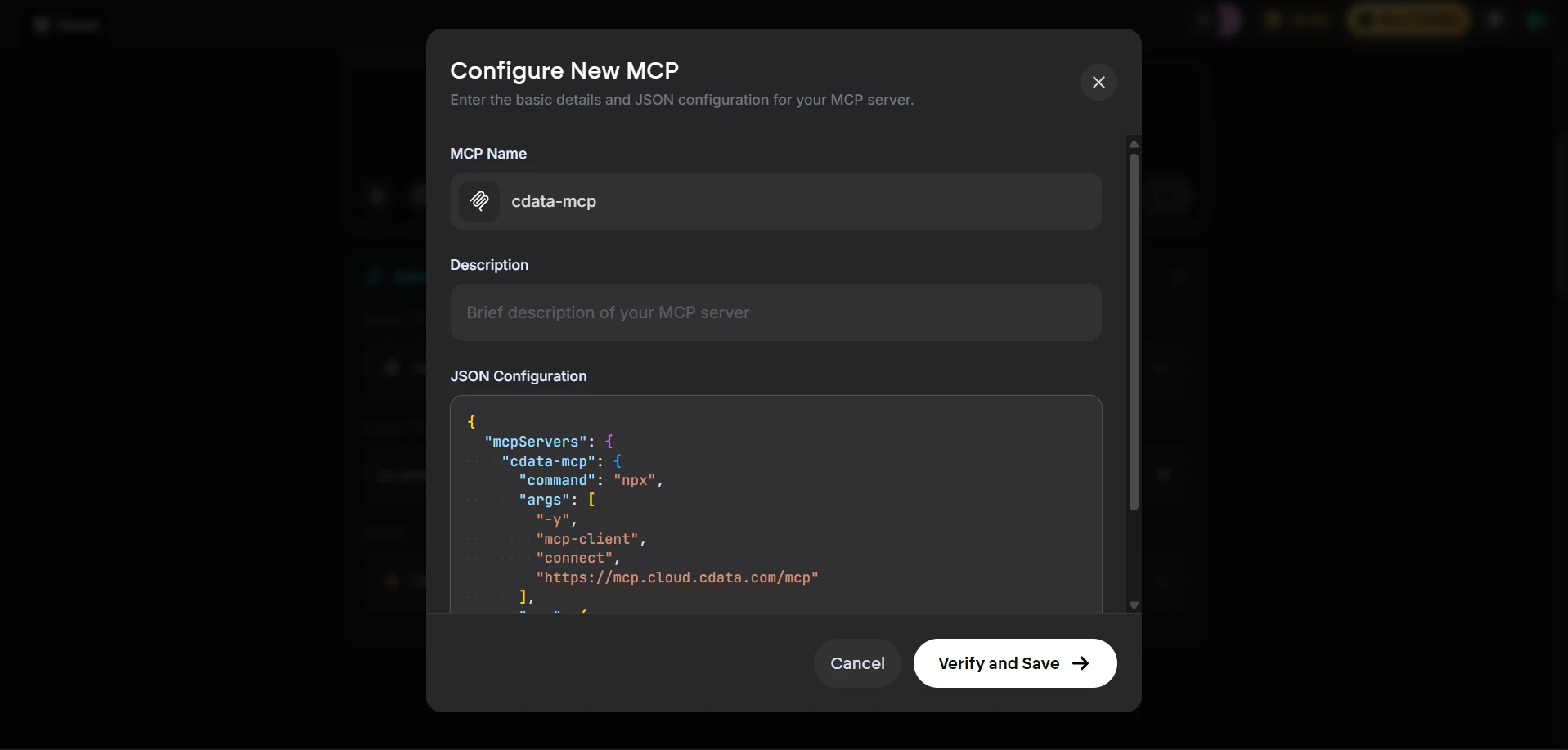
- Click Verify and Save to register the MCP server
- Return to Select MCP Tools and confirm that cdata-mcp is listed and its toggle is enabled. If it is not enabled, toggle it on
With the CData MCP Server registered and enabled, Emergent agents can now query and act on live Talkdesk data through Connect AI in any project.
Query live Talkdesk data from Emergent
With the MCP server configured, start a conversation in the Emergent agent panel to interact with live Talkdesk data.
-
Return to the project chat and enter a prompt to explore your data, for example:
- List all available catalogs in my cdata-mcp connection.
- Show the schemas and tables available for Talkdesk.
- Query the top 5 records from Talkdesk data.
- The agent calls the CData Connect AI MCP Server and returns live results from Talkdesk data
Method 2: Build an application with natural language (Free)
Free-tier users can direct Emergent to build a full-stack application that connects to the CData Connect AI MCP Server through a natural language prompt. The agent will gather the required endpoint and credentials interactively, then generate a working application wired to live Talkdesk data.
- Sign in to Emergent and open the chat window
-
Enter a prompt that describes the application you want to build. For example:
I would like to build a small application that connects to a remote MCP HTTPS server. I already have the MCP endpoint URL and the required credentials. The application should: - Establish a connection to the remote MCP server - Authenticate using the provided credentials - Retrieve and list all available catalogs from the MCP Please make sure the credentials are stored securely in a .env file and not hardcoded in the application. -
Emergent will prompt you to provide the MCP endpoint URL and authentication credentials. Supply the following values:
- MCP Endpoint URL: https://mcp.cloud.cdata.com/mcp
- Authorization: Basic base64(email:PAT)
-
The Emergent agent generates a full-stack application that connects to Talkdesk data through Connect AI and renders live results in the App Preview panel.
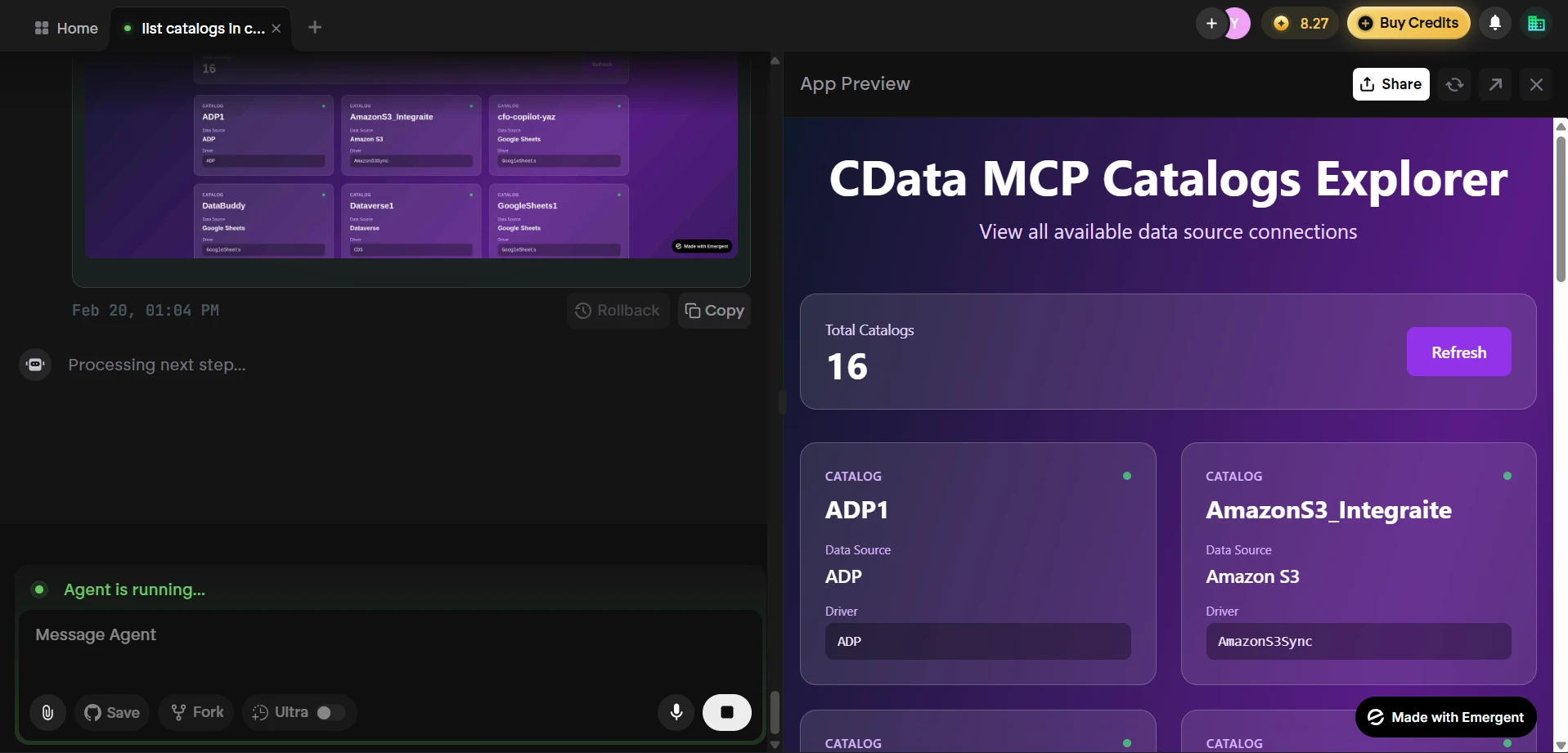
At this point, Emergent has built an application that communicates with the CData Connect AI MCP Server and retrieves live Talkdesk data, all from a single natural language prompt.
Get CData Connect AI
To access hundreds of SaaS, Big Data, and NoSQL sources directly from your cloud applications, try CData Connect AI today! Sign up for a free 14-day trial of CData Connect AI, and as always, our world-class Support Team is available to assist you with any questions you may have.