




Connect to Talkdesk Data in CloverDX (formerly CloverETL)

The CData JDBC Driver for Talkdesk enables you to use the data transformation components in CloverDX (formerly CloverETL) to work with Talkdesk as sources. In this article, you will use the JDBC Driver for Talkdesk to set up a simple transfer into a flat file. The CData JDBC Driver for Talkdesk enables you to use the data transformation components in CloverDX (formerly CloverETL) to work with Talkdesk as sources. In this article, you will use the JDBC Driver for Talkdesk to set up a simple transfer into a flat file.
Connect to Talkdesk as a JDBC Data Source
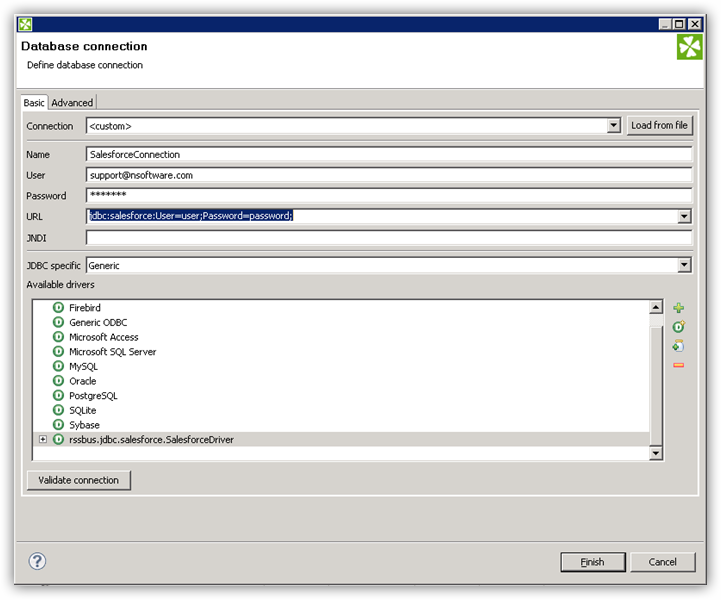
- Create the connection to Talkdesk data. In a new CloverDX graph, right-click the Connections node in the Outline pane and click Connections -> Create Connection. The Database Connection wizard is displayed.
- Click the plus icon to load a driver from a JAR. Browse to the lib subfolder of the installation directory and select the cdata.jdbc.talkdesk.jar file.
- Enter the JDBC URL.
Talkdesk uses the OAuth 2.0 Client Credentials grant. There is no browser-based authorization step and no callback URL.
Set the following connection properties:
- AccountName: The name of your Talkdesk account.
- Region: The region where your Talkdesk instance is deployed. Supported values are US (default), EU, CA, AU, UK, and FedRamp.
- OAuthClientId: The Client Id assigned when you registered your custom OAuth application.
- OAuthClientSecret: The Client Secret assigned to your custom OAuth application.
Creating a Custom OAuth Application
- Log in to your Talkdesk account and select OAuth Clients from the navigation menu.
- Click Create OAuth Client and give the client a descriptive name.
- Set Grant Type to Client Credentials.
- Click Add scopes and select the scopes for the data you want to access.
- Click Create and copy the Client Id and Client Secret.
When you connect, the driver automatically requests an access token from Talkdesk, caches it, and refreshes it when it expires. Make sure the scopes selected for the application match the views you plan to query, or the token request can fail.
Built-in Connection String Designer
For assistance in constructing the JDBC URL, use the connection string designer built into the Talkdesk JDBC Driver. Either double-click the JAR file or execute the jar file from the command-line.
java -jar cdata.jdbc.talkdesk.jarFill in the connection properties and copy the connection string to the clipboard.

A typical JDBC URL is below:
jdbc:talkdesk:AccountName=myAccount;Region=US;OAuthClientId=myClientId;OAuthClientSecret=myClientSecret;
Query Talkdesk Data with the DBInputTable Component
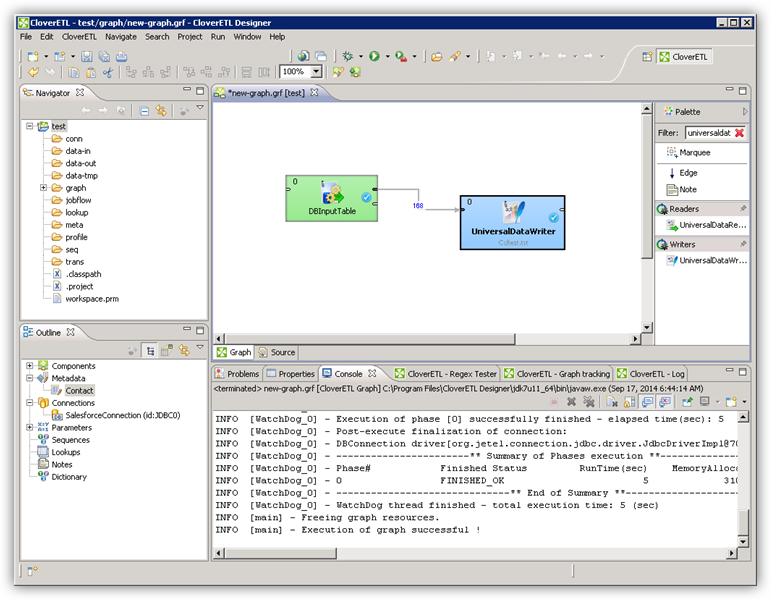
- Drag a DBInputTable from the Readers selection of the Palette onto the job flow and double-click it to open the configuration editor.
- In the DB connection property, select the Talkdesk JDBC data source from the drop-down menu.
- Enter the SQL query. For example:
SELECT Id, Name FROM Users WHERE Active = 'true'
Write the Output of the Query to a UniversalDataWriter
- Drag a UniversalDataWriter from the Writers selection onto the jobflow.
- Double-click the UniversalDataWriter to open the configuration editor and add a file URL.
- Right-click the DBInputTable and then click Extract Metadata.
- Connect the output port of the DBInputTable to the UniversalDataWriter.
- In the resulting Select Metadata menu for the UniversalDataWriter, choose the Users table. (You can also open this menu by right-clicking the input port for the UniversalDataWriter.)
- Click Run to write to the file.
Ready to get started?
Download a free trial of the Talkdesk Driver to get started:
Download NowLearn more:
 Talkdesk JDBC Driver
Rapidly create and deploy powerful Java applications that integrate with Talkdesk data including Accounts, Attributes, BillingAccounts, Callbacks, Campaigns, Cases, Contacts, GuardianUsers, Invoices, Products, Subscriptions, Teams, Users, Wallets, and more!