




Connect to Talkdesk Data from PowerBuilder via JDBC

The CData JDBC driver for Talkdesk is a standards-based control that can be used from any platform or development technology that supports JDBC, including PowerBuilder. This article shows how to use the CData JDBC Driver for Talkdesk in PowerBuilder.
This article shows how to create a basic PowerBuilder application that uses the CData JDBC Driver for Talkdesk to retrieve data.
Connect to Talkdesk Data from PowerBuilder
Follow the steps below to use the Database Painter tool to create a database profile based on an JDBC URL for Talkdesk. You can use a database profile to save connection properties. In the Database Painter, you can graphically manipulate data as well as execute SQL queries.
Add the driver JAR to the PowerBuilder classpath. Set the CLASSPATH system environment variable to the path to the driver JAR, located in the lib subfolder of the installation directory.
Note: If you are using PowerBuilder Classic, you can also add the path to the driver JAR by clicking Tools -> System Options -> Java.
- Click Tools -> Database Painter.
- Right-click the JDBC node and click New Profile.
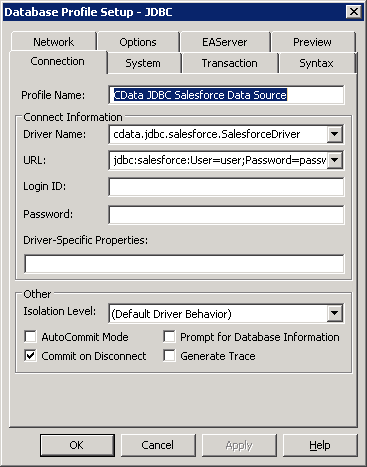
- In the Database Profile Setup dialog, enter the following:
- Profile Name: Enter a user-friendly name for the profile.
- Driver Name: Enter the class name of the driver, cdata.jdbc.talkdesk.TalkdeskDriver
- URL: Enter the JDBC URL.
Talkdesk uses the OAuth 2.0 Client Credentials grant. There is no browser-based authorization step and no callback URL.
Set the following connection properties:
- AccountName: The name of your Talkdesk account.
- Region: The region where your Talkdesk instance is deployed. Supported values are US (default), EU, CA, AU, UK, and FedRamp.
- OAuthClientId: The Client Id assigned when you registered your custom OAuth application.
- OAuthClientSecret: The Client Secret assigned to your custom OAuth application.
Creating a Custom OAuth Application
- Log in to your Talkdesk account and select OAuth Clients from the navigation menu.
- Click Create OAuth Client and give the client a descriptive name.
- Set Grant Type to Client Credentials.
- Click Add scopes and select the scopes for the data you want to access.
- Click Create and copy the Client Id and Client Secret.
When you connect, the driver automatically requests an access token from Talkdesk, caches it, and refreshes it when it expires. Make sure the scopes selected for the application match the views you plan to query, or the token request can fail.
Built-in Connection String Designer
For assistance in constructing the JDBC URL, use the connection string designer built into the Talkdesk JDBC Driver. Either double-click the JAR file or execute the jar file from the command-line.
java -jar cdata.jdbc.talkdesk.jarFill in the connection properties and copy the connection string to the clipboard. A typical JDBC URL is below:
jdbc:talkdesk:AccountName=myAccount;Region=US;OAuthClientId=myClientId;OAuthClientSecret=myClientSecret;
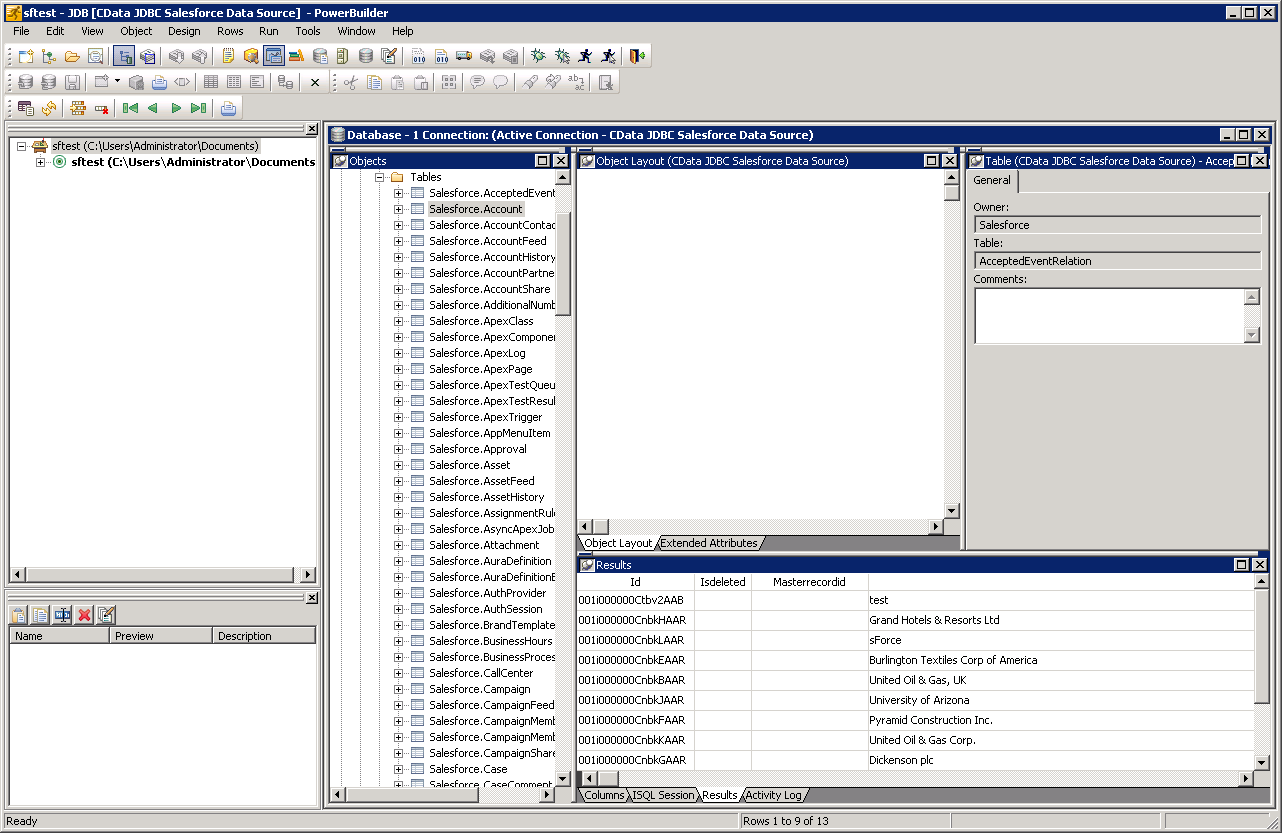
- To view and modify a table, right-click a table and then click Edit Data -> Grid.
Using Talkdesk Data with PowerBuilder Controls
You can use standard PowerBuilder objects to connect to JDBC data sources and execute queries. The following example shows how to retrieve Talkdesk data into a DataWindow. You can add the following code to the open method:
SQLCA.DBMS = "JDBC"
SQLCA.AutoCommit = False
SQLCA.DBParm = "Driver='cdata.jdbc.talkdesk.TalkdeskDriver',URL='jdbc:talkdesk:AccountName=myAccount;Region=US;OAuthClientId=myClientId;OAuthClientSecret=myClientSecret;";
CONNECT USING SQLCA;
dw_users.SetTransObject(SQLCA);
dw_users.Retrieve();
Ready to get started?
Download a free trial of the Talkdesk Driver to get started:
Download NowLearn more:
 Talkdesk JDBC Driver
Rapidly create and deploy powerful Java applications that integrate with Talkdesk data including Accounts, Attributes, BillingAccounts, Callbacks, Campaigns, Cases, Contacts, GuardianUsers, Invoices, Products, Subscriptions, Teams, Users, Wallets, and more!