




Create SSAS Tabular Models from Talkdesk Data

SQL Server Analysis Services (SSAS) is an analytical data engine used in decision support and business analytics. It provides enterprise-grade semantic data models for business reports and client applications, such as Power BI, Excel, Reporting Services reports, and other data visualization tools. When paired with the CData ODBC Driver for Talkdesk, you can create a tabular model from Talkdesk data for deeper and faster data analysis.
Create a Connection to Talkdesk Data
If you have not already, first specify connection properties in an ODBC DSN (data source name). This is the last step of the driver installation. You can use the Microsoft ODBC Data Source Administrator to create and configure ODBC DSNs.
Talkdesk uses the OAuth 2.0 Client Credentials grant. There is no browser-based authorization step and no callback URL.
Set the following connection properties:
- AccountName: The name of your Talkdesk account.
- Region: The region where your Talkdesk instance is deployed. Supported values are US (default), EU, CA, AU, UK, and FedRamp.
- OAuthClientId: The Client Id assigned when you registered your custom OAuth application.
- OAuthClientSecret: The Client Secret assigned to your custom OAuth application.
Creating a Custom OAuth Application
- Log in to your Talkdesk account and select OAuth Clients from the navigation menu.
- Click Create OAuth Client and give the client a descriptive name.
- Set Grant Type to Client Credentials.
- Click Add scopes and select the scopes for the data you want to access.
- Click Create and copy the Client Id and Client Secret.
When you connect, the driver automatically requests an access token from Talkdesk, caches it, and refreshes it when it expires. Make sure the scopes selected for the application match the views you plan to query, or the token request can fail.
Creating a Data Source for Talkdesk
Start by creating a new Analysis Services Tabular Project in Visual Studio. Ensure that you select a Compatibility Level of 1400 or higher in the Tabular model designer dialog. Next create a Data Source for Talkdesk in the project.
- In the Tabular Model Explorer, right-click Data Sources and select "New Data Source"
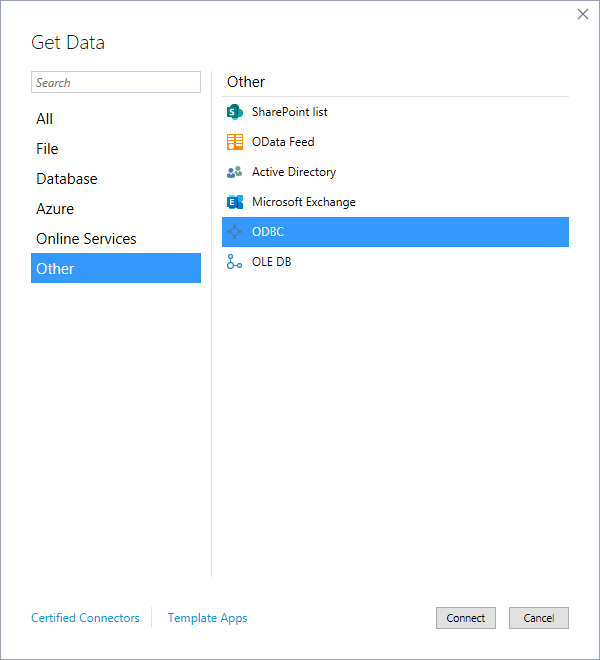
- Select "ODBC" from the Other tab and click "Connect"
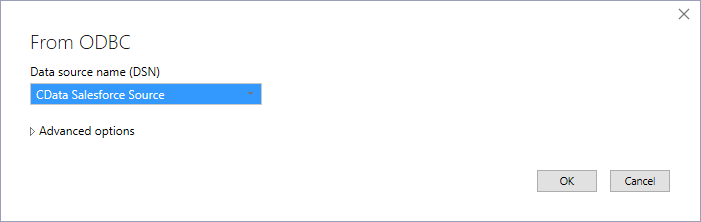
- Select the DSN you previously configured
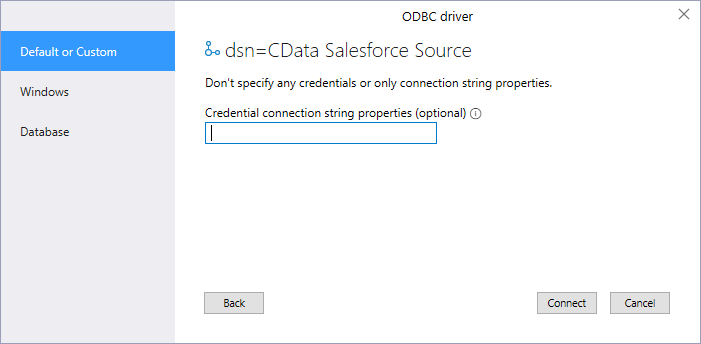
- Choose "Default or Custom" as the authentication option and click "Connect"
Add Tables & Relationships
After creating the data source you are ready to import tables and define the relationships between the tables.
- Right-click the new data source, click "Import New Tables" and select the tables to import
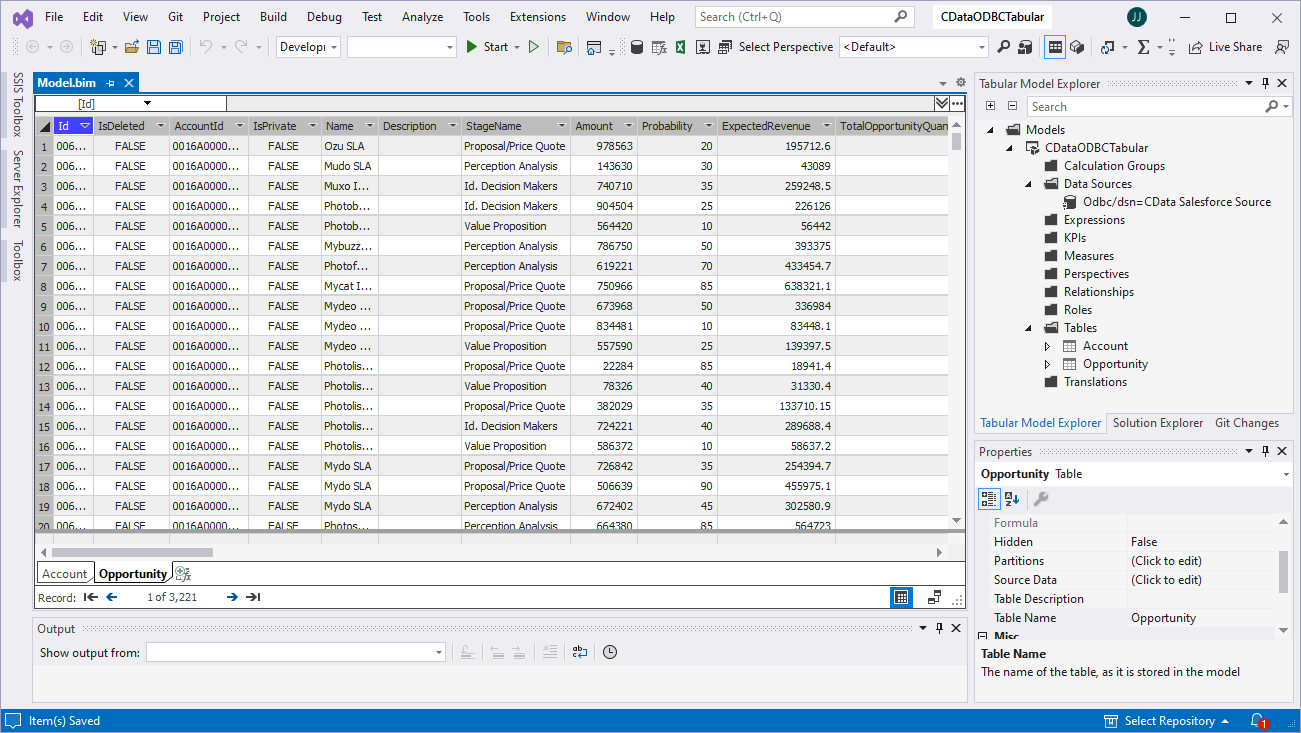
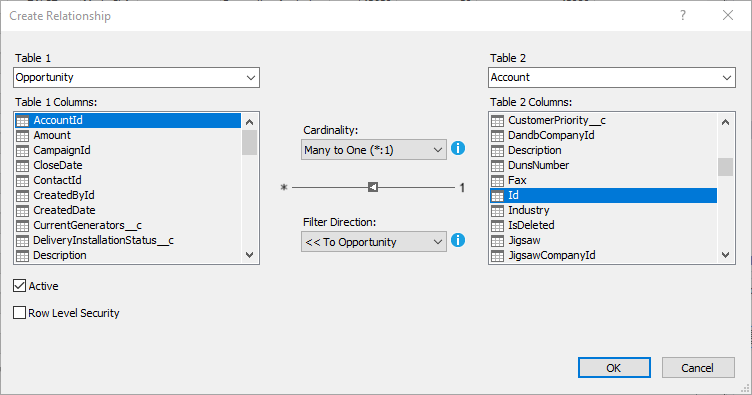
- After importing the tables, right-click "Relationships" and click "Create Relationships"
- Select table(s), and choose the foreign keys, cardinality, and filter direction
Create Measures
After importing the tables and defining the relationships, you are ready to create measures.
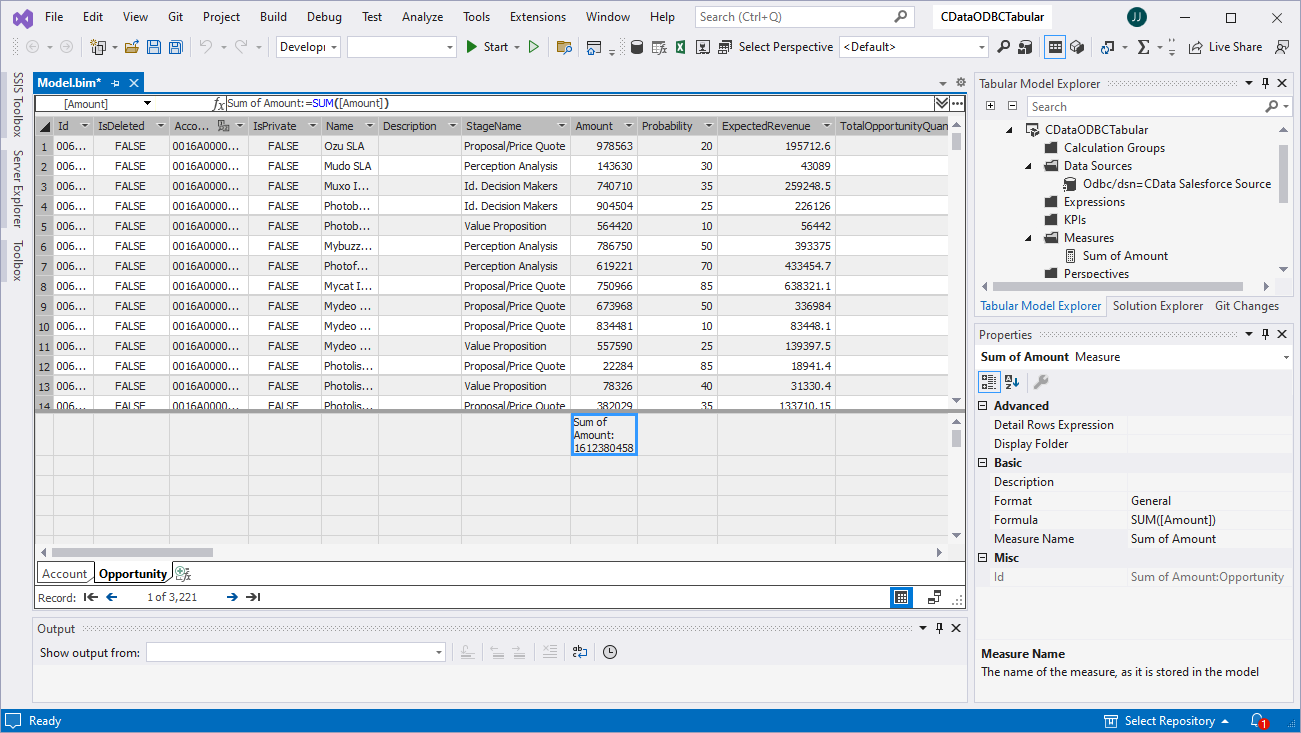
- Select the column in the table for which you wish to create a measure
- In the Extensions menu -> click "Columns" -> "AutoSum" and select your aggregation method
Deploy the Model
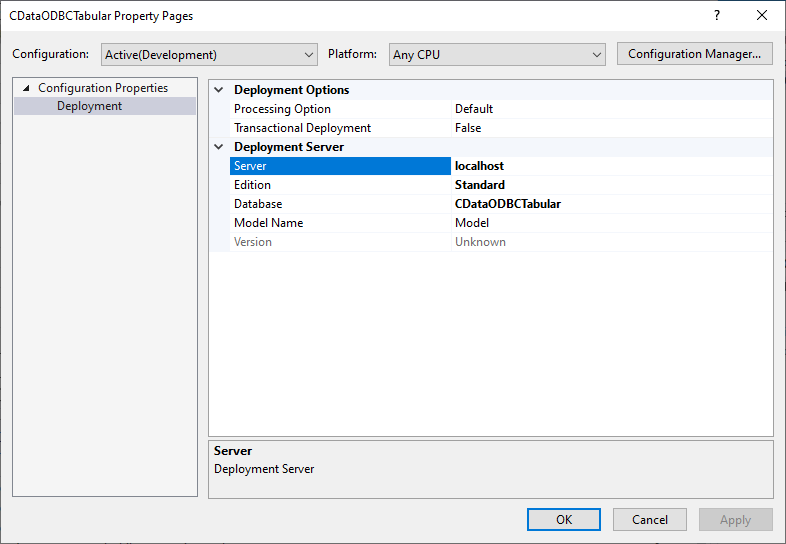
Once you create measures, you are ready to deploy the model. Configure the target server and database by right-clicking the project found in the Solution Explorer and selecting "Properties." Configure the "Deployment Server" properties and click "OK."
After configuring the deployment server, open the "Build" menu and click "Deploy Solution." You now have a tabular model for Talkdesk data in your SSAS instance, ready to be analyzed, reported, and viewed. Get started with a free, 30-day trial of the CData ODBC Driver for Talkdesk.
Ready to get started?
Download a free trial of the Talkdesk ODBC Driver to get started:
Download NowLearn more:
 Talkdesk ODBC Driver
The Talkdesk ODBC Driver is a powerful tool that allows you to connect with live data from Talkdesk, directly from any applications that support ODBC connectivity.
Access Talkdesk data like you would a database - read Talkdesk Accounts, Attributes, BillingAccounts, Callbacks, Campaigns, Cases, Contacts, GuardianUsers, Invoices, Products, Subscriptions, Teams, Users, Wallets, etc. through a standard ODBC Driver interface.