




Migrating data from Talkdesk to Google BigQuery using CData SSIS Components.

Google BigQuery is a serverless, highly scalable, and cost-effective data warehouse designed to help organizations turn big data into actionable insights.
The CData SSIS Components enhance SQL Server Integration Services by enabling users to easily import and export data from various sources and destinations.
In this article, we explore the data type mapping considerations when exporting to BigQuery and walk through how to migrate Talkdesk data to Google BigQuery using the CData SSIS Components for Talkdesk and BigQuery.
Data Type Mapping
| Google BigQuery Schema | CData Schema |
|---|---|
|
STRING, GEOGRAPHY, JSON, INTERVAL |
string |
|
BYTES |
binary |
|
INTEGER |
long |
|
FLOAT |
double |
|
NUMERIC, BIGNUMERIC |
decimal |
|
BOOLEAN |
bool |
|
DATE |
date |
|
TIME |
time |
|
DATETIME, TIMESTAMP |
datetime |
|
STRUCT |
See below |
|
ARRAY |
See below |
STRUCT and ARRAY Types
Google BigQuery supports two kinds of types for storing compound values in a single row, STRUCT and ARRAY. In some places within Google BigQuery, these are also known as RECORD and REPEATED types.
A STRUCT is a fixed-size group of values that are accessed by name and can have different types. The component flattens structs so their fields can be accessed using dotted names. Note that these dotted names must be quoted.
An ARRAY is a group of values with the same type that can have any size. The component treats the array as a single compound value and reports it as a JSON aggregate. These types may be combined such that a STRUCT type contains an ARRAY field, or an ARRAY field is a list of STRUCT values.
Special Considerations
- Google BigQuery has both DATETIME (no timezone) and TIMESTAMP (with timezone) data types that the CData SSIS Components map to datetime based on the timezone of your local machine.
- In Google BigQuery, the NUMERIC type supports 38 digits of precision and up to 9 digits after the decimal point, while the BIGNUMERIC type supports 76 digits of precision and up to 38 digits after the decimal point. The CData SSIS Components for Google BigQuery automatically detects the precision/scale, but with the Destination Component users can manually map any high-precision columns.
-
INTERVAL data types:
-
The component represents INTERVAL types as strings. Whenever a query requires an INTERVAL type, it must specify the INTERVAL using the BigQuery SQL INTERVAL format:
YEAR-MONTH DAY HOUR:MINUTE:SECOND.FRACTION -
For example, the value "5 years and 11 months, minus 10 days and 3 hours and 2.5 seconds" in the correct format is:
5-11 -10 -3:0:0.2.5
-
The component represents INTERVAL types as strings. Whenever a query requires an INTERVAL type, it must specify the INTERVAL using the BigQuery SQL INTERVAL format:
Prerequisites
- Visual Studio 2022
- SQL Server Integration Services Projects extension for Visual Studio 2022
- CData SSIS Components for Google BigQuery
- CData SSIS Components for Talkdesk
Create the project and add components
-
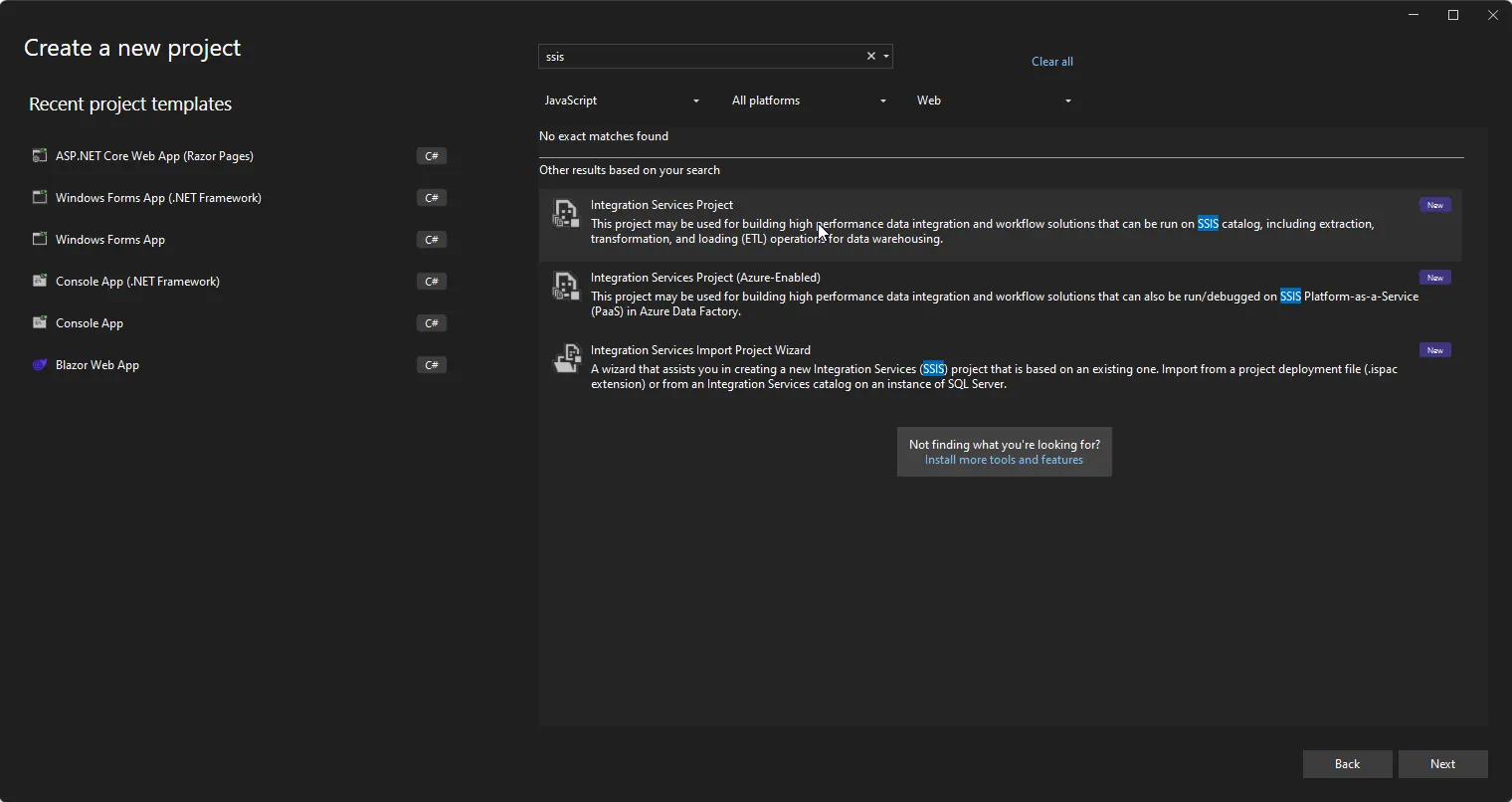
Open Visual Studio and create a new Integration Services Project.
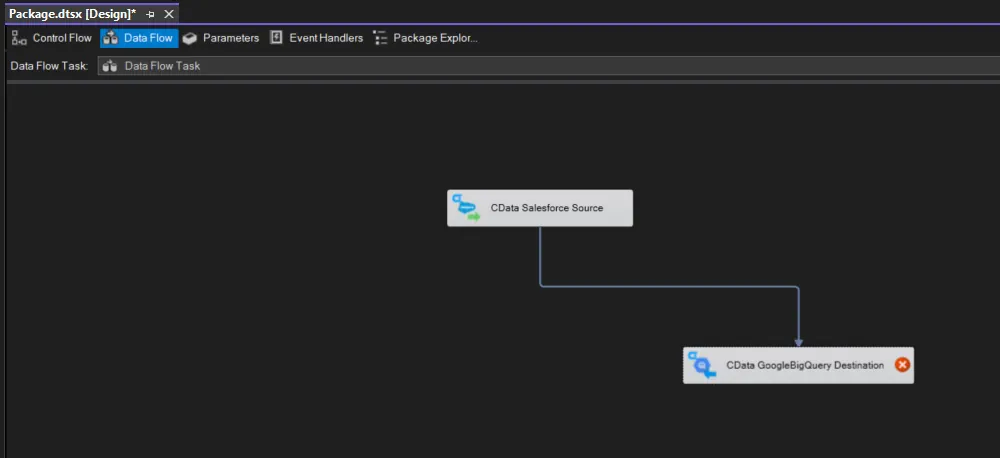
- Add a new Data Flow Task to the Control Flow screen and open the Data Flow Task.
-
Add a CData Talkdesk Source control and a CData GoogleBigQuery Destination control to the data flow task.
Configure the Talkdesk source
Follow the steps below to specify properties required to connect to Talkdesk.
-
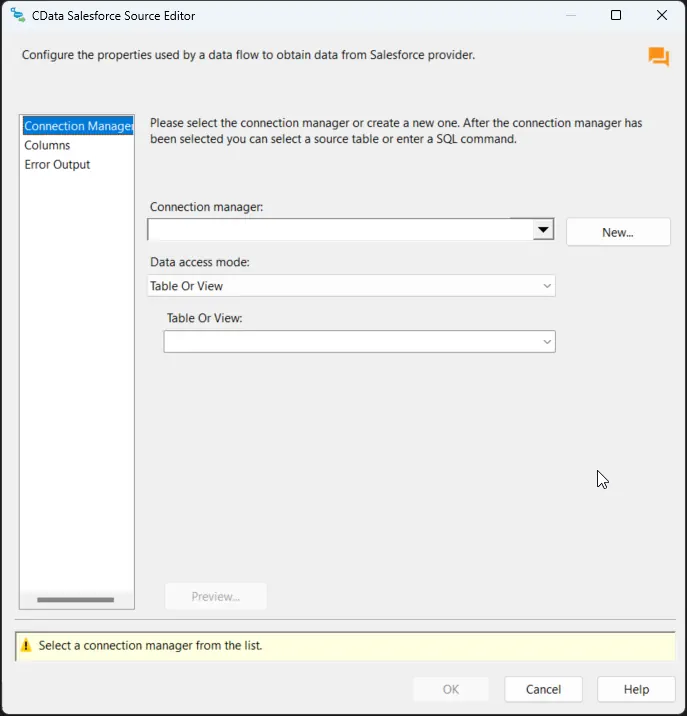
Double-click the CData Talkdesk Source to open the source component editor and add a new connection.
-
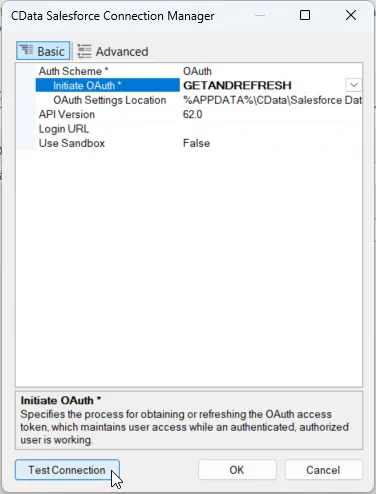
In the CData Talkdesk Connection Manager, configure the connection properties, then test and save the connection.
Talkdesk uses the OAuth 2.0 Client Credentials grant. There is no browser-based authorization step and no callback URL.
Set the following connection properties:
- AccountName: The name of your Talkdesk account.
- Region: The region where your Talkdesk instance is deployed. Supported values are US (default), EU, CA, AU, UK, and FedRamp.
- OAuthClientId: The Client Id assigned when you registered your custom OAuth application.
- OAuthClientSecret: The Client Secret assigned to your custom OAuth application.
Creating a Custom OAuth Application
- Log in to your Talkdesk account and select OAuth Clients from the navigation menu.
- Click Create OAuth Client and give the client a descriptive name.
- Set Grant Type to Client Credentials.
- Click Add scopes and select the scopes for the data you want to access.
- Click Create and copy the Client Id and Client Secret.
When you connect, the driver automatically requests an access token from Talkdesk, caches it, and refreshes it when it expires. Make sure the scopes selected for the application match the views you plan to query, or the token request can fail.
-
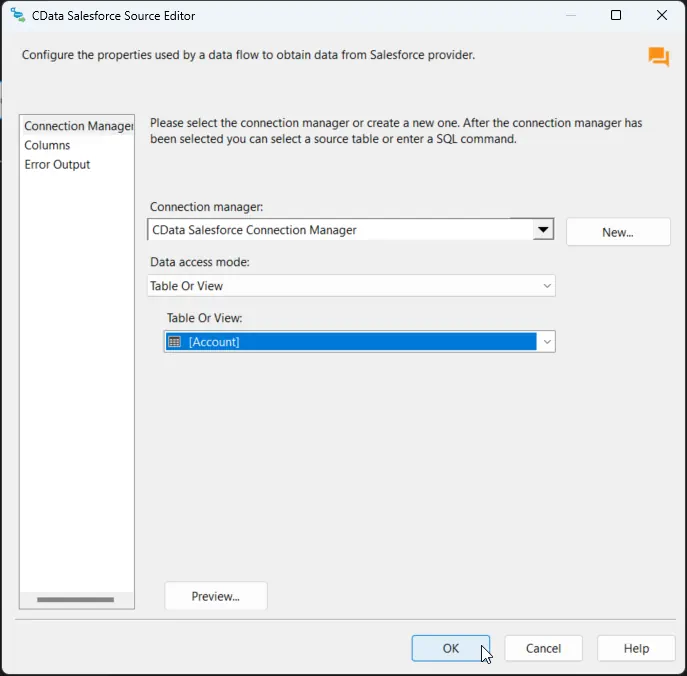
After saving the connection, select "Table or view" and select the table or view to export into Google BigQuery, then close the CData Talkdesk Source Editor.
Configure the Google BigQuery destination
With the Talkdesk Source configured, we can configure the Google BigQuery connection and map the columns.
-
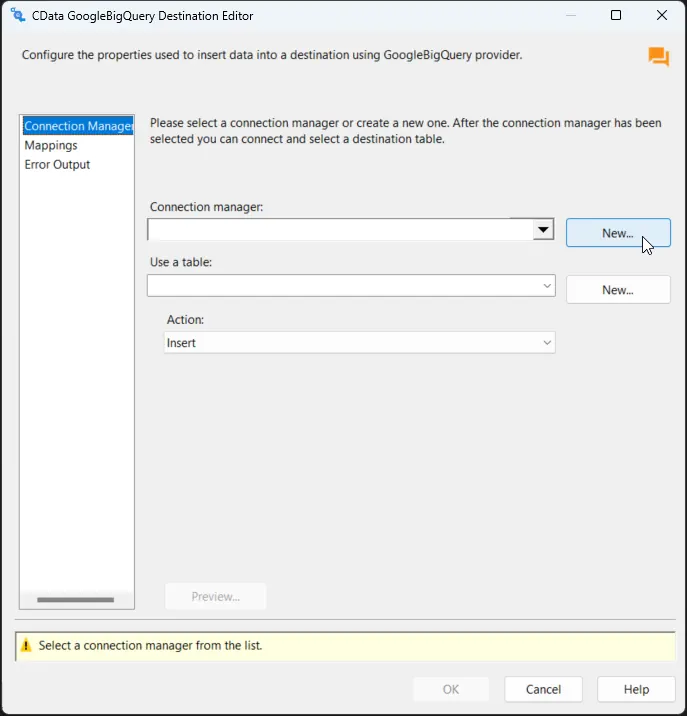
Double-click the CData Google BigQuery Destination to open the destination component editor and add a new connection.
-
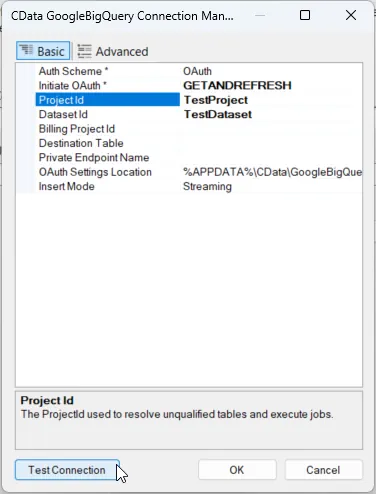
In the CData GoogleBigQuery Connection Manager, configure the connection properties, then test and save the connection.
- Google uses the OAuth authentication standard. To access Google APIs on behalf of individual users, you can use the embedded credentials or you can register your own OAuth app. OAuth also enables you to use a service account to connect on behalf of users in a Google Apps domain. To authenticate with a service account, register an application to obtain the OAuth JWT values. In addition to the OAuth values, specify the DatasetId and ProjectId. See the "Getting Started" chapter of the help documentation for a guide to using OAuth.
Helpful connection properties
- QueryPassthrough: When this is set to True, queries are passed through directly to Google BigQuery.
- ConvertDateTimetoGMT: When this is set to True, the components will convert date-time values to GMT, instead of the local time of the machine.
- FlattenObjects: By default the component reports each field in a STRUCT column as its own column while the STRUCT column itself is hidden. When this is set to False, the top-level STRUCT is not expanded and is left as its own column. The value of this column is reported as a JSON aggregate.
- SupportCaseSensitiveTables: When this property is set to true, tables with the same name but different casing will be renamed so they are all reported in the metadata. By default, the provider treats table names as case-insensitive, so if multiple tables have the same name but different casing, only one will be reported in the metadata.
-
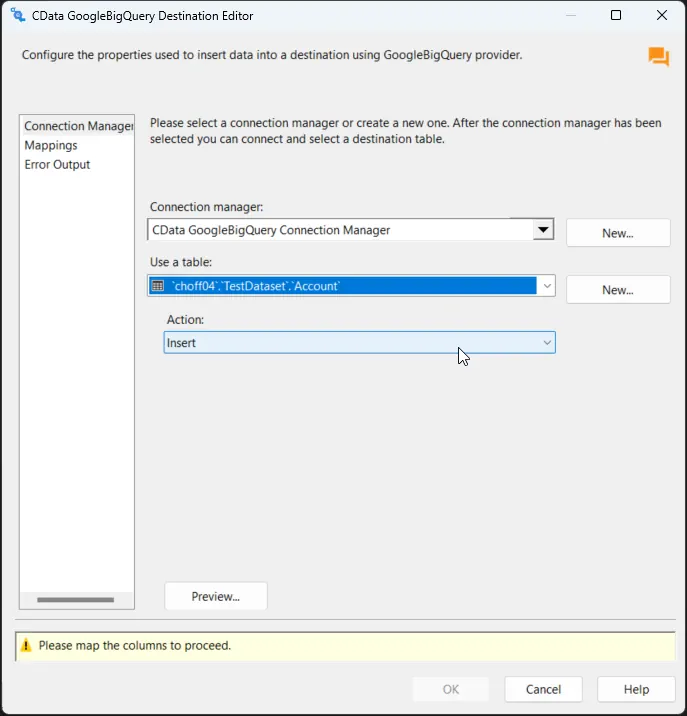
After saving the connection, select a table in the Use a Table menu and in the Action menu, select Insert.
-
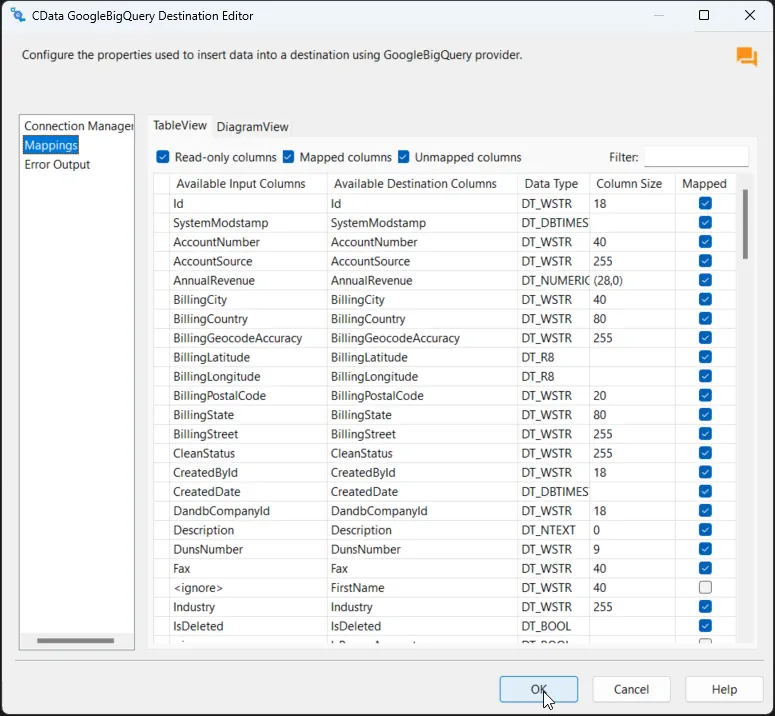
On the Column Mappings tab, configure the mappings from the input columns to the destination columns.
Run the project
You can now run the project. After the SSIS Task has finished executing, data from your SQL table will be exported to the chosen table.
Ready to get started?
Download a free trial of the Talkdesk SSIS Component to get started:
Download NowLearn more:
 Talkdesk SSIS Components
Powerful SSIS Source Components that allow you to easily connect SQL Server with Talkdesk through SSIS Workflows.
Use the Talkdesk Data Flow Components to synchronize with Talkdesk Accounts, Attributes, BillingAccounts, Callbacks, Campaigns, Cases, Contacts, GuardianUsers, Invoices, Products, Subscriptions, Teams, Users, Wallets, and more. Perfect for data synchronization, local back-ups, workflow automation, and more!