




Build Data Flows from Talkdesk to SQL Server using SSIS

Using SQL Server as a backup for critical business data provides an essential safety net against loss. Backing up data to SQL Server enables business users to more easily connect that data with features like reporting, analytics, and more.
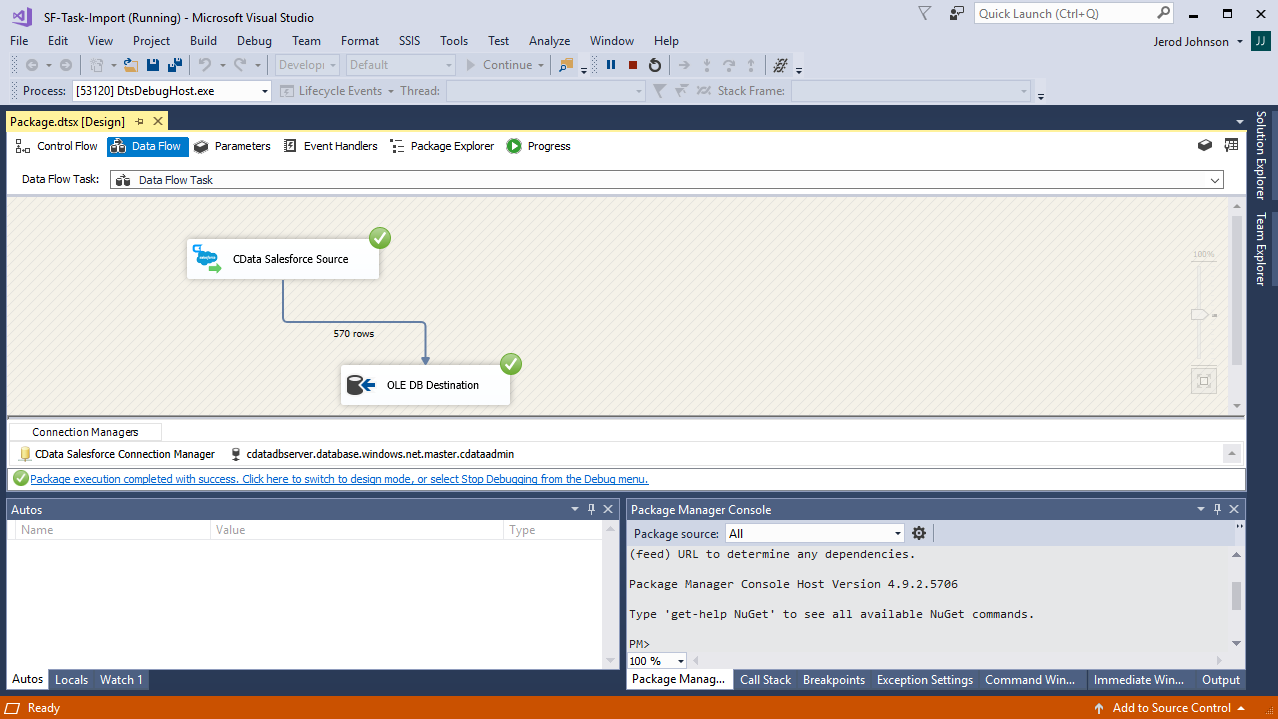
This example demonstrates how to use the CData SSIS Tasks for Talkdesk inside of a SQL Server SSIS workflow to transfer Talkdesk data into a Microsoft SQL Server database.
Add the Components
To get started, add a new Talkdesk source and SQL Server ADO.NET destination to a new data flow task.
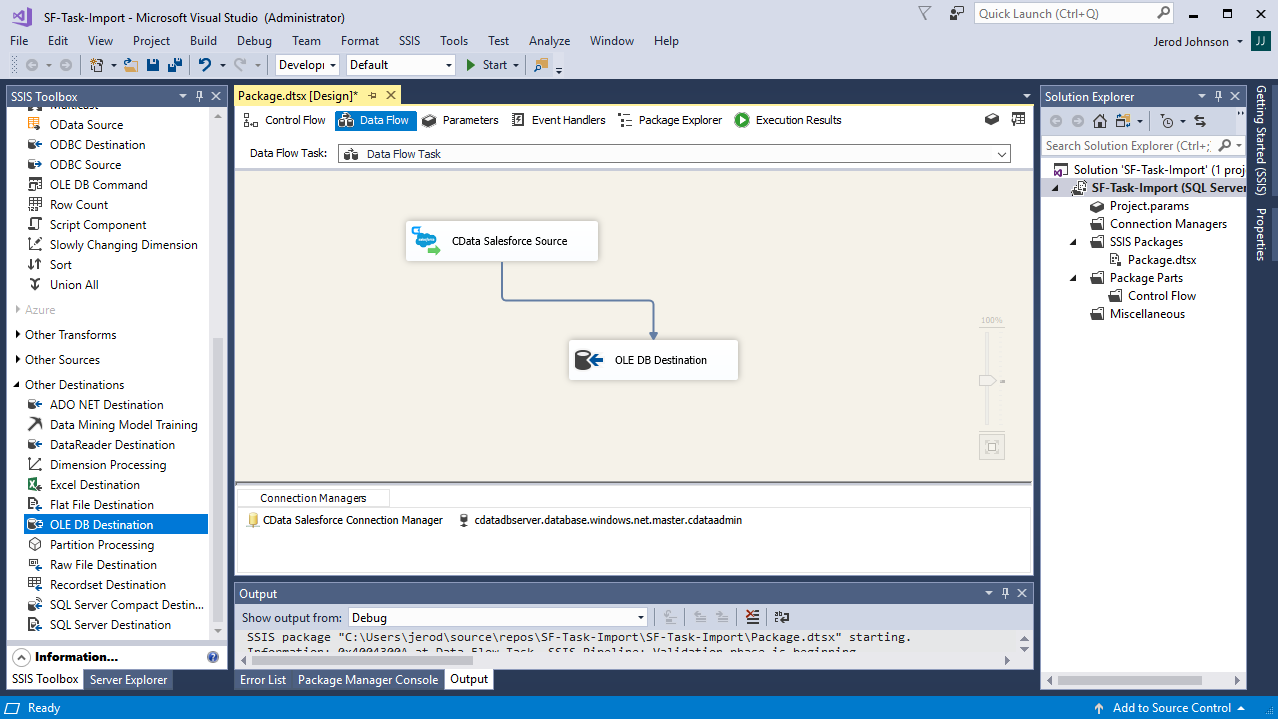
Create a New Connection Manager
Follow the steps below to save Talkdesk connection properties in a connection manager.
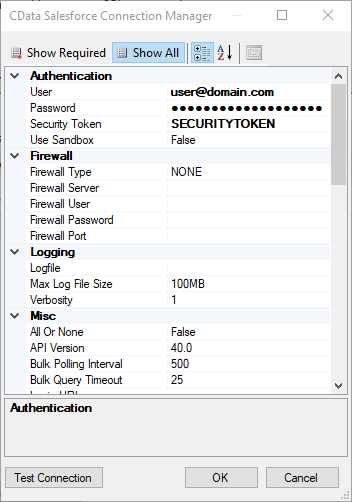
- In the Connection Manager window, right-click and then click New Connection. The Add SSIS Connection Manager dialog is displayed.
- In the Connection Manager type menu, select Talkdesk. The CData Talkdesk Connection Manager is displayed.
- Configure connection properties.
Talkdesk uses the OAuth 2.0 Client Credentials grant. There is no browser-based authorization step and no callback URL.
Set the following connection properties:
- AccountName: The name of your Talkdesk account.
- Region: The region where your Talkdesk instance is deployed. Supported values are US (default), EU, CA, AU, UK, and FedRamp.
- OAuthClientId: The Client Id assigned when you registered your custom OAuth application.
- OAuthClientSecret: The Client Secret assigned to your custom OAuth application.
Creating a Custom OAuth Application
- Log in to your Talkdesk account and select OAuth Clients from the navigation menu.
- Click Create OAuth Client and give the client a descriptive name.
- Set Grant Type to Client Credentials.
- Click Add scopes and select the scopes for the data you want to access.
- Click Create and copy the Client Id and Client Secret.
When you connect, the driver automatically requests an access token from Talkdesk, caches it, and refreshes it when it expires. Make sure the scopes selected for the application match the views you plan to query, or the token request can fail.
Configure the Talkdesk Source
Follow the steps below to specify the query to be used to extract Talkdesk data.
- Double-click the Talkdesk source to open the source component editor.
- In the Connection Manager menu, select the connection manager previously created.
- Specify the query to use for the data extraction. For example:
SELECT Id, Name FROM Users WHERE Active = 'true'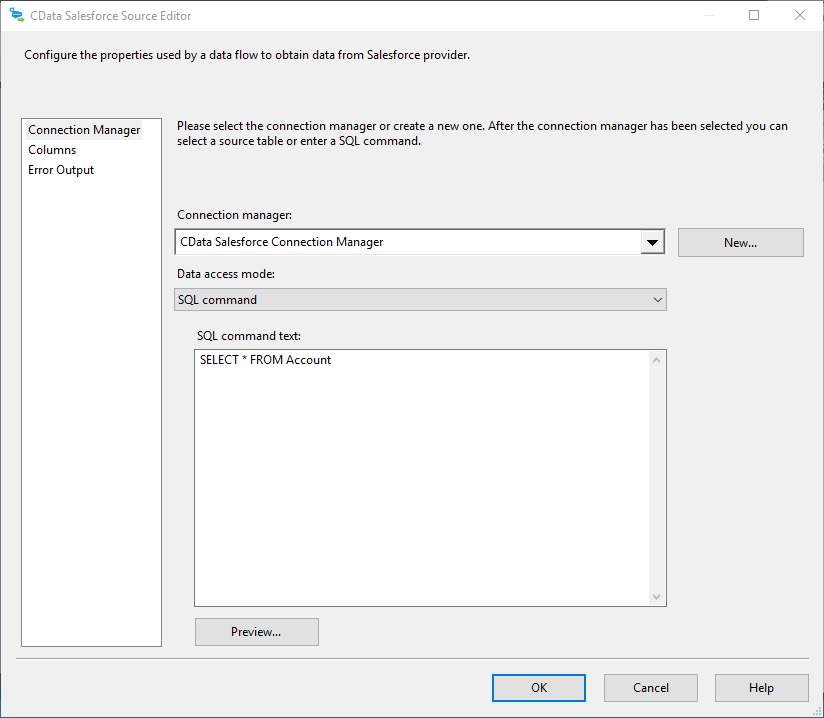
- Close the Talkdesk Source control and connect it to the ADO.NET Destination.
Configure the SQL Server Destination
Follow the steps below to specify the SQL server table to load the Talkdesk data into.
- Open the ADO.NET Destination and add a New Connection. Enter your server and database information here.
- In the Data access mode menu, select "table or view".
- In the Table Or View menu, select the table or view to populate.
- Configure any properties you wish to on the Mappings screen.
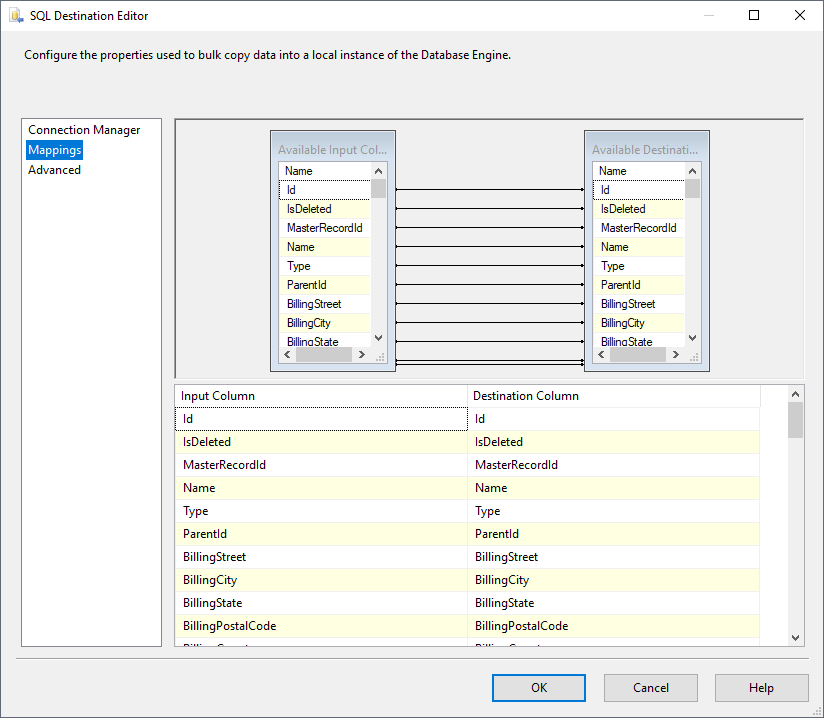
Run the Project
You can now run the project. After the SSIS Task has finished executing, your database will be populated with Talkdesk data.
Ready to get started?
Download a free trial of the Talkdesk SSIS Component to get started:
Download NowLearn more:
 Talkdesk SSIS Components
Powerful SSIS Source Components that allow you to easily connect SQL Server with Talkdesk through SSIS Workflows.
Use the Talkdesk Data Flow Components to synchronize with Talkdesk Accounts, Attributes, BillingAccounts, Callbacks, Campaigns, Cases, Contacts, GuardianUsers, Invoices, Products, Subscriptions, Teams, Users, Wallets, and more. Perfect for data synchronization, local back-ups, workflow automation, and more!