






Query Templated Data in DataGrip

DataGrip is a database IDE that allows SQL developers to query, create, and manage databases. When paired with the CData API Driver for JDBC, DataGrip can work with live Templated data. This article shows how to establish a connection to Templated data in DataGrip.
Create a New Driver Definition for Templated
The steps below describe how to create a new Data Source in DataGrip for Templated.
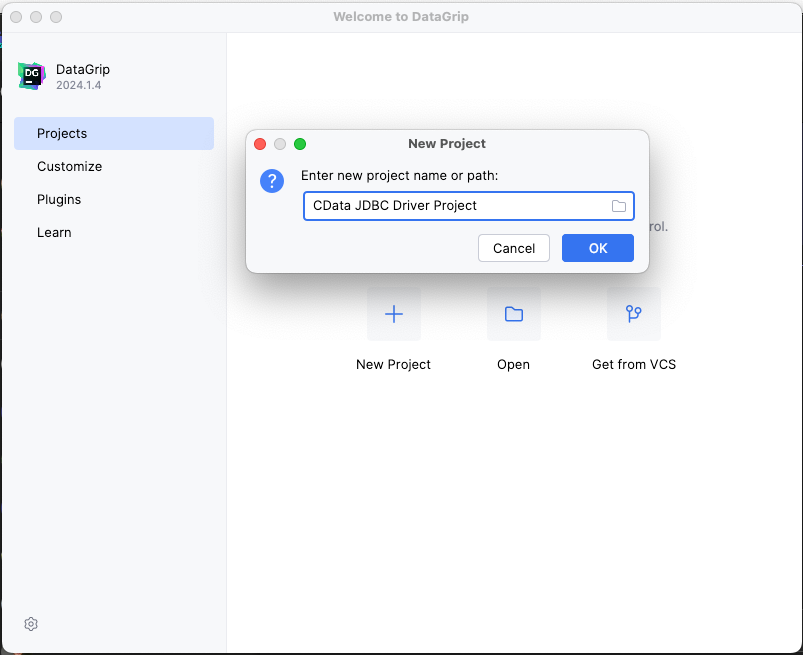
- In DataGrip, click File -> New > Project and name the project
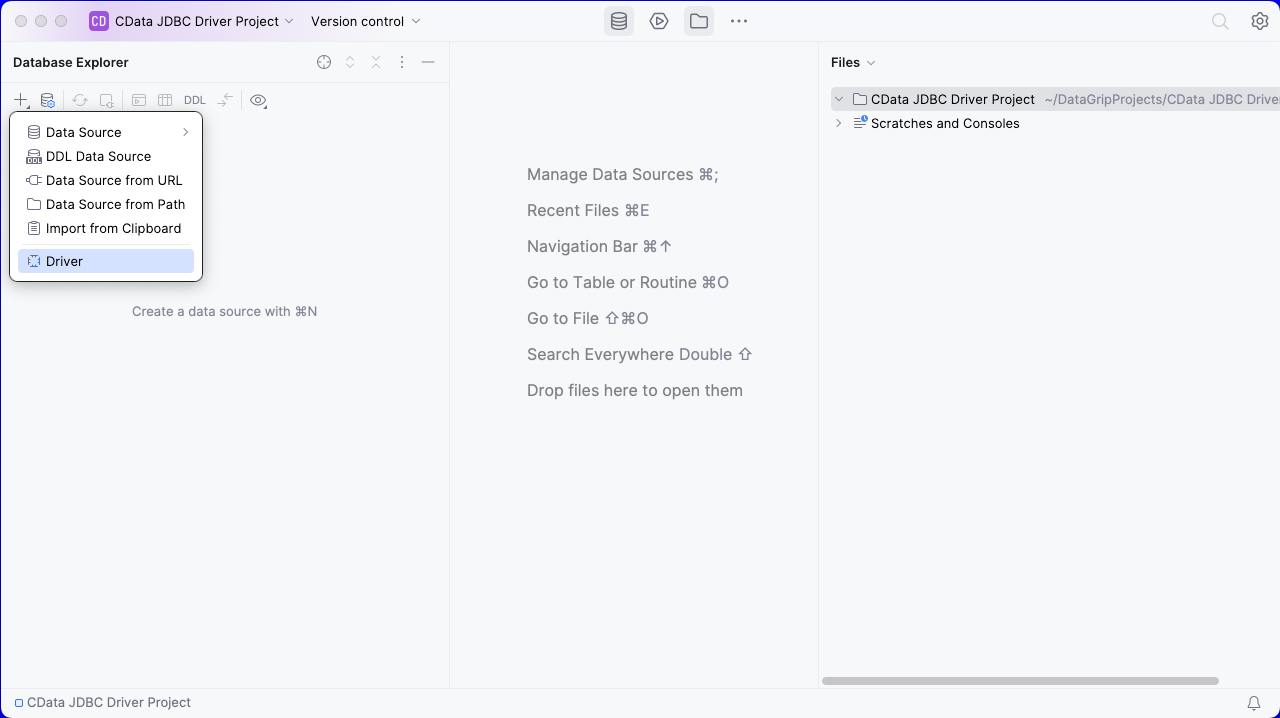
- In the Database Explorer, click the plus icon () and select Driver.
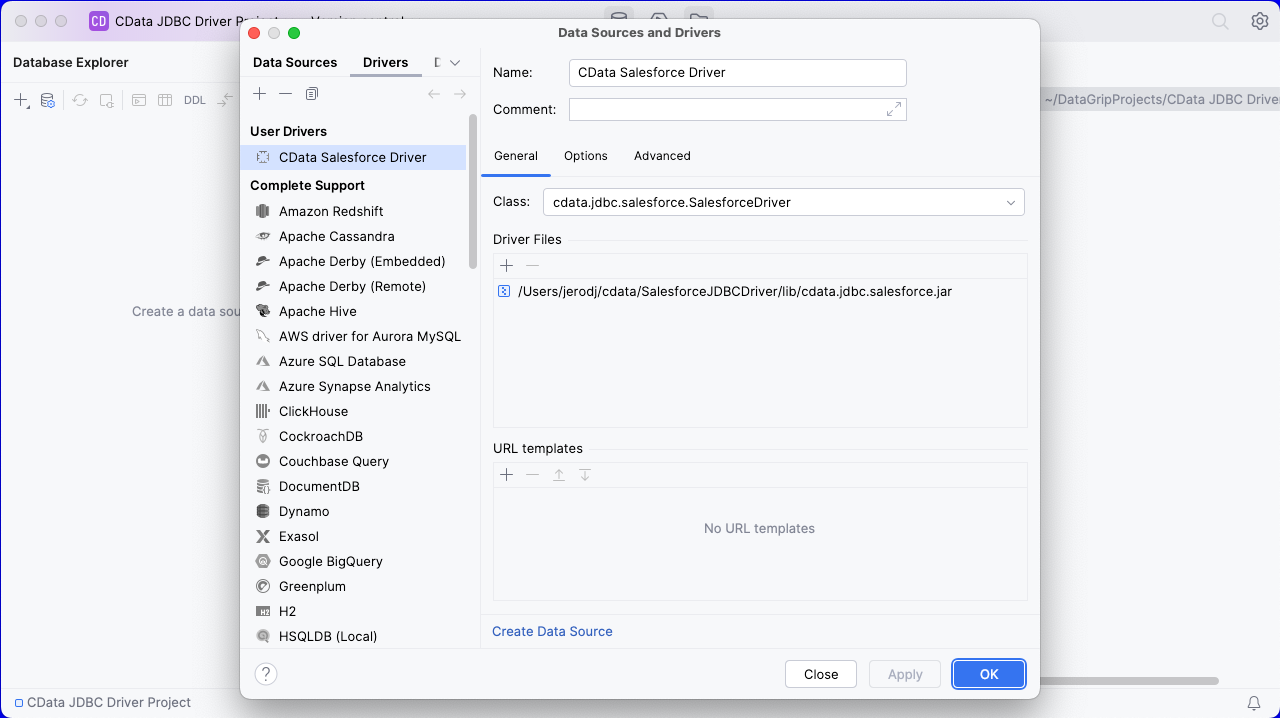
- In the Driver tab:
- Set Name to a user-friendly name (e.g. "CData Templated Driver")
- Set Driver Files to the appropriate JAR file. To add the file, click the plus (), select "Add Files," navigate to the "lib" folder in the driver's installation directory and select the JAR file (e.g. cdata.jdbc.api.jar).
- Set Class to cdata.jdbc.api.API.jar
Additionally, in the advanced tab you can change driver properties and some other settings like VM Options, VM environment, VM home path, DBMS, etc - For most cases, change the DBMS type to "Unknown" in Expert options to avoid native SQL Server queries (Transact-SQL), which might result in an invalid function error
- Click "Apply" then "OK" to save the Connection
Configure a Connection to Templated
- Once the connection is saved, click the plus (), then "Data Source" then "CData Templated Driver" to create a new Templated Data Source.
- In the new window, configure the connection to Templated with a JDBC URL.
Built-in Connection String Designer
For assistance in constructing the JDBC URL, use the connection string designer built into the Templated JDBC Driver. Either double-click the JAR file or execute the jar file from the command-line.
java -jar cdata.jdbc.api.jarFill in the connection properties and copy the connection string to the clipboard.
To authenticate to Templated, you will need an API key. You can obtain your API key from the Templated Dashboard under the API Key tab (app.templated.io > Dashboard > API Key).
Using API Key Authentication
After setting the following connection properties, you are ready to connect:
- AuthScheme: Set this to APIKey.
- APIKey: Set this to your Templated API key.
Example connection string:
Profile=C:\profiles\Templated.apip;AuthScheme=APIKey;ProfileSettings='APIKey=my_api_key';

- Set URL to the connection string, e.g.,
jdbc:api:Profile=C:\profiles\Templated.apip;AuthScheme=APIKey;ProfileSettings='APIKey=my_api_key';
- Click "Apply" and "OK" to save the connection string
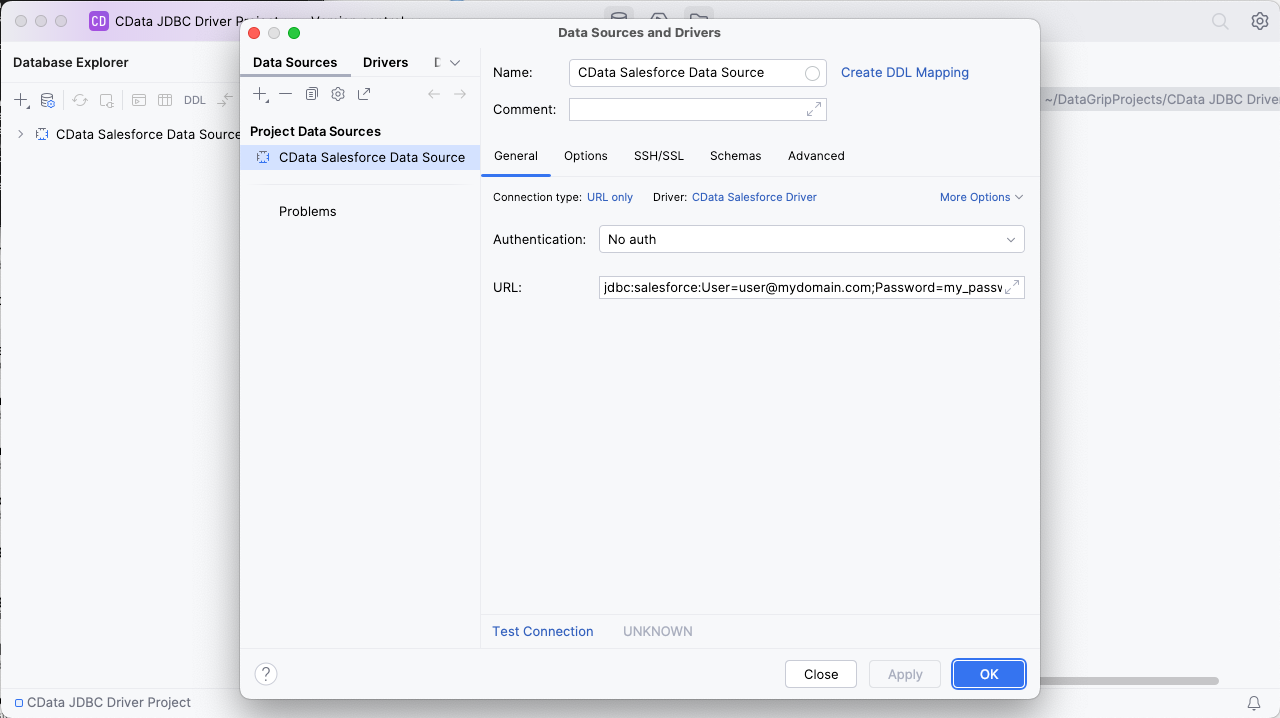
At this point, you will see the data source in the Data Explorer.
Execute SQL Queries Against Templated
To browse through the Templated entities (available as tables) accessible through the JDBC Driver, expand the Data Source.
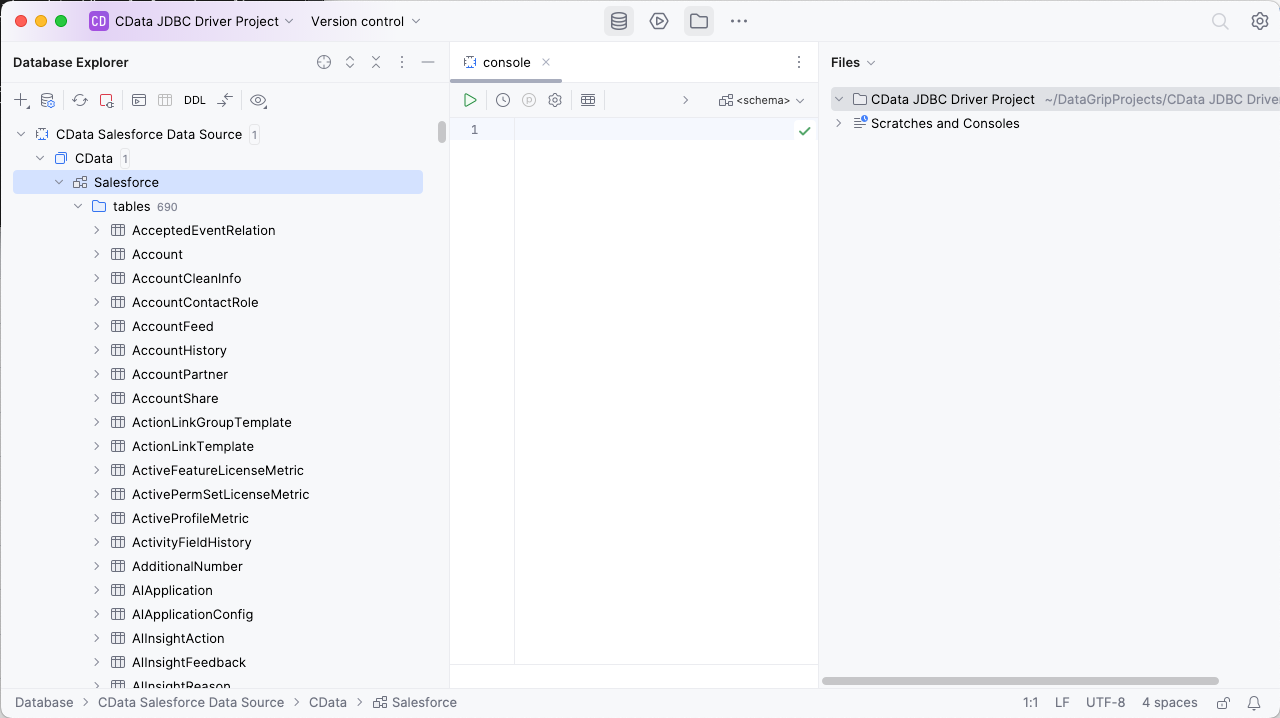
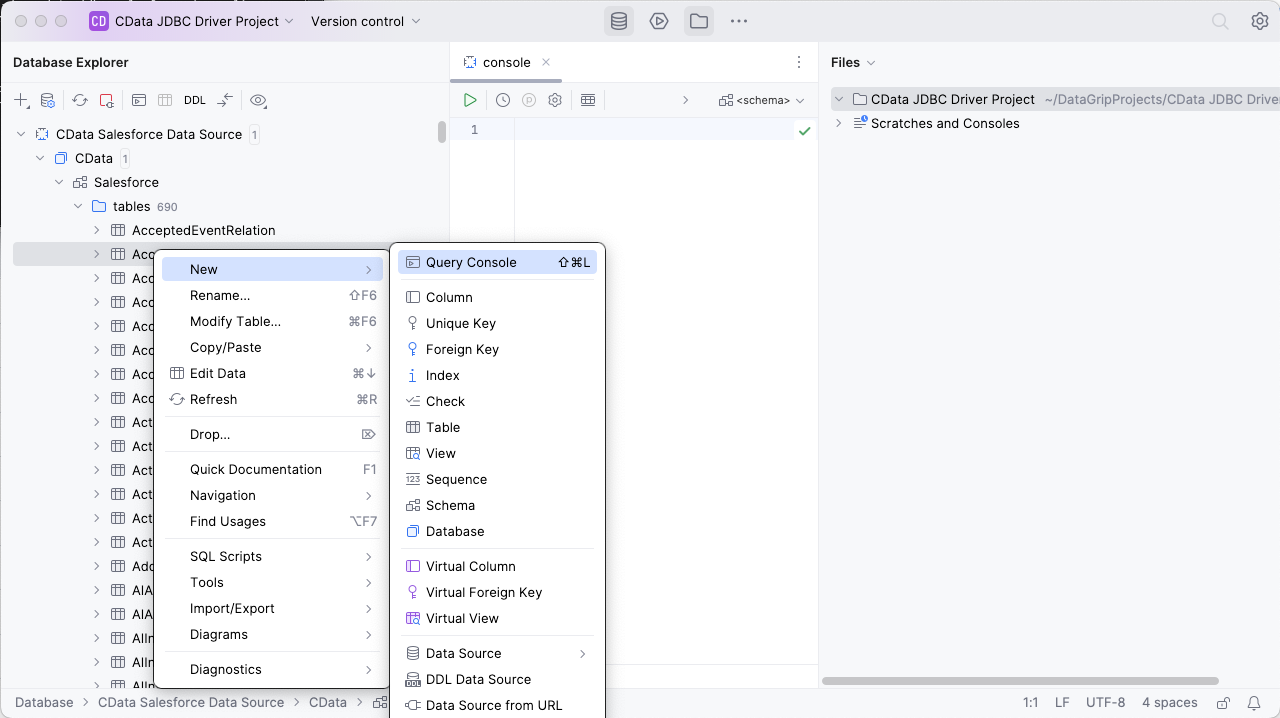
To execute queries, right click on any table and select "New" -> "Query Console."
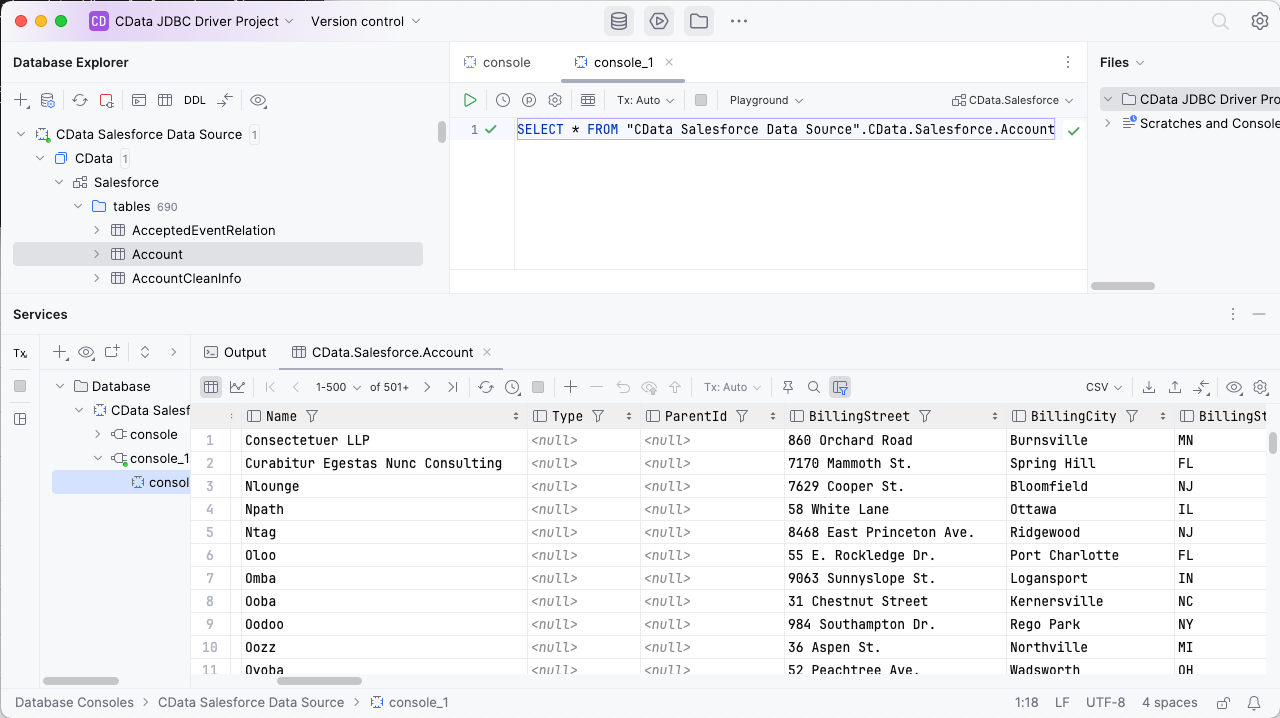
In the Console, write the SQL query you wish to execute. For example:
SELECT , FROM Account WHERE = ''
Download a free, 30-day trial of the CData API Driver for JDBC and start working with your live Templated data in DataGrip. Reach out to our Support Team if you have any questions.