




Design BIRT Reports on TimeCamp Data

The CData JDBC Driver for TimeCamp integrates connectivity to TimeCamp APIs into your data-driven Java applications. You can use the CData JDBC Driver for TimeCamp with the BIRT (Business Intelligence Reporting Tools) platform to create BIRT reports that reflect changes to your data in real time.
- If you have not already done so, install the BIRT Framework plugin and the Database Development plugin for Eclipse.
- Click File -> New -> Report. The Report Design perspective is opened.
- In the Data Explorer, right-click Data Sources and click New Data Source.
- Select the Create from a Data Source Type in the Following List option and select JDBC Data Source.
- Click Manage Drivers and add the driver JAR, located in the lib subfolder of the installation folder.
- In the Database URL box, enter the JDBC URL containing the connection string.
Start by setting the Profile connection property to the location of the TimeCamp Profile on disk (e.g. C:\profiles\TimeCamp.apip). Next, set the ProfileSettings connection property to the connection string for TimeCamp (see below).
TimeCamp API Profile Settings
TimeCamp uses token-based authentication. To obtain an API Token:
- Log in to your TimeCamp account at https://app.timecamp.com
- Click your profile avatar in the top-right corner
- Select Profile Settings
- Copy the API token shown at the bottom of the page
After obtaining your API Token, set the following connection properties:
- AuthScheme: Set this to APIKey.
Set the following in the ProfileSettings connection property:
- APIKey: Set this to your TimeCamp API token.
Built-in Connection String Designer
For assistance in constructing the JDBC URL, use the connection string designer built into the TimeCamp JDBC Driver. Either double-click the JAR file or execute the jar file from the command-line.
java -jar cdata.jdbc.api.jarFill in the connection properties and copy the connection string to the clipboard.

When you configure the JDBC URL, you may also want to set the Max Rows connection property. This will limit the number of rows returned, which is especially helpful for improving performance when designing reports and visualizations.
A typical JDBC URL is below:
jdbc:api:Profile=C:\profiles\TimeCamp.apip;AuthScheme=APIKey;ProfileSettings='APIKey=your_api_token'; - Right-click the Data Sets folder and select the JDBC data source for TimeCamp.
- In the resulting dialog, build the SELECT query to be used to retrieve the data for the report. This article uses the following query:
SELECT UserId, Email FROM GroupUsers WHERE GroupId = '12345' - In the Palette, drag a Chart onto the editor. The chart wizard is displayed.
- After selecting the chart type, drag columns onto the chart fields on the Select Data tab.
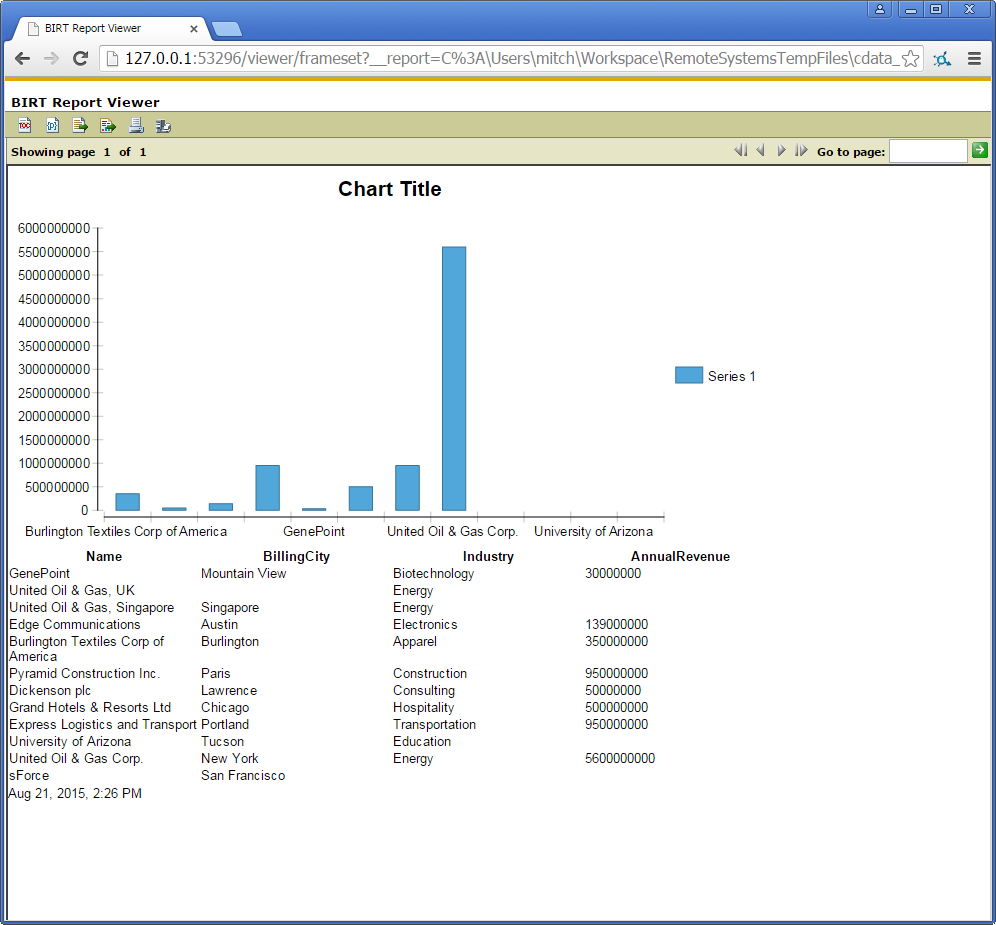
- Click Run -> View Report -> In Web Viewer to view the report.
Your BIRT reports can now pick up any updates to TimeCamp data.
To publish the report to your application server, add the driver JAR to the BIRT Viewer's classpath. For more information, see the CData KB for guides to deploying the JDBC Driver on Java application servers.