






Validate Toggl Data with QuerySurge

QuerySurge is a smart data testing solution that automates data validation and testing. When paired with the CData API Driver for JDBC, QuerySurge can work with live Toggl data. This article explains how to connect to Toggl data from QuerySurge.
With built-in optimized data processing, the CData JDBC Driver offers unmatched performance for interacting with live Toggl data. When you issue complex SQL queries to Toggl, the driver pushes supported SQL operations, like filters and aggregations, directly to Toggl and utilizes the embedded SQL engine to process unsupported operations client-side (often SQL functions and JOIN operations). Its built-in dynamic metadata querying allows you to work with and analyze Toggl data using native data types.
Connecting to Toggl Data in QuerySurge
To connect to live Toggl data from QuerySurge, you need to deploy the JDBC Driver JAR file to your QuerySurge Agent(s) and add a new connection from the QuerySurge Admin view.
Deploy the JDBC Driver
- Download the CData API Driver for JDBC installer, unzip the package, and run the JAR file to install the driver.
- Once the driver is installed, stop the Agent Service.
- Copy the JAR File (and license file if it exists) from the installation location (typically C:\Program Files\CData\CData API Driver for JDBC\lib\) to your Agent(s) (QuerySurge_install_dir\agent\jdbc).
- Restart the Agent Service.
For more information on deploying JDBC drivers for QuerySurge, refer to the QuerySurge Knowledge Base.
Configure a New Connection to Toggl
- Log into QuerySurge and navigate to the Admin view.
- Click Configuration -> Connections in the Administration Tree.
- Click Add to create a new connection.
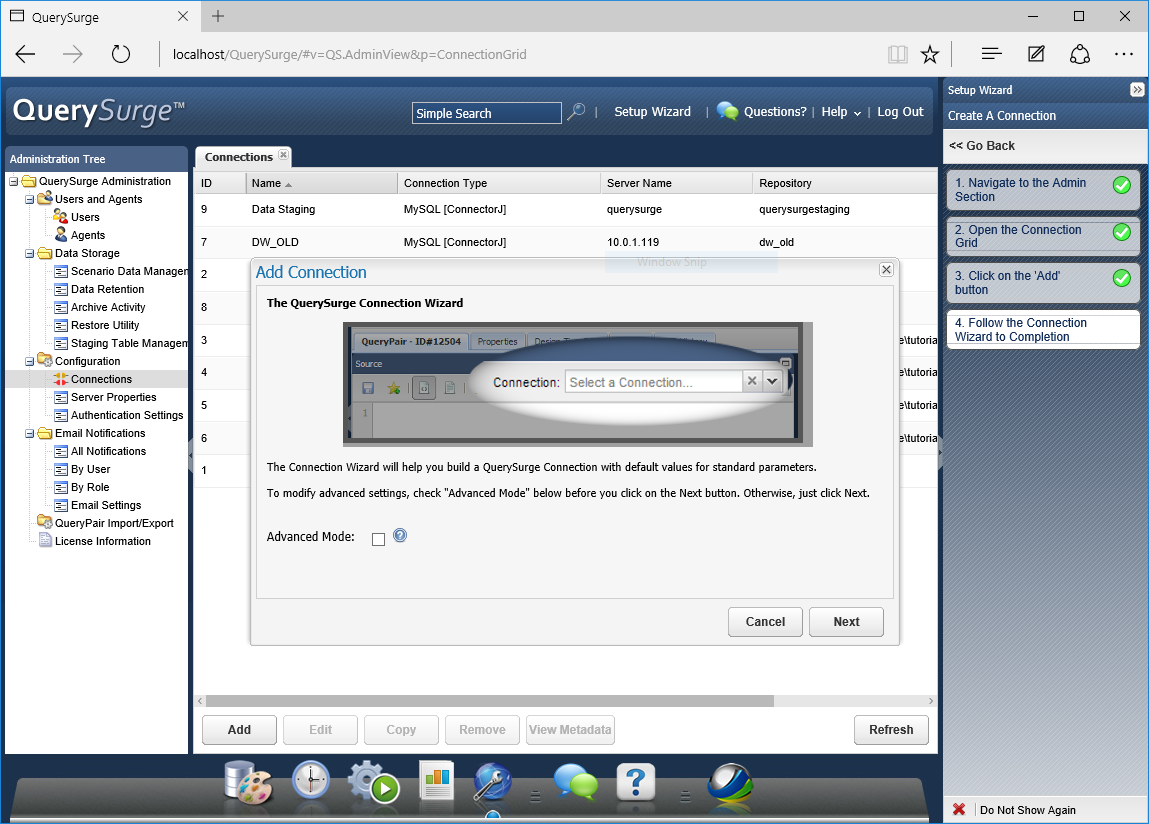
- In the QuerySurge Connection Wizard, click Next.
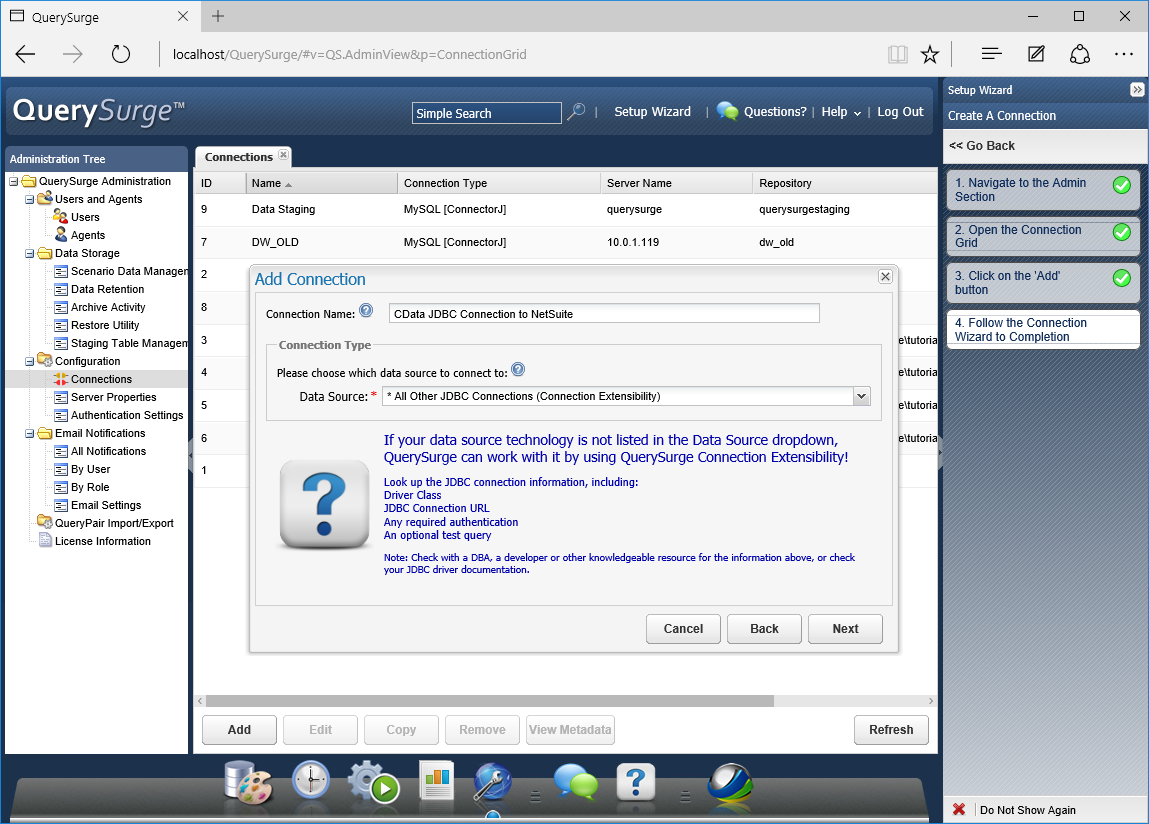
- Name the connection (e.g. CData JDBC Connection to Toggl).
- Set the Data Source to "All Other JDBC Connections (Connection Extensibility)" and click Next.
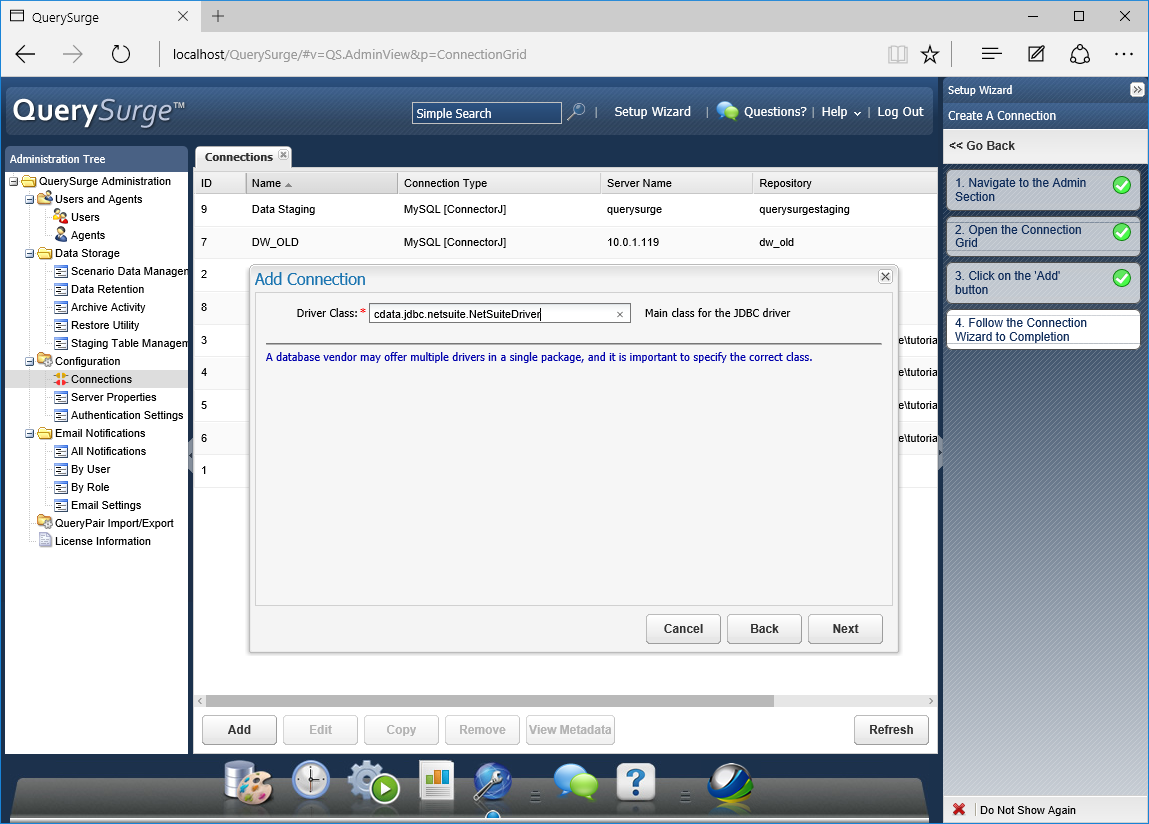
- Set the Driver Class to cdata.jdbc.api.APIDriver and click Next.
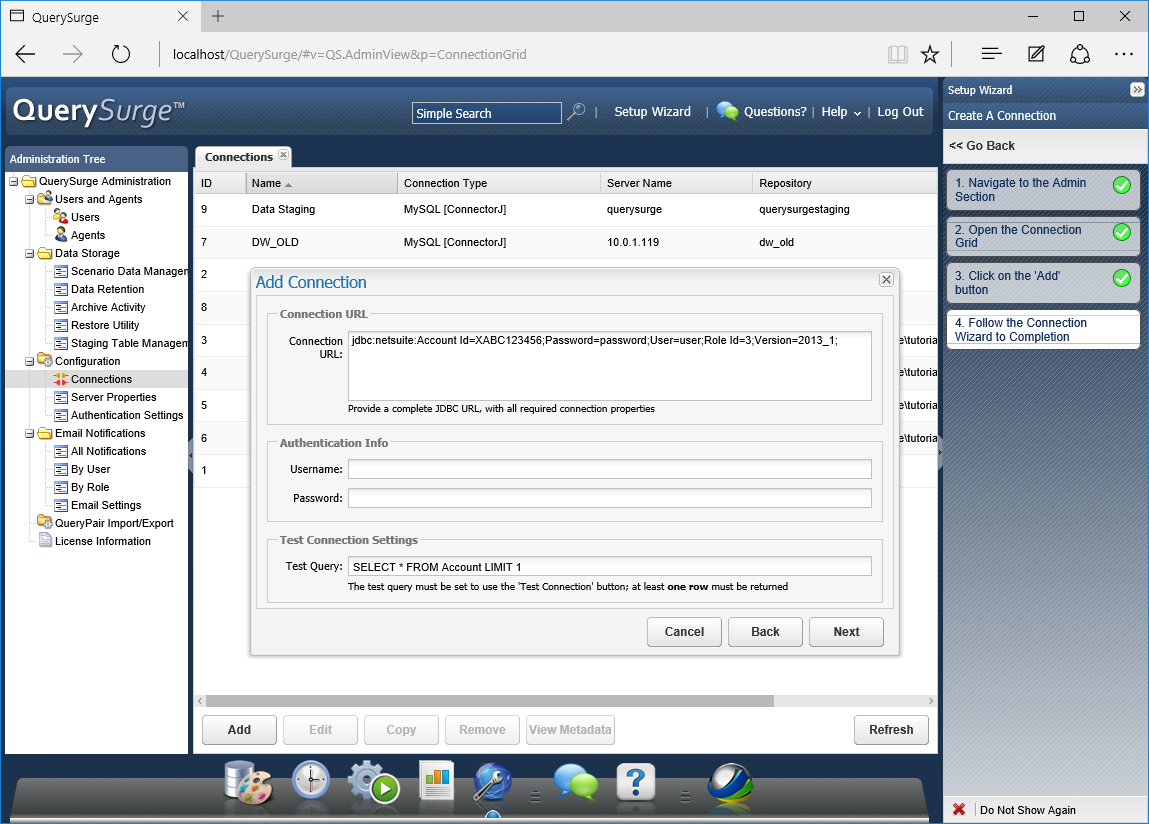
Set the Connection URL using the necessary connection properties to authenticate with Toggl. Your Connection URL will look something like the following:
jdbc:api:Profile=C:\profiles\Toggl.apip;ProfileSettings='APIKey=your_api_key';
Built-in Connection String Designer
For assistance in constructing the JDBC URL, use the connection string designer built into the Toggl JDBC Driver. Either double-click the JAR file or execute the jar file from the command-line.
java -jar cdata.jdbc.api.jar
Fill in the connection properties and copy the connection string to the clipboard.
Start by setting the Profile connection property to the location of the Toggl Profile on disk (e.g. C:\profiles\Toggl.apip). Next, set the ProfileSettings connection property to the connection string for Toggl (see below).
Toggl API Profile Settings
Obtain your API key from your Toggl account Profile Settings page, where it is listed under the API section.

- Set the Test Query to enable the Test Connection button for the Connection (e.g. SELECT * FROM Clients LIMIT 1) and click Next.
- Click Test Connection to ensure the connection is configured properly and click Save to add the connection.
Once the connection is added, you can write SQL queries against your Toggl data in QuerySurge.
Compare Toggl Data Queries with a QueryPair
With the connection configured, you can follow the steps below to compare querying Toggl data with a QueryPair.
- Select "Design Library" from the Design Menu
- Click QueryPairs under QuerySurge Design
- Click "Create New QueryPair"
- Name the QueryPair and click Save
- In either the Source or Target panes, select the connection created above (select the same connection to query Toggl twice or another connection to perform a comparison)
- Write queries in the Editor for each pane, e.g. SELECT * FROM Clients
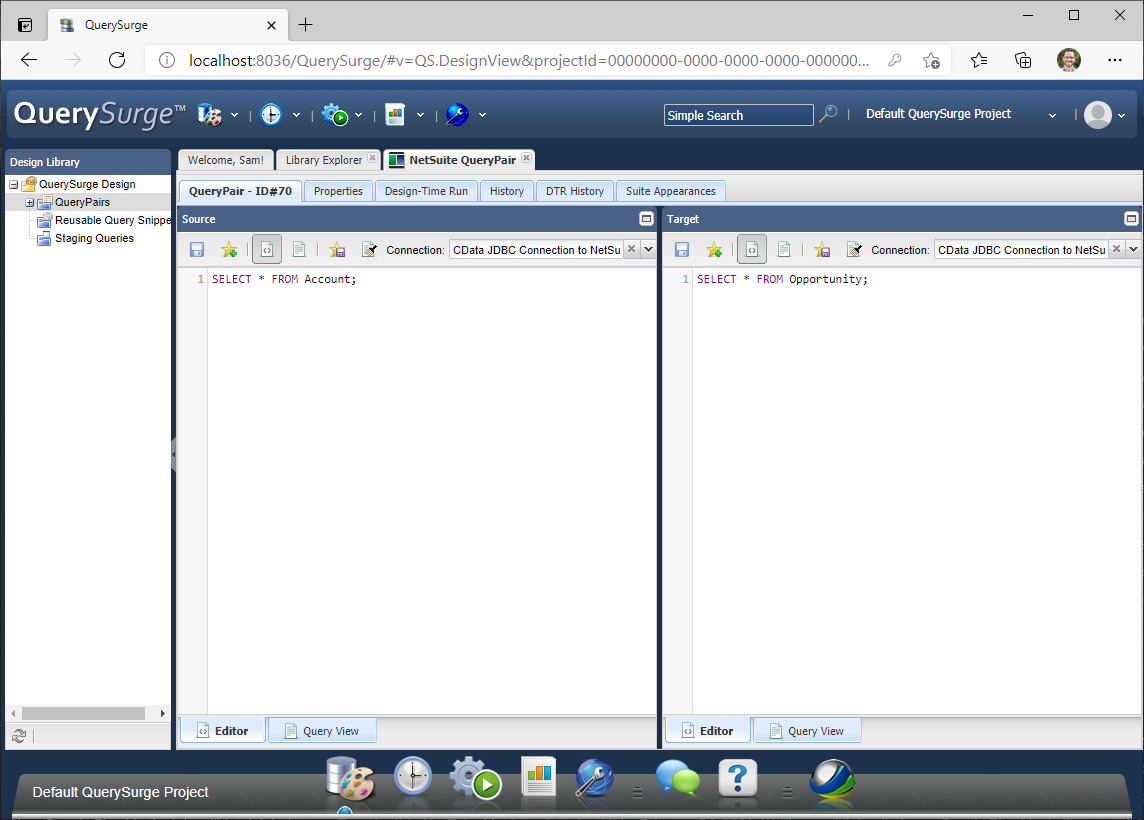
- Click the "Design-Time Run" tab to execute the queries
- When the query execution is finished, click "View Query Results" to see the Toggl data returned by the query

Download a free, 30-day trial of the CData API Driver for JDBC and start working with your live Toggl data in QuerySurge. Reach out to our Support Team if you have any questions.