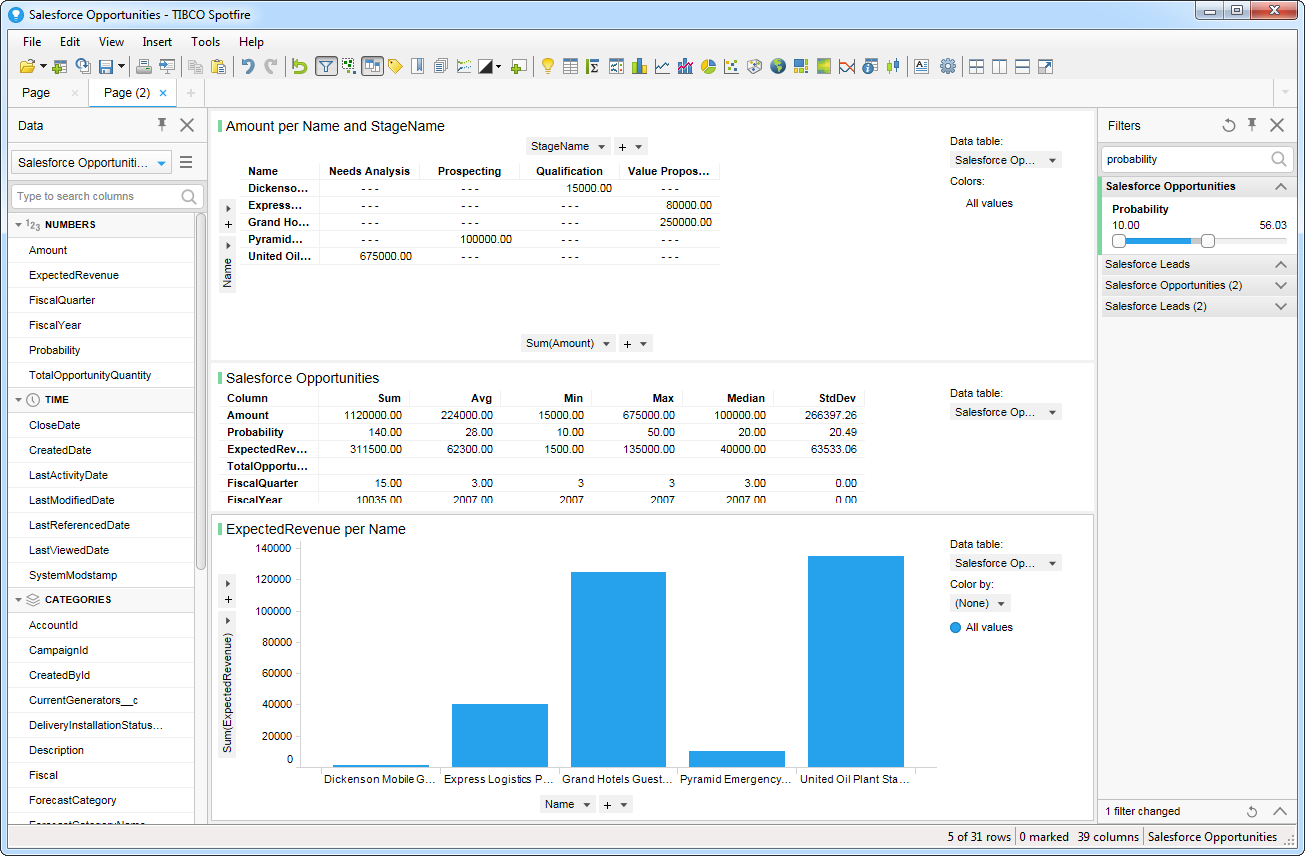
Visualize UKG Pro HCM Data in TIBCO Spotfire through ADO.NET

TIBCO Spotfire is a data visualization and business intelligence software developed by TIBCO Software Inc. It allows users to connect, visualize, and share insights from various data sources in real-time. Spotfire provides interactive dashboards, data analytics, and predictive analytics capabilities, enabling users to explore data, uncover trends, and make data-driven decisions. It is commonly used in businesses and organizations to analyze large datasets, gain valuable insights, and improve decision-making processes. Learn more at https://www.tibco.com/analytics.
In this article, we will guide you through the process of utilizing the CData ADO.NET Provider for UKG Pro HCM within TIBCO Spotfire. You will learn how to establish a connection and build a basic dashboard.
- Add the CData ADO.NET data source by clicking Add Data Tables.
- Click Add -> Database.
- Select the provider and click Configure.
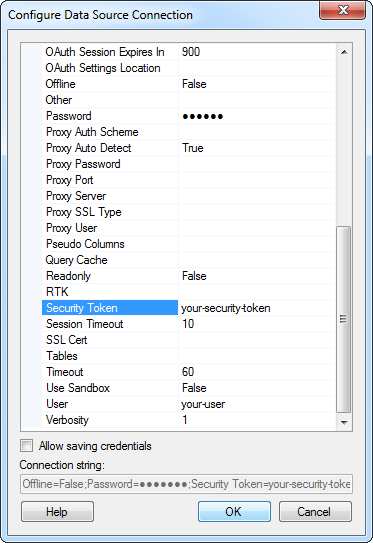
- Define the connection settings. Below is a typical connection string:
Profile=C:\profiles\UKGProHCM.apip;AuthScheme=Basic;User=your_username;Password=your_password;ProfileSettings='Host=yourcompany.ultipro.com;CustomerAPIKey=your_customer_api_key';
Start by setting the Profile connection property to the location of the UKGProHCM Profile on disk (e.g. C:\profiles\UKGProHCM.apip). Next, set the ProfileSettings connection property to the connection string for UKGProHCM (see below).
UKGProHCM API Profile Settings
UKG Pro HCM uses Basic authentication combined with a customer API key to authorize access to the API. To connect, you will need your UKG Pro HCM credentials and a customer API key issued by UKG.
Set the following connection properties to authenticate:
- AuthScheme: Set this to Basic.
- User: Set this to your UKG Pro HCM username.
- Password: Set this to your UKG Pro HCM password.
- ProfileSettings: Set this to a semicolon-separated list containing:
- Host: Your UKG Pro HCM tenant hostname (e.g., yourcompany.ultipro.com).
- CustomerAPIKey: Your UKG customer API key. This is passed as the US-CUSTOMER-API-KEY request header on each API call.
To obtain your customer API key, contact your UKG Pro HCM administrator or refer to the UKG Developer Portal at https://developer.ukg.com.
When you configure the connection, you may also want to set the Max Rows connection property. This will limit the number of rows returned, which is especially helpful for improving performance when designing reports and visualizations.
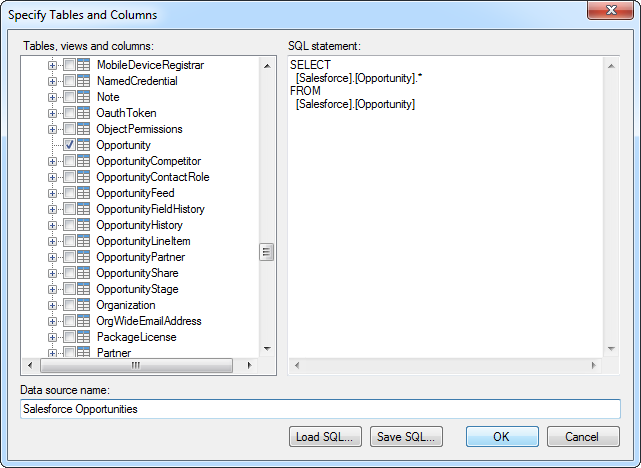
- Select the tables that you want to add to the dashboard. This example uses UserDetails. You can also specify an SQL query. The driver supports the standard SQL syntax.
- If you want to work with the live data, click the Keep Data Table External option. This option enables your dashboards to reflect changes to the data in real time.
If you want to load the data into memory and process the data locally, click the Import Data Table option. This option is better for offline use or if a slow network connection is making your dashboard less interactive.
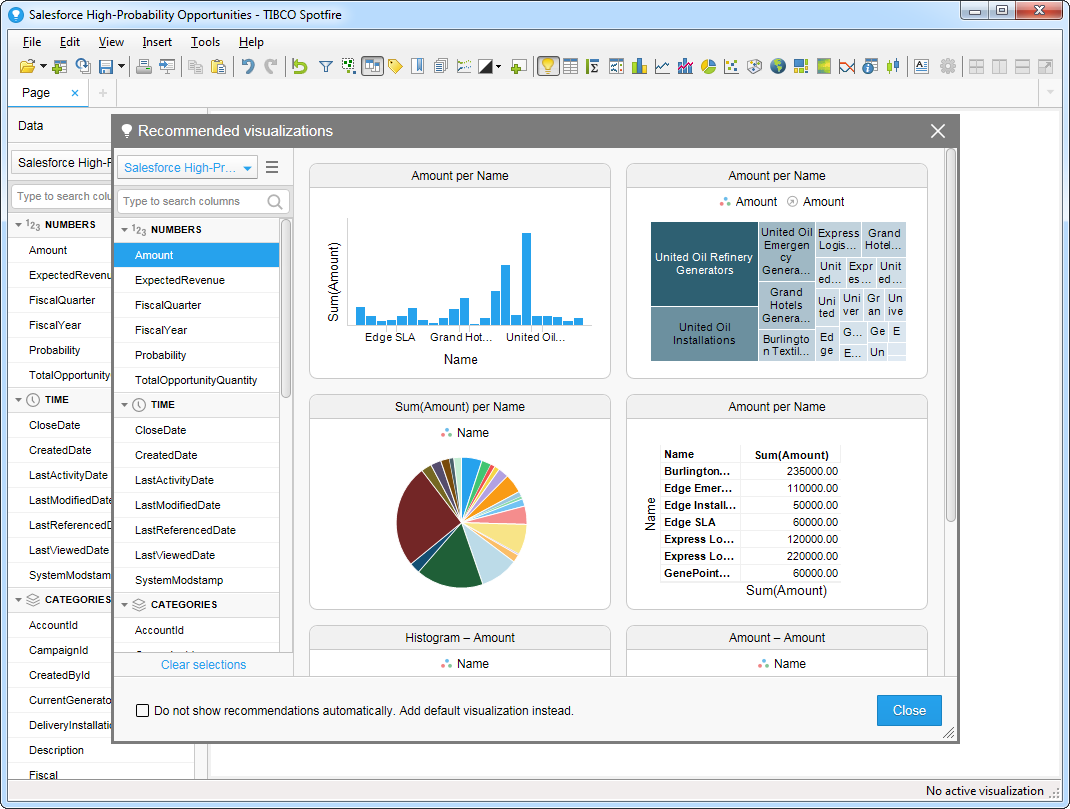
- After adding tables, the Recommended Visualizations wizard is displayed. When you select a table, Spotfire uses the column data types to detect number, time, and category columns. This example uses UserName in the Numbers section and UserId in the Categories section.
After adding several visualizations in the Recommended Visualizations wizard, you can make other modifications to the dashboard. For example, you can apply a filter: After clicking the Filter button, the available filters for each query are displayed in the Filters pane.