




Analyze UKG Pro HCM Data in SAP Analytics Cloud

SAP Analytics Cloud is a cloud-based business intelligence platform. CData Connect AI creates a pure, cloud-to-cloud connection to UKG Pro HCM and can be used to generate an OData API (natively supported in Analytics Cloud) for UKG Pro HCM. By pairing SAP Analytics Cloud with CData Connect AI, you get true cloud-to-cloud connectivity to all of your SaaS and cloud-based Big Data and NoSQL sources — no need to migrate your data or write your integrations. Simply connect to Connect AI as you would any other OData service and get instant, consolidated access to all of your data.
In this article, we walk through connecting to UKG Pro HCM from SAP Analytics Cloud (through CData Connect AI) to create a model and build a simple dashboard.
Connect to UKG Pro HCM from SAP Analytics Cloud
To work with live UKG Pro HCM data in SAP Analytics Cloud, we need to connect to UKG Pro HCM from Connect AI, provide user access to the connection, and create a Workspace for the UKG Pro HCM data.
Connect to UKG Pro HCM from Connect AI
CData Connect AI uses a straightforward, point-and-click interface to connect to data sources.
- Log into Connect AI, click Sources, and then click Add Connection
- Select "UKG Pro HCM" from the Add Connection panel
-
Enter the necessary authentication properties to connect to UKG Pro HCM.
Start by setting the Profile connection property to the location of the UKGProHCM Profile on disk (e.g. C:\profiles\UKGProHCM.apip). Next, set the ProfileSettings connection property to the connection string for UKGProHCM (see below).
UKGProHCM API Profile Settings
UKG Pro HCM uses Basic authentication combined with a customer API key to authorize access to the API. To connect, you will need your UKG Pro HCM credentials and a customer API key issued by UKG.
Set the following connection properties to authenticate:
- AuthScheme: Set this to Basic.
- User: Set this to your UKG Pro HCM username.
- Password: Set this to your UKG Pro HCM password.
- ProfileSettings: Set this to a semicolon-separated list containing:
- Host: Your UKG Pro HCM tenant hostname (e.g., yourcompany.ultipro.com).
- CustomerAPIKey: Your UKG customer API key. This is passed as the US-CUSTOMER-API-KEY request header on each API call.
To obtain your customer API key, contact your UKG Pro HCM administrator or refer to the UKG Developer Portal at https://developer.ukg.com.

- Click Save & Test
-
Navigate to the Permissions tab in the Add UKG Pro HCM Connection page and update the User-based permissions.



Add a Personal Access Token
When connecting to Connect AI through the REST API, the OData API, or the Virtual SQL Server, a Personal Access Token (PAT) is used to authenticate the connection to Connect AI. It is best practice to create a separate PAT for each service to maintain granularity of access.
- Click on the Gear icon () at the top right of the Connect AI app to open the settings page.
- On the Settings page, go to the Access Tokens section and click Create PAT.
-
Give the PAT a name and click Create.

- The personal access token is only visible at creation, so be sure to copy it and store it securely for future use.
Configure UKG Pro HCM Endpoints for SAP Analytics Cloud
After connecting to UKG Pro HCM, create a workspace for your desired table(s).
-
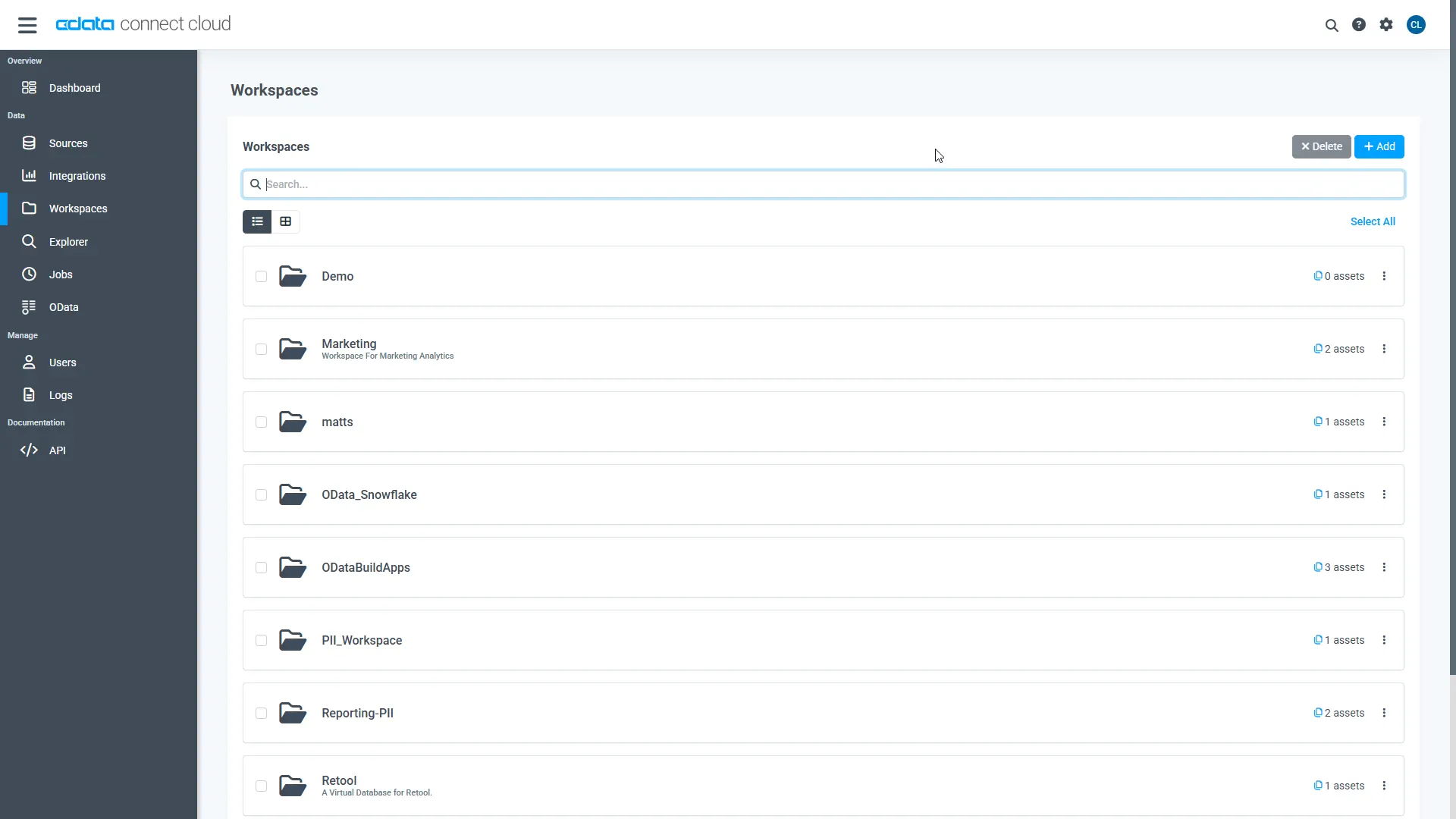
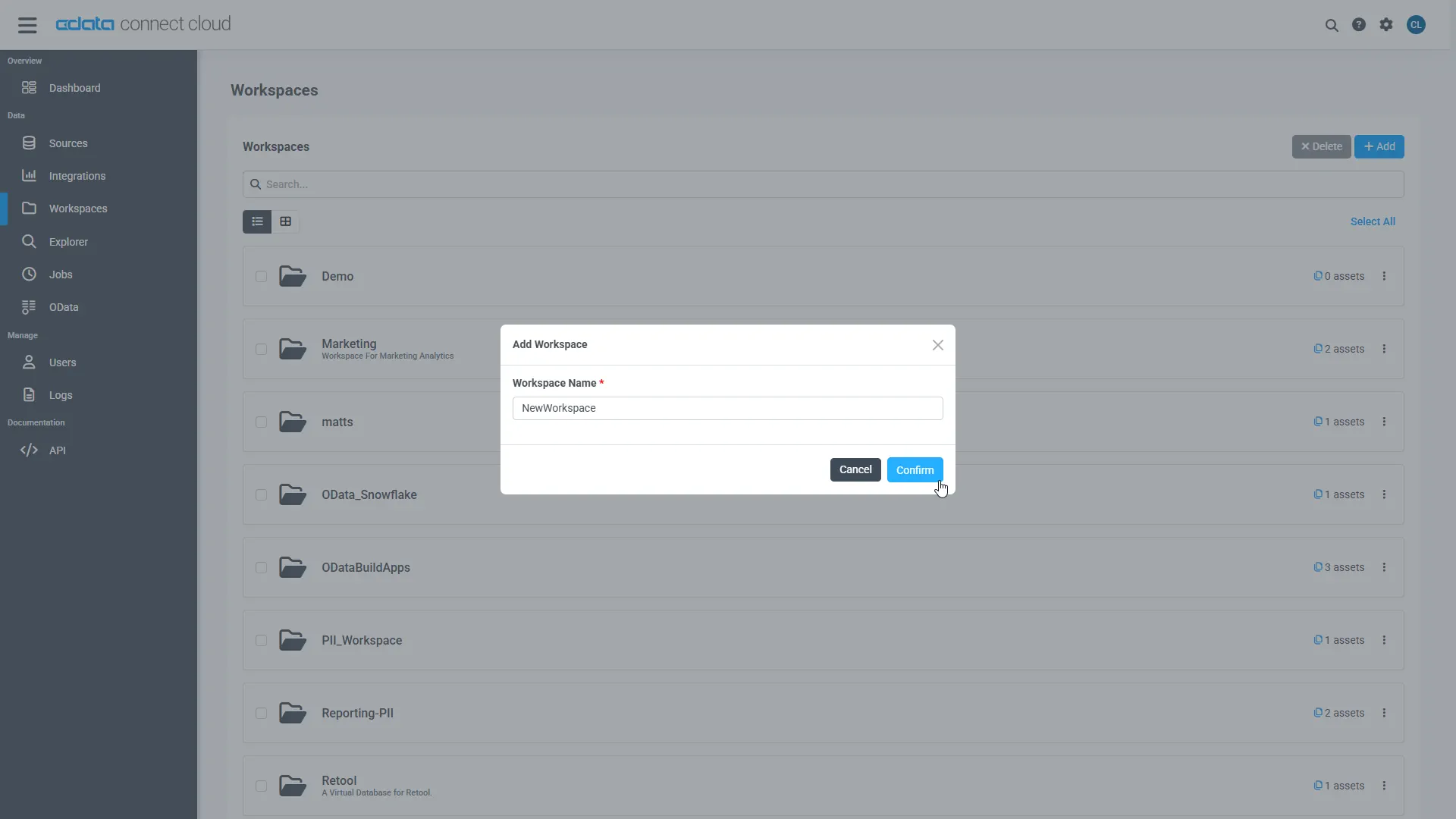
Navigate to the Workspaces page and click Add to create a new Workspace (or select an existing workspace).
- Click Add to add new assets to the Workspace.
-
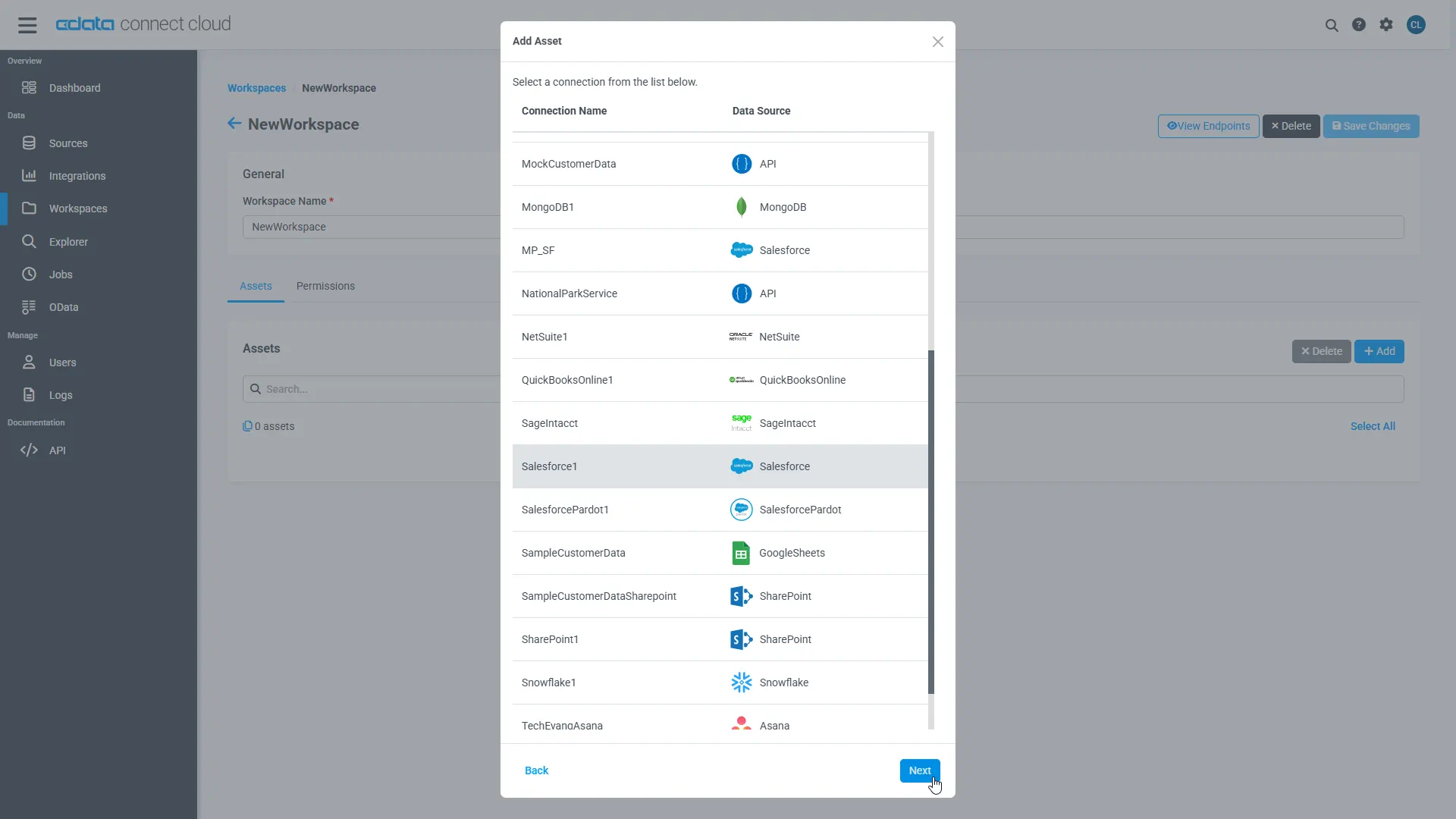
Select the UKG Pro HCM connection (e.g. API1) and click Next.
-
Select the table(s) you wish to work with and click Confirm.
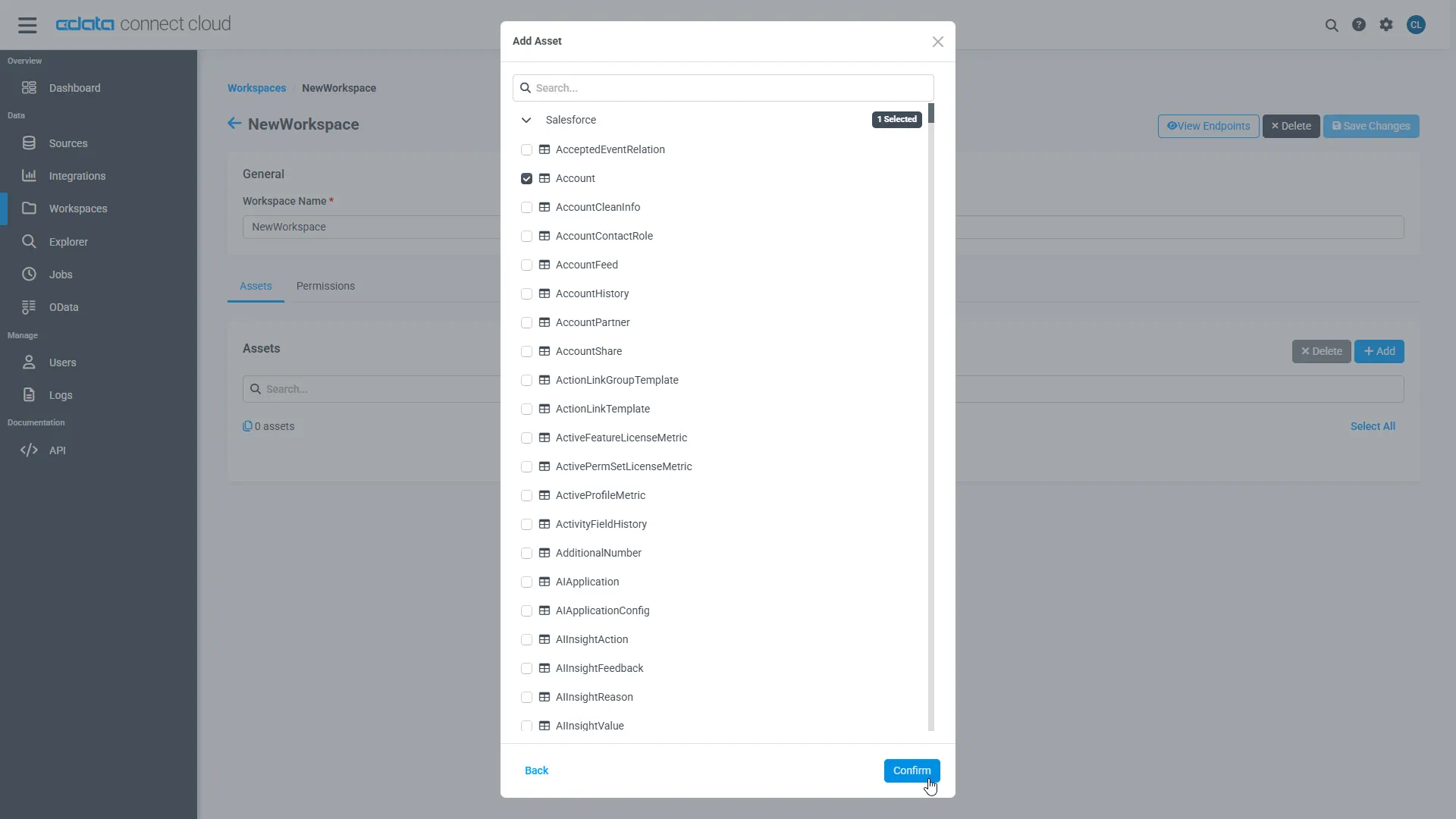
- Make note of the OData Service URL for your workspace, e.g. https://cloud.cdata.com/api/odata/{workspace_name}
With the connection, PAT, and Workspace configured, you are ready to connect to UKG Pro HCM data from SAP Analytics Cloud.
Create a Model of UKG Pro HCM Data in SAP Analytics Cloud
With the connection to UKG Pro HCM configured and the OData endpoint(s) created, we can create a Model for UKG Pro HCM data in SAP Analytics Cloud.
- Log into your Analytics Cloud instance and click Create -> Model from the menu.
- Choose "Get data from a datasource" and select "OData Services"
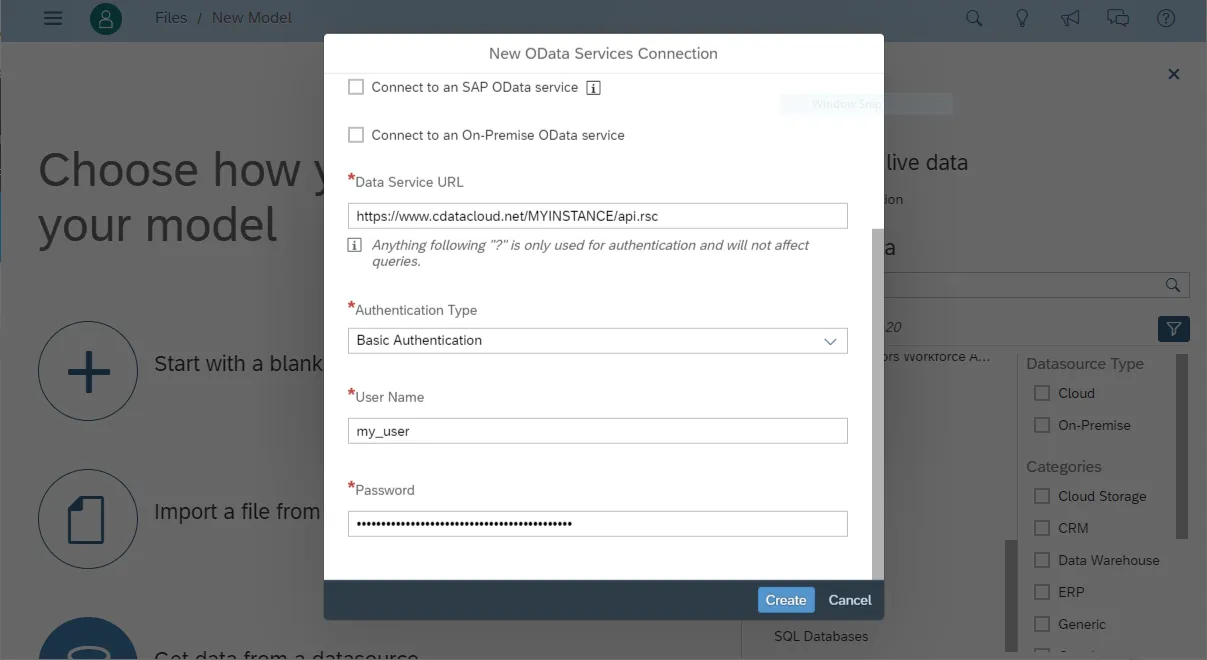
- Choose an existing connection to your Connect AI OData or Create a new one:
- Set Connection Name
- Set Data Service URL to the Base URL for your OData API: https://cloud.cdata.com/api/odata/{workspace_name}
- Set Authentication Type to Basic Authentication
- Set User Name to the Connect AI user (e.g. [email protected])
- Set Password to the PAT for the above user
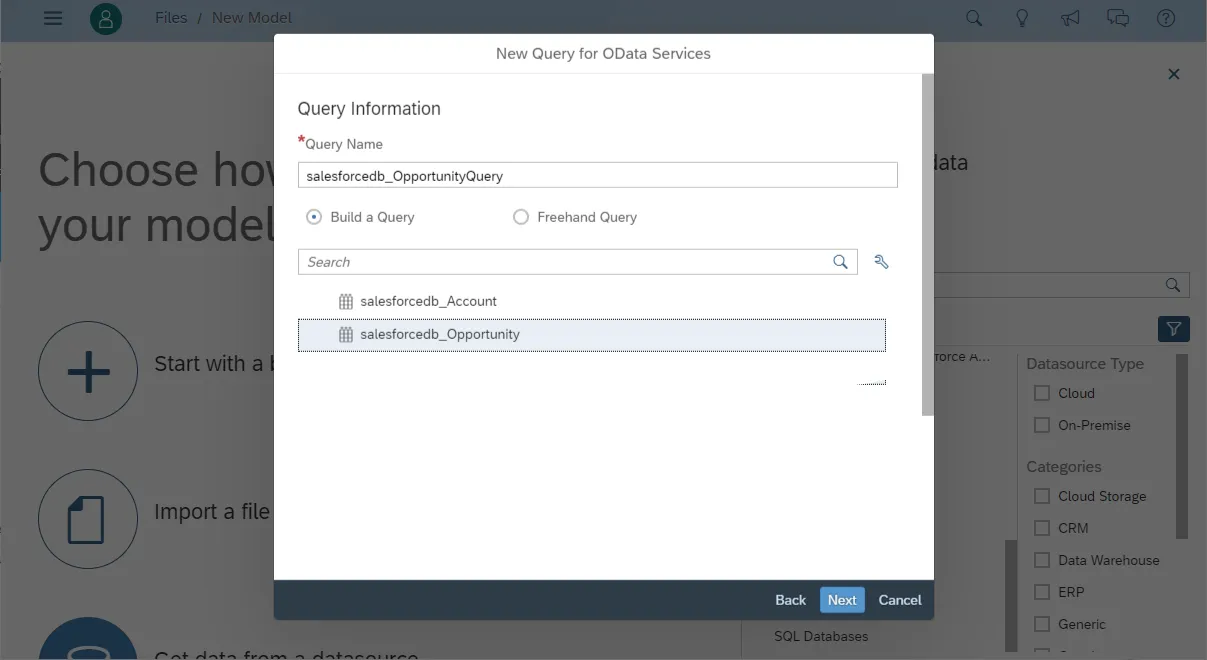
- Choose "Create a new query" and click Next
- Name the Execute, select an OData endpoint (like UserDetails) and click Next
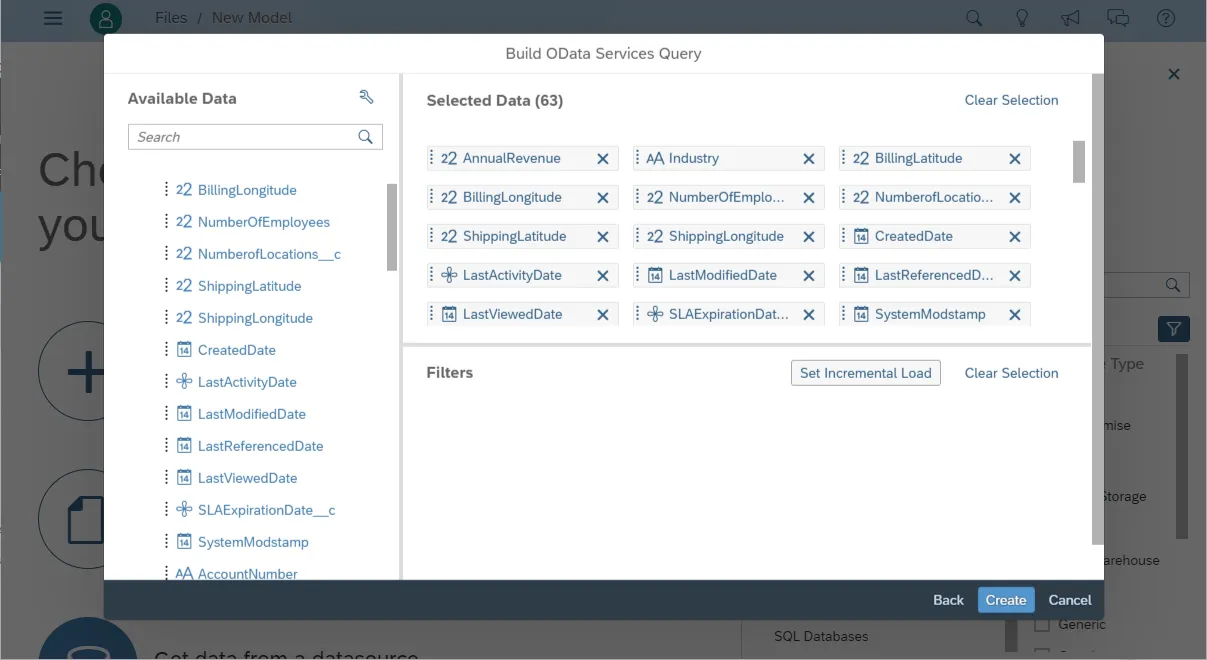
- Drag the columns you wish to work with into the Selected Data workspace and click Create
- At this point, a Draft Data source is created; click the draft to finalize the model
- Perform any transformations, including creating calculated dimensions, location dimensions, and combining data sources, then click Create Model
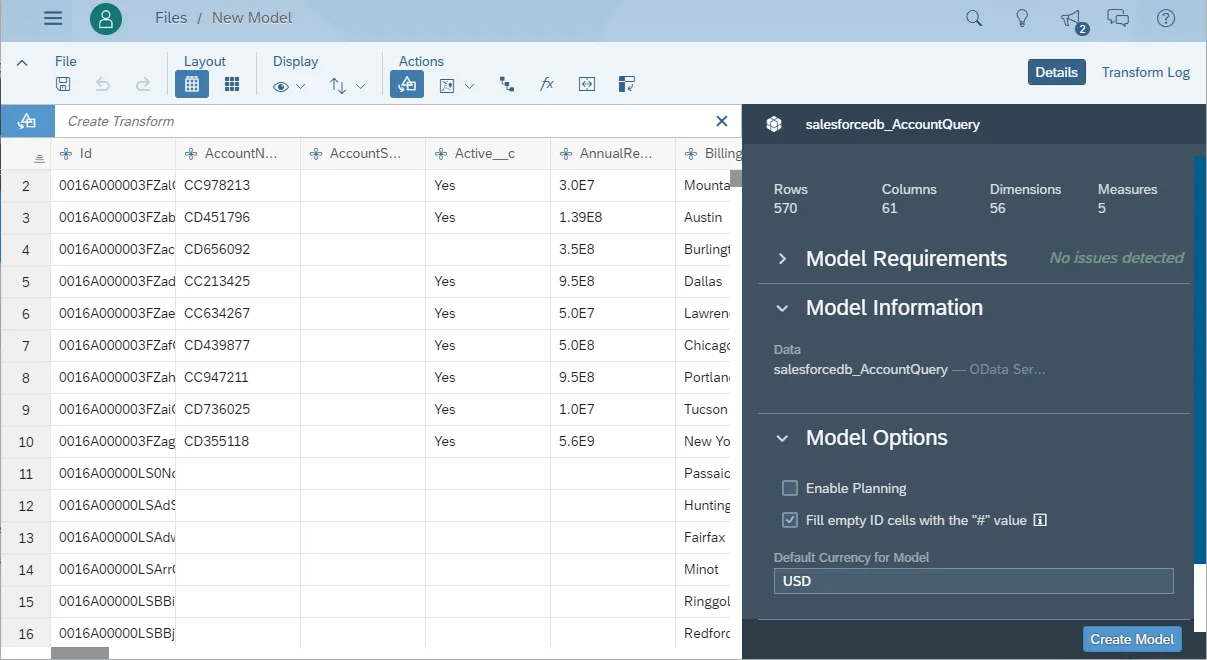
- Name your model and click OK
Build a Dashboard in SAP Analytics Cloud
With the model created, you are ready to create a dashboard in SAP Analytics Cloud based on UKG Pro HCM data.
- From the menu, click Create -> Story
- Click on SAP Analytics Template (this article uses the "Dashboard" template)
- Choose a layout and click Apply
- From the More menu, select a visualization to insert (Chart)
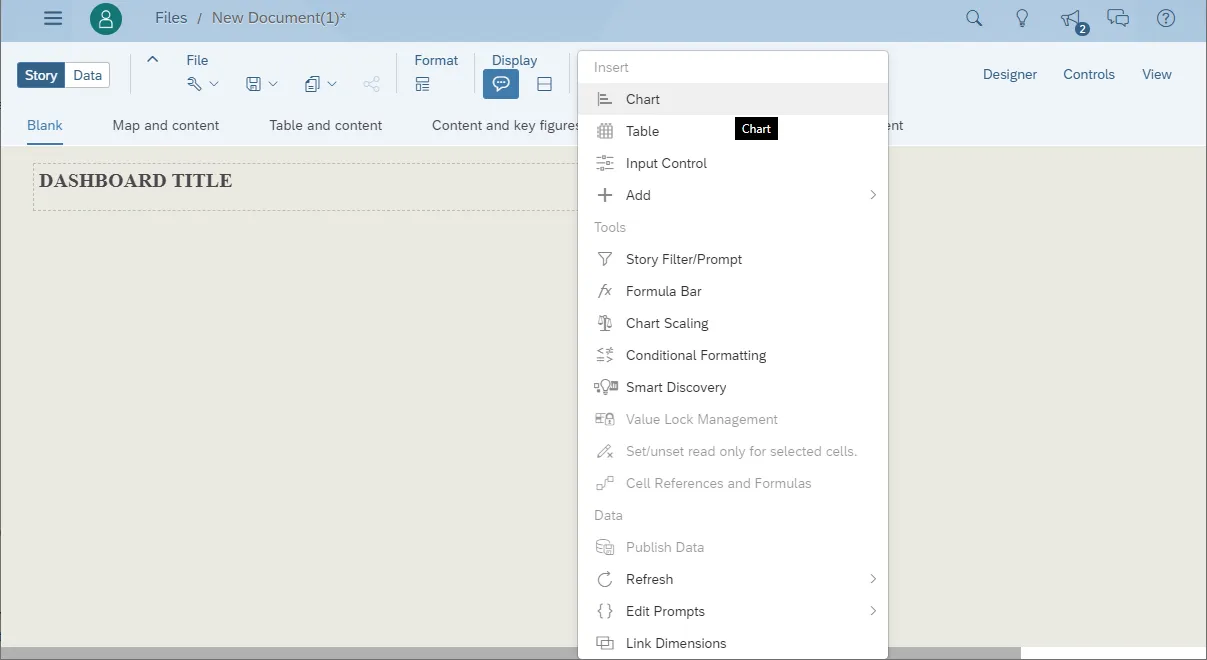
- Select a model to visualize
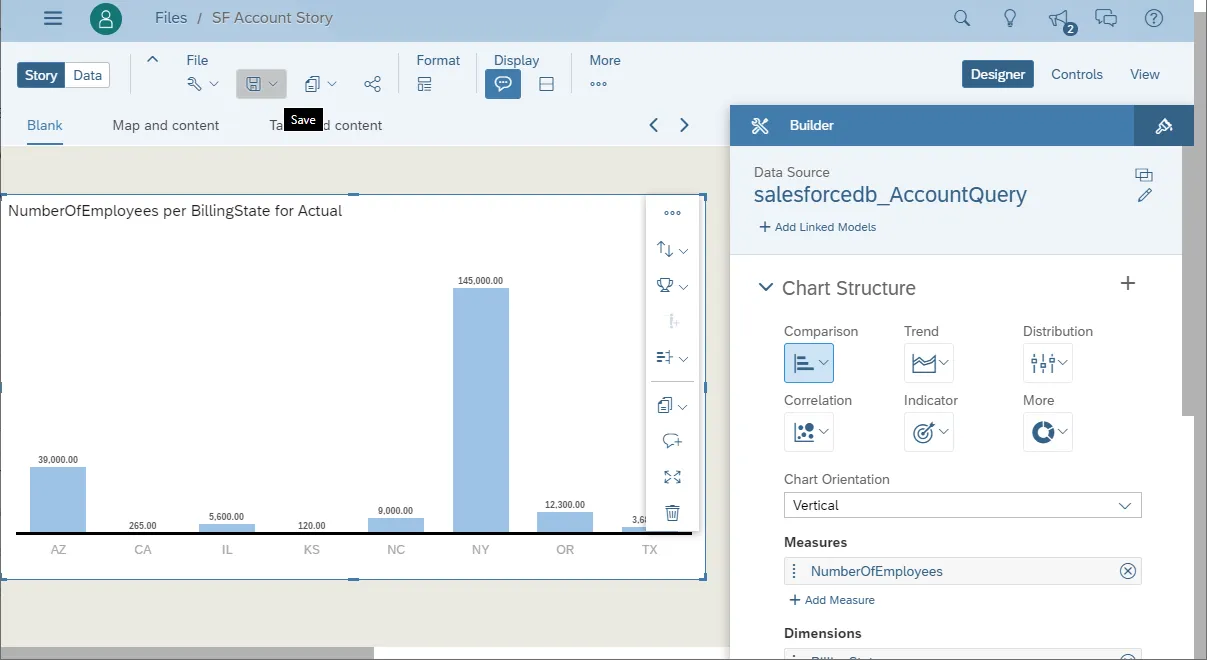
- Select a structure and the required Measures and Dimensions
- Save the store
More Information & Free Trial
Now, you have created a simple but powerful dashboard from live UKG Pro HCM data. For more information on creating OData feeds from UKG Pro HCM (and more than 100 other data sources), visit the Connect AI page. Sign up for a free trial and start working with live UKG Pro HCM data in SAP Analytics Cloud.