




Analyze Live UKG Pro HCM Data in SAS Viya

SAS Viya is an analytics platform that enhances data management, machine learning, and analytics, fostering efficient decision-making and insights. When paired with CData Connect AI, you get instant, cloud-to-cloud access to UKG Pro HCM data for building predictive models, crafting stunning insights to make data-driven decisions, and more. This article shows how to connect to Connect AI from the SAS Viya cloud platform and integrate live UKG Pro HCM data into your self-service AI and analytics deployments.
CData Connect AI provides a pure SQL, cloud-to-cloud interface for UKG Pro HCM, allowing you to easily integrate with live UKG Pro HCM data in SAS Viya — without replicating the data. CData Connect AI looks exactly like a SQL Server database to SAS Viya and uses optimized data processing out of the box to push all supported SQL operations (filters, JOINs, etc.) directly to UKG Pro HCM, leveraging server-side processing to return UKG Pro HCM data quickly.
Configure UKG Pro HCM Connectivity for SAS Viya
Connectivity to UKG Pro HCM from SAS Viya is made possible through CData Connect AI. To work with UKG Pro HCM data from SAS Viya, we start by creating and configuring a UKG Pro HCM connection.
- Log into Connect AI, click Sources, and then click Add Connection
- Select "UKG Pro HCM" from the Add Connection panel
-
Enter the necessary authentication properties to connect to UKG Pro HCM.
Start by setting the Profile connection property to the location of the UKGProHCM Profile on disk (e.g. C:\profiles\UKGProHCM.apip). Next, set the ProfileSettings connection property to the connection string for UKGProHCM (see below).
UKGProHCM API Profile Settings
UKG Pro HCM uses Basic authentication combined with a customer API key to authorize access to the API. To connect, you will need your UKG Pro HCM credentials and a customer API key issued by UKG.
Set the following connection properties to authenticate:
- AuthScheme: Set this to Basic.
- User: Set this to your UKG Pro HCM username.
- Password: Set this to your UKG Pro HCM password.
- ProfileSettings: Set this to a semicolon-separated list containing:
- Host: Your UKG Pro HCM tenant hostname (e.g., yourcompany.ultipro.com).
- CustomerAPIKey: Your UKG customer API key. This is passed as the US-CUSTOMER-API-KEY request header on each API call.
To obtain your customer API key, contact your UKG Pro HCM administrator or refer to the UKG Developer Portal at https://developer.ukg.com.

- Click Save & Test
-
Navigate to the Permissions tab in the Add UKG Pro HCM Connection page and update the User-based permissions.



Add a Personal Access Token
When connecting to Connect AI through the REST API, the OData API, or the Virtual SQL Server, a Personal Access Token (PAT) is used to authenticate the connection to Connect AI. It is best practice to create a separate PAT for each service to maintain granularity of access.
- Click on the Gear icon () at the top right of the Connect AI app to open the settings page.
- On the Settings page, go to the Access Tokens section and click Create PAT.
-
Give the PAT a name and click Create.

- The personal access token is only visible at creation, so be sure to copy it and store it securely for future use.
With the connection configured and a PAT generated, you are ready to connect to UKG Pro HCM data from SAS Viya.
Connecting to CData Connect AI from SAS Viya
The following steps detail the process of loading data from UKG Pro HCM into SAS Viya using the established connection in CData Connect AI.
-
Download and install the CData Connect AI JDBC driver.
- Open the Integrations page of CData Connect AI.
- Search for and select JDBC.
- Download and run the setup file.
- When the installation is complete, the JAR file can be found in the installation directory (inside the lib folder).
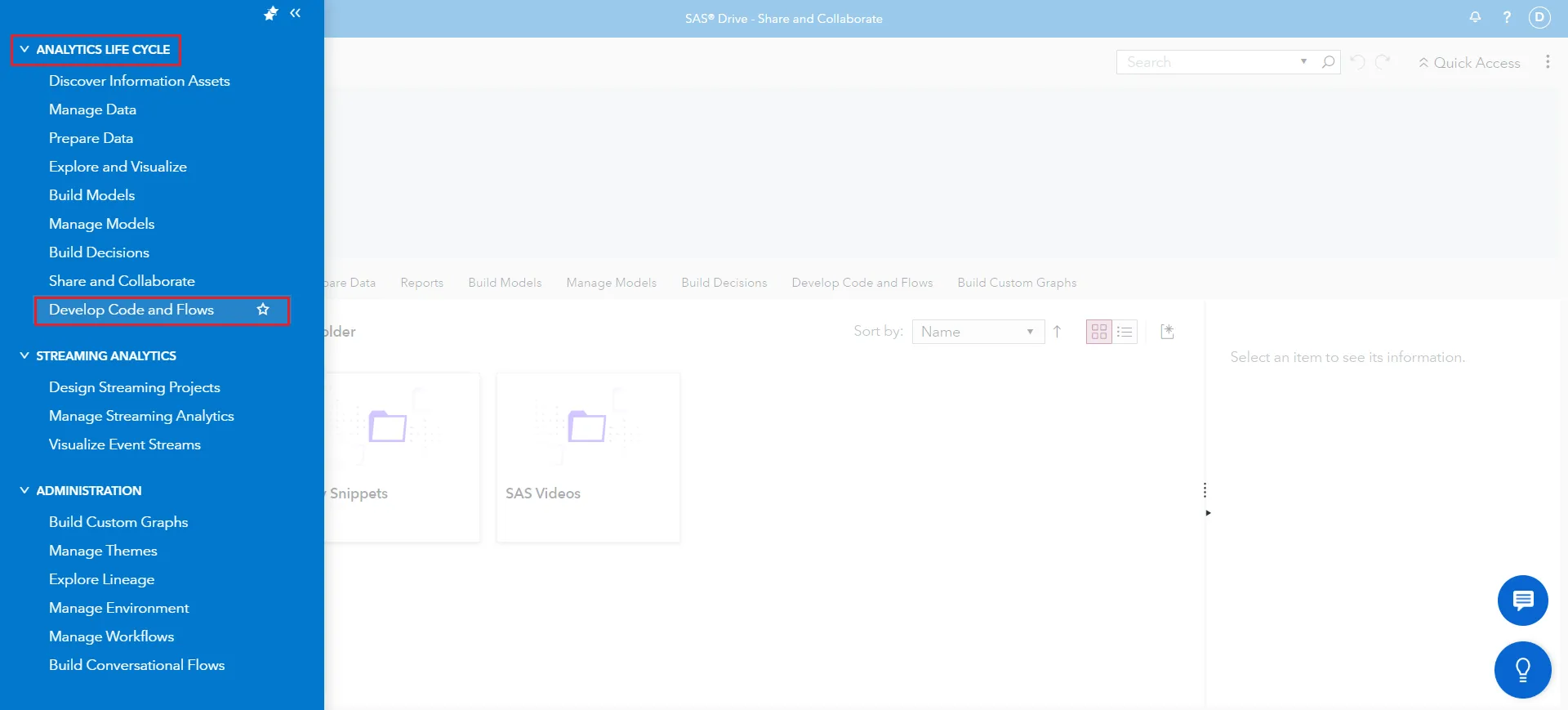
- Now, log in to SAS Viya and navigate to the Applications Menu at the top-left corner.
- Select Develop Code and Flows from the Analytics Life Cycle topic.
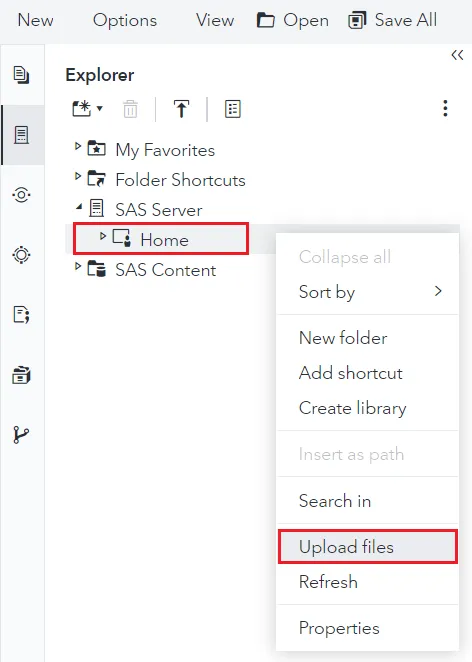
- Navigate to the Explorer tab and click on SAS Server on the left panel.
- Follow the steps to upload the JAR file of the CData Connect JDBC driver:
- Right-click on the "Home" directory.
- Click on Upload files.
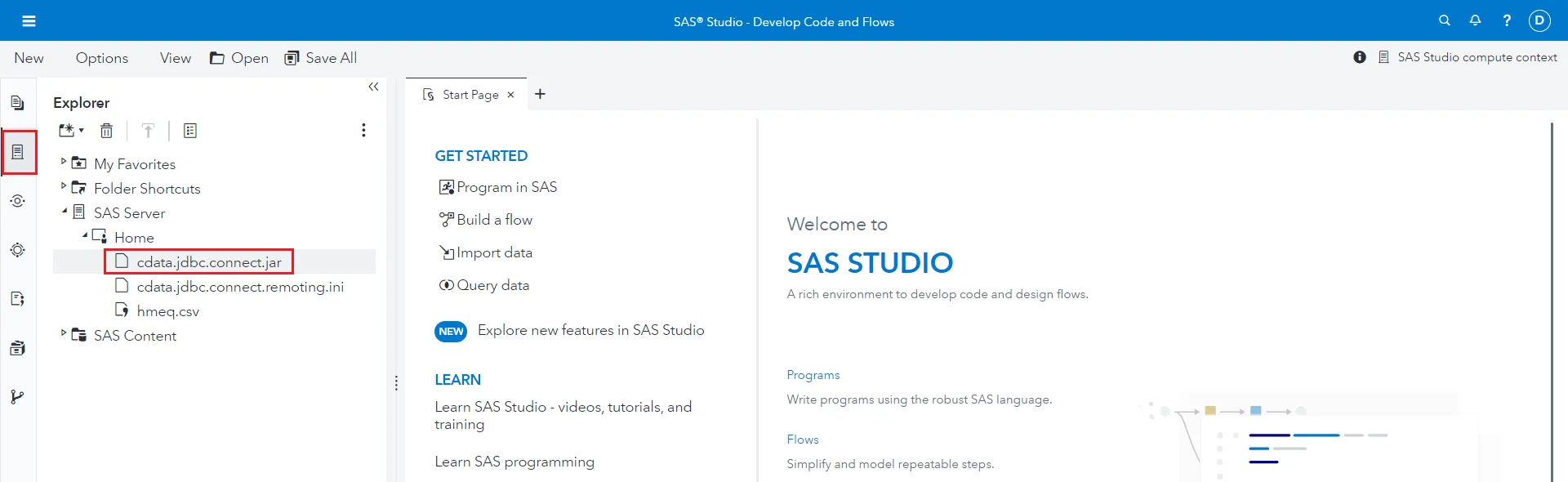
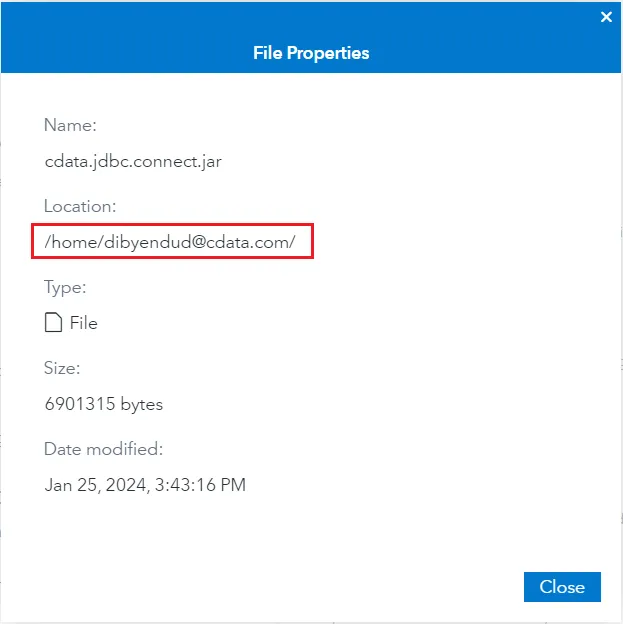
- Place the JAR file in the specified location and note its file path.
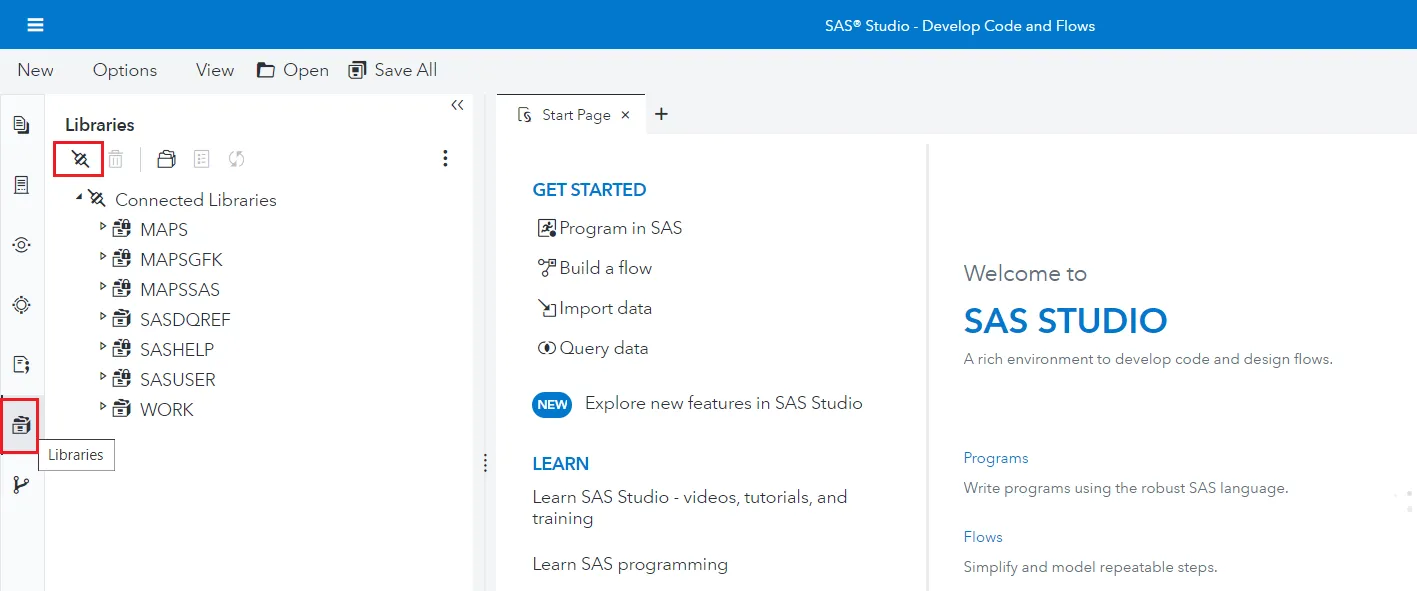
- Once done, navigate to the Libraries tab and click on Create a new library connection (on the top left corner as shown below) for the CData Connect JDBC.
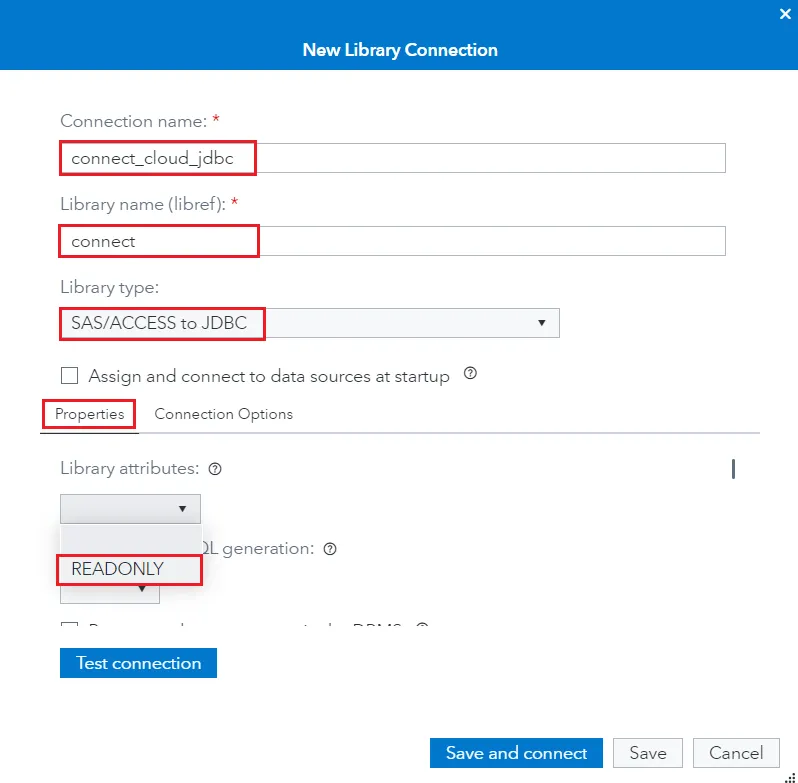
- Enter the library connection settings:
- Connection name: enter a name for your connection
- Library name (libref): enter a reference for your library
- Library type: choose "SAS/ACCESS to JDBC"
- Click on the Properties tab and set Library attributes to READONLY.
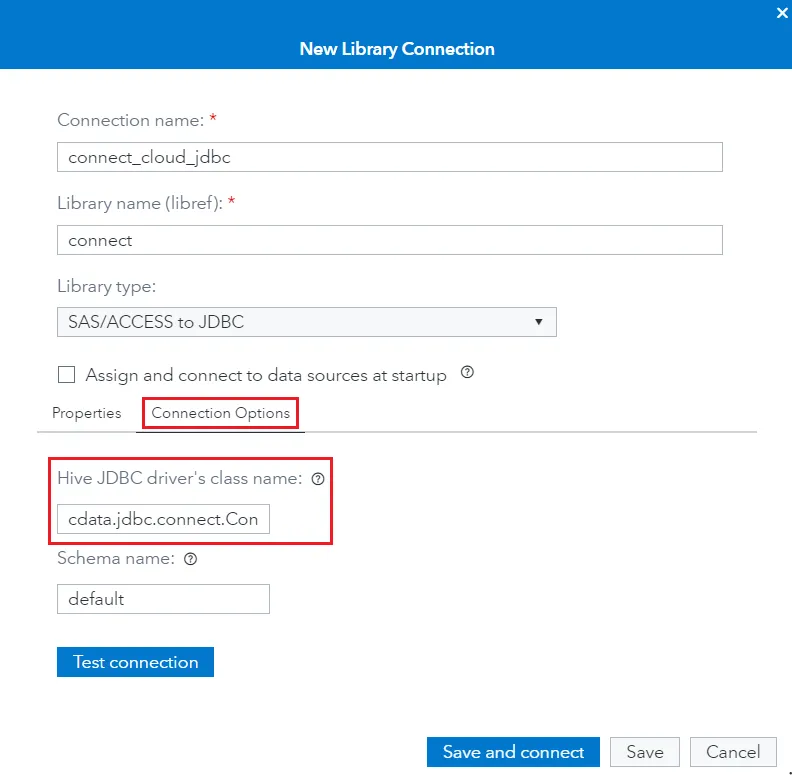
- Click the Connection Options tab and enter the following details:
- Hive JDBC driver's class name: cdata.jdbc.connect.ConnectDriver
- Java CLASSPATH: enter the file path to the JAR driver file (Refer to Step 5)
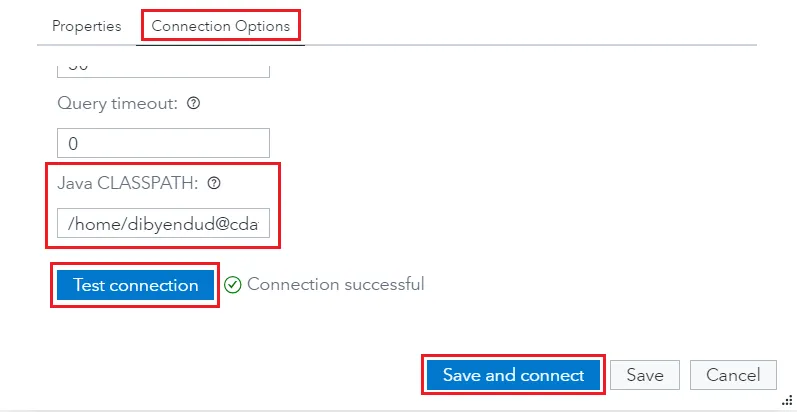
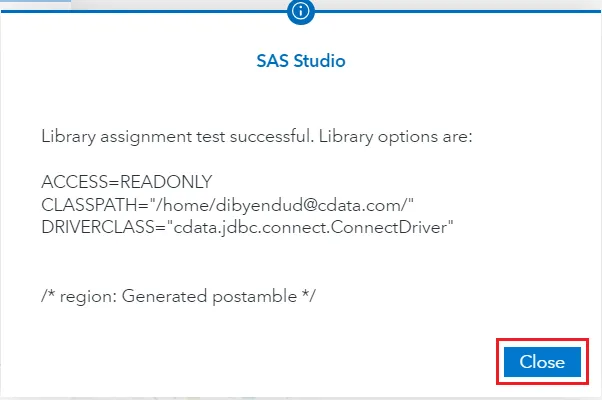
- Click on Test connection. If it succeeds, click on Save and connect.
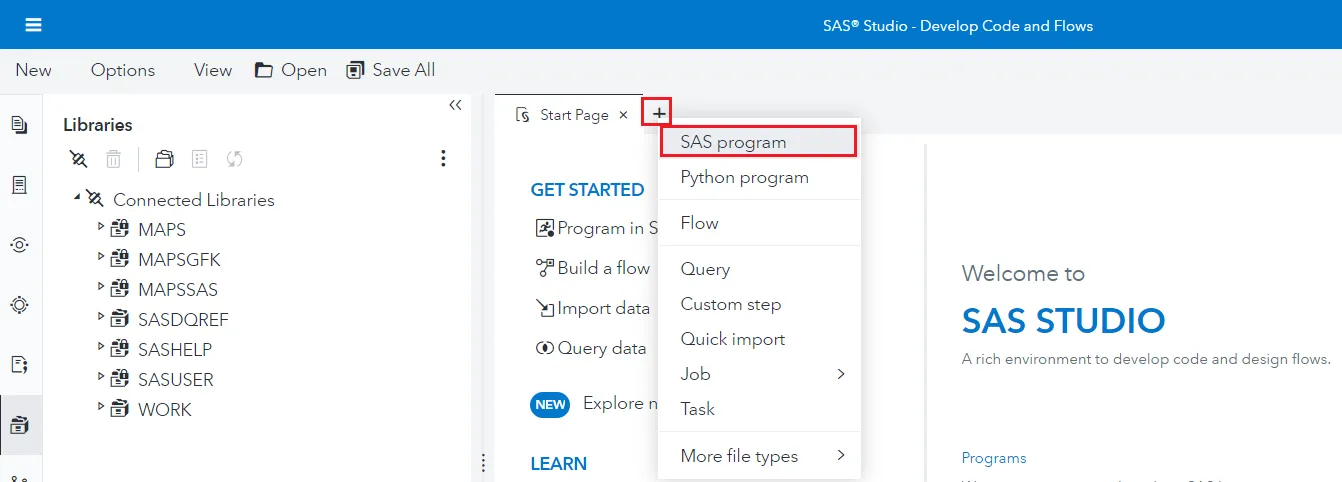
- Click on to add a new tab and select SAS program.
- Fill in the code block below with your setup parameters:
- Libref: enter the library reference you defined in Step 9.
- ClassPath: enter the file path to the JAR driver file.
- Username: enter your CData Connect username. This is displayed in the top-right corner of the CData Connect interface. For example, [email protected].
- DefaultCatalog: enter the connection configured in CData Connect AI that you want to query.
- Password: enter the PAT you generated in the "Add a Personal Access Token" section.
libname [Libref] JDBC classpath=[ClassPath] class="cdata.jdbc.connect.ConnectDriver" URL="jdbc:Connect:AuthScheme=Basic;User=[Username];DefaultCatalog=[DefaultCatalog];DefaultSchema=dbo;Password=[PAT]"; proc sql; SELECT * FROM [Libref].MyTable; quit; - Click on Run. You can see the data load from CData Connect AI into SAS Viya.
Live Access to UKG Pro HCM Data from Cloud Applications
At this point, you have a direct, cloud-to-cloud connection to UKG Pro HCM data from SAS Viya. You can build predictive models, craft insights to make data-driven decisions, and more — all without replicating UKG Pro HCM data.
Try Connect AI and get real-time data access to hundreds of SaaS, Big Data, and NoSQL sources directly from your cloud applications.