




How to import UKG Pro HCM Data into Apache Solr

The Apache Solr platform is a popular, blazing-fast, open source enterprise search solution built on Apache Lucene.
Apache Solr is equipped with the Data Import Handler (DIH), which can import data from databases and, XML, CSV, and JSON files. When paired with the CData JDBC Driver for UKG Pro HCM, you can easily import UKG Pro HCM data to Apache Solr. In this article, we show step-by-step how to use CData JDBC Driver in Apache Solr Data Import Handler and import UKG Pro HCM data for use in enterprise search.
Create an Apache Solr Core and a Schema for Importing UKG Pro HCM
- Run Apache Solr and create a Core.
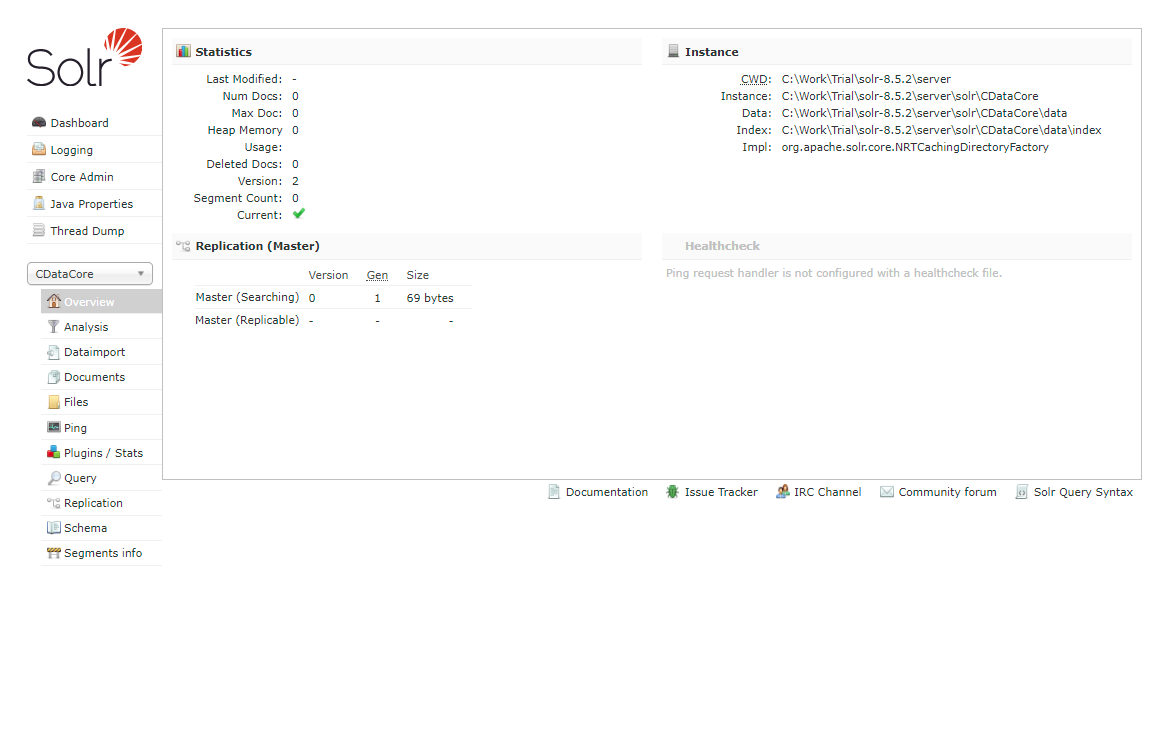
For this article, Solr is running as a standalone instance in the local environment and you can access the core at this URL: http://localhost:8983/solr/#/CDataCore/core-overview> solr create -c CDataCore - Create a schema consisting of "field" objects to represent the columns of the UKG Pro HCM data to be imported and a unique key for the entity. LastModifiedDate, if it exists in UKG Pro HCM, is used for incremental updates. If it does not exist, you cannot do the deltaquery in the later section. Save the schema in the managed-schema file created by Apache Solr.
- Install the CData UKG Pro HCM JDBC Driver. Copy the JAR and license file (cdata.api.jar and cdata.jdbc.api.lic) to the Solr directory.
- CData JDBC JAR file: C:\Program Files\CData\CData JDBC Driver for UKG Pro HCM ####\lib
- Apache Solr: solr-8.5.2\server\lib
APIUniqueKey
Now we are ready to use UKG Pro HCM data in Solr.
Define an Import of UKG Pro HCM to Apache Solr
In this section, we walk through configuring the Data Import Handler.
- Modify the Config file of the created Core. Add the JAR file reference and add the DIH RequestHander definition.
<lib dir="${solr.install.dir:../../../..}/dist/" regex="solr-dataimporthandler-.*\.jar" /> <requestHandler name="/dataimport" class="org.apache.solr.handler.dataimport.DataImportHandler"> <lst name="defaults"> <str name="config">solr-data-config.xml</str> </lst> </requestHandler> - Next, create a solr-data-config.xml at the same level. In this article, we retrieve a table from UKG Pro HCM, but you can use a custom SQL query to request data as well. The Driver Class and a sample JDBC Connection string are in the sample code below.
<dataConfig> <dataSource driver="cdata.jdbc.api.APIDriver" url="jdbc:api:Profile=C:\profiles\UKGProHCM.apip;AuthScheme=Basic;User=your_username;Password=your_password;ProfileSettings='Host=yourcompany.ultipro.com;CustomerAPIKey=your_customer_api_key';"> </dataSource> <document> <entity name="UserDetails" query="SELECT Id,APIColumn1,APIColumn2,APIColumn3,APIColumn4,APIColumn5,APIColumn6,APIColumn7,LastModifiedDate FROM UserDetails" deltaQuery="SELECT Id FROM UserDetails where LastModifiedDate >= '${dataimporter.last_index_time}'" deltaImportQuery="SELECT Id,APIColumn1,APIColumn2,APIColumn3,APIColumn4,APIColumn5,APIColumn6,APIColumn7,LastModifiedDate FROM UserDetails where Id=${dataimporter.delta.Id}"> <field column="Id" name="Id" ></field> <field column="APIColumn1" name="APIColumn1" ></field> <field column="APIColumn2" name="APIColumn2" ></field> <field column="APIColumn3" name="APIColumn3" ></field> <field column="APIColumn4" name="APIColumn4" ></field> <field column="APIColumn5" name="APIColumn5" ></field> <field column="APIColumn6" name="APIColumn6" ></field> <field column="APIColumn7" name="APIColumn7" ></field> <field column="LastModifiedDate" name="LastModifiedDate" ></field> </entity> </document> </dataConfig> - In the query section, set the SQL query that select the data from UKG Pro HCM. deltaQuery and deltaImportquery define the ID and the conditions when using incremental updates from the second import of the same entity.
- After all settings are done, restart Solr.
	> solr stop -all
	> solr start
Run a DataImport of UKG Pro HCM Data.
- Execute DataImport from the URL below:
http://localhost:8983/solr/#/CDataCore/dataimport//dataimport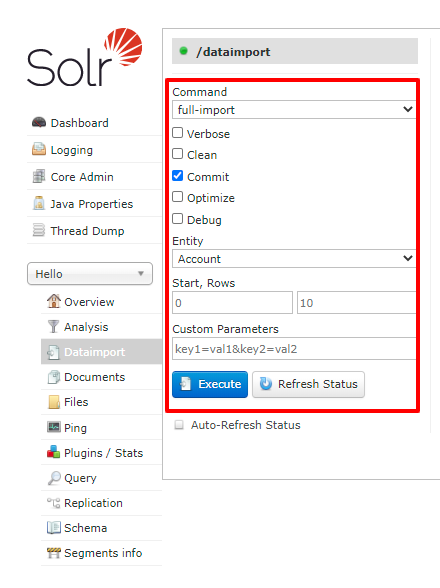
- Select the "full-import" Command, choose the table from Entity, and click "Execute."
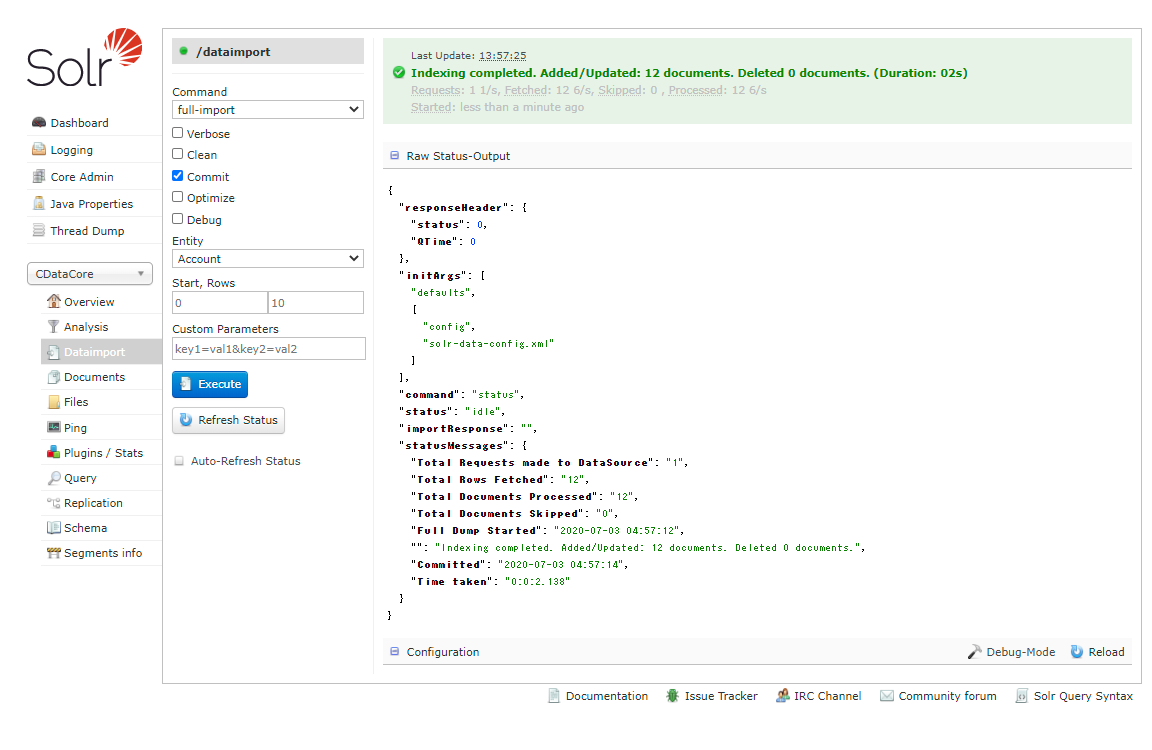
- Check the result of the import from the Query.
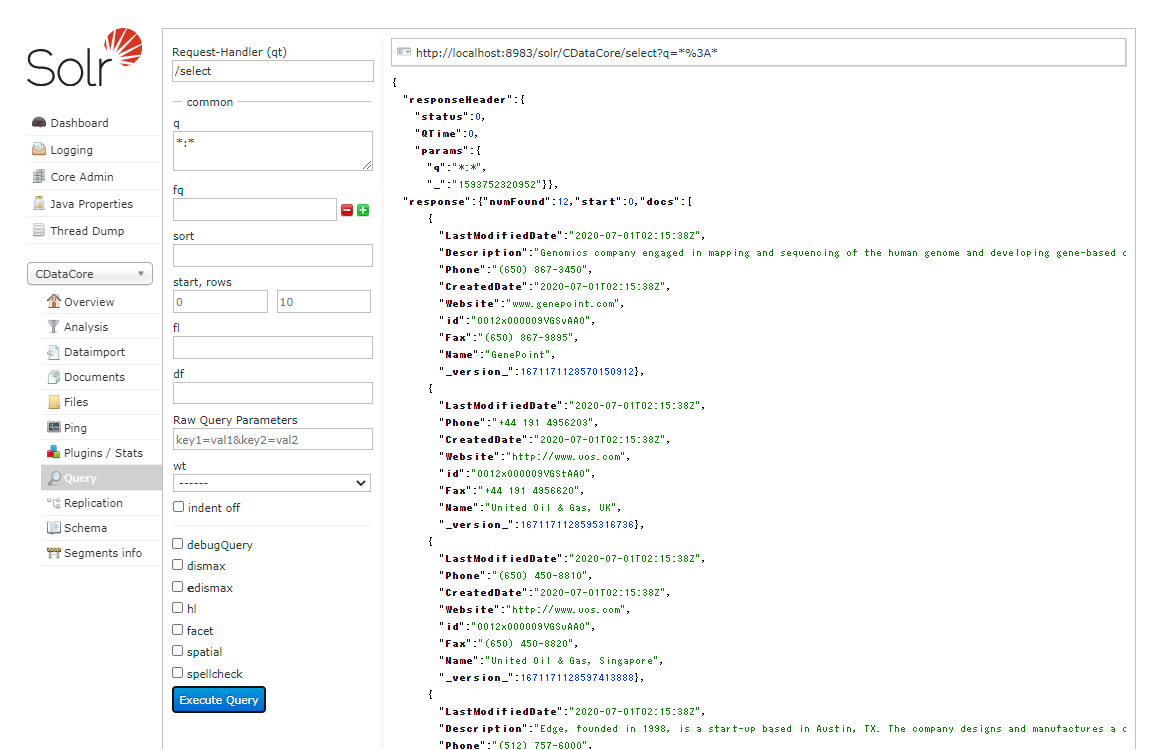
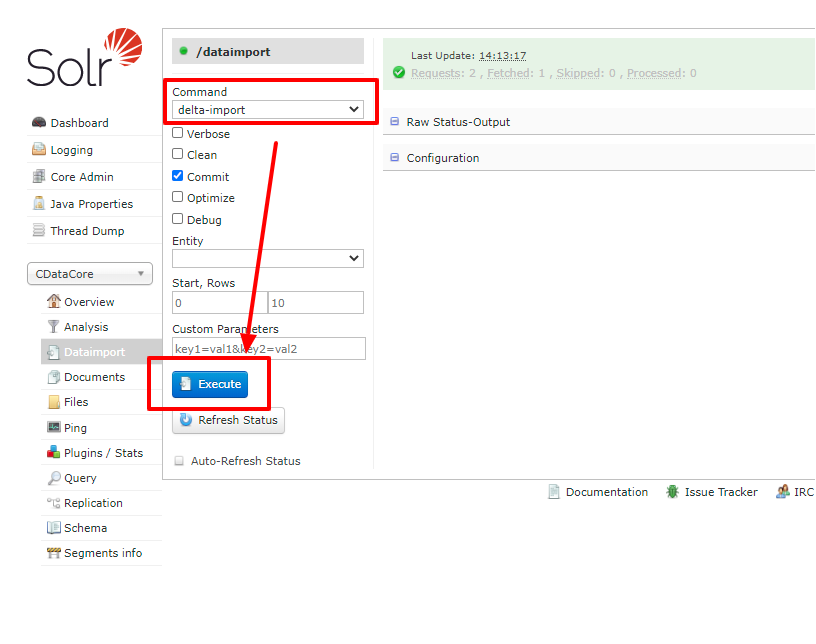
- Try an incremental update using deltaQuery. Modify some data in the original UKG Pro HCM data set. Select the "delta-import" command this time from DataImport window and click "Execute."
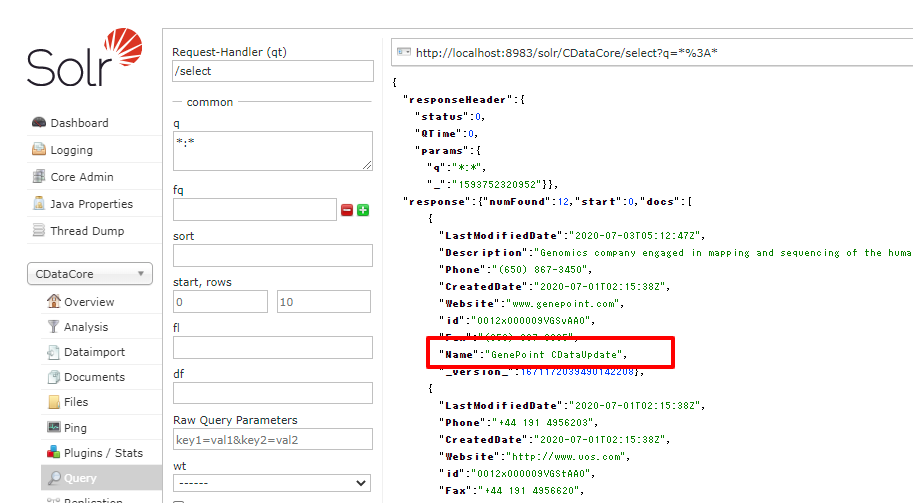
- Check the result of the incremental update.
Using the CData JDBC Driver for UKG Pro HCM you are able to create an automated import of UKG Pro HCM data into Apache Solr. Download a free, 30 day trial of any of the hundreds of CData JDBC Drivers and get started today.