




Build UKG Pro HCM-Connected Web Apps in Servoy

Servoy is a rapid application development and deployment platform. When paired with the CData API Driver for JDBC, users can build UKG Pro HCM-connected apps that work with live UKG Pro HCM data. This article describes how to connect to UKG Pro HCM from Servoy and build a simple web app to display and search UKG Pro HCM data.
With built-in optimized data processing, the CData JDBC Driver offers unmatched performance for interacting with live UKG Pro HCM data. When you issue complex SQL queries to UKG Pro HCM, the driver pushes supported SQL operations, like filters and aggregations, directly to UKG Pro HCM and utilizes the embedded SQL engine to process unsupported operations client-side (often SQL functions and JOIN operations). Its built-in dynamic metadata querying lets you work with UKG Pro HCM data using native data types.
Connect to UKG Pro HCM in Servoy Developer
To build UKG Pro HCM-connected apps, you need to first create a data provider in Servoy Developer using the CData API Driver for JDBC.
- Install the JDBC Driver.
- Copy the JDBC Driver JAR file. (cdata.jdbc.api.jar) to the /application_server/drivers/ directory in the installation directory for Servoy.
- Open Servoy Developer.
- In the Solution Explorer, right-click Database Server (under Resources) and choose "Connect to existing database" -> "empty."
- Name the server.
- Click to show the advanced server settings.
Set the URL, for example: jdbc:api:Profile=C:\profiles\UKGProHCM.apip;AuthScheme=Basic;User=your_username;Password=your_password;ProfileSettings='Host=yourcompany.ultipro.com;CustomerAPIKey=your_customer_api_key';
Built-In Connection String Designer
For assistance in constructing the JDBC URL, use the connection string designer built into the UKG Pro HCM JDBC Driver. Either double-click the JAR file or execute the jar file from the command-line.
java -jar cdata.jdbc.api.jarFill in the connection properties and copy the connection string to the clipboard.
Start by setting the Profile connection property to the location of the UKGProHCM Profile on disk (e.g. C:\profiles\UKGProHCM.apip). Next, set the ProfileSettings connection property to the connection string for UKGProHCM (see below).
UKGProHCM API Profile Settings
UKG Pro HCM uses Basic authentication combined with a customer API key to authorize access to the API. To connect, you will need your UKG Pro HCM credentials and a customer API key issued by UKG.
Set the following connection properties to authenticate:
- AuthScheme: Set this to Basic.
- User: Set this to your UKG Pro HCM username.
- Password: Set this to your UKG Pro HCM password.
- ProfileSettings: Set this to a semicolon-separated list containing:
- Host: Your UKG Pro HCM tenant hostname (e.g., yourcompany.ultipro.com).
- CustomerAPIKey: Your UKG customer API key. This is passed as the US-CUSTOMER-API-KEY request header on each API call.
To obtain your customer API key, contact your UKG Pro HCM administrator or refer to the UKG Developer Portal at https://developer.ukg.com.

- Select the Driver class you just copied, for example, cdata.jdbc.api.APIDriver
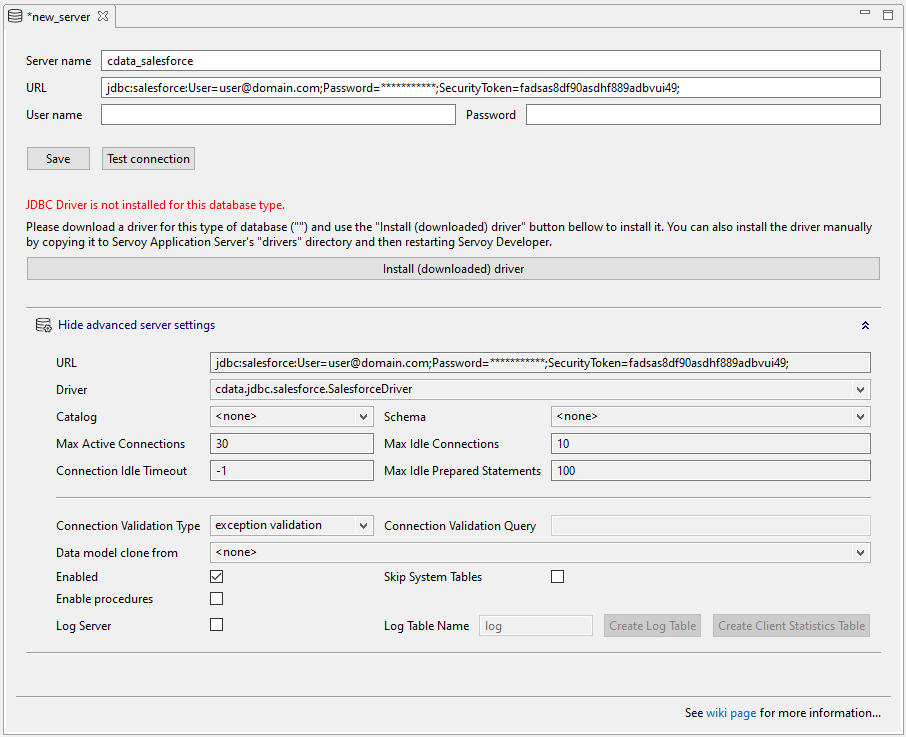
Build a UKG Pro HCM-Connected Web App
Once you have configured the connection to UKG Pro HCM in the Servoy Developer resources, you are ready to build apps with access to live UKG Pro HCM data.
Create a New Solution
- In the Server Explorer, right-click "All solutions" and select "Create new solution."
- Name the solution.
- Select the checkbox to include the "search" module.
- Click "Finish."
Create a New Form
Right-click "Forms" and select "Create new form."
- Name the form.
- Select a Datasource.
- Set the type (e.g., Simple) and click "Finish."
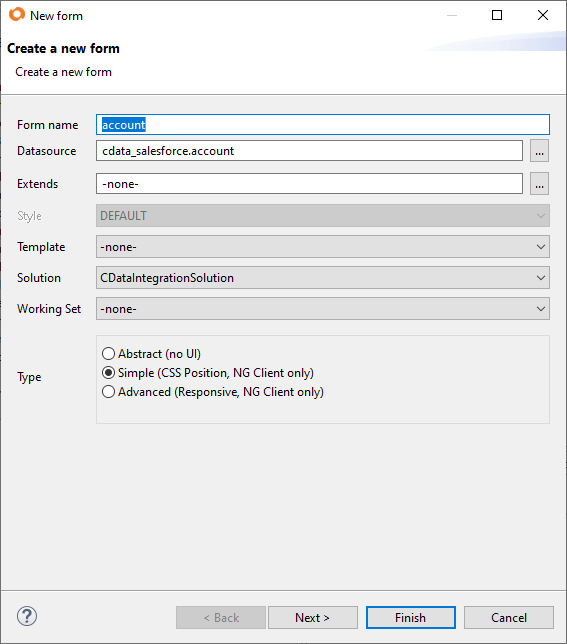
Add a Data Grid to the Form
- Drag a Data Grid component (from Servoy NG-Grids) onto the form.
Drag a column component onto the Data Grid and set the "dataprovider" property for each column component to a column from the UKG Pro HCM "table" (e.g., UserId from the UserDetails table).
Continue adding columns as desired.
Add Searching to the App
Note that the "svySearch" extension is required to add search functionality (included by default when you create a new solution). If you did not add the extension when you created the solution or you are modifying an existing solution, you can add the search module by right-clicking Modules (in the solution) and selecting "Add Module." Select "svySearch" and click "OK."
- Drag a Text Field component onto the Form.
- Right-click the Form and select "Open in Script Editor."
- Create a new variable (JavaScript) to hold the search value:
var searchText = '';
- Back on the Form, in the Text Field properties:
- Set the "dataprovider" property to the Form variable you just created.
- Double-click to add a method for the onAction event.
- Click to create the method in "Form," name the method (e.g., onEnter), and click "Create private."
- Click "OK & Show."
- Add the following JavaScript to the JavaScript file to use the Servoy framework to implement searching bound data based on the text in the Text Field:
var search = scopes.svySearch.createSimpleSearch(foundset).setSearchText(searchText);
search.setSearchAllColumns();
search.loadRecords(foundset);
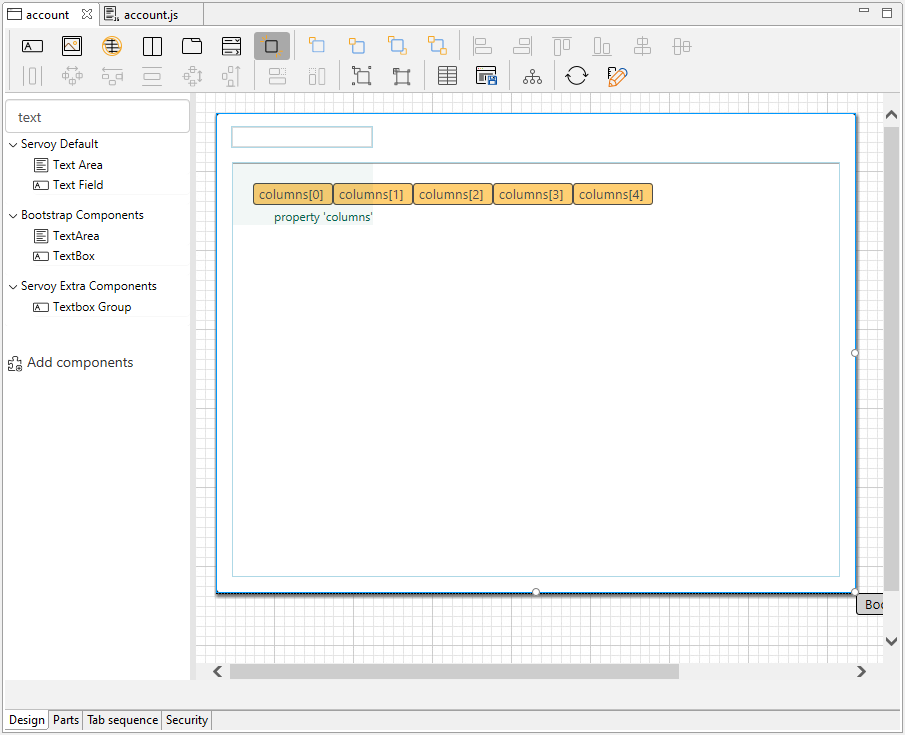
Save and Launch the App
Save the form and JavaScript file, then click Run -> Launch NGClient to start the web app.
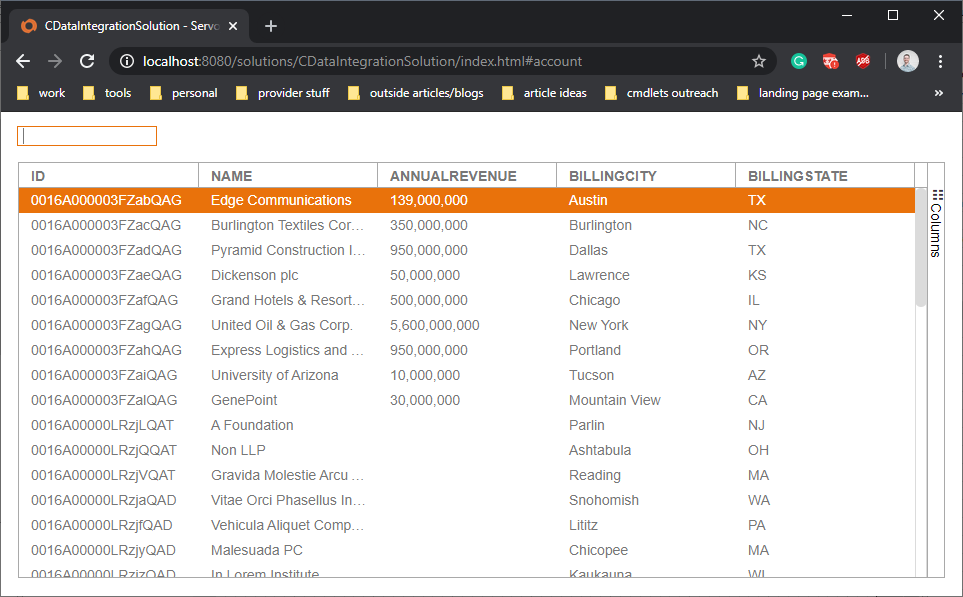
Download a free, 30-day trial of the CData API Driver for JDBC and start building UKG Pro HCM-connected apps with Servoy. Reach out to our Support Team if you have any questions.