




Connect to UKG Pro HCM from a Connection Pool in WebLogic

The CData JDBC Driver for UKG Pro HCM enables you to follow standard procedures to integrate UKG Pro HCM data into Java Web applications. This article shows how to deploy the CData JDBC Driver for UKG Pro HCM in WebLogic Server.
Deploy the JDBC Driver in WebLogic Server
To deploy the driver, add the driver JAR to your classpath. The .lic file must be located in the same folder as the JAR. These files are located in the lib subfolder of the installation directory.
If you want to add the driver to all domains, prepend the path to the JAR to the WEBLOGIC_CLASSPATH environment variable in WL_HOME\common\bin\commEnv.cmd/sh. This script is located in WL_HOME\common\bin\. For example:
set WEBLOGIC_CLASSPATH=your-installation-directory\lib\cdata.jdbc.api.jar;%WEBLOGIC_CLASSPATH%
In WebLogic 12.2.1 if you want to add the driver to a specific domain, you can simply place the driver JAR and .lic file into DOMAIN_HOME\lib; for example, ORACLE_HOME\user_projects\domains\MY_DOMAIN\lib. These files will be added to the server classpath at startup.
Earlier versions require that you manually add the driver to the classpath: Prepend the following to the PRE_CLASSPATH environment variable in setDomainEnv.cmd/sh. This script is located in the bin subfolder of the folder for that domain.
set PRE_CLASSPATH=your-installation-directory\lib\cdata.jdbc.api.jar;%PRE_CLASSPATH%
After making these changes, restart the server.
Create a JDBC Data Source for UKG Pro HCM
After deploying the driver, log into the WebLogic Administration Console and create the connection.
- In the Domain Structure tree, click Services -> Data Sources -> New -> Generic Data Source.
-
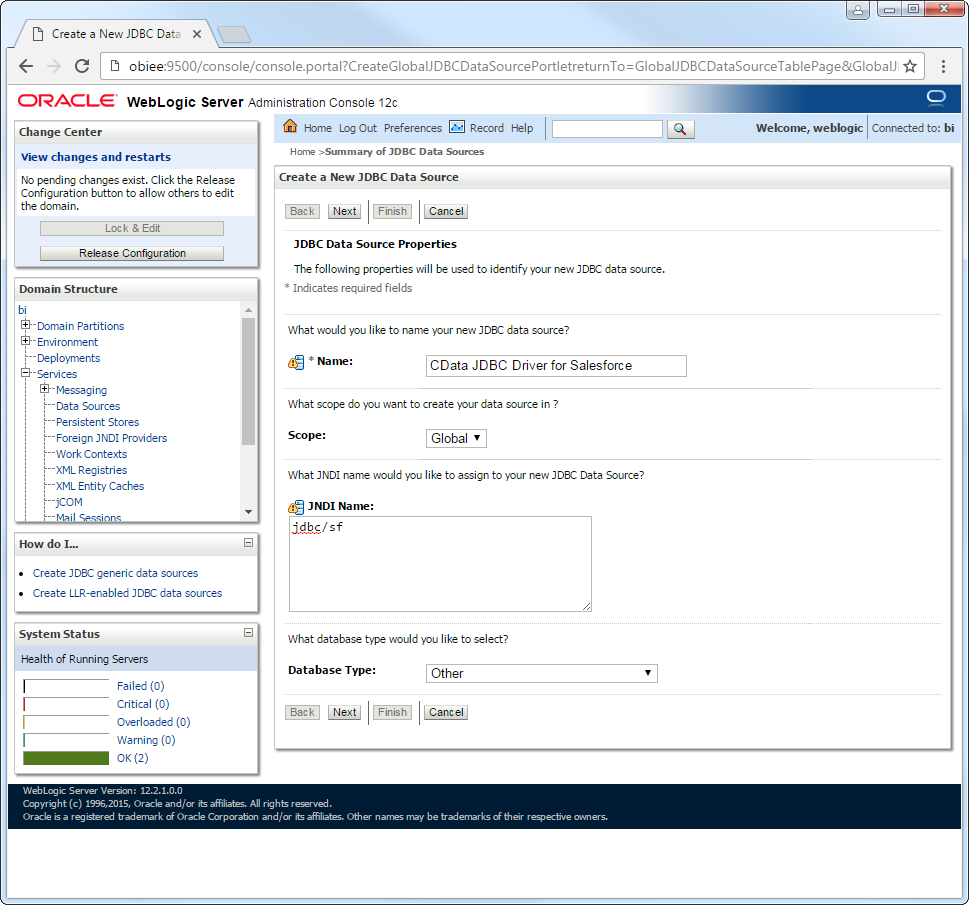
On the JDBC Data Source Properties page, enter the following information:
- Name: Enter a user-friendly name; for example, apijdbc.
- JNDI Name: Enter the path the JDBC data source will be bound to; for example, jdbc/API.
Database Type: Select Other.
-
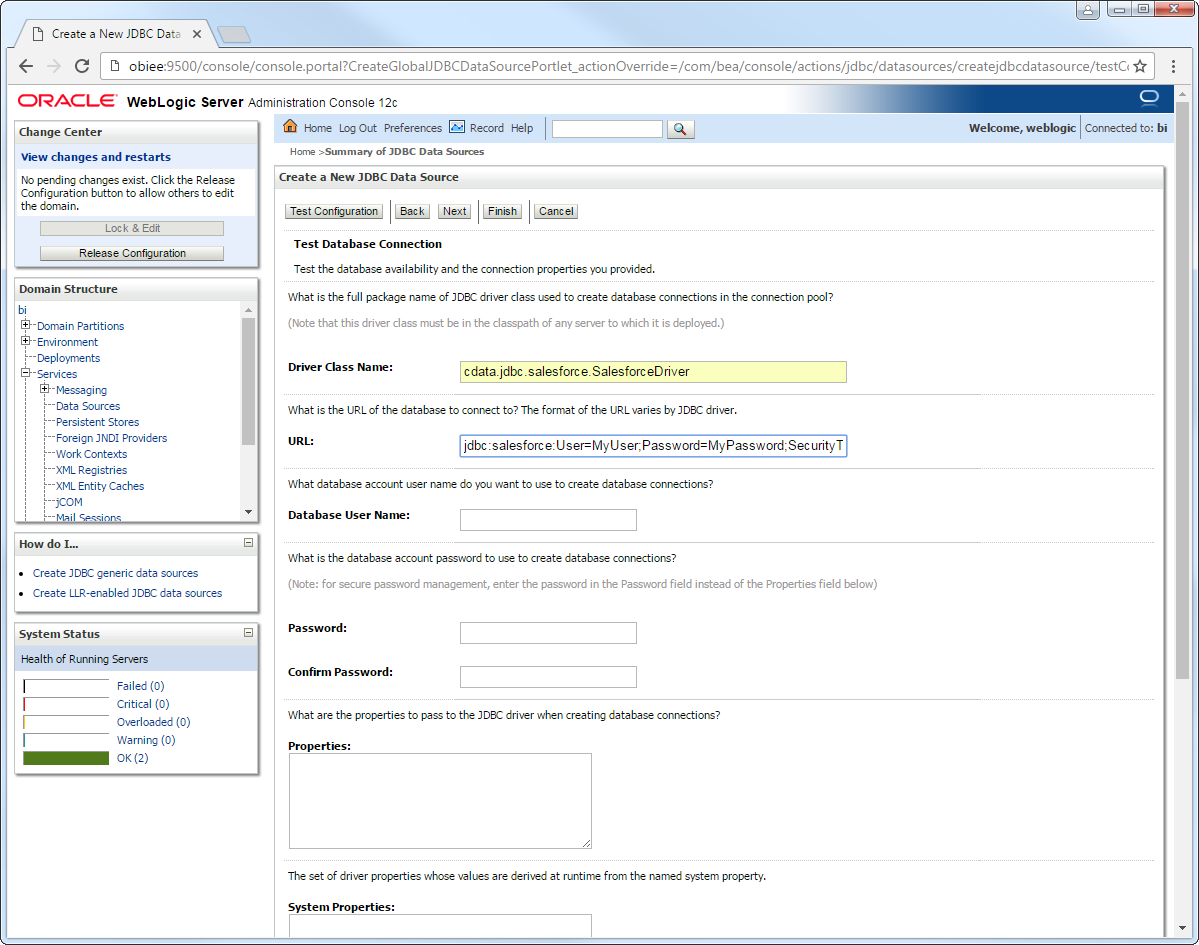
Click Next to use the default options. On the last page, enter the following information and click Test Configuration:
- Driver Class Name: Enter the driver class, cdata.jdbc.api.APIDriver.
URL: Enter the JDBC URL. A typical JDBC URL is below:
jdbc:api:Profile=C:\profiles\UKGProHCM.apip;AuthScheme=Basic;User=your_username;Password=your_password;ProfileSettings='Host=yourcompany.ultipro.com;CustomerAPIKey=your_customer_api_key';Start by setting the Profile connection property to the location of the UKGProHCM Profile on disk (e.g. C:\profiles\UKGProHCM.apip). Next, set the ProfileSettings connection property to the connection string for UKGProHCM (see below).
UKGProHCM API Profile Settings
UKG Pro HCM uses Basic authentication combined with a customer API key to authorize access to the API. To connect, you will need your UKG Pro HCM credentials and a customer API key issued by UKG.
Set the following connection properties to authenticate:
- AuthScheme: Set this to Basic.
- User: Set this to your UKG Pro HCM username.
- Password: Set this to your UKG Pro HCM password.
- ProfileSettings: Set this to a semicolon-separated list containing:
- Host: Your UKG Pro HCM tenant hostname (e.g., yourcompany.ultipro.com).
- CustomerAPIKey: Your UKG customer API key. This is passed as the US-CUSTOMER-API-KEY request header on each API call.
To obtain your customer API key, contact your UKG Pro HCM administrator or refer to the UKG Developer Portal at https://developer.ukg.com.
Built-in Connection String Designer
For assistance in constructing the JDBC URL, use the connection string designer built into the UKG Pro HCM JDBC Driver. Either double-click the JAR file or execute the jar file from the command-line.
java -jar cdata.jdbc.api.jarFill in the connection properties and copy the connection string to the clipboard.

- Database User Name: Enter the username, if not specified in the JDBC URL.
- Password: Enter the password, if not specified in the JDBC URL.
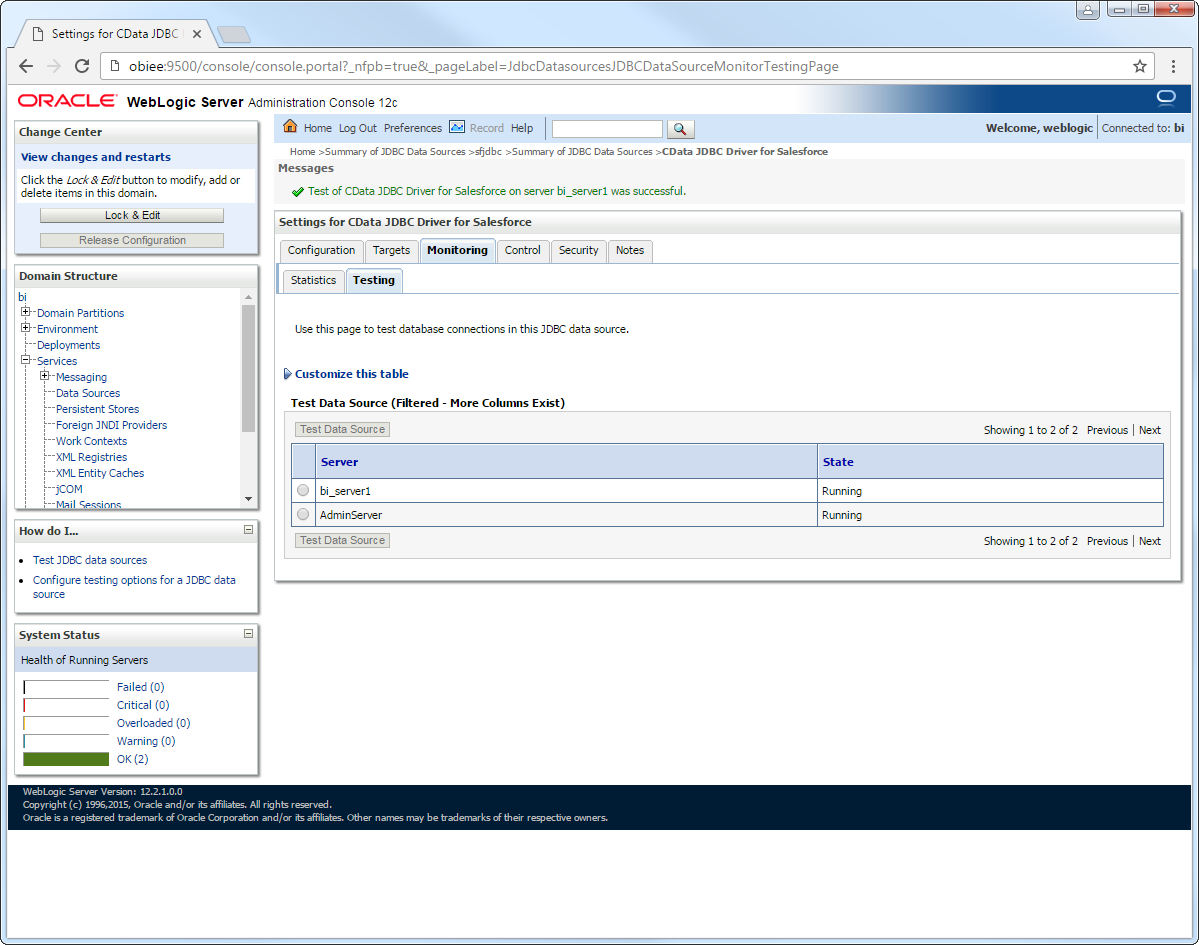
After selecting the server where you want to deploy the JDBC data source, you can now connect to UKG Pro HCM data.
More WebLogic Integration
The steps above show how configure the driver in a simple connection pooling scenario. For more use cases and information, see the JDBC sections in the WebLogic Data Sources chapter of the Oracle Fusion Middleware documentation.