Create Informatica Mappings From/To an ODBC Data Source for UKG Pro HCM

Informatica provides a powerful, elegant means of transporting and transforming your data. By utilizing the CData ODBC Driver for UKG Pro HCM, you are gaining access to a driver based on industry-proven standards that integrates seamlessly with Informatica's powerful data transportation and manipulation features. This tutorial shows how to transfer and browse UKG Pro HCM data in Informatica PowerCenter.
Connect to UKG Pro HCM as an ODBC Data Source
Information for connecting to UKG Pro HCM follows, along with different instructions for configuring a DSN in Windows and Linux environments.
Start by setting the Profile connection property to the location of the UKGProHCM Profile on disk (e.g. C:\profiles\UKGProHCM.apip). Next, set the ProfileSettings connection property to the connection string for UKGProHCM (see below).
UKGProHCM API Profile Settings
UKG Pro HCM uses Basic authentication combined with a customer API key to authorize access to the API. To connect, you will need your UKG Pro HCM credentials and a customer API key issued by UKG.
Set the following connection properties to authenticate:
- AuthScheme: Set this to Basic.
- User: Set this to your UKG Pro HCM username.
- Password: Set this to your UKG Pro HCM password.
- ProfileSettings: Set this to a semicolon-separated list containing:
- Host: Your UKG Pro HCM tenant hostname (e.g., yourcompany.ultipro.com).
- CustomerAPIKey: Your UKG customer API key. This is passed as the US-CUSTOMER-API-KEY request header on each API call.
To obtain your customer API key, contact your UKG Pro HCM administrator or refer to the UKG Developer Portal at https://developer.ukg.com.
Windows
If you have not already, first specify connection properties in an ODBC DSN (data source name). This is the last step of the driver installation. You can use the Microsoft ODBC Data Source Administrator to create and configure ODBC DSNs.
Linux
If you are installing the CData ODBC Driver for UKG Pro HCM in a Linux environment, the driver installation predefines a system DSN. You can modify the DSN by editing the system data sources file (/etc/odbc.ini) and defining the required connection properties.
/etc/odbc.ini
[CData API Source]
Driver = CData ODBC Driver for UKG Pro HCM
Description = My Description
Profile = C:\profiles\UKGProHCM.apip
AuthScheme = Basic
User = your_username
Password = your_password
ProfileSettings = 'Host = yourcompany.ultipro.com
CustomerAPIKey = your_customer_api_key'
For specific information on using these configuration files, please refer to the help documentation (installed and found online).
Create a Linked Table to UserDetails Data
Follow the steps below to create a linked table, which enables you to access live UserDetails data.
Create the ODBC Connection
Follow the steps below to connect to UKG Pro HCM in Informatica PowerCenter:
- In the Informatica Developer tool connect to your repository and create a project.
- In the Connection Explorer pane, right-click and click Create a Connection.
- In the New Database Connection wizard that is displayed, enter a name and Id for the connection and in the Type menu select ODBC.
- In the Connection String property, enter the DSN.
NOTE: If you are working in a Linux operating system, set the Driver Manager for Linux property to unixODBC 2.3.x.
Create the UKG Pro HCM Data Object
After you have created an ODBC connection to UKG Pro HCM, you can now access UKG Pro HCM entities in Informatica. Follow the steps below to add UserDetails entities to your project.
- In the Object Explorer, right-click your project and then click New -> Data Object.
- In the wizard that is displayed, select the Relational Data Object option.
- Click the Browse button next to the Connection box and select the ODBC connection you created in the previous step.
- Select the option to create a data object from an existing resource and click the Browse button next to the Resource box.
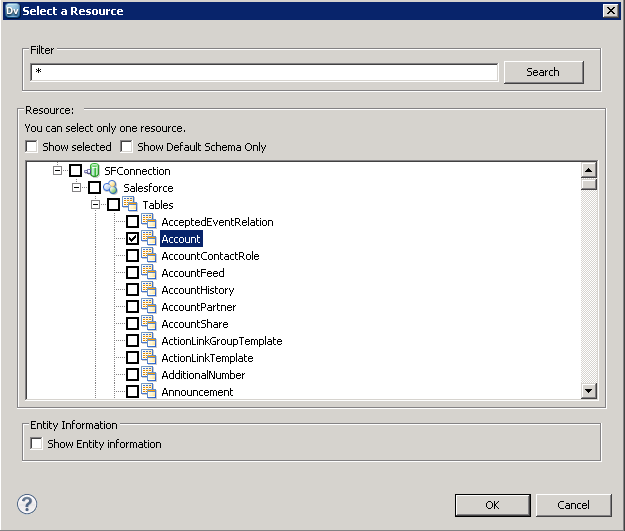
- In the dialog that is displayed, clear the Show Default Schema Only option and expand the node for the ODBC connection. Select the entity that you want.
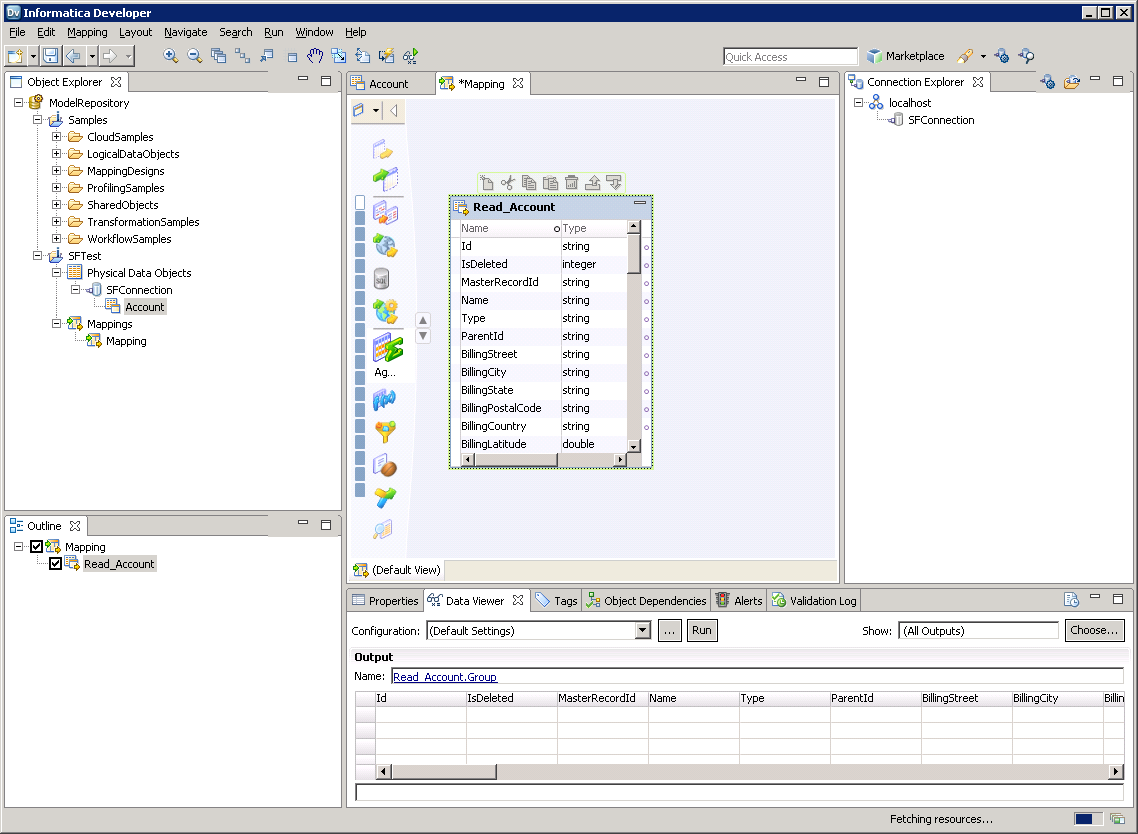
You can now browse the table in the Data Viewer: Right-click the node for the table and then click Open. On the Data Viewer view, click Run.
Create the Mapping
Follow the steps below to add the UKG Pro HCM source to a mapping:
- In the Object Explorer, right-click your project and then click New -> Mapping.
- Expand the node for the UKG Pro HCM connection and then drag the data object for the table onto the editor.
- In the dialog that appears, select the Read option.
Follow the steps below to map UKG Pro HCM columns to a flat file:
- In the Object Explorer, right-click your project and then click New -> Data Object.
- Select Flat File Data Object -> Create as Empty -> Fixed Width.
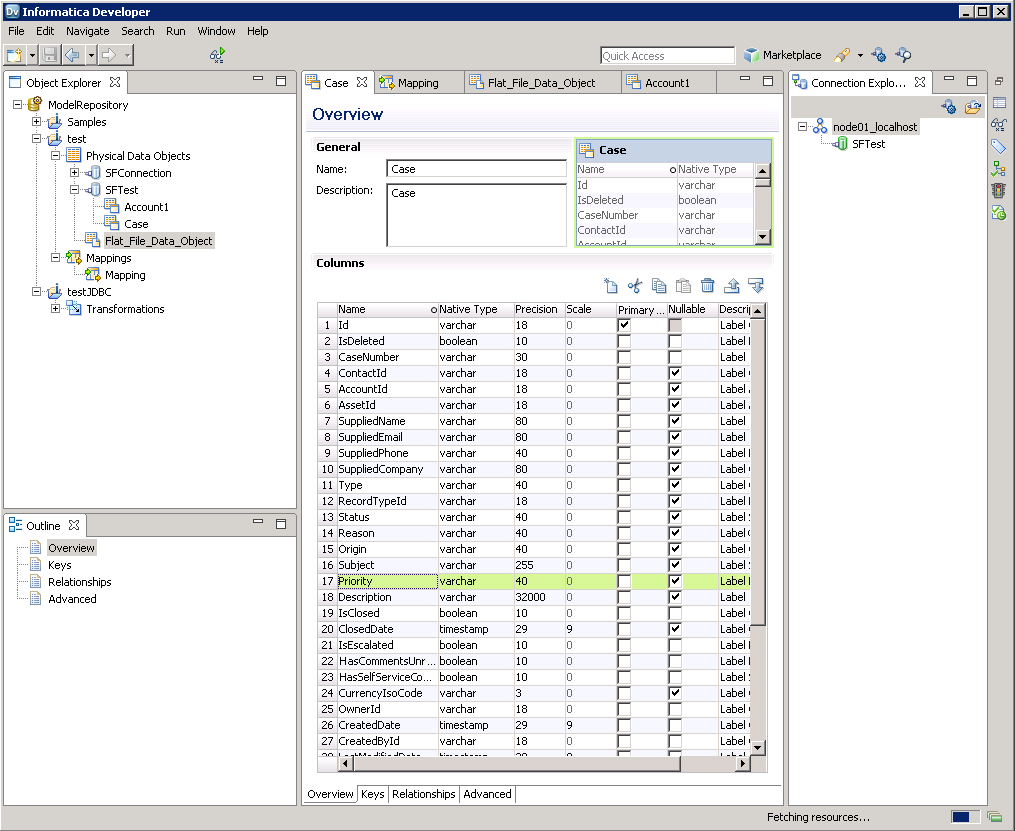
- In the properties for the UKG Pro HCM object, select the rows you want, right-click, and then click copy. Paste the rows into the flat file properties.
- Drag the flat file data object onto the mapping. In the dialog that appears, select the Write option.
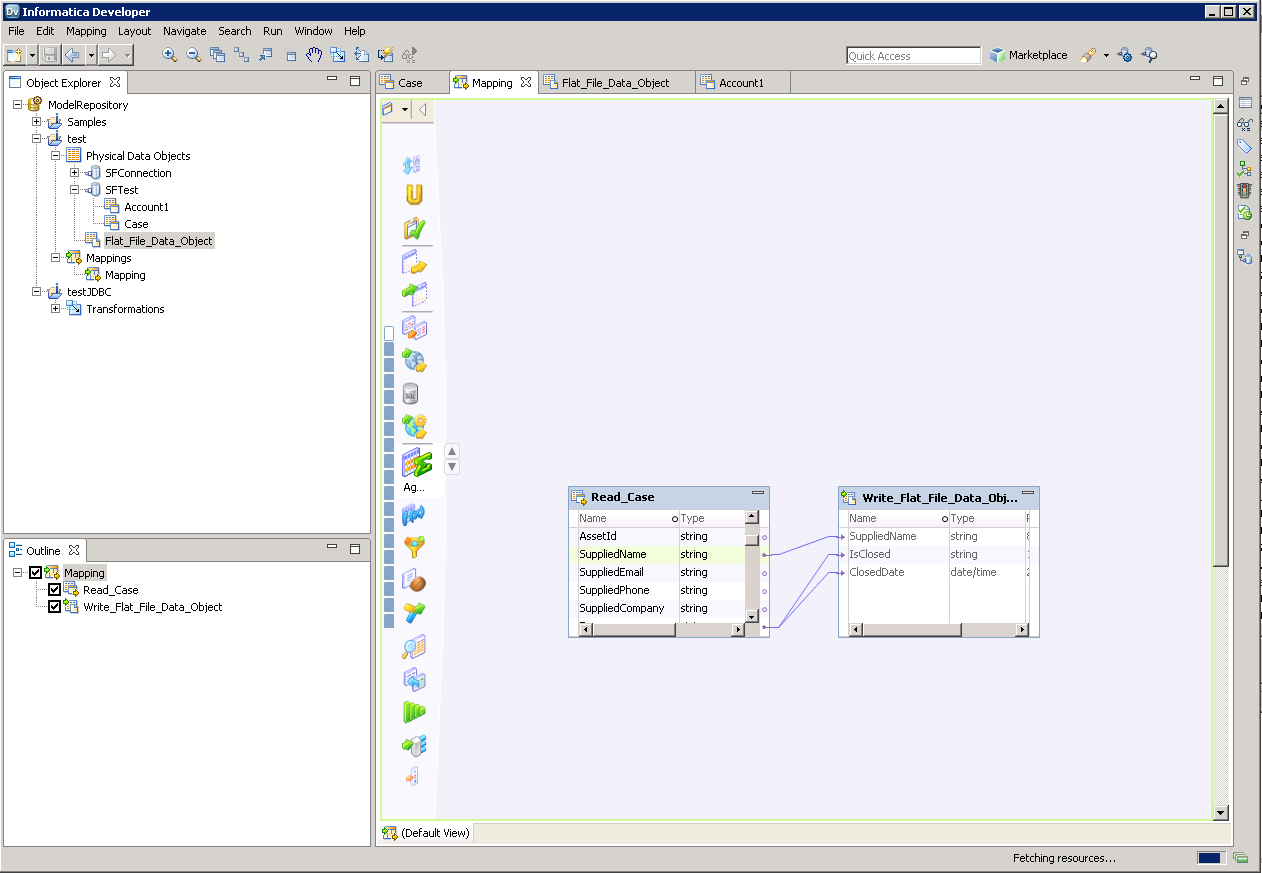
- Click and drag to connect columns.
To transfer UKG Pro HCM data, right-click in the workspace and then click Run Mapping.