





How to Easily Query UKG Pro HCM Data in OpenOffice Base

Apache OpenOffice Base is a versatile, free database tool that makes connecting and managing data easy. With CData API Driver for ODBC, you can seamlessly integrate and query live UKG Pro HCM data, bringing real-time insights directly into OpenOffice.
This guide simplifies the setup, showing you how to connect UKG Pro HCM to OpenOffice Base so you can easily generate reports, analyze trends, and make informed decisions right within your familiar workspace.
Overview
Here is an overview of the steps:
- CONFIGURE: Configure the DSN for UKG Pro HCM data in the CData API Driver for ODBC, using the required connection properties.
- CONNECT: Set up the ODBC connection in OpenOffice Base using the configured DSN.
- IMPORT: Once connected, review the available metadata and tables.
- CREATE: Create a report based on the queried UKG Pro HCM data data.
Configure the UKG Pro HCM DSN Using the CData API Driver for ODBC
To start, configure the DSN (Data Source Name) for UKG Pro HCM data in your system using the CData API Driver for ODBC. Download and install a 30-day free trial with all the features from here.
Once installed, launch the ODBC Data Source Administrator:
- On Windows: Search for ODBC Data Source Administrator in the Start menu and open the application.
- On Mac: Open Applications, go to Utilities, and select ODBC Manager.
- On Linux: Use the command line to launch ODBC Data Source Administrator or use unixODBC if installed.
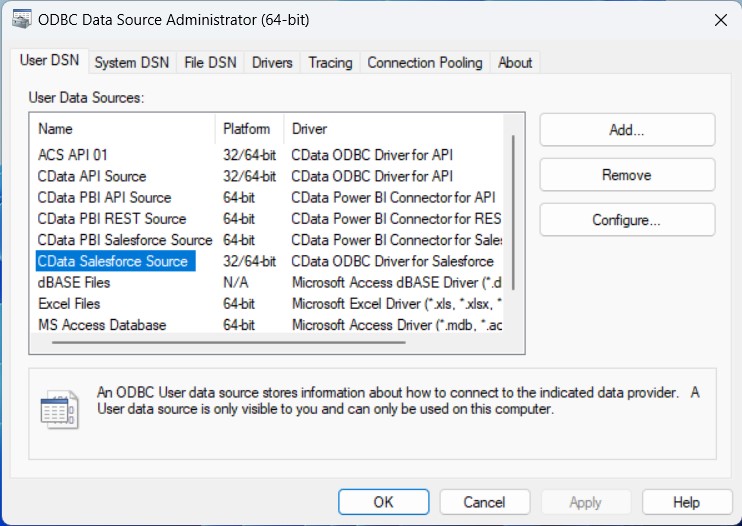
Once launched, double-click on the CData UKG Pro HCM data Source and enter the required values to establish a connection:
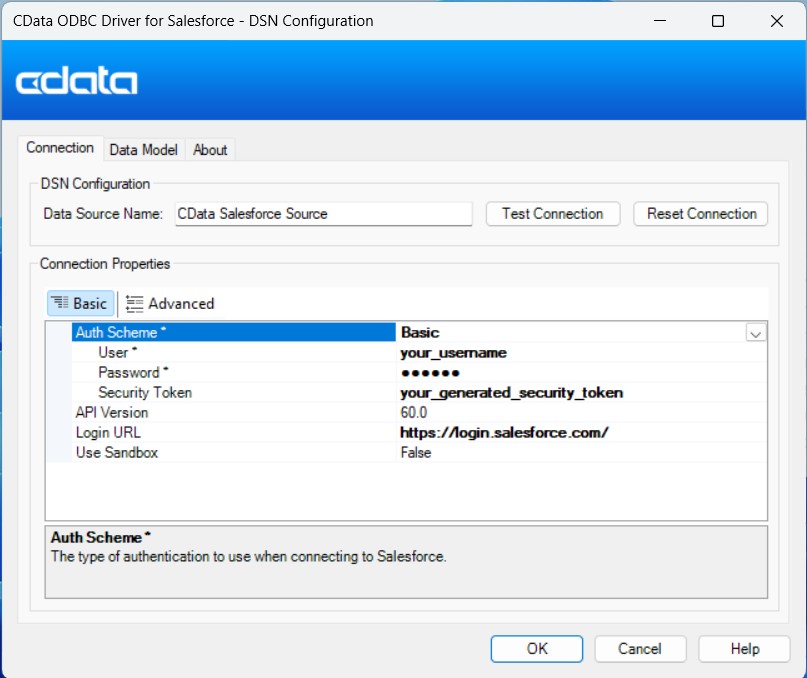
Start by setting the Profile connection property to the location of the UKGProHCM Profile on disk (e.g. C:\profiles\UKGProHCM.apip). Next, set the ProfileSettings connection property to the connection string for UKGProHCM (see below).
UKGProHCM API Profile Settings
UKG Pro HCM uses Basic authentication combined with a customer API key to authorize access to the API. To connect, you will need your UKG Pro HCM credentials and a customer API key issued by UKG.
Set the following connection properties to authenticate:
- AuthScheme: Set this to Basic.
- User: Set this to your UKG Pro HCM username.
- Password: Set this to your UKG Pro HCM password.
- ProfileSettings: Set this to a semicolon-separated list containing:
- Host: Your UKG Pro HCM tenant hostname (e.g., yourcompany.ultipro.com).
- CustomerAPIKey: Your UKG customer API key. This is passed as the US-CUSTOMER-API-KEY request header on each API call.
To obtain your customer API key, contact your UKG Pro HCM administrator or refer to the UKG Developer Portal at https://developer.ukg.com.
Setup an ODBC Connection in OpenOffice Base
Once you've set up the DSN, it's time to connect to it in OpenOffice Base and start querying data:
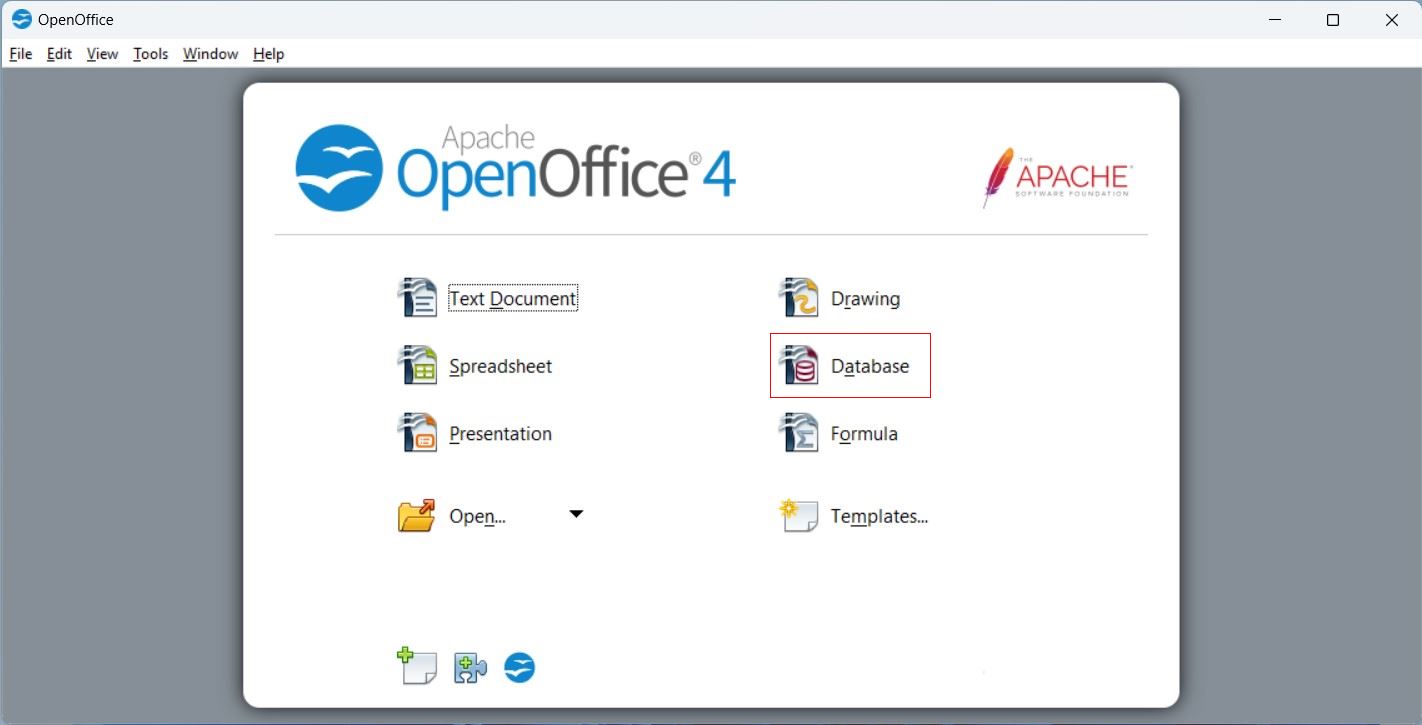
- Launch OpenOffice Base and select Database from the home screen.
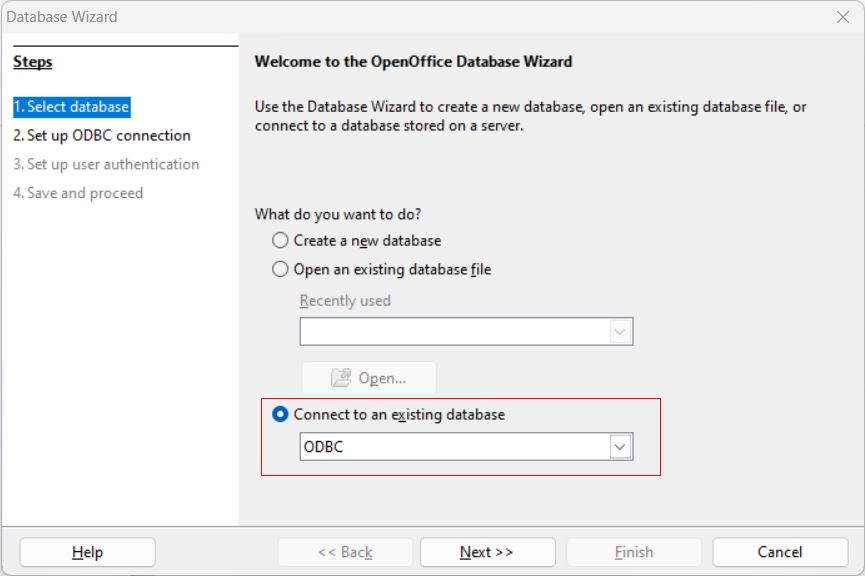
- In the Database Wizard, choose ODBC from the 'Connect to an existing database' option and click Next.
- Click Browse to locate and select the DSN you created, then click OK.
- Enter the username associated with the DSN, click Test Connection to verify, and then click Next.
- Finally, click Finish to save the new database file to your desired directory. This will connect OpenOffice Base to your live UKG Pro HCM data data, ready for querying and analysis.
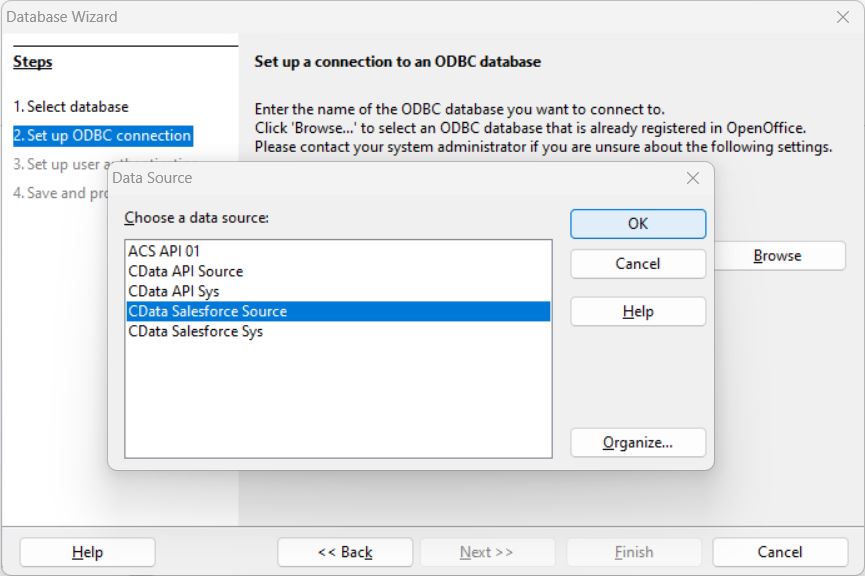
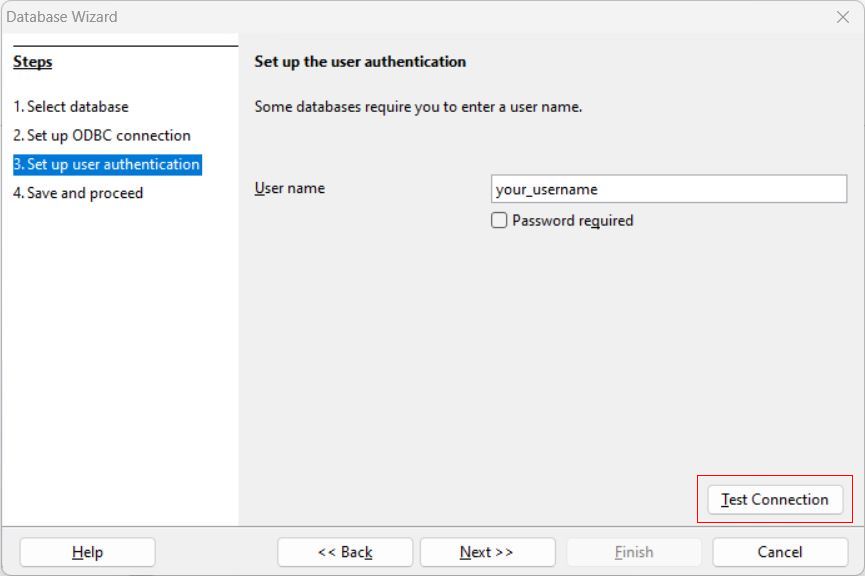
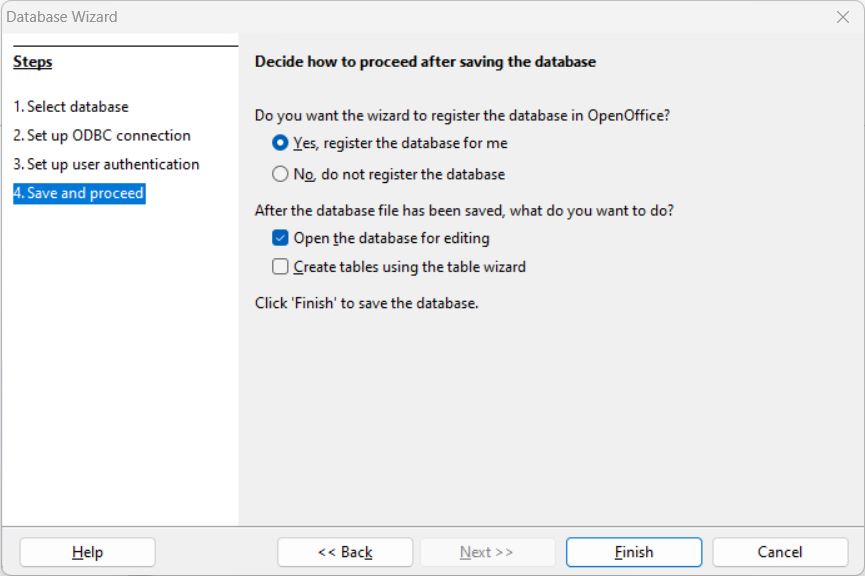
Your connection is now established — ready to query and analyze data seamlessly within OpenOffice Base.
Review the Metadata and Tables
After the database file is created and the connection is established, the table list will automatically display all available UKG Pro HCM data objects.
- Review the UKG Pro HCM data Object List: In the left pane, click on Tables to view the UKG Pro HCM data objects now available within OpenOffice Base.
- View Object Data: Click on any object to view its contents. The UKG Pro HCM data data will display directly within OpenOffice Base, allowing you to review records and fields with ease.
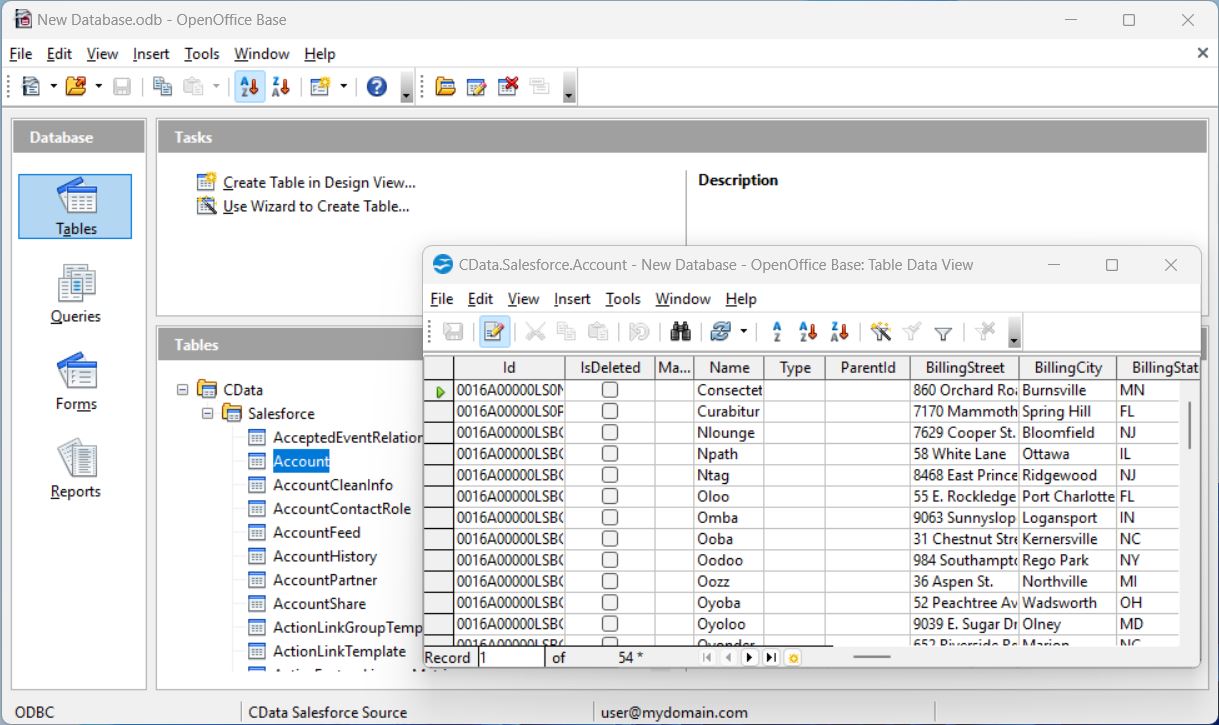
That's it! You have now successfully established a connection to UKG Pro HCM data in OpenOffice Base, with data readily available for analysis and reporting.
Create a Report
Now, let's generate a report based on your UKG Pro HCM data data.
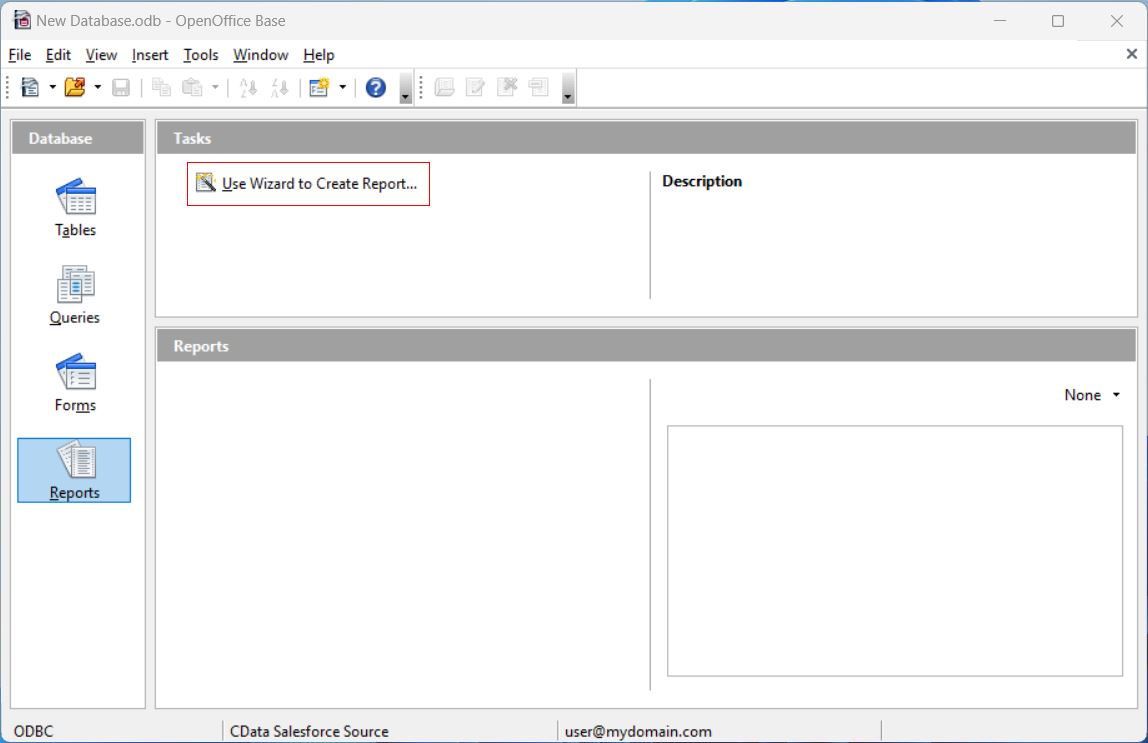
- Open your database and go to the Reports tab, then select Create Report Using Wizard.
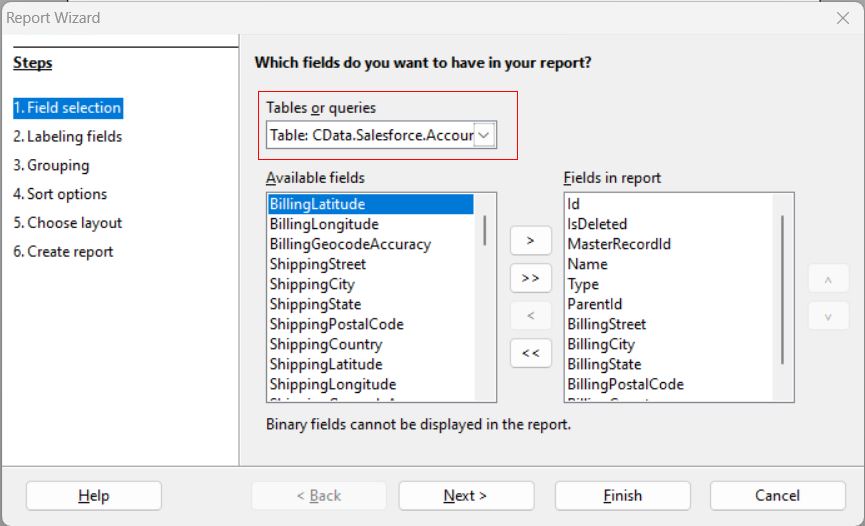
- In the Report Wizard, choose the UKG Pro HCM data table from the Table or Query section. Select the columns from Available Fields that you want to include in your report and move them to the Fields in Report section using the arrows.
- After configuring the fields, click Finish to generate your report.
- Analyze, adjust, save, and publish the report as needed.
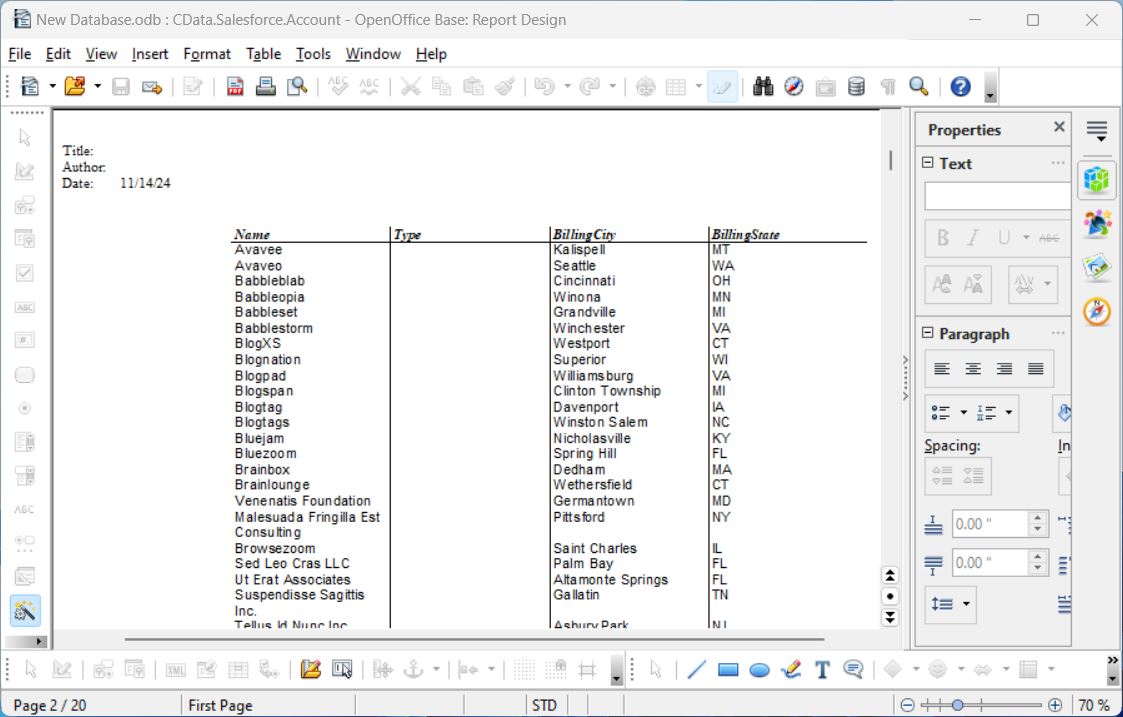
Your report is now created, drawing live data directly from UKG Pro HCM data, and ready for analysis.
Try CData Free for 30 Days
Experience the power of live UKG Pro HCM data data at your fingertips and seamlessly integrate it into OpenOffice Base. Start your free trial today!