Access Live UKG Pro HCM Data in SAS JMP via ODBC

You can use the CData API Driver for ODBC to integrate live data into your statistical analysis with SAS JMP. The driver proxies your queries directly to the UKG Pro HCM API, ensuring that your analysis reflects any changes to the data. The CData ODBC Driver supports the standard SQL used by JMP in the background as you design reports.
This article shows how to access UKG Pro HCM data into a report and create data visualization. It also shows how to use SQL to query UKG Pro HCM data from the JMP Query Builder.
Access UKG Pro HCM Data as an ODBC Data Source
If you have not already, first specify connection properties in an ODBC DSN (data source name). This is the last step of the driver installation. You can use the Microsoft ODBC Data Source Administrator to create and configure ODBC DSNs.
Start by setting the Profile connection property to the location of the UKGProHCM Profile on disk (e.g. C:\profiles\UKGProHCM.apip). Next, set the ProfileSettings connection property to the connection string for UKGProHCM (see below).
UKGProHCM API Profile Settings
UKG Pro HCM uses Basic authentication combined with a customer API key to authorize access to the API. To connect, you will need your UKG Pro HCM credentials and a customer API key issued by UKG.
Set the following connection properties to authenticate:
- AuthScheme: Set this to Basic.
- User: Set this to your UKG Pro HCM username.
- Password: Set this to your UKG Pro HCM password.
- ProfileSettings: Set this to a semicolon-separated list containing:
- Host: Your UKG Pro HCM tenant hostname (e.g., yourcompany.ultipro.com).
- CustomerAPIKey: Your UKG customer API key. This is passed as the US-CUSTOMER-API-KEY request header on each API call.
To obtain your customer API key, contact your UKG Pro HCM administrator or refer to the UKG Developer Portal at https://developer.ukg.com.
When you configure the DSN, you may also want to set the Max Rows connection property. This will limit the number of rows returned, which is especially helpful for improving performance when designing reports and visualizations.
Import UKG Pro HCM Data with the Query Builder
After you have created the UKG Pro HCM DSN, you can use SQL to invoke the capabilities of the UKG Pro HCM API. Follow the steps below to execute some supported queries in the Query Builder:
- In SAS JMP, click File -> Database -> Query Builder. The Select Database Connection dialog is displayed.
- Click New Connection.
- On the Machine Data Source tab, select the ODBC DSN you configured and then click Next.
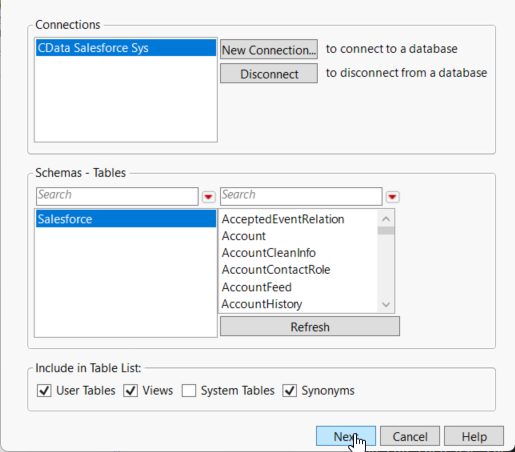
- The Select Tables for Query dialog is displayed and in the Available Tables section, select a table and click Primary. After choosing the primary table, click Build Query to open the Query Builder.
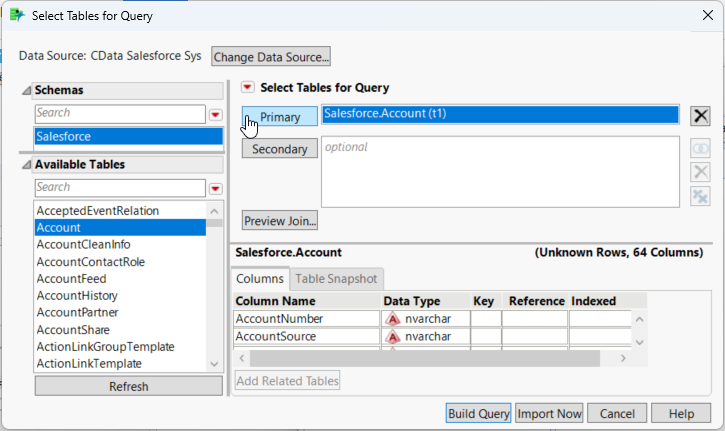
- As you drag Available Columns to the Included Columns tab, the underlying SQL query is updated and you can view the generated SQL Query in the SQL tab.
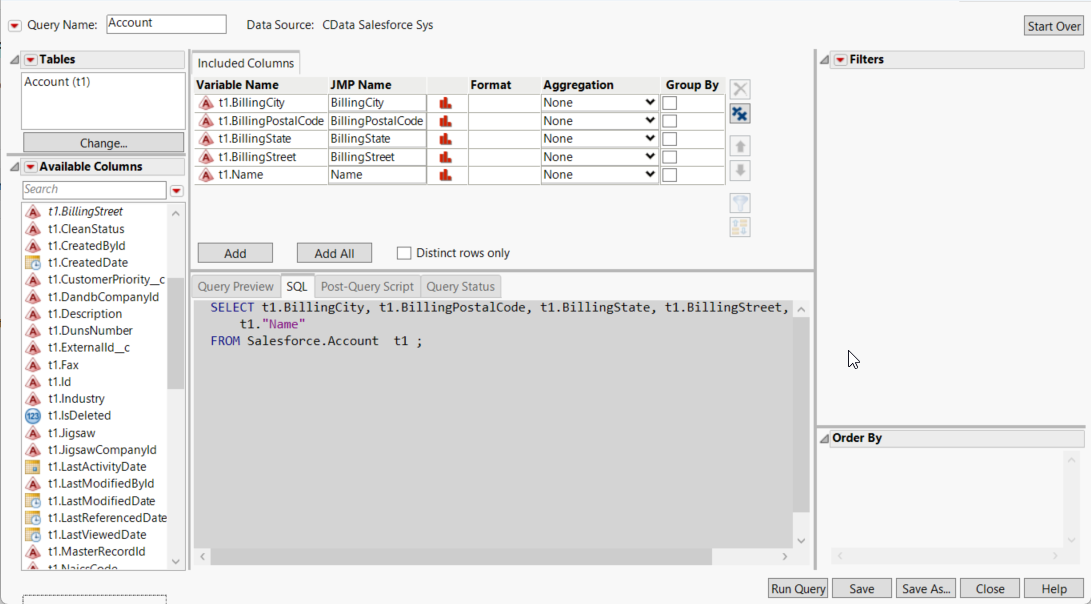
- Click Run Query to display the data.
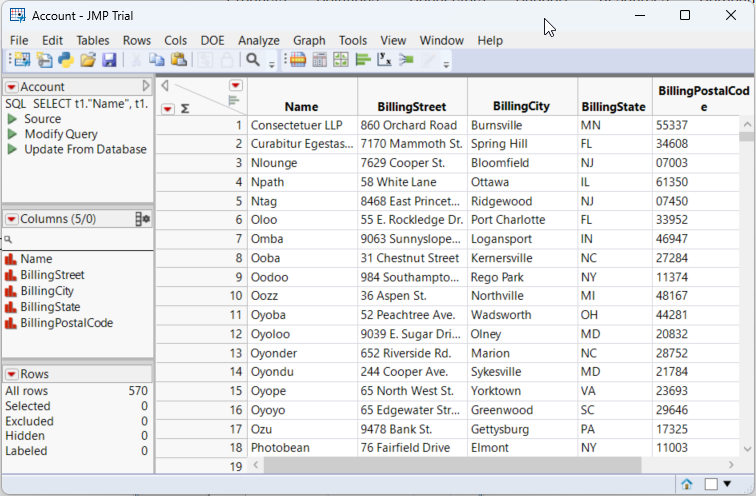
- To refresh the results with the current data, right-click Update from Database and click Run Script.
Visualize UKG Pro HCM Data
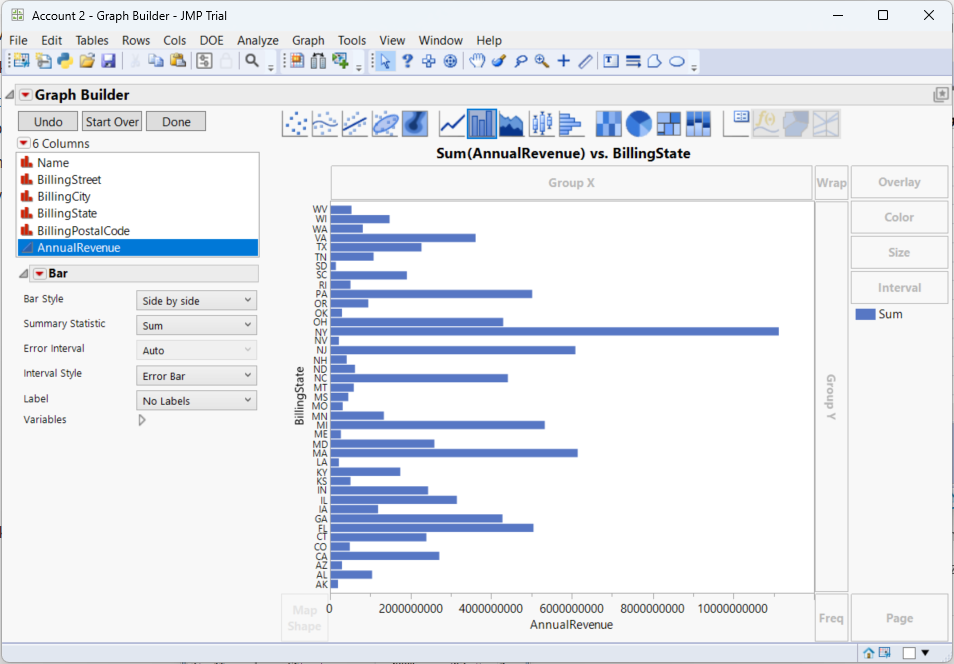
After importing, you can use the Graph Builder to create graphs visually. To open the Graph Builder, click the Graph Builder button in the toolbar.
- Drag a dimension column onto the x axis. For example, UserId.
- Drag a measure column onto the y axis. For example, UserName.
- Select a chart type. For example, a bar chart.