




Build an OLAP Cube in SSAS from UKG Pro WFM Data

SQL Server Analysis Services (SSAS) serves as an analytical data engine employed in decision support and business analytics, offering high-level semantic data models for business reports and client applications like Power BI, Excel, Reporting Services reports, and various data visualization tools. When coupled with the CData API Driver for ADO.NET, you gain the capability to generate cubes from UKG Pro WFM data, facilitating more profound and efficient data analysis.
In this article, we will guide you through the process of developing and deploying a multi-dimensional model of UKG Pro WFM data by creating an Analysis Services project in Visual Studio. To proceed, ensure that you have an accessible SSAS instance and have installed the ADO.NET Provider.
Creating a Data Source for UKG Pro WFM
Start by creating a new Analysis Service Multidimensional and Data Mining Project in Visual Studio. Next, create a Data Source for UKG Pro WFM data in the project.
- In the Solution Explorer, right-click Data Source and select New Data Source.
- Opt to create a data source based on an existing or new connection and click New.
- In the Connection Manager, select CData API Driver for ADO.NET, enter the necessary connection properties, and click Next.
Start by setting the Profile connection property to the location of the UKGProWFM Profile on disk (e.g. C:\profiles\UKGProWFM.apip). Next, set the ProfileSettings connection property to the connection string for UKGProWFM (see below).
UKGProWFM API Profile Settings
UKG Pro Workforce Management uses OAuth 2.0 with the Resource Owner Password Credentials grant (grant_type=password) to authorize access to the API. Unlike most OAuth-based profiles, this does not use a browser redirect/authorization-code step: the driver exchanges your UKG Pro WFM username, password, client ID, and client secret directly for an access token.
Set the following connection properties to authenticate:
- AuthScheme: Set this to OAuthPassword.
- Host: Set this to the hostname of your UKG Pro Workforce Management datacenter/tenant (for example, yourcompany.mykronos.com). Do not include the protocol (https://) or a trailing slash.
- OAuthClientId: Set this to the client ID issued for your UKG Pro Workforce Management OAuth application.
- OAuthClientSecret: Set this to the client secret issued for your UKG Pro Workforce Management OAuth application.
- User: Set this to your UKG Pro Workforce Management username.
- Password: Set this to your UKG Pro Workforce Management password.
Access tokens are obtained from https://{Host}/api/authentication/access_token. Refresh tokens issued by UKG Pro Workforce Management expire after 7 days; if a refresh attempt fails because the refresh token itself has expired, the driver must re-authenticate with your User/Password credentials to obtain a new access token.
When you configure the connection, you may also want to set the Max Rows connection property. This will limit the number of rows returned, which is especially helpful for improving performance when designing reports and visualizations.
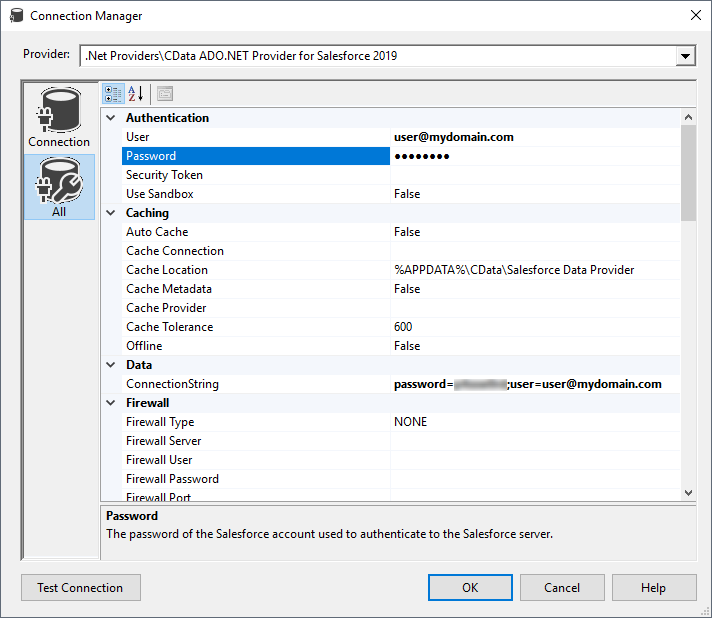
- Set the impersonation method to Inherit and click Next.
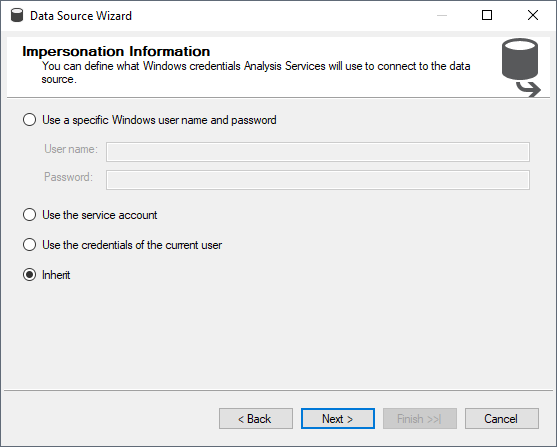
- Name the data source (CData UKG Pro WFM Source) and click Finish.
Creating a Data Source View
After you create the data source, create the data source view.
- In the Solution Explorer, right-click Data Source Views and select New Data Source View.
- Select the data source you just created (CData UKG Pro WFM Source) and click Next.
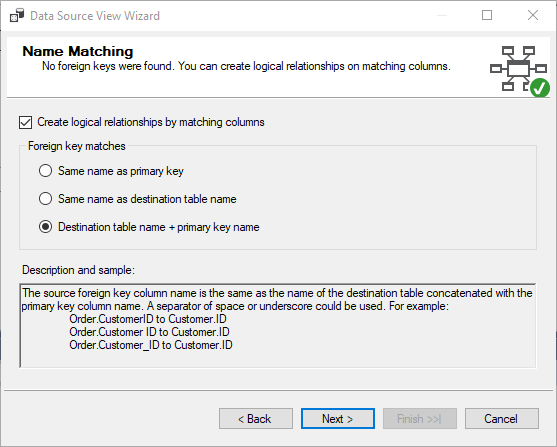
- Choose a foreign key match pattern that matches your underlying data source and click Next.
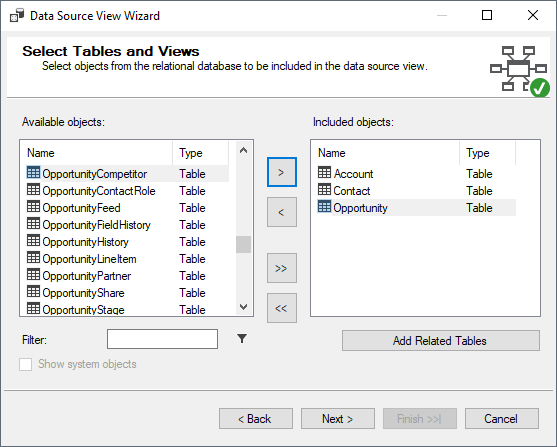
- Select UKG Pro WFM tables to add to the view and click Next.
- Name the view and click Finish
Based on the foreign key match scheme, relationships in the underlying data will be automatically detected. You can view (and edit) these relationships by double clicking Data Source View.
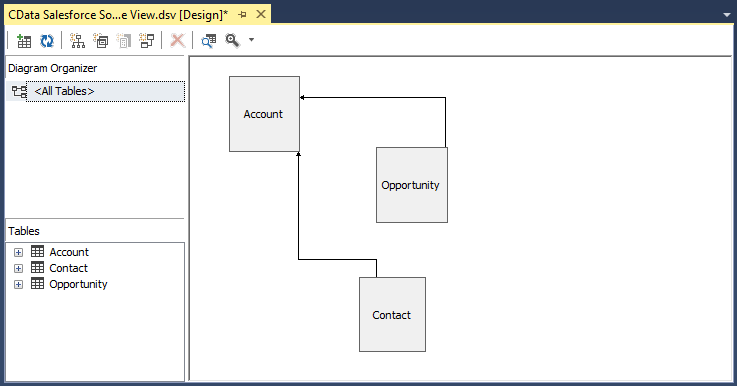
Note that adding a secondary data source to the Data Source View is not supported. When working with multiple data sources, SSAS requires both sources to support remote queries via OpenRowset which is unavailable in the ADO.NET Provider.
Creating a Cube for UKG Pro WFM
The last step before you can process the project and deploy UKG Pro WFM data to SSAS is creating the cubes.
- In the Solution Explorer, right-click Cubes and select New Cube
- Select "Use existing tables" and click Next.
- Select the tables that will be used for measure group tables and click Next.
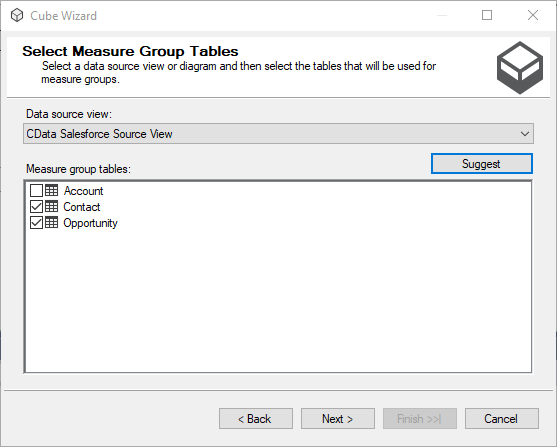
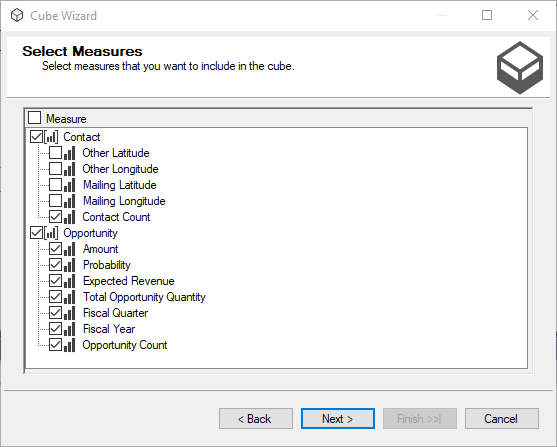
- Select the measures you want to include in the cube and click Next.
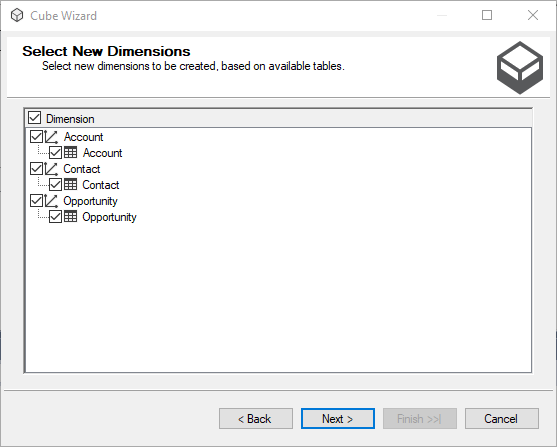
- Select the dimensions to be created, based on the available tables, and click Next.
- Review all of your selections and click Finish.
Process the Project
With the data source, data source view, and cube created, you are ready to deploy the cube to SSAS. To configure the target server and database, right-click the project and select properties. Navigate to deployment and configure the Server and Database properties in the Target section.
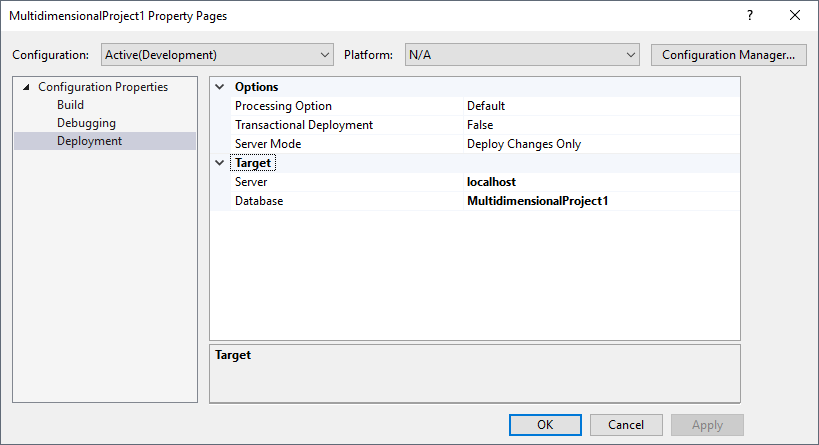
After configuring the target server and database, right-click the project and select Process. You may need to build and deploy the project as a part of this step. Once the project is built and deployed, click Run in the Process Database wizard.
Now you have an OLAP cube for UKG Pro WFM data in your SSAS instance, ready to be analyzed, reported, and viewed. Get started with a free, 30-day trial of the CData API Driver for ADO.NET.