




How to connect and process UKG Pro WFM data from Azure Databricks

Databricks is a cloud-based service that provides data processing capabilities through Apache Spark. When paired with the CData JDBC Driver, customers can use Databricks to perform data engineering and data science on live UKG Pro WFM data. This article explains how to host the CData JDBC Driver in Azure, as well as connect to and process live UKG Pro WFM data in Databricks.
With built-in optimized data processing, the CData JDBC driver offers unmatched performance for interacting with live UKG Pro WFM data. When you issue complex SQL queries to UKG Pro WFM, the driver pushes supported SQL operations, like filters and aggregations, directly to UKG Pro WFM and utilizes the embedded SQL engine to process unsupported operations client-side (often SQL functions and JOIN operations). Its built-in dynamic metadata querying allows you to work with and analyze UKG Pro WFM data using native data types.
Install the CData JDBC Driver in Azure
To work with live UKG Pro WFM data in Databricks, install the driver through Azure Data Lake Storage (ADLS). (Please note that the method of connecting through DBFS, which previous versions of this article described, has been deprecated, but has not published an end-of-life.)
- Upload the JDBC JAR file to a blob container of your choice (i.e. "jdbcjars" container of the "databrickslibraries" storage account).
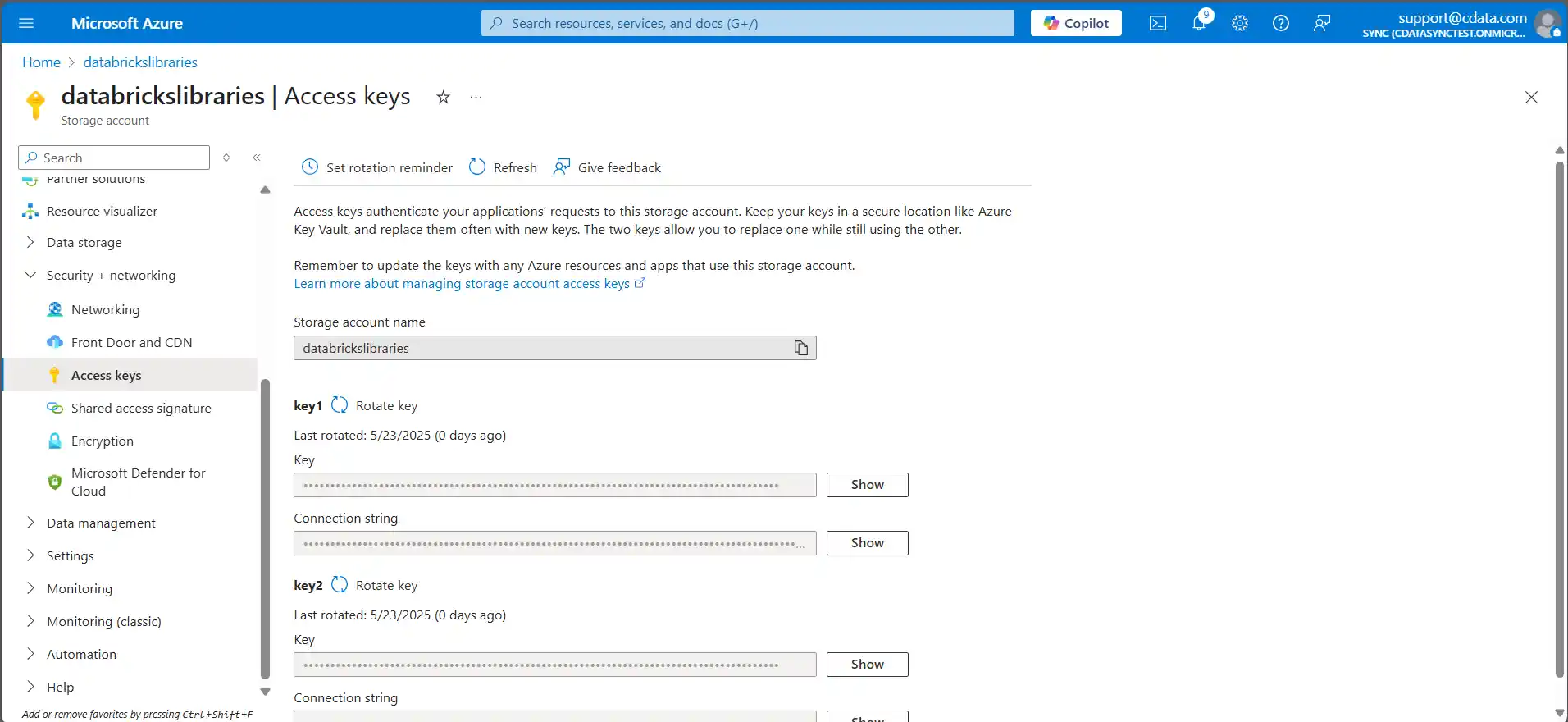
- Fetch the Account Key from the storage account by expanding "Security + networking" and clicking on "Access Keys". Show and copy whichever of the two keys you wish to use.
- Get the JDBC JAR file's URL by navigating to Containers, opening the specific container storing the JAR, and selecting the entry for the JDBC JAR file. This should open the file's details, where there should be a convenient button to copy the URL button to clipboard. This value will look similar to the below, though the "blob" component may vary depending on storage account type:
https://databrickslibraries.blob.core.windows.net/jdbcjars/cdata.jdbc.salesforce.jar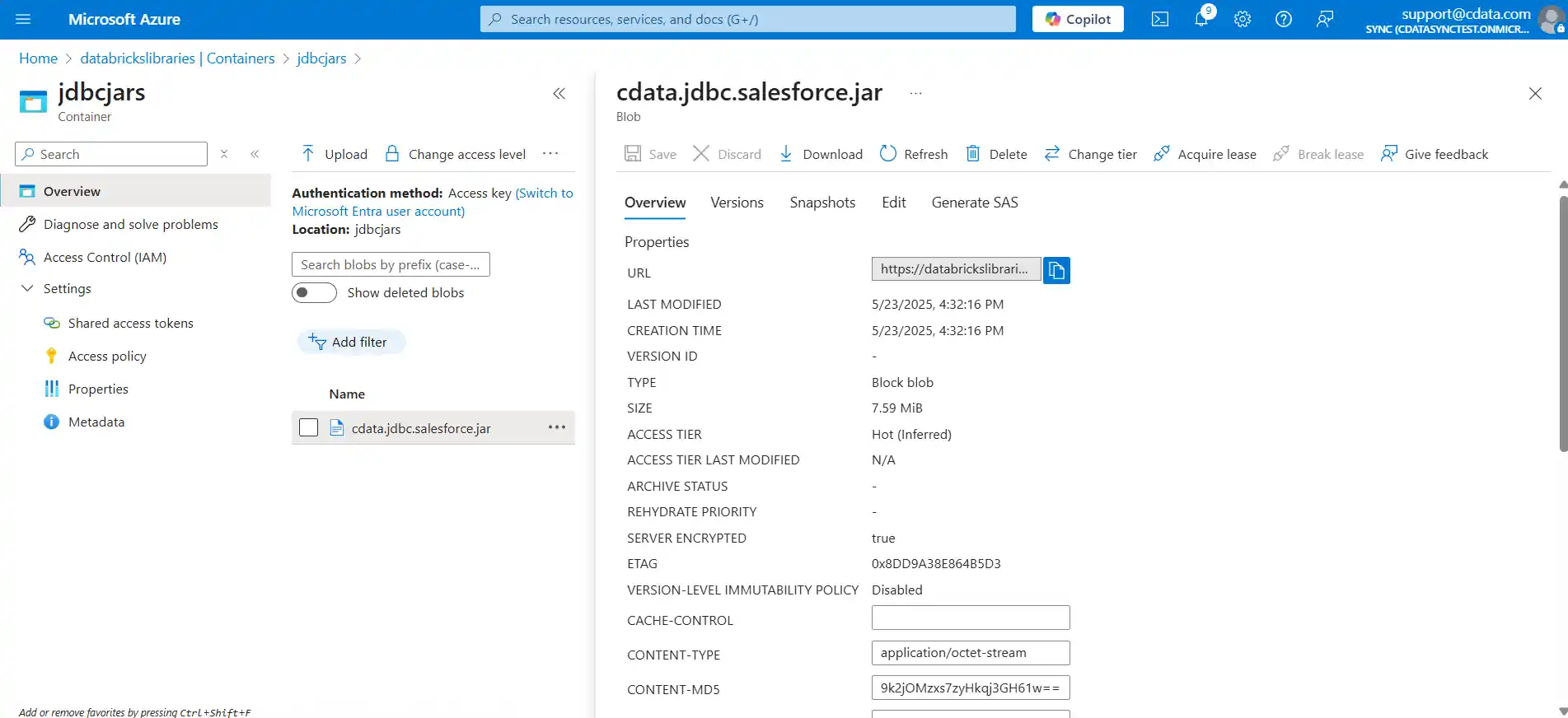
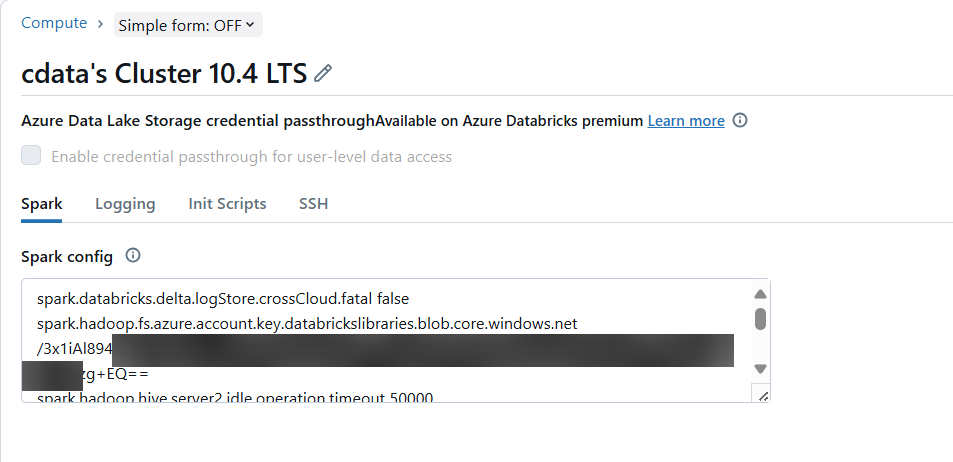
- In the Configuration tab of your Databricks cluster, click on the Edit button and expand "Advanced options". From there, add the following Spark option (derived from the JAR URL's domain name) with your copied Account key as its value and click Confirm:
spark.hadoop.fs.azure.account.key.databrickslibraries.blob.core.windows.net
- In the Libraries tab of your Databricks cluster, click on "Install new", and select the ADLS option. Specify the ABFSS URL for the driver JAR (also derived from the JAR URL's domain name), and click Install. The ABFSS URL should resemble the below:
abfss://[email protected]/cdata.jdbc.salesforce.jar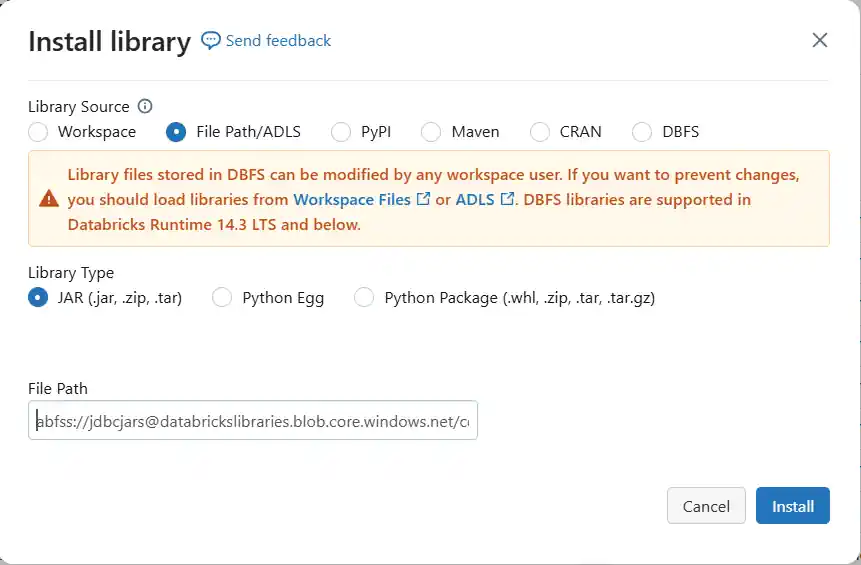
Connect to UKG Pro WFM from Databricks
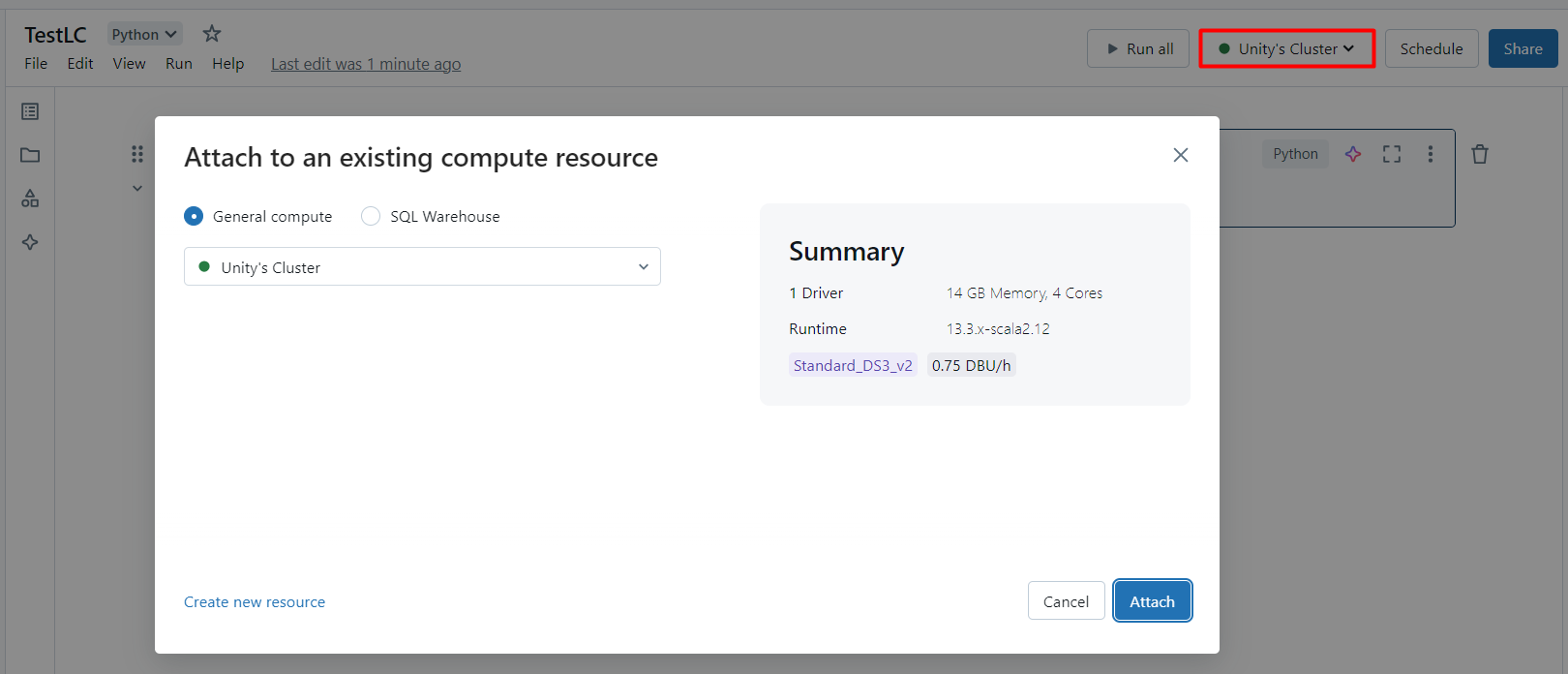
With the JAR file installed, we are ready to work with live UKG Pro WFM data in Databricks. Start by creating a new notebook in your workspace. Name the workbook, make sure Python is selected as the language (which should be by default), click on Connect and under General Compute select the cluster where you installed the JDBC driver (should be selected by default).
Configure the Connection to UKG Pro WFM
Connect to UKG Pro WFM by referencing the class for the JDBC Driver and constructing a connection string to use in the JDBC URL. Additionally, you will need to set the RTK property in the JDBC URL (unless you are using a Beta driver). You can view the licensing file included in the installation for information on how to set this property.
driver = "cdata.jdbc.api.APIDriver"
url = "jdbc:api:RTK=5246...;Profile=C:\profiles\UKGProWFM.apip;AuthScheme=OAuthPassword;ProfileSettings='Host=yourcompany.mykronos.com;User=your_username;Password=your_password;';OAuthClientId=your_client_id;OAuthClientSecret=your_client_secret;"
Built-in Connection String Designer
For assistance in constructing the JDBC URL, use the connection string designer built into the UKG Pro WFM JDBC Driver. Either double-click the JAR file or execute the JAR file from the command-line.
java -jar cdata.jdbc.api.jar
Fill in the connection properties and copy the connection string to the clipboard.
Start by setting the Profile connection property to the location of the UKGProWFM Profile on disk (e.g. C:\profiles\UKGProWFM.apip). Next, set the ProfileSettings connection property to the connection string for UKGProWFM (see below).
UKGProWFM API Profile Settings
UKG Pro Workforce Management uses OAuth 2.0 with the Resource Owner Password Credentials grant (grant_type=password) to authorize access to the API. Unlike most OAuth-based profiles, this does not use a browser redirect/authorization-code step: the driver exchanges your UKG Pro WFM username, password, client ID, and client secret directly for an access token.
Set the following connection properties to authenticate:
- AuthScheme: Set this to OAuthPassword.
- Host: Set this to the hostname of your UKG Pro Workforce Management datacenter/tenant (for example, yourcompany.mykronos.com). Do not include the protocol (https://) or a trailing slash.
- OAuthClientId: Set this to the client ID issued for your UKG Pro Workforce Management OAuth application.
- OAuthClientSecret: Set this to the client secret issued for your UKG Pro Workforce Management OAuth application.
- User: Set this to your UKG Pro Workforce Management username.
- Password: Set this to your UKG Pro Workforce Management password.
Access tokens are obtained from https://{Host}/api/authentication/access_token. Refresh tokens issued by UKG Pro Workforce Management expire after 7 days; if a refresh attempt fails because the refresh token itself has expired, the driver must re-authenticate with your User/Password credentials to obtain a new access token.

Load UKG Pro WFM Data
Once the connection is configured, you can load UKG Pro WFM data as a dataframe using the CData JDBC Driver and the connection information.
remote_table = spark.read.format ( "jdbc" ) \
	.option ( "driver" , driver) \
	.option ( "url" , url) \
	.option ( "dbtable" , "Employees") \
	.load ()
Display UKG Pro WFM Data
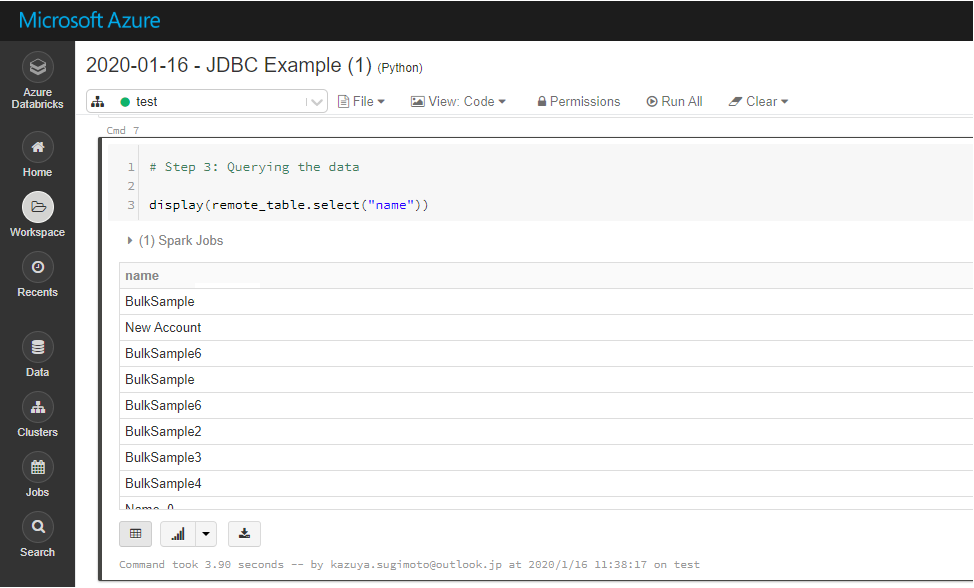
Check the loaded UKG Pro WFM data by calling the display function.
display (remote_table.select ("PersonNumber"))
Analyze UKG Pro WFM Data in Azure Databricks
If you want to process data with Databricks SparkSQL, register the loaded data as a Temp View.
remote_table.createOrReplaceTempView ( "SAMPLE_VIEW" )
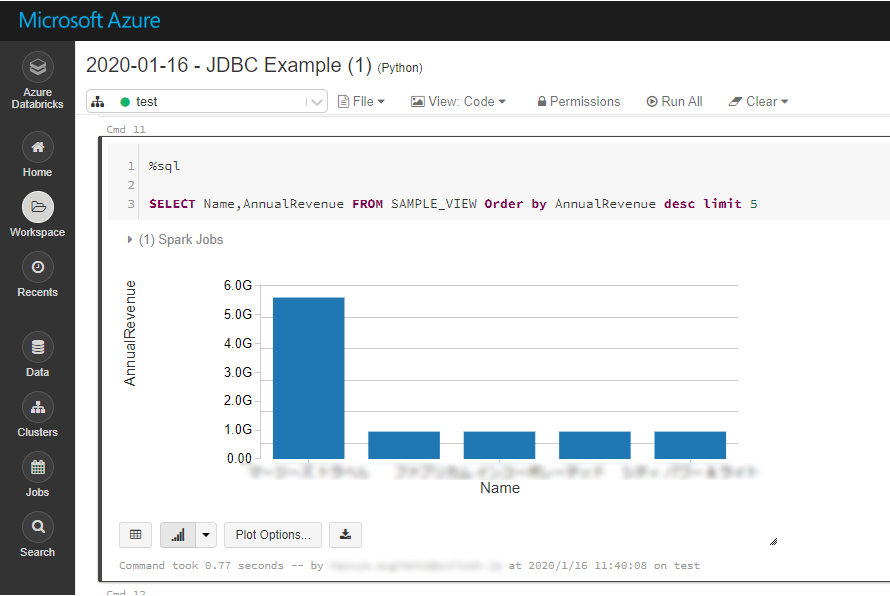
The SparkSQL below retrieves the UKG Pro WFM data for analysis.
result = spark.sql("SELECT PersonNumber, UserName FROM SAMPLE_VIEW WHERE PersonId = '12345'")
The data from UKG Pro WFM is only available in the target notebook. If you want to use it with other users, save it as a table.
remote_table.write.format ( "parquet" ) .saveAsTable ( "SAMPLE_TABLE" )
Download a free, 30-day trial of the CData API Driver for JDBC and start working with your live UKG Pro WFM data in Azure Databricks. Reach out to our Support Team if you have any questions.