




Integrating OpenCode with UKG Pro WFM data via CData CLI

OpenCode is an open source AI coding agent from Anomaly that runs in your terminal, desktop, or IDE. It connects to over 75 LLM providers, including Claude, GPT, Gemini, and local models, and stores none of your code or context data. It runs multiple agent sessions in parallel on the same project, each with its own context. Its support for integrations, AGENTS.md configuration files, and a TypeScript/JavaScript plugin system makes it well-suited for tool-driven data workflows through CData CLI. By describing your data goals in plain language, OpenCode handles driver configuration, license activation, connection creation, and query execution from a single prompt.
This article walks through how to connect UKG Pro WFM data to OpenCode through CData CLI.
Prerequisites
- OpenCode installed (either Terminal CLI or Desktop): OpenCode | Download
- CData CLI installed
- Access to UKG Pro WFM
Step 1: Download the skill (one-time setup)
Always use CData CLI with the official Skill.
-
The official CData CLI Skill on GitHub can be downloaded using npx skills through the terminal:
npx skills add CDataSoftware/cli-skills -
Follow the prompts in the terminal to install for OpenCode.
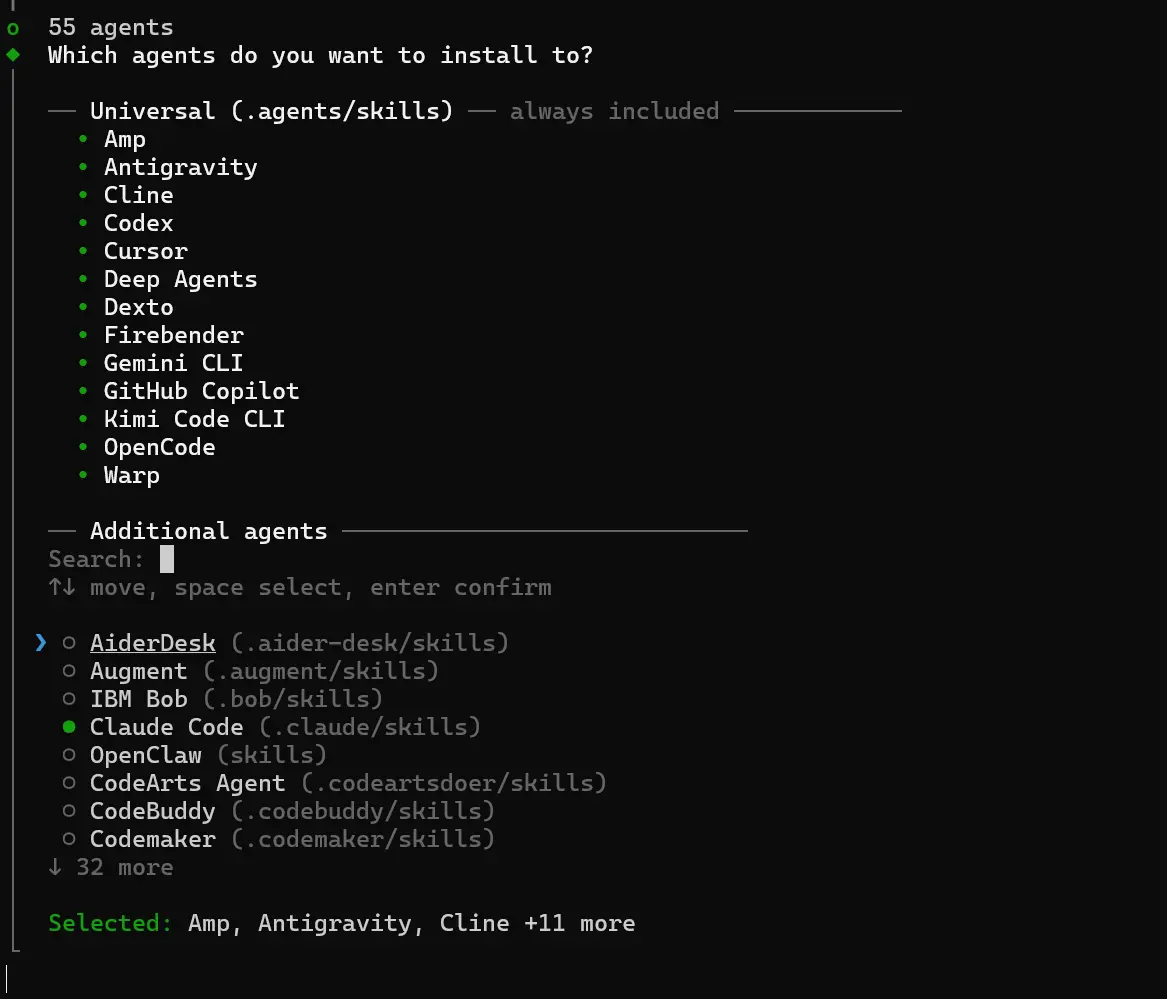
Step 2: Set up the project directory
Create a project directory to contain all project files. Below are examples for using OpenCode in either the Terminal or Desktop app.
OpenCode in Terminal CLI
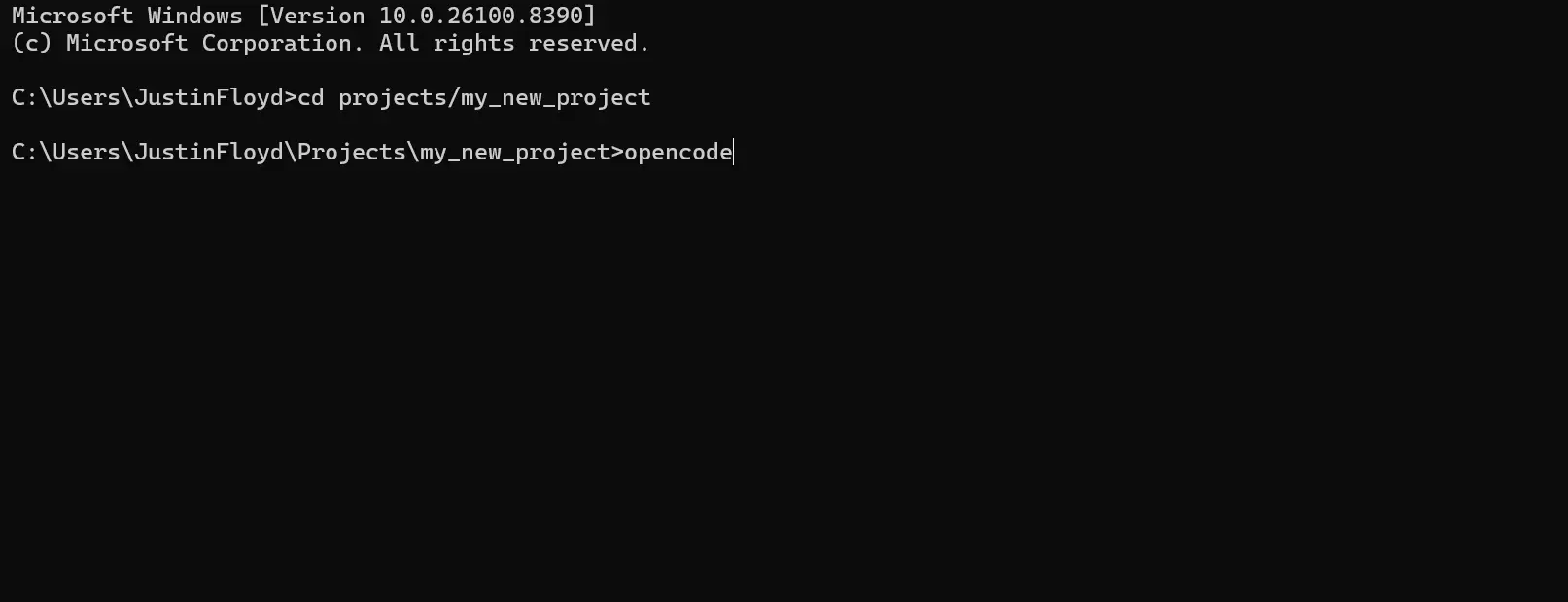
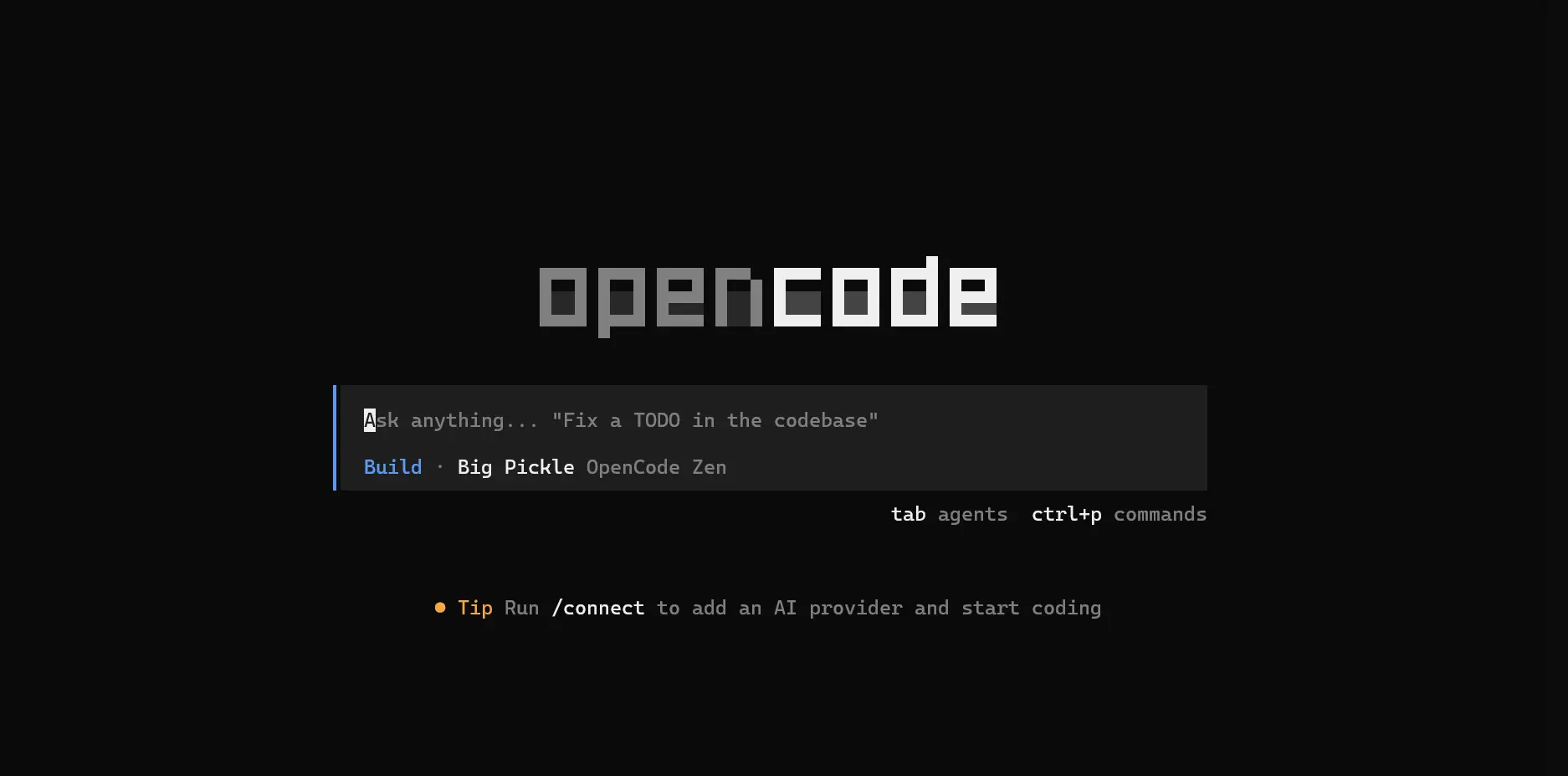
Navigate to your desired directory in the terminal and start a session with the opencode command.
OpenCode Desktop App
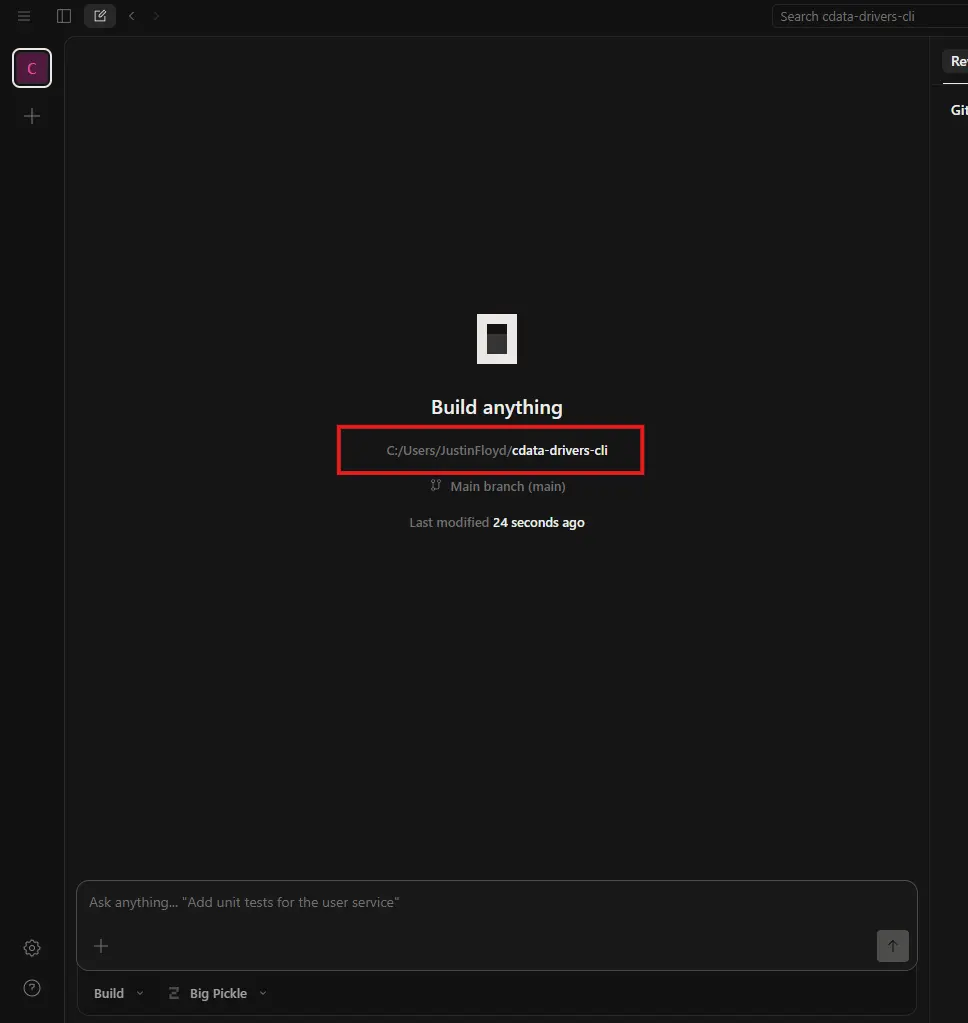
Open the desktop app and select your project folder as the working directory.
Step 3: Establish the driver and connection
Describe what you want to accomplish with the CLI and UKG Pro WFM data.
I would like to build a command line app that connects to UKG Pro WFM and checks for updates from Employees. Make sure to include data from important columns like PersonNumber and UserName.
This prompt automatically loads the Skill and kicks off the following process. You can also manually prompt the agent for each of the following steps.
- Driver setup: OpenCode checks for an existing CData UKG Pro WFM driver, or searches and downloads a new one:
cdatacli drivers listcdatacli drivers search --driver "UKG Pro WFM"cdatacli drivers download --artifact-id <artifact-id>- Activation: Activate the UKG Pro WFM driver with a single command for a trial or full license:
cdatacli drivers activate "UKG Pro WFM" --name "<name>" --email "<email>" --trialcdatacli drivers activate "UKG Pro WFM" --name "<name>" --email "<email>" --key "<product-key>"- Establish the connection: Check for existing UKG Pro WFM connections or create a new one:
cdatacli connection listcdatacli connection create --driver UKG Pro WFM --name my_ukg pro wfm_connection --connectionstring "Prop1=value1;Prop2=value2;..."- Create a UKG Pro WFM skill (if applicable): CData provides driver instructions for popular sources that can be used to create a source-specific skill to guide the agent through best practices for the driver.
- Run the following command to generate a skill file and save the output to your skills directory. You can choose to save the skill either at the project level or globally. (Note: If "No instructions available for UKG Pro WFM" error is returned, no driver instructions exist and you can continue to use main driver skill)
cdatacli drivers skill "UKG Pro WFM" > ~/skills/cdata-ukg pro wfm/SKILL.md
Step 4: Query UKG Pro WFM data
With the CData driver configured, your agent can execute queries and write code against live UKG Pro WFM data:
cdatacli query sql --connection my_ukg pro wfm_connection --sql "SELECT * FROM Employees"
Query UKG Pro WFM data directly from your terminal with CData CLI
OpenCode and CData CLI together give your AI coding agent a direct path to live UKG Pro WFM data without custom middleware, scheduled syncs, or manual setup at each step. Describe your goal, and the agent handles driver configuration, connection setup, and query execution.
Download the free CData CLI and start a free 30-day trial of the CData API Driver for JDBC today.