Query UKG Pro WFM Data in ColdFusion

The CData JDBC driver for UKG Pro WFM seamlessly integrates connectivity to UKG Pro WFM data with the rapid development tools in ColdFusion. This article shows how to connect to UKG Pro WFM data in ColdFusion and query UKG Pro WFM tables.
Create a JDBC Data Source for UKG Pro WFM in ColdFusion
The JDBC data source enables you to execute SQL from standard ColdFusion tags like cfquery and CFScript like executeQuery.
-
Copy the driver JAR and .lic file from the installation directory onto the ColdFusion classpath. For example, copy the files into C:\MyColdFusionDirectory\cfusion\wwwroot\WEB-INF\lib. Or, open the Java and JVM page in the ColdFusion Administrator and enter the path to the files in the ColdFusion Class Path box.
The JAR and license for the driver are located in the lib subfolder of the installation directory.
Restart the server after this step.
-
Add the driver as a data source:
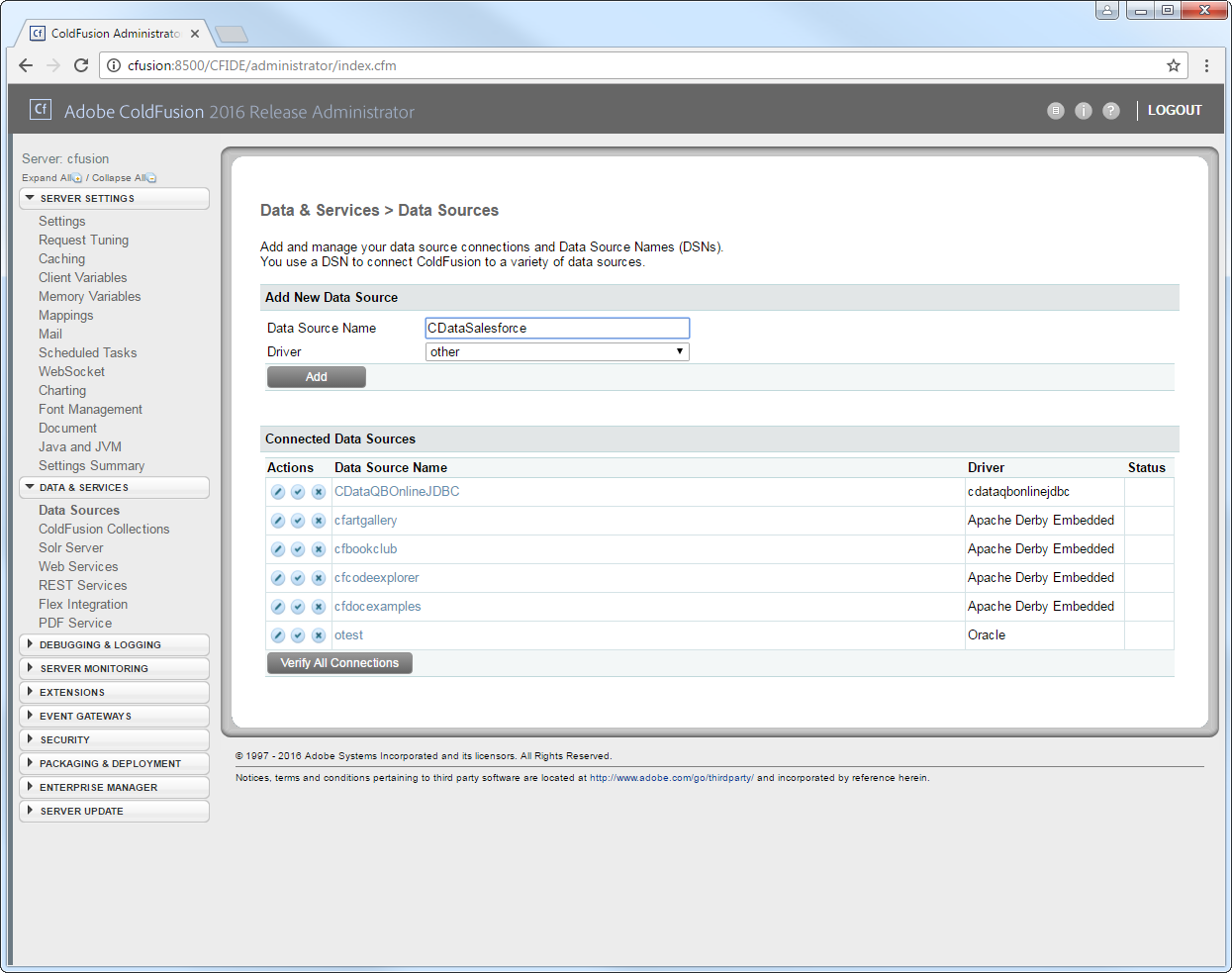
From the ColdFusion administrator interface, expand the Data & Services node and click Data Sources. In the Add New Data Source section, enter a name for the data source and select Other in the Driver menu.
-
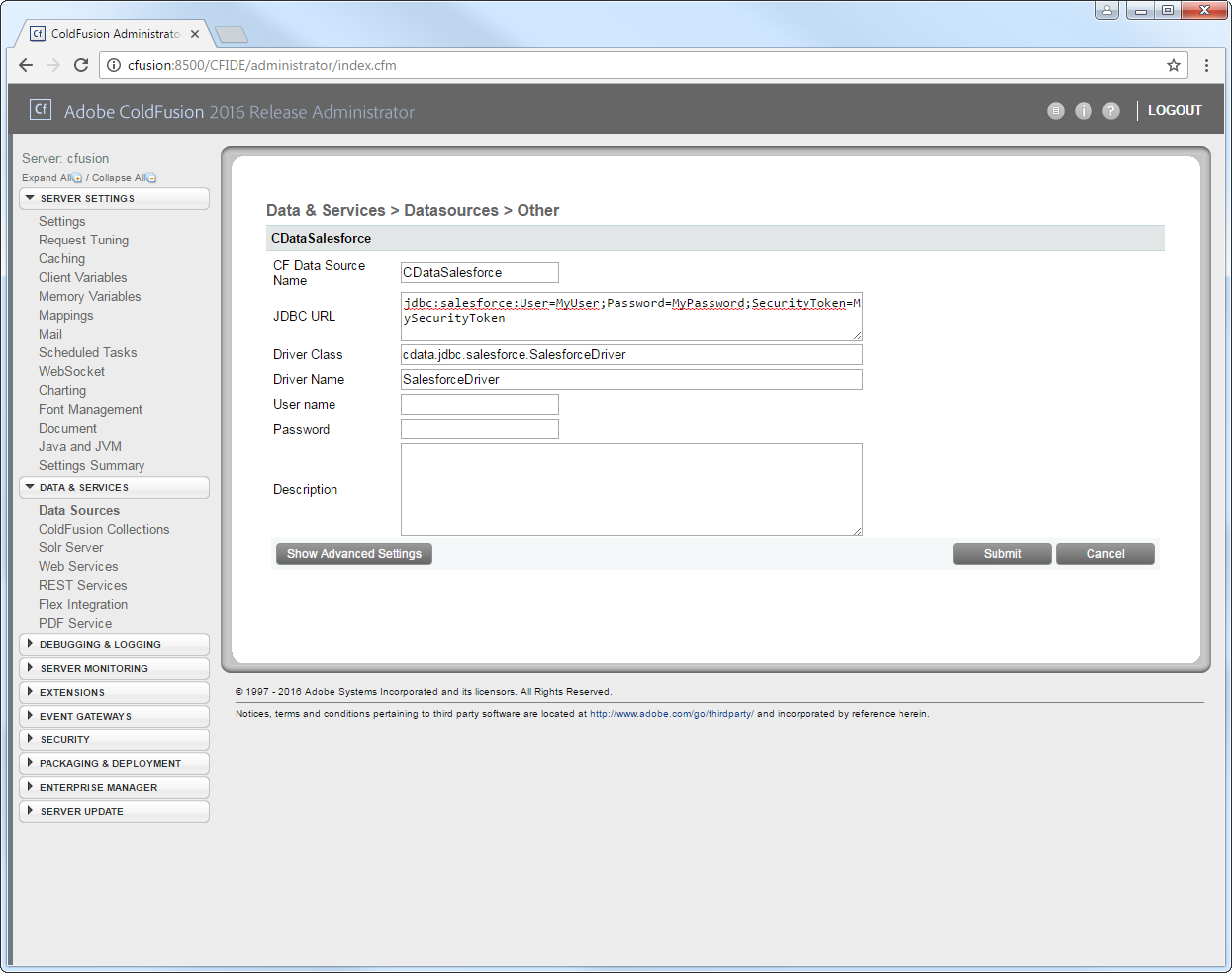
Populate the driver properties:
JDBC URL: Enter connection properties in the JDBC URL. The JDBC URL begins with jdbc:api: and is followed by the connection properties in a semicolon-separated list of name=value pairs.
Start by setting the Profile connection property to the location of the UKGProWFM Profile on disk (e.g. C:\profiles\UKGProWFM.apip). Next, set the ProfileSettings connection property to the connection string for UKGProWFM (see below).
UKGProWFM API Profile Settings
UKG Pro Workforce Management uses OAuth 2.0 with the Resource Owner Password Credentials grant (grant_type=password) to authorize access to the API. Unlike most OAuth-based profiles, this does not use a browser redirect/authorization-code step: the driver exchanges your UKG Pro WFM username, password, client ID, and client secret directly for an access token.
Set the following connection properties to authenticate:
- AuthScheme: Set this to OAuthPassword.
- Host: Set this to the hostname of your UKG Pro Workforce Management datacenter/tenant (for example, yourcompany.mykronos.com). Do not include the protocol (https://) or a trailing slash.
- OAuthClientId: Set this to the client ID issued for your UKG Pro Workforce Management OAuth application.
- OAuthClientSecret: Set this to the client secret issued for your UKG Pro Workforce Management OAuth application.
- User: Set this to your UKG Pro Workforce Management username.
- Password: Set this to your UKG Pro Workforce Management password.
Access tokens are obtained from https://{Host}/api/authentication/access_token. Refresh tokens issued by UKG Pro Workforce Management expire after 7 days; if a refresh attempt fails because the refresh token itself has expired, the driver must re-authenticate with your User/Password credentials to obtain a new access token.
Built-in Connection String Designer
For assistance in constructing the JDBC URL, use the connection string designer built into the UKG Pro WFM JDBC Driver. Either double-click the JAR file or execute the jar file from the command-line.
java -jar cdata.jdbc.api.jarFill in the connection properties and copy the connection string to the clipboard.

A typical JDBC URL is below:
jdbc:api:Profile=C:\profiles\UKGProWFM.apip;AuthScheme=OAuthPassword;ProfileSettings='Host=yourcompany.mykronos.com;User=your_username;Password=your_password;';OAuthClientId=your_client_id;OAuthClientSecret=your_client_secret;- Driver Class: Enter the driver class. The driver class is cdata.jdbc.api.APIDriver.
- Driver Name: Enter a user-defined name for the driver.
- Username: Enter the username used to authenticate.
- Password: Enter the password used to authenticate.
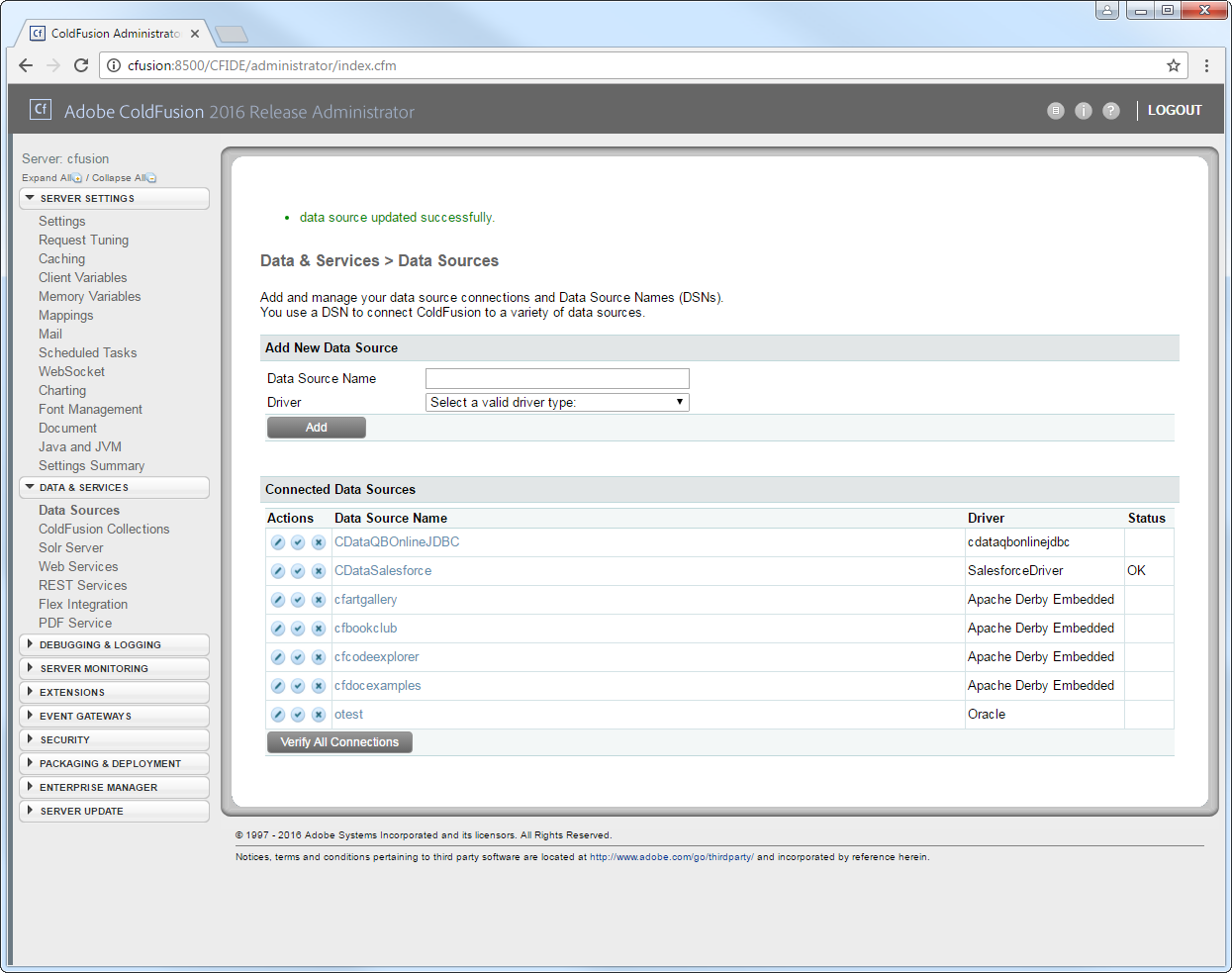
You can now test the connection by enabling the CData UKG Pro WFM data source in the Actions column. After reporting a status of OK, the UKG Pro WFM data source is ready for use.
Execute Queries
The cfquery tag can pass SQL statements to UKG Pro WFM. Use the cfqueryparam tag to create parameterized queries and prevent SQL injection through the query string.
Note: To use the cfquery and cfscript, create a .cfm file. Inside the .cfm file, write the code to execute the query (see below). Place the file directly in the root directory of your web server (e.g., wwwroot in Adobe ColdFusion). Restart the service after placing the file for the changes to take effect.
<cfquery name="APIQuery" dataSource="CDataAPI">
  SELECT * FROM Employees WHERE PersonId = <cfqueryparam value="#PersonId#" cfsqltype="cf_sql_varchar">
</cfquery>
<cfdump var="#APIQuery#">
Below is the equivalent in CFScript:
<cfscript>
result = queryExecute(
  "SELECT * FROM Employees WHERE PersonId = ?",
  [
    { value="12345", cfsqltype="cf_sql_varchar" }
  ],
  { datasource="CDataAPI" }
);

writeDump( var= result );
</cfscript>
You can then make requests to your .cfm like the following:
http://MyServer:8500/query.cfm?PersonId=12345