




Use the CData JDBC Driver for UKG Pro WFM in MicroStrategy Desktop

MicroStrategy is an analytics and mobility platform that enables data-driven innovation. When you pair MicroStrategy with the CData JDBC Driver for UKG Pro WFM, you gain database-like access to live UKG Pro WFM data from MicroStrategy, expanding your reporting and analytics capabilities. In this article, we walk through adding UKG Pro WFM as a data source in MicroStrategy Desktop and creating a simple visualization of UKG Pro WFM data.
The CData JDBC Driver offers unmatched performance for interacting with live UKG Pro WFM data in MicroStrategy due to optimized data processing built into the driver. When you issue complex SQL queries from MicroStrategy to UKG Pro WFM, the driver pushes supported SQL operations, like filters and aggregations, directly to UKG Pro WFM and utilizes the embedded SQL engine to process unsupported operations (often SQL functions and JOIN operations) client-side. With built-in dynamic metadata querying, you can use native MicroStrategy data types to visualize and analyze UKG Pro WFM data.
Connect to and Visualize UKG Pro WFM Data using MicroStrategy Desktop
In addition to connecting to UKG Pro WFM in MicroStrategy enterprise products, you can connect to UKG Pro WFM in MicroStrategy Desktop. Follow the steps below to add UKG Pro WFM data as a dataset using JDBC and create visualizations and reports of UKG Pro WFM data.
- Open MicroStrategy Desktop and create a new dossier.
- In the datasets panel, click New Data, select Databases, and choose Select a Table as the Import Option.
- Add a new data source and choose the DSN-less data sources option.
- Choose Generic in the Database menu and Generic DBMS in the Version menu.
- Click the link to show the connection string and opt to edit the connection string. In the Driver menu, select MicroStrategy Cassandra ODBC Driver. (MicroStrategy requires a certified driver to interface through JDBC; the actual driver will not be used.)
- Set the connection string as follows and click OK:
- Add the JDBC keyword to the connection string.
- Set MSTR_JDBC_JAR_FOLDER to the path of the JAR file for the JDBC driver. (C:\Program Files\CData JDBC Driver for UKG Pro WFM\lib\ on Windows.)
- Set DRIVER to cdata.jdbc.api.APIDriver, the driver class.
- Set URL to the JDBC URL for the UKG Pro WFM driver, setting the necessary connection properties.
Start by setting the Profile connection property to the location of the UKGProWFM Profile on disk (e.g. C:\profiles\UKGProWFM.apip). Next, set the ProfileSettings connection property to the connection string for UKGProWFM (see below).
UKGProWFM API Profile Settings
UKG Pro Workforce Management uses OAuth 2.0 with the Resource Owner Password Credentials grant (grant_type=password) to authorize access to the API. Unlike most OAuth-based profiles, this does not use a browser redirect/authorization-code step: the driver exchanges your UKG Pro WFM username, password, client ID, and client secret directly for an access token.
Set the following connection properties to authenticate:
- AuthScheme: Set this to OAuthPassword.
- Host: Set this to the hostname of your UKG Pro Workforce Management datacenter/tenant (for example, yourcompany.mykronos.com). Do not include the protocol (https://) or a trailing slash.
- OAuthClientId: Set this to the client ID issued for your UKG Pro Workforce Management OAuth application.
- OAuthClientSecret: Set this to the client secret issued for your UKG Pro Workforce Management OAuth application.
- User: Set this to your UKG Pro Workforce Management username.
- Password: Set this to your UKG Pro Workforce Management password.
Access tokens are obtained from https://{Host}/api/authentication/access_token. Refresh tokens issued by UKG Pro Workforce Management expire after 7 days; if a refresh attempt fails because the refresh token itself has expired, the driver must re-authenticate with your User/Password credentials to obtain a new access token.
Built-in Connection String Designer
For assistance in constructing the JDBC URL, use the connection string designer built into the UKG Pro WFM JDBC Driver. Either double-click the JAR file or execute the jar file from the command-line.
java -jar cdata.jdbc.api.jarFill in the connection properties and copy the connection string to the clipboard.

When you configure the JDBC URL, you may also want to set the Max Rows connection property. This will limit the number of rows returned, which is especially helpful for improving performance when designing reports and visualizations.
A typical connection string follows:
JDBC;MSTR_JDBC_JAR_FOLDER=PATH\TO\JAR\;DRIVER=cdata.jdbc.api.APIDriver;URL={jdbc:api:Profile=C:\profiles\UKGProWFM.apip;AuthScheme=OAuthPassword;ProfileSettings='Host=yourcompany.mykronos.com;User=your_username;Password=your_password;';OAuthClientId=your_client_id;OAuthClientSecret=your_client_secret;};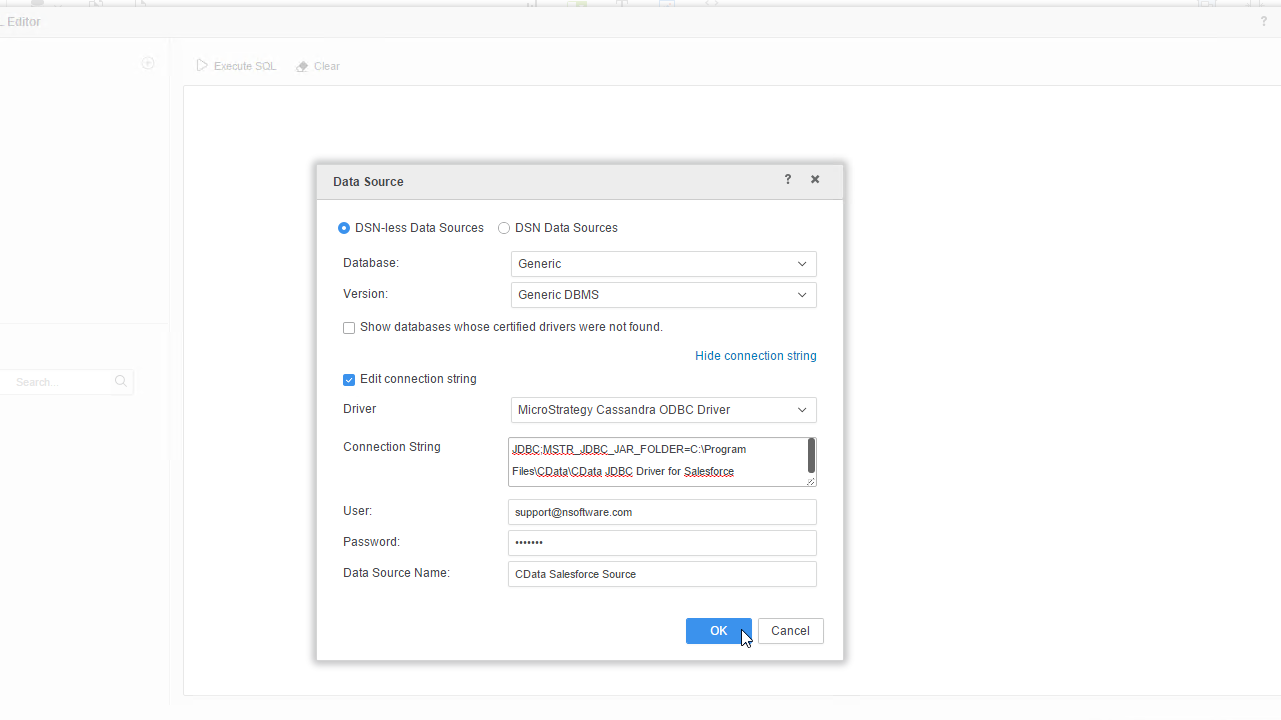
- Right-click on the new data source, and choose Edit catalog options.
- Edit the SQL Statement to SELECT * FROM SYS_SCHEMAS to read the metadata from the JDBC Driver.
- Select the new data source to view the available tables. You may need to manually click the search icon in the Available Tables section to see the tables.
- Drag tables into the pane to import them.
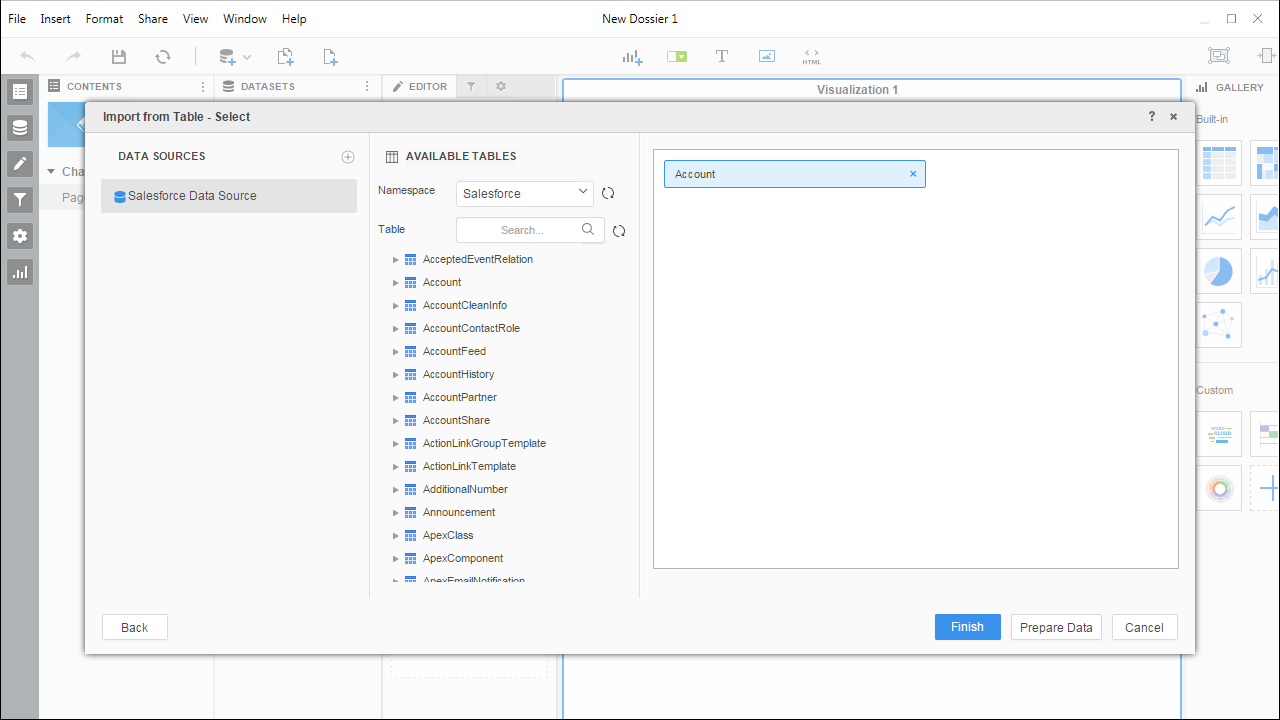 Note: Since we create a live connection, we can import whole tables and utilize the filtering and aggregation features native to the MicroStrategy products.
 - Click Finish and choose the option to connect Live. Live connections are possible and effective, thanks to the high-performance data processing native to CData JDBC Drivers.
- Choose a visualization, choose fields to display, and apply any filters to create a new visualization of UKG Pro WFM data. Data types are discovered automatically through dynamic metadata discovery. Where possible, the complex queries generated by the filters and aggregations will be pushed down to UKG Pro WFM, while any unsupported operations (which can include SQL functions and JOIN operations) will be managed client-side by the CData SQL engine embedded in the driver.
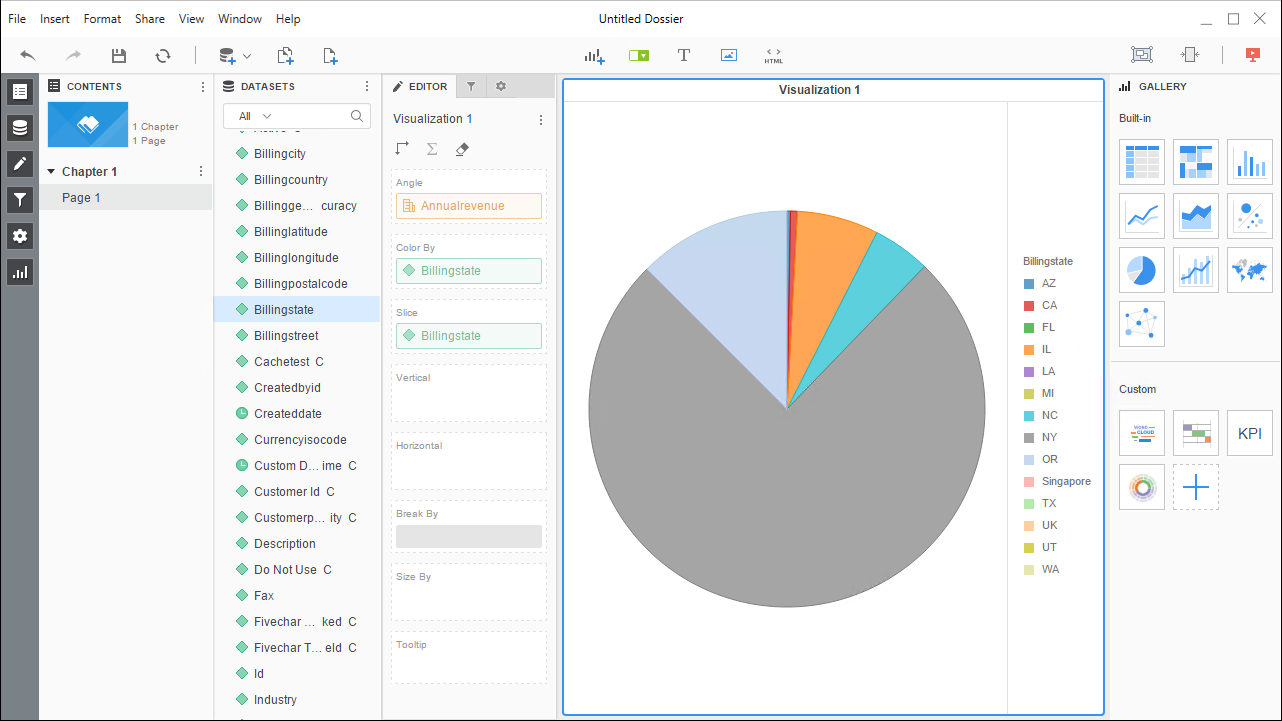
- Once you are finished configuring the dossier, click File -> Save.
Using the CData JDBC Driver for UKG Pro WFM in MicroStrategy Desktop, you can easily create robust visualizations and reports on UKG Pro WFM data. Read our other articles for connecting to UKG Pro WFM data in MicroStrategy Developer and connecting to UKG Pro WFM data in MicroStrategy Web for more examples.