




Validate UKG Pro WFM Data with QuerySurge

QuerySurge is a smart data testing solution that automates data validation and testing. When paired with the CData API Driver for JDBC, QuerySurge can work with live UKG Pro WFM data. This article explains how to connect to UKG Pro WFM data from QuerySurge.
With built-in optimized data processing, the CData JDBC Driver offers unmatched performance for interacting with live UKG Pro WFM data. When you issue complex SQL queries to UKG Pro WFM, the driver pushes supported SQL operations, like filters and aggregations, directly to UKG Pro WFM and utilizes the embedded SQL engine to process unsupported operations client-side (often SQL functions and JOIN operations). Its built-in dynamic metadata querying allows you to work with and analyze UKG Pro WFM data using native data types.
Connecting to UKG Pro WFM Data in QuerySurge
To connect to live UKG Pro WFM data from QuerySurge, you need to deploy the JDBC Driver JAR file to your QuerySurge Agent(s) and add a new connection from the QuerySurge Admin view.
Deploy the JDBC Driver
- Download the CData API Driver for JDBC installer, unzip the package, and run the JAR file to install the driver.
- Once the driver is installed, stop the Agent Service.
- Copy the JAR File (and license file if it exists) from the installation location (typically C:\Program Files\CData\CData API Driver for JDBC\lib\) to your Agent(s) (QuerySurge_install_dir\agent\jdbc).
- Restart the Agent Service.
For more information on deploying JDBC drivers for QuerySurge, refer to the QuerySurge Knowledge Base.
Configure a New Connection to UKG Pro WFM
- Log into QuerySurge and navigate to the Admin view.
- Click Configuration -> Connections in the Administration Tree.
- Click Add to create a new connection.
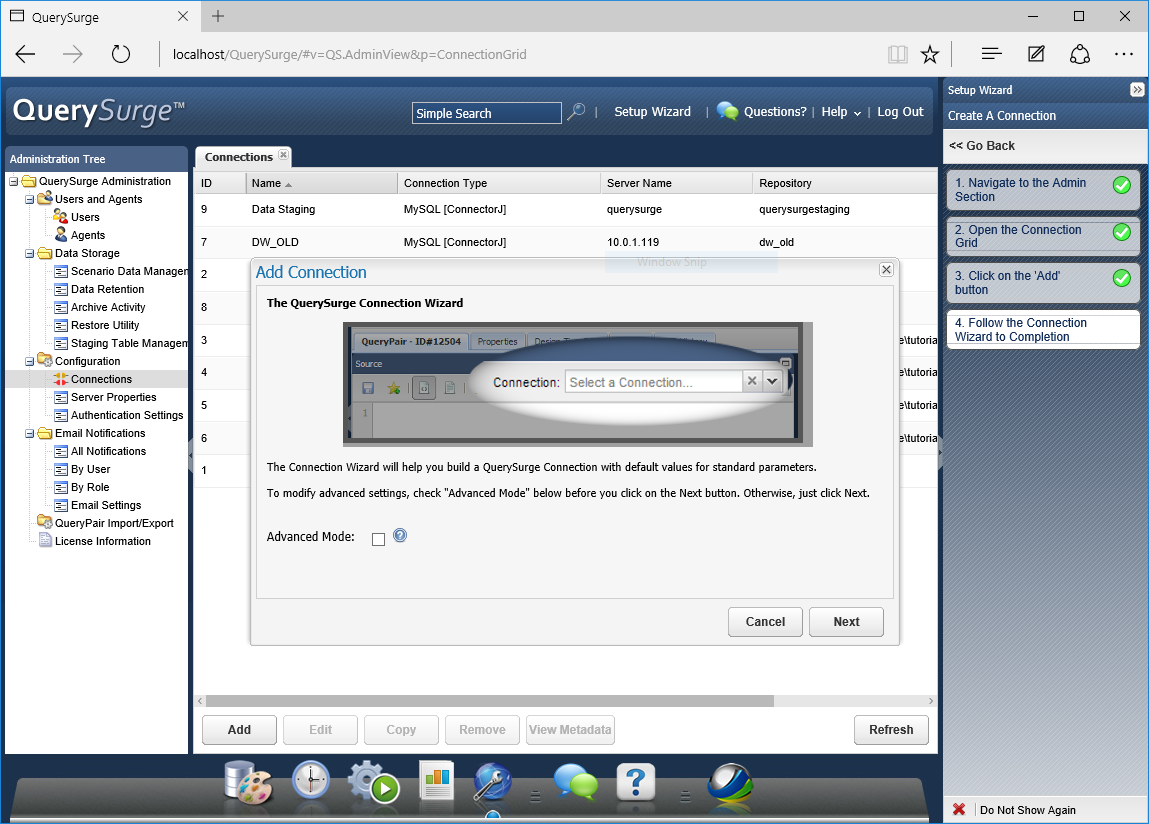
- In the QuerySurge Connection Wizard, click Next.
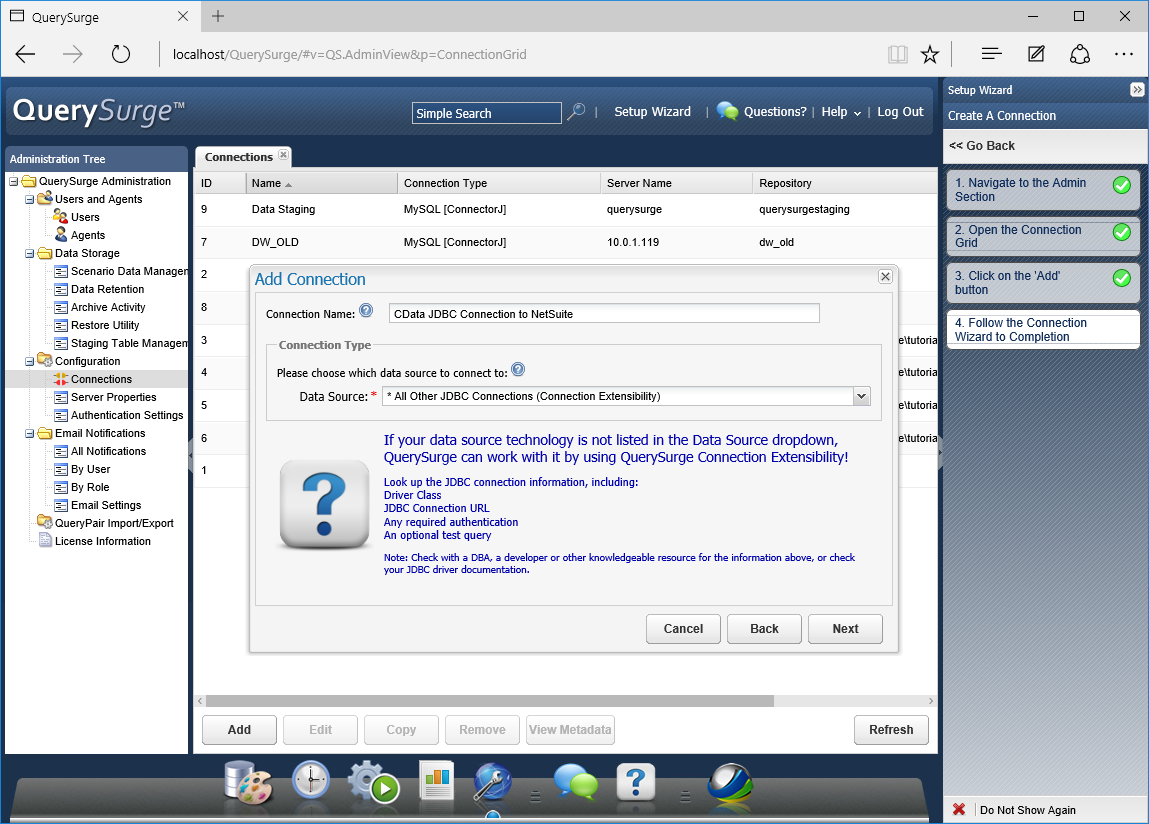
- Name the connection (e.g. CData JDBC Connection to UKG Pro WFM).
- Set the Data Source to "All Other JDBC Connections (Connection Extensibility)" and click Next.
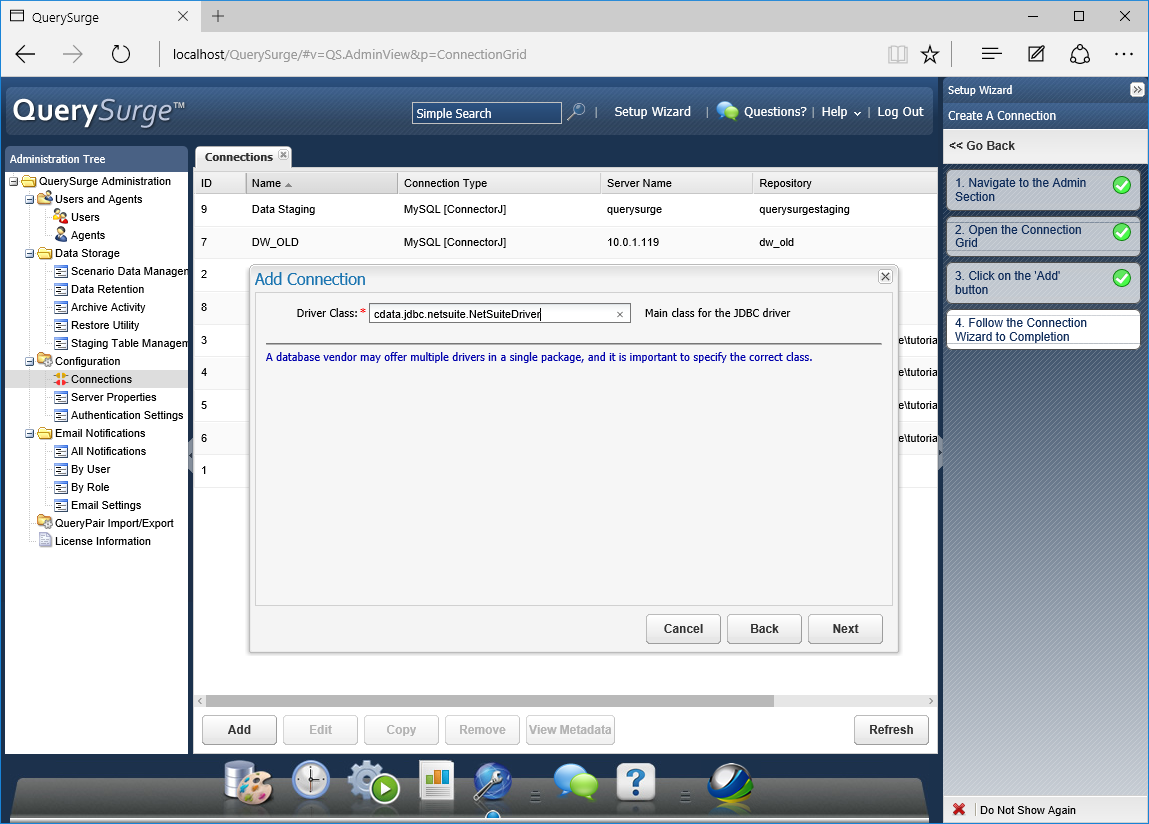
- Set the Driver Class to cdata.jdbc.api.APIDriver and click Next.
Set the Connection URL using the necessary connection properties to authenticate with UKG Pro WFM. Your Connection URL will look something like the following:
jdbc:api:Profile=C:\profiles\UKGProWFM.apip;AuthScheme=OAuthPassword;ProfileSettings='Host=yourcompany.mykronos.com;User=your_username;Password=your_password;';OAuthClientId=your_client_id;OAuthClientSecret=your_client_secret;
Built-in Connection String Designer
For assistance in constructing the JDBC URL, use the connection string designer built into the UKG Pro WFM JDBC Driver. Either double-click the JAR file or execute the jar file from the command-line.
java -jar cdata.jdbc.api.jarFill in the connection properties and copy the connection string to the clipboard.
Start by setting the Profile connection property to the location of the UKGProWFM Profile on disk (e.g. C:\profiles\UKGProWFM.apip). Next, set the ProfileSettings connection property to the connection string for UKGProWFM (see below).
UKGProWFM API Profile Settings
UKG Pro Workforce Management uses OAuth 2.0 with the Resource Owner Password Credentials grant (grant_type=password) to authorize access to the API. Unlike most OAuth-based profiles, this does not use a browser redirect/authorization-code step: the driver exchanges your UKG Pro WFM username, password, client ID, and client secret directly for an access token.
Set the following connection properties to authenticate:
- AuthScheme: Set this to OAuthPassword.
- Host: Set this to the hostname of your UKG Pro Workforce Management datacenter/tenant (for example, yourcompany.mykronos.com). Do not include the protocol (https://) or a trailing slash.
- OAuthClientId: Set this to the client ID issued for your UKG Pro Workforce Management OAuth application.
- OAuthClientSecret: Set this to the client secret issued for your UKG Pro Workforce Management OAuth application.
- User: Set this to your UKG Pro Workforce Management username.
- Password: Set this to your UKG Pro Workforce Management password.
Access tokens are obtained from https://{Host}/api/authentication/access_token. Refresh tokens issued by UKG Pro Workforce Management expire after 7 days; if a refresh attempt fails because the refresh token itself has expired, the driver must re-authenticate with your User/Password credentials to obtain a new access token.

- Set the Test Query to enable the Test Connection button for the Connection (e.g. SELECT * FROM Employees LIMIT 1) and click Next.
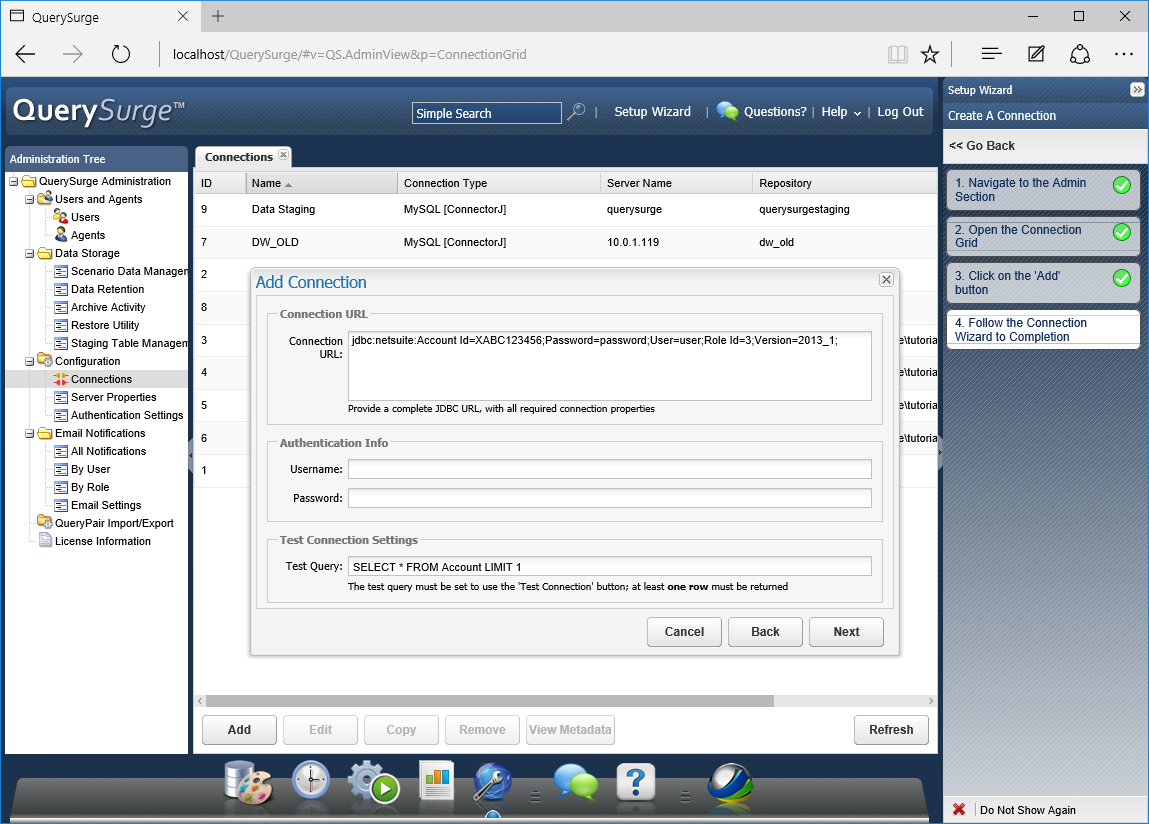
- Click Test Connection to ensure the connection is configured properly and click Save to add the connection.
Once the connection is added, you can write SQL queries against your UKG Pro WFM data in QuerySurge.
Compare UKG Pro WFM Data Queries with a QueryPair
With the connection configured, you can follow the steps below to compare querying UKG Pro WFM data with a QueryPair.
- Select "Design Library" from the Design Menu
- Click QueryPairs under QuerySurge Design
- Click "Create New QueryPair"
- Name the QueryPair and click Save
- In either the Source or Target panes, select the connection created above (select the same connection to query UKG Pro WFM twice or another connection to perform a comparison)
- Write queries in the Editor for each pane, e.g. SELECT * FROM Employees
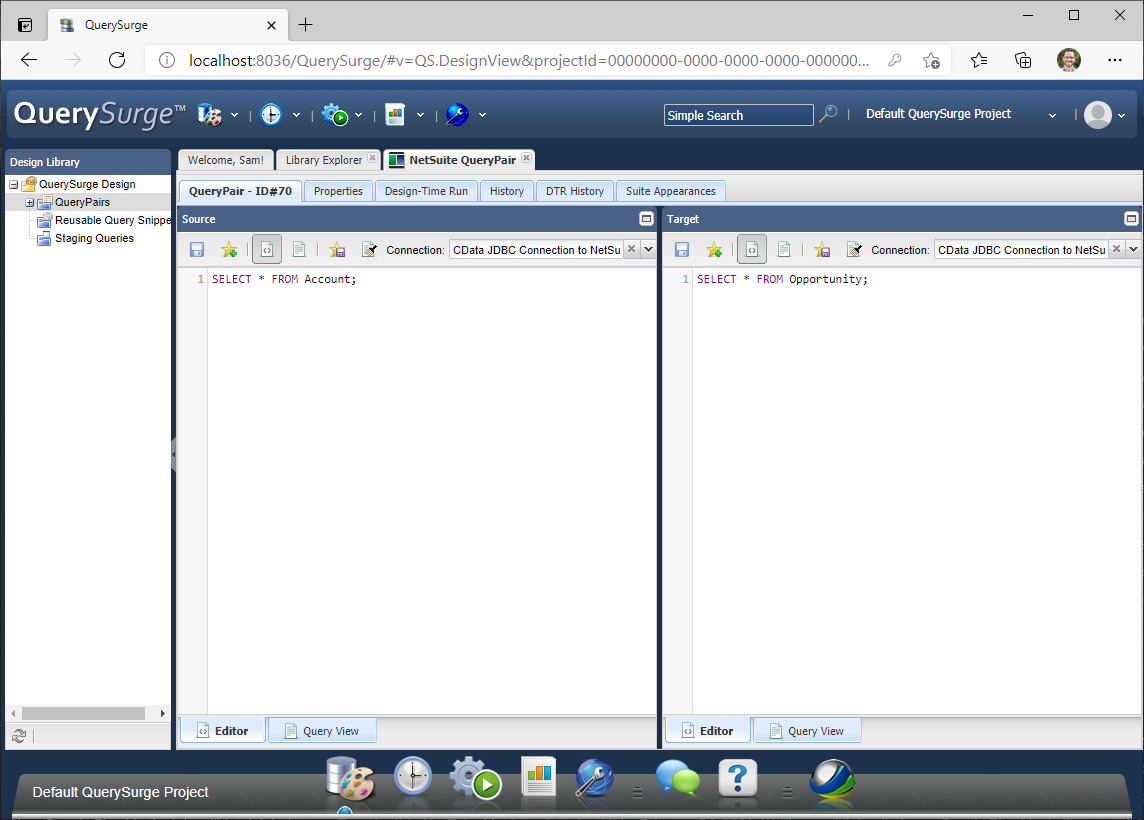
- Click the "Design-Time Run" tab to execute the queries
- When the query execution is finished, click "View Query Results" to see the UKG Pro WFM data returned by the query

Download a free, 30-day trial of the CData API Driver for JDBC and start working with your live UKG Pro WFM data in QuerySurge. Reach out to our Support Team if you have any questions.