




Integrating UKG Pro WFM Data in Talend Cloud Data Management Platform

Qlik's Talend Cloud Data Management Platform supports various data environments, enabling analytics for smarter decisions, operational data sharing, data and application modernization, and establishing data excellence for risk reduction. When paired with the CData API Driver for JDBC, you can improve data integration, quality, and governance for your UKG Pro WFM Data. This article shows how you can easily integrate to UKG Pro WFM using a CData JDBC Driver in Talend Cloud Data Management, and then view the data for simultaneous use in your workflow.
Prerequisites
Before connecting the CData JDBC Driver to view and work with your data in Talend Cloud Data Management Platform, make sure to download and install the latest version of Talend Studio on your system. Also, ensure that you have the required prerequisites.
- A Talend Cloud Data Management account with appropriate permissions.
- The CData API Driver for JDBC, which can be downloaded from the CData website.
Connect to UKG Pro WFM in Talend as a JDBC data source
Access Talend Data Management Cloud
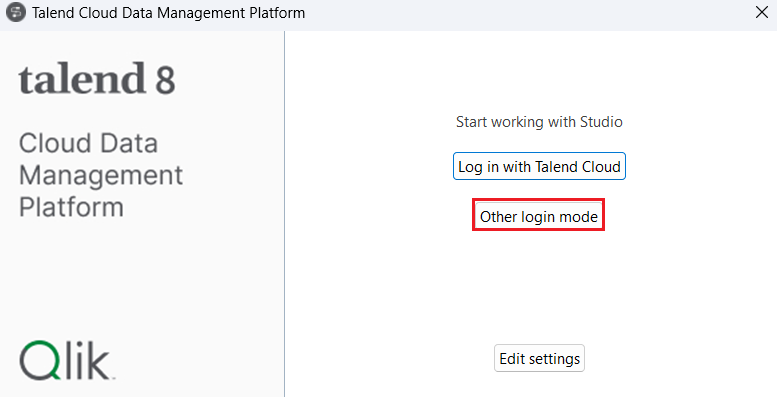
- Run the Talend Cloud Data Management Platform installed on your local system and click on Other Login Mode.
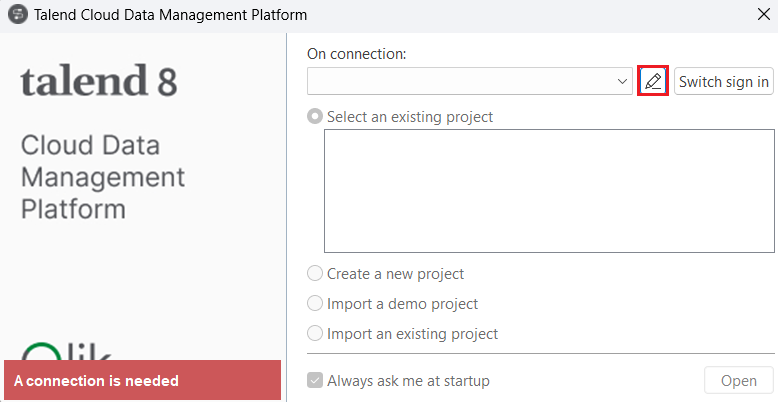
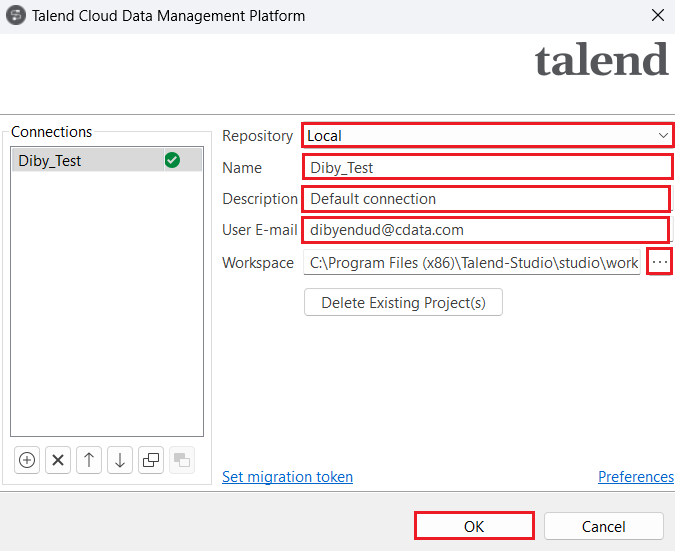
- Click on Manage Connections. Set Repository to "Local" and enter the Name, Description and User E-mail in the respective spaces. Set the Workspace path and click on OK.
- Now, select the Create a new project radio button to add a new project name and click on Create.
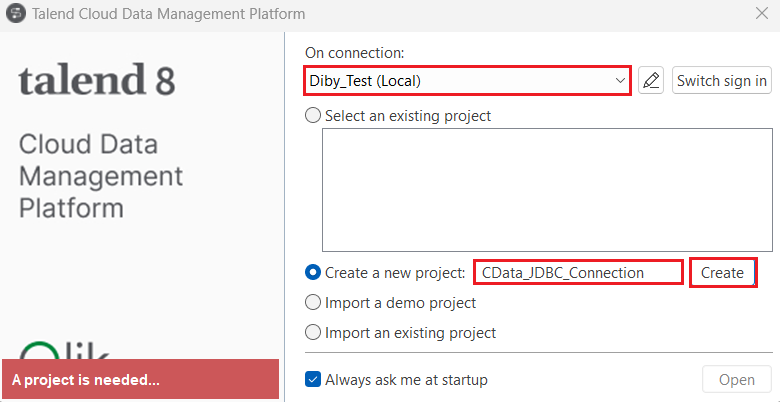
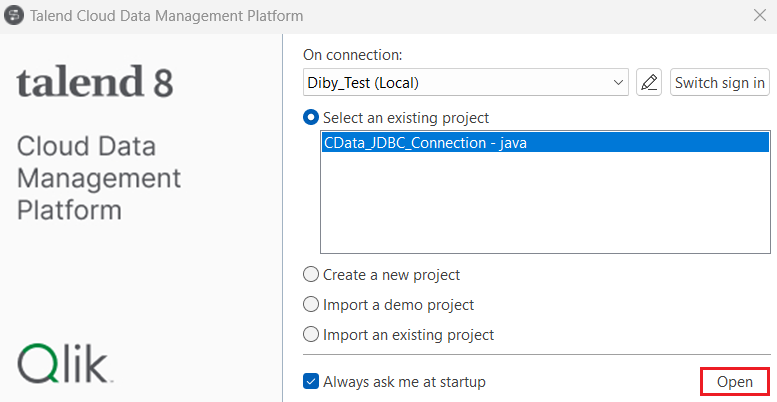
- The new project should appear under the Select an existing project section. Click on Open. The Talend Cloud Data Management Platform workspace opens up.
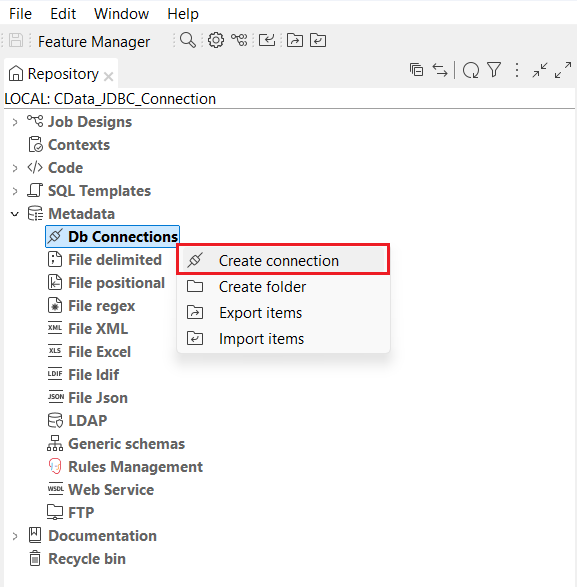
Create a new connection
- In the navigation pane, locate and expand the Metadata dropdown. Right-click on Db Connections and select Create Connection.
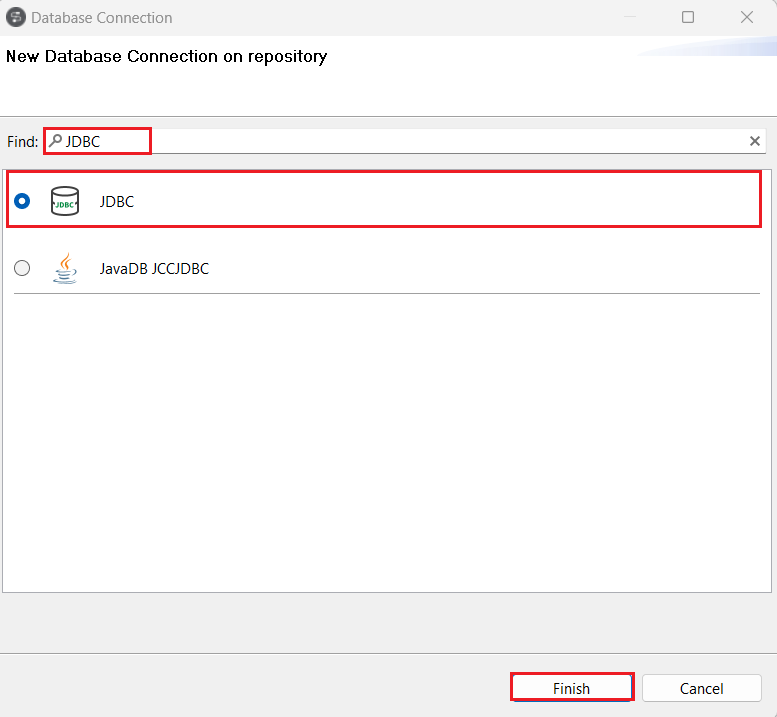
- Search for and select 'JDBC' in the Find section of the Database Connection window. Then, click on Finish.
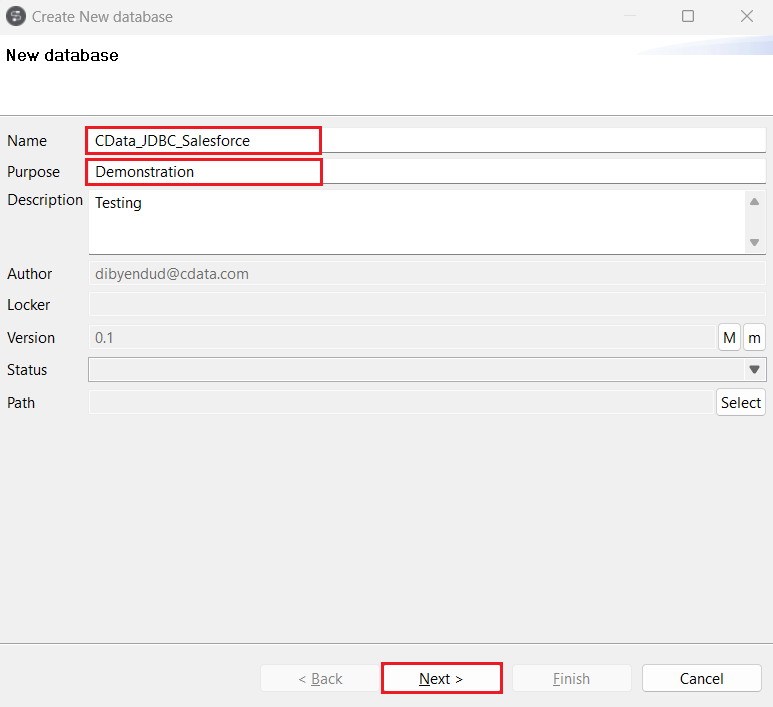
- Enter the Name, Purpose and Description of the new database in Talend where you need to load the UKG Pro WFM data. Click on Next.
- Generate a JDBC URL for connecting to UKG Pro WFM, beginning with jdbc:api: followed by a series of semicolon-separated connection string properties.
Start by setting the Profile connection property to the location of the UKGProWFM Profile on disk (e.g. C:\profiles\UKGProWFM.apip). Next, set the ProfileSettings connection property to the connection string for UKGProWFM (see below).
UKGProWFM API Profile Settings
UKG Pro Workforce Management uses OAuth 2.0 with the Resource Owner Password Credentials grant (grant_type=password) to authorize access to the API. Unlike most OAuth-based profiles, this does not use a browser redirect/authorization-code step: the driver exchanges your UKG Pro WFM username, password, client ID, and client secret directly for an access token.
Set the following connection properties to authenticate:
- AuthScheme: Set this to OAuthPassword.
- Host: Set this to the hostname of your UKG Pro Workforce Management datacenter/tenant (for example, yourcompany.mykronos.com). Do not include the protocol (https://) or a trailing slash.
- OAuthClientId: Set this to the client ID issued for your UKG Pro Workforce Management OAuth application.
- OAuthClientSecret: Set this to the client secret issued for your UKG Pro Workforce Management OAuth application.
- User: Set this to your UKG Pro Workforce Management username.
- Password: Set this to your UKG Pro Workforce Management password.
Access tokens are obtained from https://{Host}/api/authentication/access_token. Refresh tokens issued by UKG Pro Workforce Management expire after 7 days; if a refresh attempt fails because the refresh token itself has expired, the driver must re-authenticate with your User/Password credentials to obtain a new access token.
Built-in Connection String Designer
For assistance in constructing the JDBC URL, use the connection string designer built into the UKG Pro WFM JDBC Driver. Either double-click the JAR file or execute the jar file from the command-line.
java -jar cdata.jdbc.api.jarFill in the connection properties and copy the connection string to the clipboard.

A typical JDBC URL is below:
jdbc:api:Profile=C:\profiles\UKGProWFM.apip;AuthScheme=OAuthPassword;ProfileSettings='Host=yourcompany.mykronos.com;User=your_username;Password=your_password;';OAuthClientId=your_client_id;OAuthClientSecret=your_client_secret; Enter the JDBC URL copied from CData API Driver for JDBC in Edit new database.

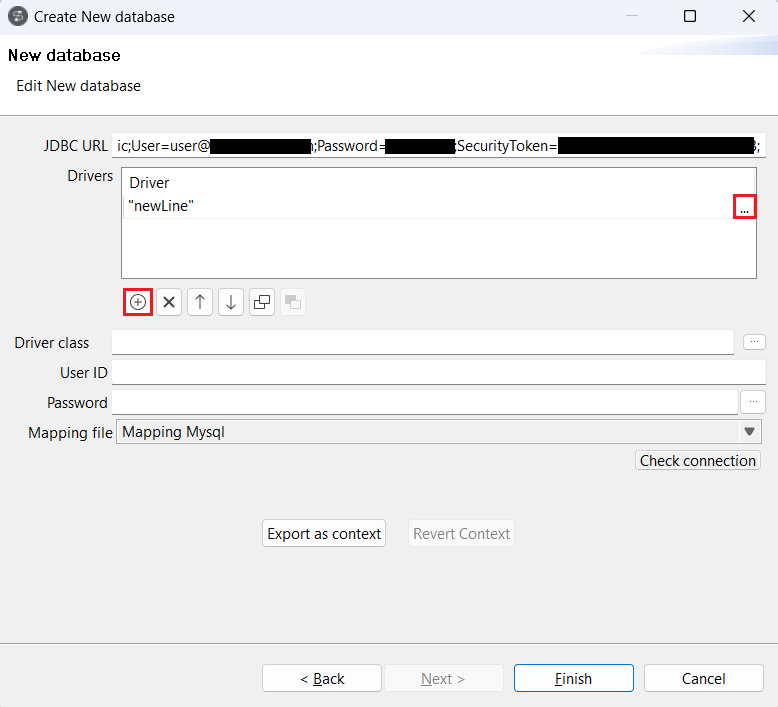
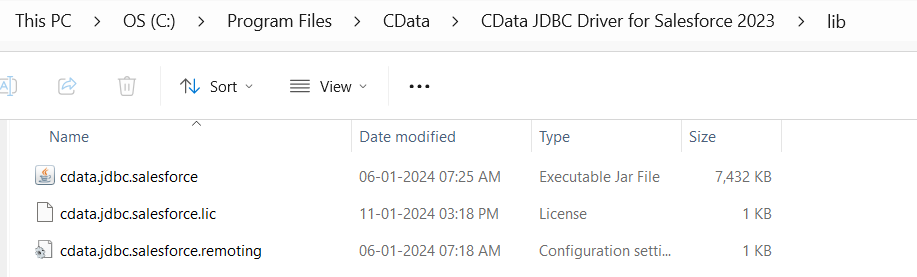
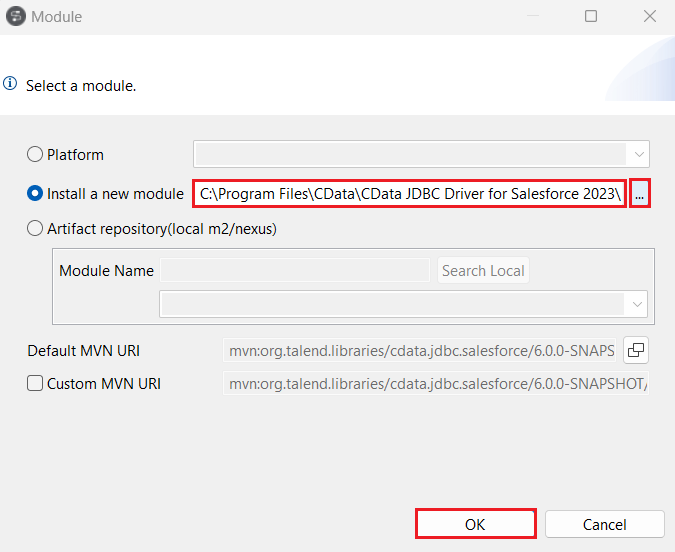
- Click on the "(+) Add" button under Drivers. A 'newLine' will appear in the Drivers board. Click on (...) at the end of the new line, select the Install a new module radio button, and click on (...) to add the path to the JAR file, located in the 'lib' subfolder of the installation directory. Click on OK.
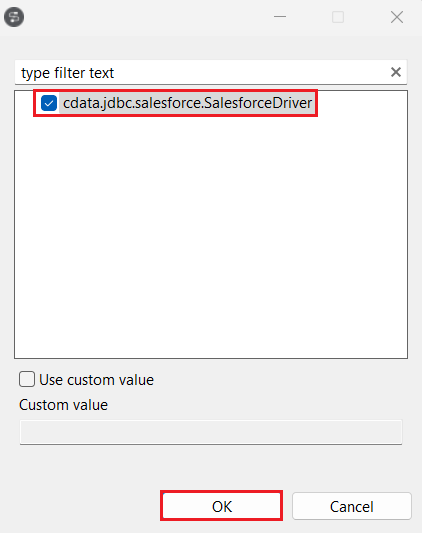
- Select the Driver Class as cdata.jdbc.api (JAR file obtained from your installation directory given in the previous step).
Test the new connection
- Click on Check Connection. If the entered details are correct, a "Connection successful" confirmation prompt will appear. Click on "OK" and "Finish".
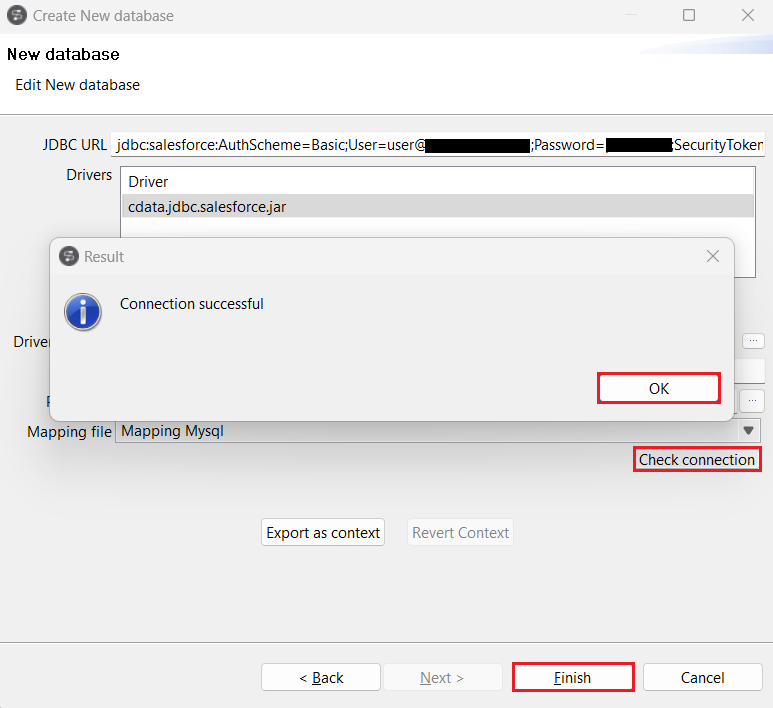
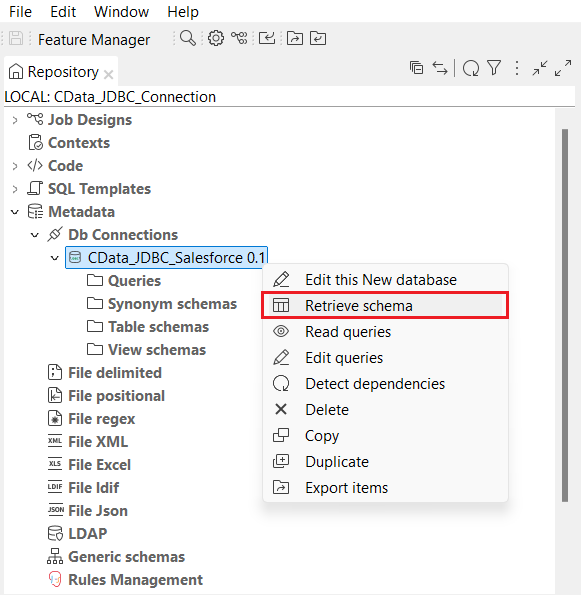
- Once the connection is established, right-click on the newly created connection and select Retrieve Schema. You can use the filters as well to retrieve the data as per your requirements. Click on Next.
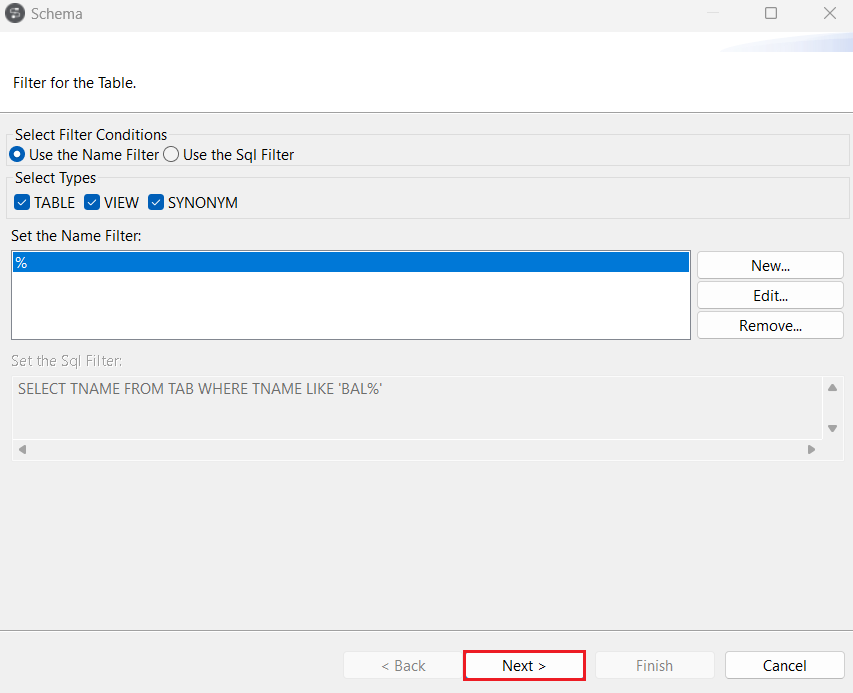
- Expand the "CData" catalog in the Schema window and select the tables you want to import from the UKG Pro WFM schema. Click on Next.
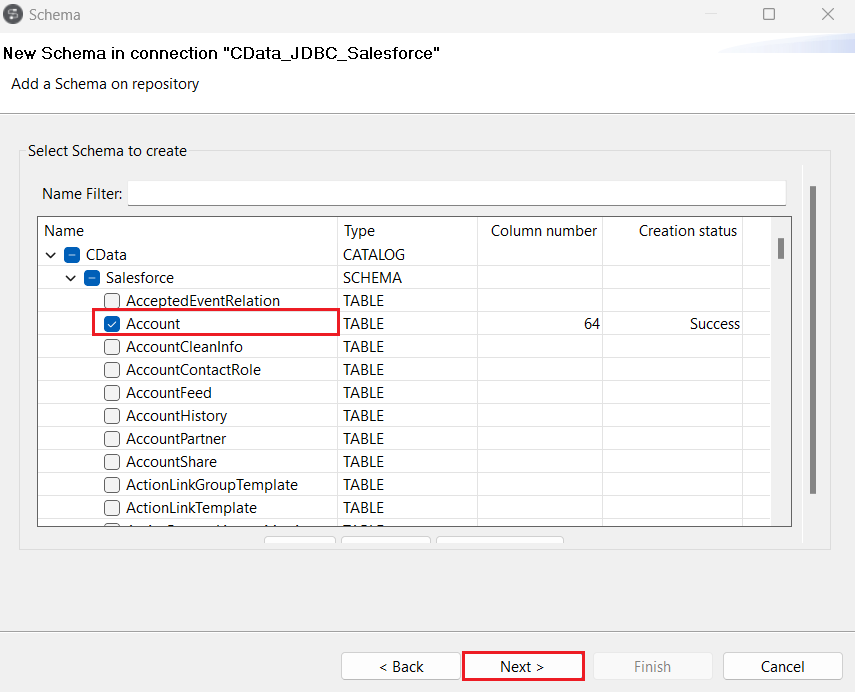
- In the next step, select the columns you want to view from the table and click on Finish.
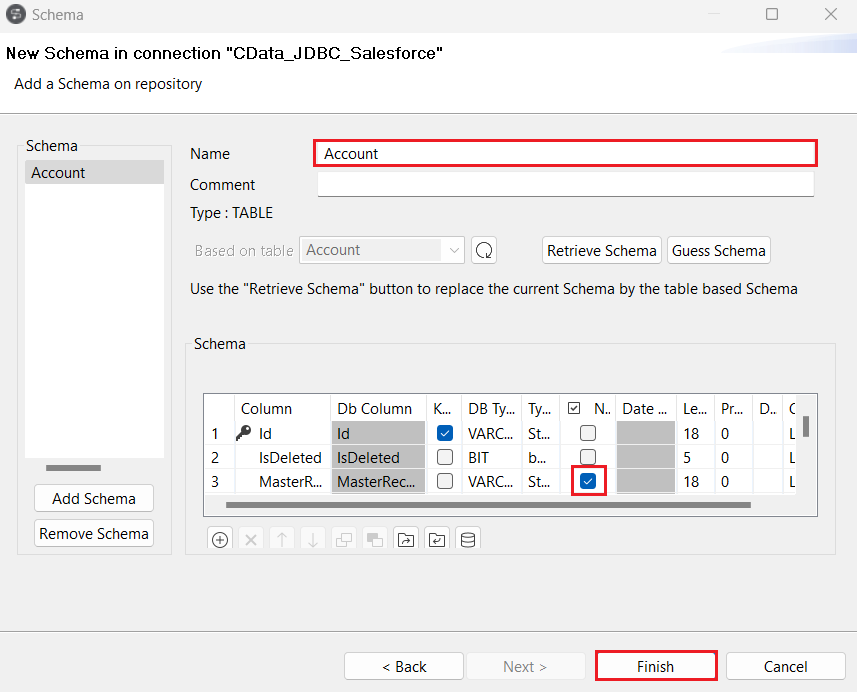
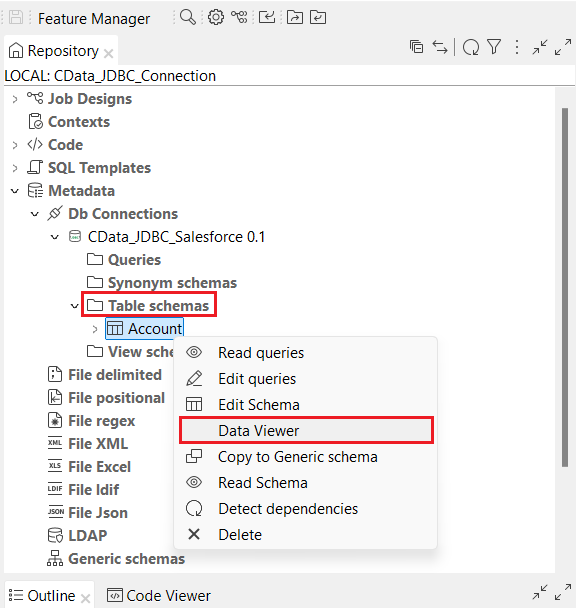
- All the selected tables from the UKG Pro WFM schema are now populated under the Table Schemas section of the JDBC connection.
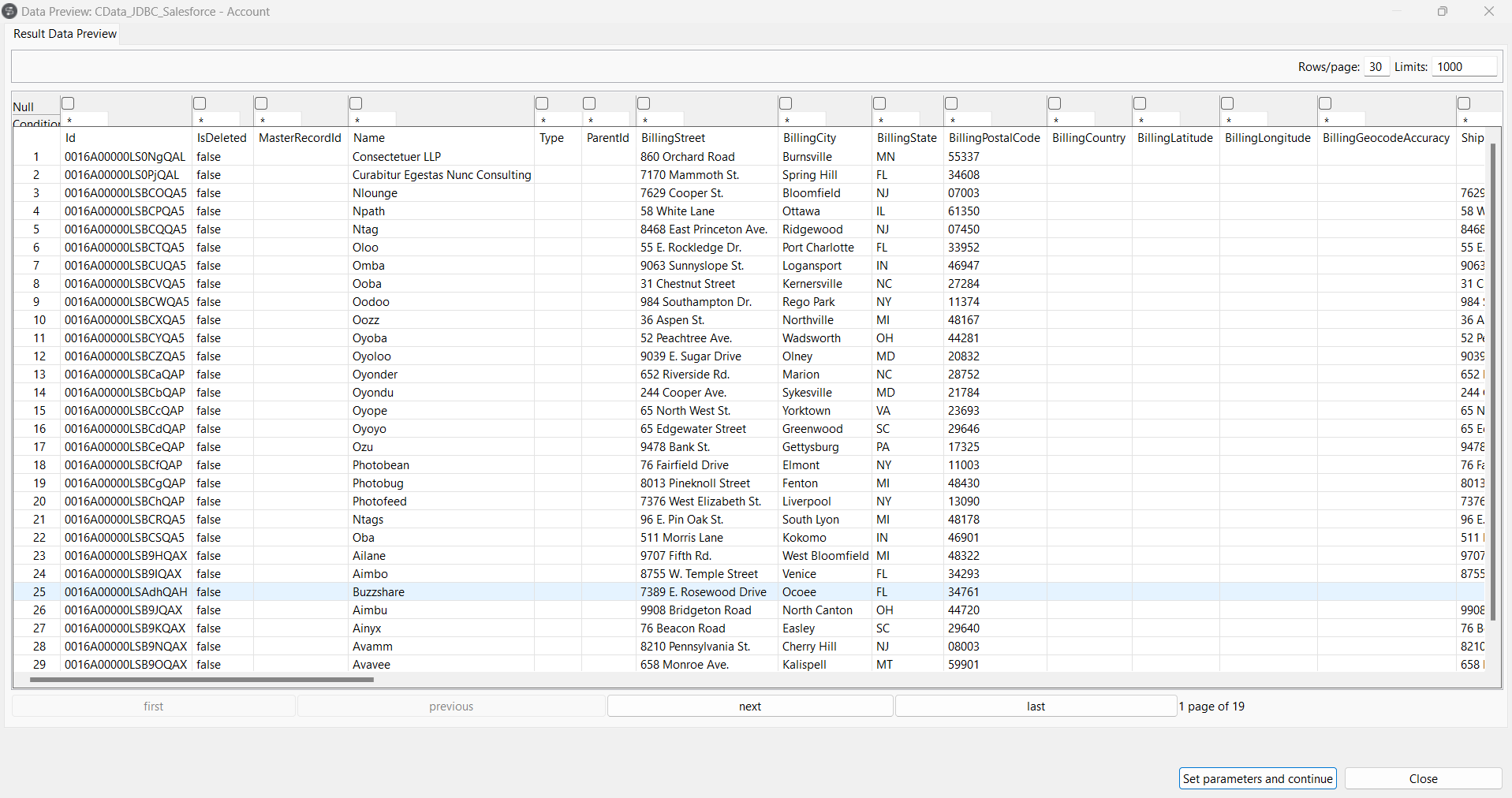
- Right-click on any of the selected tables and click on Data Viewer to preview the data from the data source.
Get Started Today
Download a free, 30-day trial of the CData API Driver for JDBC and integrate UKG Pro WFM data into Talend Cloud Data Management Platform. Reach out to our Support Team if you have any questions.