




Easily Integrate UKG Pro WFM Data in Lazarus Pascal IDE

Lazarus Pascal IDE is a powerful, free, open-source development environment for building cross-platform applications. With the CData API Driver for ODBC, you can seamlessly integrate and query live UKG Pro WFM data, bringing real-time insights within your Lazarus Pascal IDE applications to enhance reporting, dashboards, and workflows.
This guide provides a comprehensive walkthrough, from setting up the connection to leveraging live UKG Pro WFM in Lazarus Pascal IDE. Whether you're building reports, dashboards, or complex workflows, you'll gain the tools to unlock real-time insights and functionality within your applications.
Overview
Here is an overview of the steps:
- Configure the DSN for UKG Pro WFM data in the CData API Driver for ODBC with the necessary connection properties.
- Set up the ODBC connection in Lazarus by configuring the TSQLConnector, TSQLQuery, TDataSource, and TDBGrid components with the required details.
- Test the connection to UKG Pro WFM data by writing sample code on the Main form.
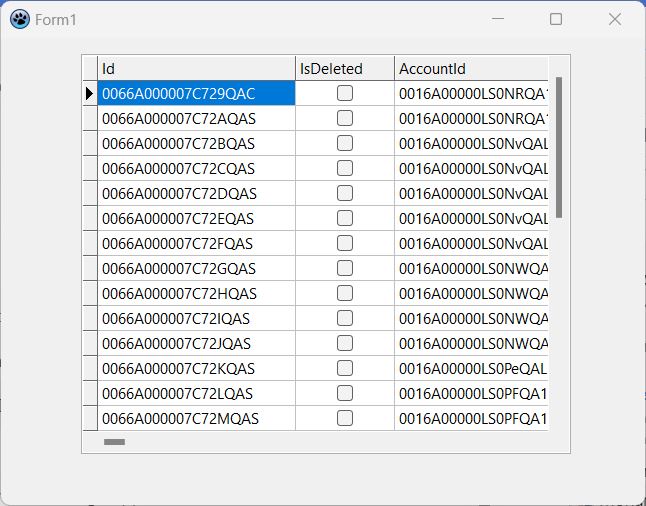
- Compile and run the application to verify the successful integration and display of live UKG Pro WFM data.
Prerequisites
Before starting, ensure you have the following:
- Lazarus IDE (version 3.4 recommended). Download from here.
- CData API Driver for ODBC. Download and try the latest version from here.
Configure the UKG Pro WFM DSN Using the CData ODBC Driver
To start, configure the DSN (Data Source Name) for UKG Pro WFM data in your system using the CData API Driver for ODBC. Download and install a 30-day free trial with all the features from here.
Once installed, launch the ODBC Data Source Administrator:
- On Windows: Search for ODBC Data Source Administrator in the Start menu and open the application.
- On Mac: Open Applications, go to Utilities, and select ODBC Manager.
- On Linux: Use the command line to launch ODBC Data Source Administrator or use unixODBC if installed.
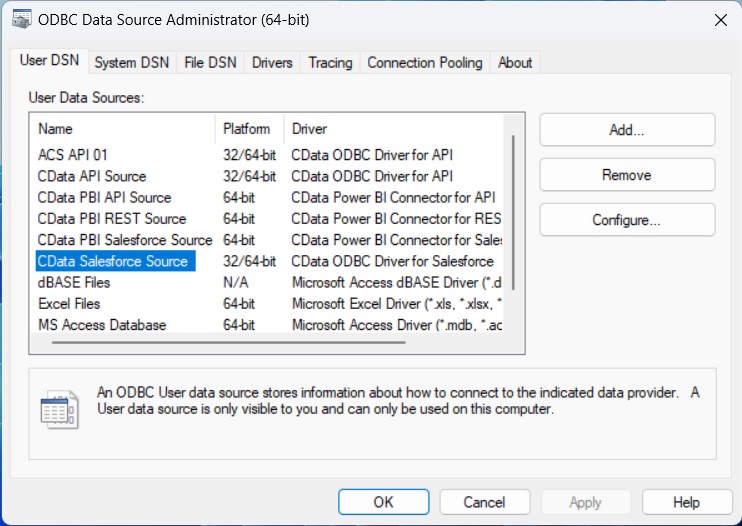
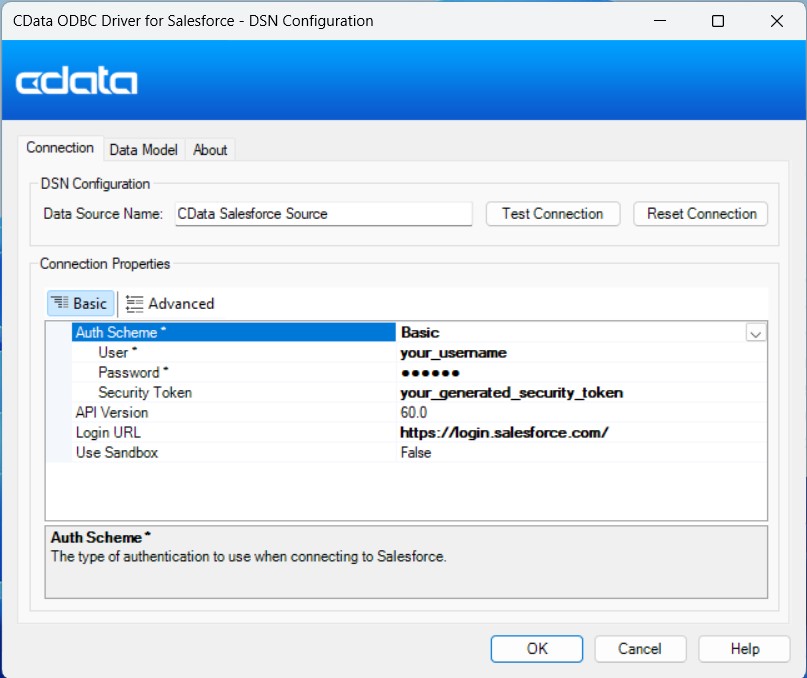
Once launched, double-click on the CData UKG Pro WFM data Source and enter the required values to establish a connection:
Start by setting the Profile connection property to the location of the UKGProWFM Profile on disk (e.g. C:\profiles\UKGProWFM.apip). Next, set the ProfileSettings connection property to the connection string for UKGProWFM (see below).
UKGProWFM API Profile Settings
UKG Pro Workforce Management uses OAuth 2.0 with the Resource Owner Password Credentials grant (grant_type=password) to authorize access to the API. Unlike most OAuth-based profiles, this does not use a browser redirect/authorization-code step: the driver exchanges your UKG Pro WFM username, password, client ID, and client secret directly for an access token.
Set the following connection properties to authenticate:
- AuthScheme: Set this to OAuthPassword.
- Host: Set this to the hostname of your UKG Pro Workforce Management datacenter/tenant (for example, yourcompany.mykronos.com). Do not include the protocol (https://) or a trailing slash.
- OAuthClientId: Set this to the client ID issued for your UKG Pro Workforce Management OAuth application.
- OAuthClientSecret: Set this to the client secret issued for your UKG Pro Workforce Management OAuth application.
- User: Set this to your UKG Pro Workforce Management username.
- Password: Set this to your UKG Pro Workforce Management password.
Access tokens are obtained from https://{Host}/api/authentication/access_token. Refresh tokens issued by UKG Pro Workforce Management expire after 7 days; if a refresh attempt fails because the refresh token itself has expired, the driver must re-authenticate with your User/Password credentials to obtain a new access token.
Create a New GUI Project
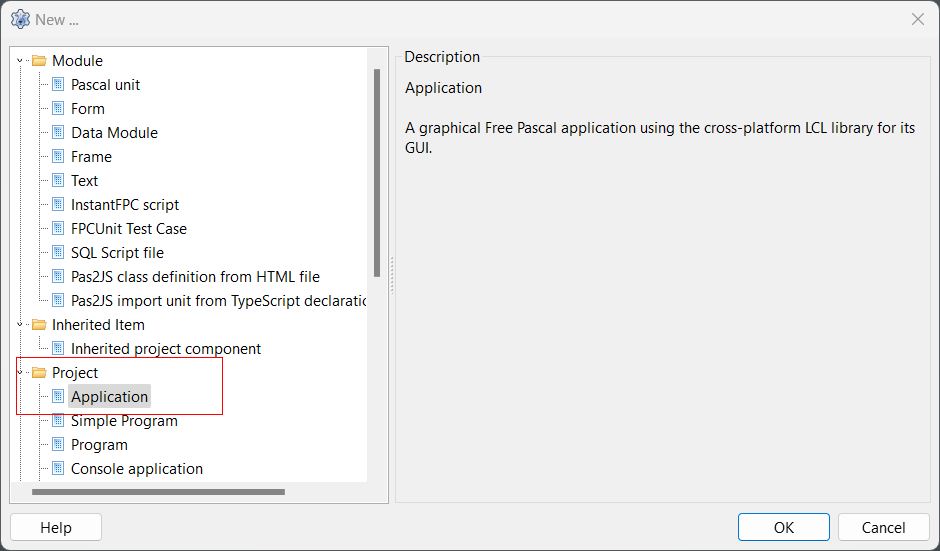
- Launch the Lazarus IDE.
- Navigate to File > New > Application to create a new GUI project with a Main form.
Add Required Connection Components to the Form
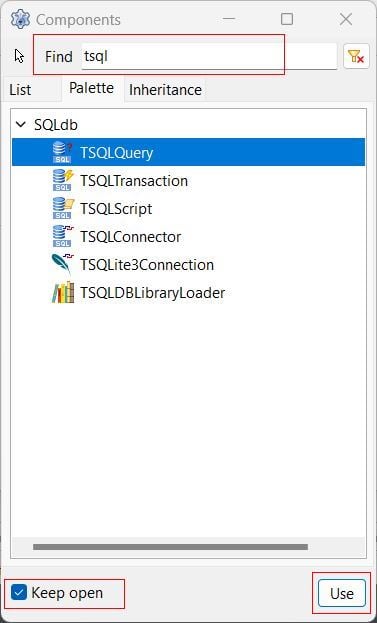
- Go to View > Component > Palette and check the Keep open at the bottom-left to keep the Components window persistently open.
-
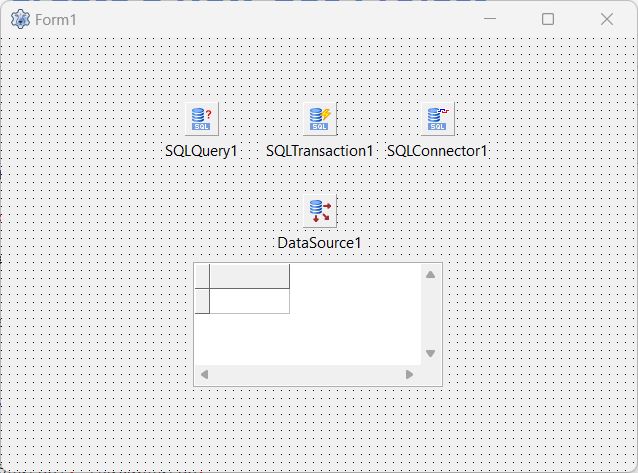
Search for the following components and add them to the Main form Form1 by clicking on Use at the bottom right.
- TSQLConnector
- TSQLTransaction
- TSQLQuery
- TDataSource
- TDBGrid

Configure the TSQLConnector Component
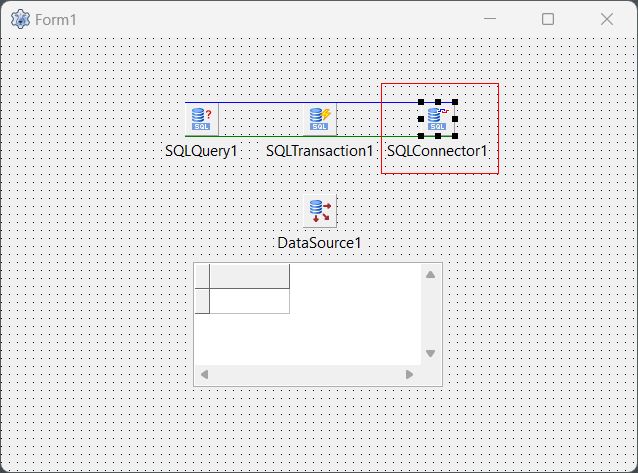
The TSQLConnector component in Lazarus Pascal IDE facilitates connections between your application and various databases or database APIs. Here's how to configure it:
- Select the TSQLConnector component on the Main form.
- Open the Object Inspector if it's not already open by going to View > Object Inspector
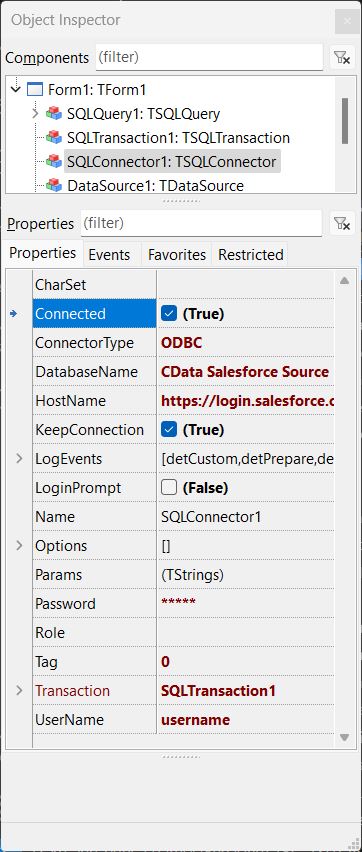
- In the Object Inspector on the left, set the following properties under the Properties section:
Property Value Connected True Driver ODBC DatabaseName Your DSN name (e.g., CData UKG Pro WFM Source) UserName Your database username Password Your database password HostName UKG Pro WFM URL or localhost for local databases LoginPrompt False Transaction Select your TSQLTransaction component
If your credentials require a security token, follow these steps:
- Double-click the Main Form in the Lazarus Pascal IDE to open the code editor.
- Locate the procedure TForm1.FormCreate(Sender: TObject); section.
- Paste the following code below the begin keyword. Replace 'your_security_token' with your actual security token:
SQLConnector1.Params.Values ['Password'] :=
  SQLConnector1.Params.Values ['Password'] + 'your_security_token';
Configure the TSQLQuery Component
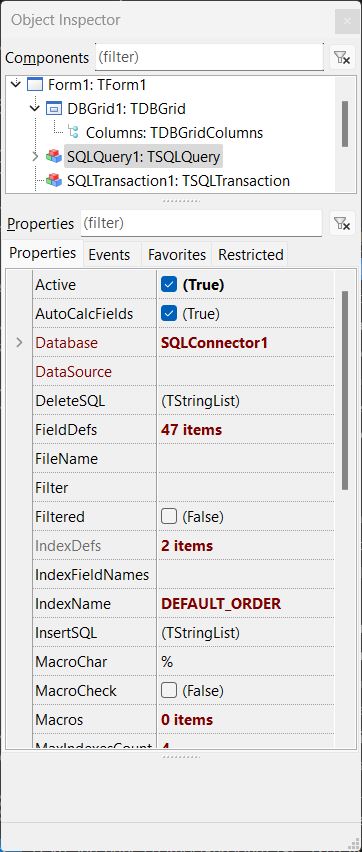
The TSQLQuery component in Lazarus Pascal IDE receives SQL code for queries and retrieves data from a database, simplifying data manipulation. Configure using the following info:
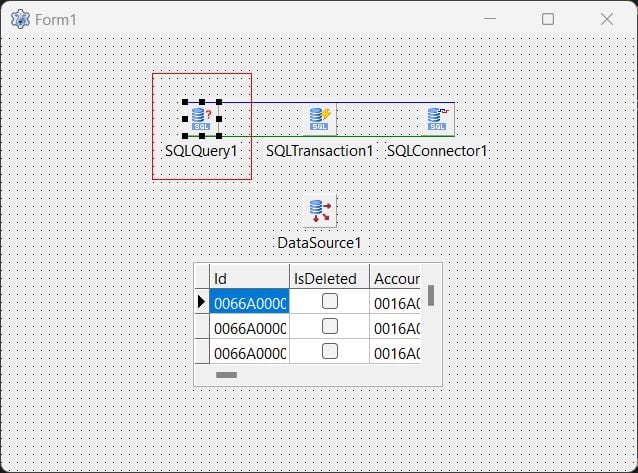
- Select the TSQLQuery component in the Main form.
- Set the following properties in the Object Inspector under the Properties section:
Property Value Active True DataBase Select the name of your TSQLConnector component SQL (Click 3 dots) Your query (e.g., SELECT * FROM Employees) Transaction Your TSQLTransaction component
Configure the TDataSource, TDBGrid, TSQLTransaction Components
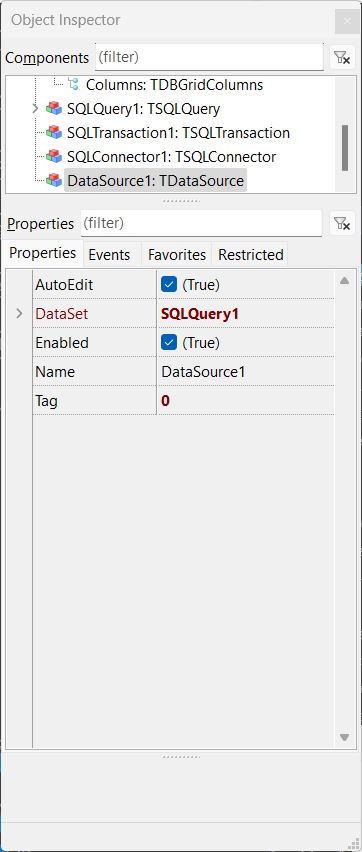
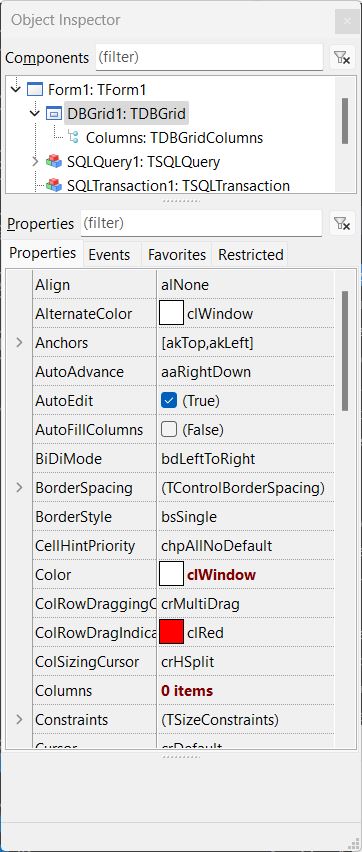
The TDataSource component in Lazarus Pascal IDE bridges a dataset (e.g., TSQLQuery) with data-aware controls like TDBGrid, allowing data to be displayed and manipulated. The TDBGrid presents the data in a tabular format, while the TSQLTransaction ensures database operations maintain data integrity by executing within a transaction. Here's how to configure all three components:
- Select the TDataSource component and set its DataSet property to the name of your TSQLQuery component.
- Select the TDBGrid component and set its DataSource property to your TDataSource component.
- Select the TSQLTransaction component. Set the following properties:
- Active: True
- Database: The name of your TSQLConnector component

Add Code to Test the Connection
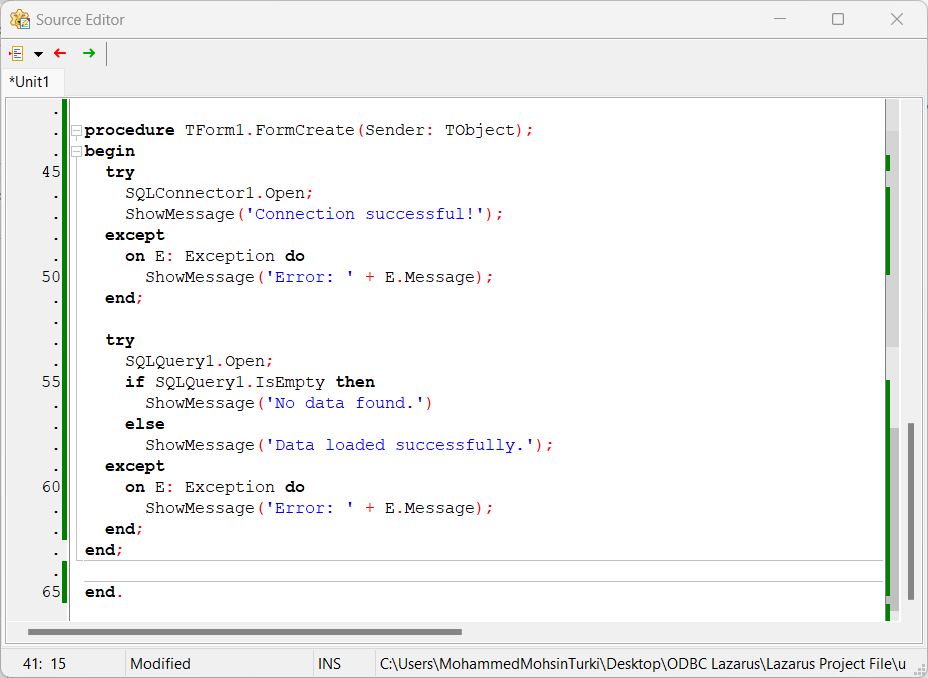
To successfully test the connection, use the following code:
- Double-click on the Main Form to open up the Source Editor.
- Add the following code under the begin keyword and before the end. keyword.
procedure TForm1.FormCreate(Sender: TObject);
begin
  // Code for your Security Token
    SQLConnector1.Params.Values ['Password'] :=
        SQLConnector1.Params.Values ['Password'] + 'your_security_token';
  try
    SQLConnector1.Open;
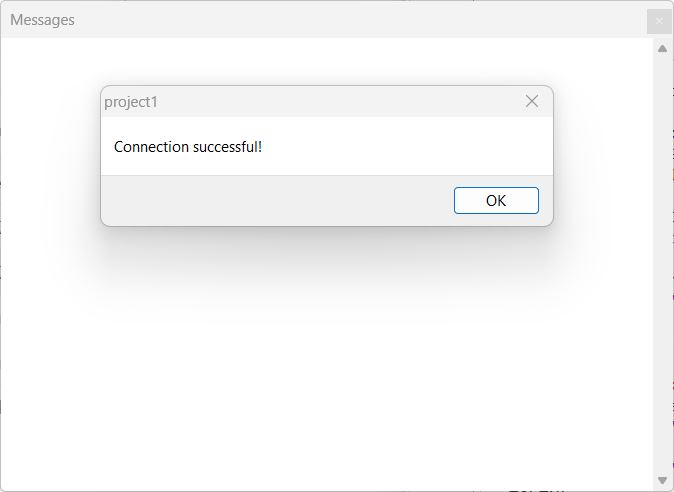
    ShowMessage('Connection successful!');
  except
    on E: Exception do
      ShowMessage('Error: ' + E.Message);
  end;

  try
    SQLQuery1.Open;
    if SQLQuery1.IsEmpty then
      ShowMessage('No data found.')
    else
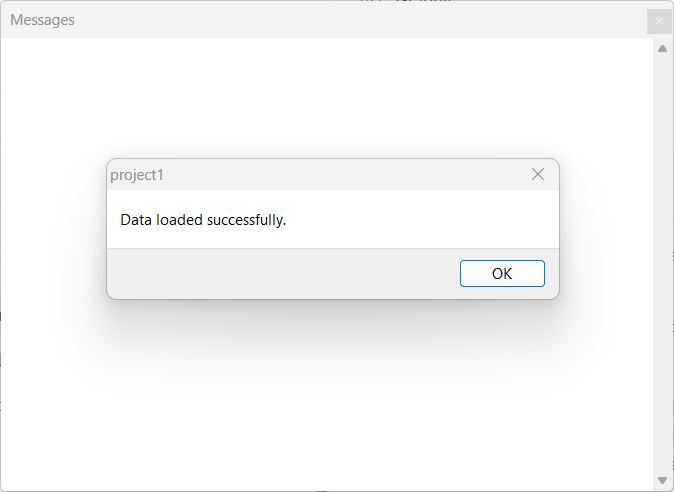
      ShowMessage('Data loaded successfully.');
  except
    on E: Exception do
      ShowMessage('Error: ' + E.Message);
  end;
end;

end.
Compile and Run the Application
Save your project. Go to Run > Compile, then Run, or use the shortcut F9 to execute your application.
Next Steps: Play with the Data
Now that your data is successfully imported into Lazarus, here are some ideas to explore its full potential:
- Enhance Your TDBGrid: Customize your TDBGrid to enable sorting, editing, or highlighting specific rows.
- Visualize Your Data: Use components like TChart to create graphs and charts for intuitive data representation.
- Filter and Search: Use components like TDBFilter or implement custom filtering logic to allow users to quickly focus on relevant data. Add a TEdit component for user input and link it to your filtering functionality.
- Export Your Data: Utilize TSVExport or TFileStream components to save your data in formats like CSV or Excel for sharing or integration into other systems.
- Perform Calculations: Use TFPCustomDataSet or your dataset's built-in features to calculate totals, averages, or other metrics. Display results in a TLabel or add them to your TDBGrid.
- Create Forms and Reports: Design interactive forms using TForm and TDBEdit for user interaction. For reports, integrate components like RLReport or FastReport to generate and print professional-quality reports.
Take your data-driven application to the next level with these enhancements!
Simplify Data Connectivity in Lazarus with CData
Unlock the full potential of live UKG Pro WFM data directly within Lazarus Pascal. Streamline your workflows, enhance productivity, and experience seamless integration like never before.
Start your free trial today and transform the way you connect and work with your data!