





Connect to UKG Pro WFM Data from PowerBuilder via ODBC

The CData ODBC Driver for UKG Pro WFM can be used from any platform or development technology that supports ODBC, including PowerBuilder. This article shows how to connect to UKG Pro WFM data and execute queries from the Database Painter and controls such as the DataWindow.
Connect to UKG Pro WFM as an ODBC Data Source
If you have not already, first specify connection properties in an ODBC DSN (data source name). This is the last step of the driver installation. You can use the Microsoft ODBC Data Source Administrator to create and configure ODBC DSNs.
Start by setting the Profile connection property to the location of the UKGProWFM Profile on disk (e.g. C:\profiles\UKGProWFM.apip). Next, set the ProfileSettings connection property to the connection string for UKGProWFM (see below).
UKGProWFM API Profile Settings
UKG Pro Workforce Management uses OAuth 2.0 with the Resource Owner Password Credentials grant (grant_type=password) to authorize access to the API. Unlike most OAuth-based profiles, this does not use a browser redirect/authorization-code step: the driver exchanges your UKG Pro WFM username, password, client ID, and client secret directly for an access token.
Set the following connection properties to authenticate:
- AuthScheme: Set this to OAuthPassword.
- Host: Set this to the hostname of your UKG Pro Workforce Management datacenter/tenant (for example, yourcompany.mykronos.com). Do not include the protocol (https://) or a trailing slash.
- OAuthClientId: Set this to the client ID issued for your UKG Pro Workforce Management OAuth application.
- OAuthClientSecret: Set this to the client secret issued for your UKG Pro Workforce Management OAuth application.
- User: Set this to your UKG Pro Workforce Management username.
- Password: Set this to your UKG Pro Workforce Management password.
Access tokens are obtained from https://{Host}/api/authentication/access_token. Refresh tokens issued by UKG Pro Workforce Management expire after 7 days; if a refresh attempt fails because the refresh token itself has expired, the driver must re-authenticate with your User/Password credentials to obtain a new access token.
Create a Profile for the ODBC Driver for UKG Pro WFM
Follow the steps below to use the Database Painter tool to create a database profile based on an ODBC DSN (data source name) for UKG Pro WFM. In the Database Painter, you can use wizards and the UI to work with UKG Pro WFM data.
- In PowerBuilder, click Tools -> Database Painter.
- In the Objects window in the Database Painter, right-click the ODBC node and click New Profile.
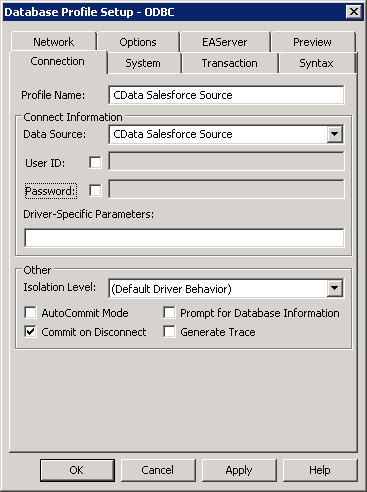
- On the Connection tab, enter a name for the profile and select the UKG Pro WFM DSN in the Data Source menu.
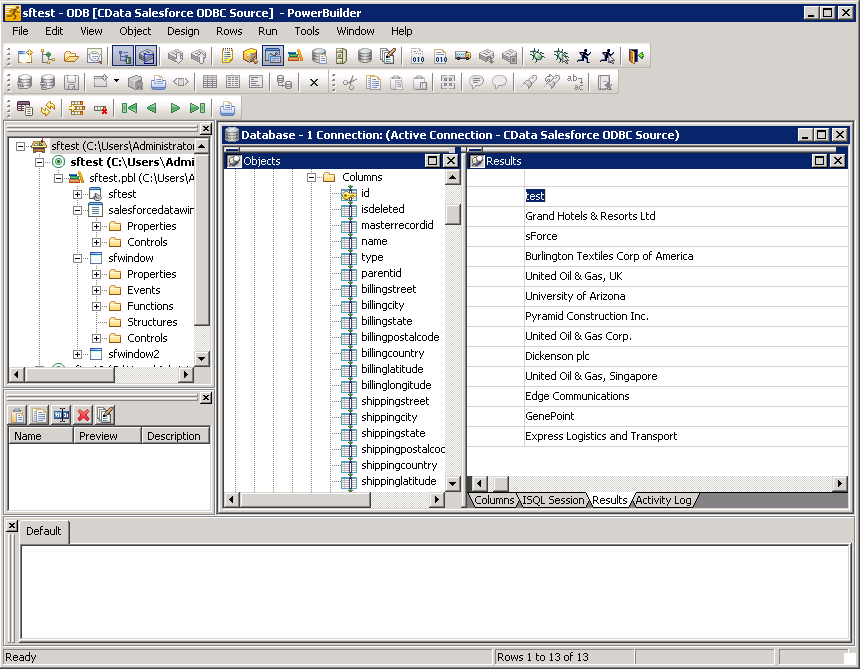
- To view and modify a table, right-click a table and then click Edit Data -> Grid.
Using UKG Pro WFM Data with PowerBuilder Controls
You can use standard PowerBuilder objects to connect to ODBC data sources and execute queries. The following example shows how to retrieve UKG Pro WFM data into a DataWindow. You can add the following code to the open method:
SQLCA.DBMS = "ODBC"
SQLCA.DBParm = "ConnectString='DSN=CData API Source'"
CONNECT USING SQLCA;
dw_employees.SetTransObject(SQLCA);
dw_employees.Retrieve();