




Migrating data from UKG Pro WFM to Snowflake using CData SSIS Components.

Snowflake is a leading cloud data warehouse and a popular backbone for enterprise BI, analytics, data management, and governance initiatives. Snowflake offers features such as data sharing, real-time data processing, and secure data storage which makes it a common choice for cloud data consolidation.
The CData SSIS Components enhance SQL Server Integration Services by enabling users to easily import and export data from various sources and destinations.
In this article, we explore the data type mapping considerations when exporting to Snowflake and walk through how to migrate UKG Pro WFM data to Snowflake using the CData SSIS Components for UKG Pro WFM and Snowflake.
Data Type Mapping
| Snowflake Schema | CData Schema |
|---|---|
|
NUMBER, DECIMAL, NUMERIC, INT, INTEGER, BIGINT, SMALLINT, TINYINT, BYTEINT |
decimal |
|
DOUBLE, FLOAT, FLOAT4, FLOAT8, DOUBLEPRECISION, REAL |
real |
|
VARCHAR, CHAR, STRING, TEXT, VARIANT, OBJECT, ARRAY, GEOGRAPHY |
varchar |
|
BINARY, VARBINARY |
binary |
|
BOOLEAN |
bool |
|
DATE |
date |
|
DATETIME, TIMESTAMP, TIMESTAMP_LTZ, TIMESTAMP_NTZ, TIMESTAMP_TZ |
datetime |
|
TIME |
time |
Special Considerations
- Casing: Snowflake enforces an exact case match by default for identifiers, so it is common to run into issues that can be attributed to mismatched casing. Set the IgnoreCase property to True in your CData SSIS Components for Snowflake connection to resolve these issues. This property directly maps to the QUOTED_IDENTIFIERS_IGNORE_CASE property in Snowflake and specifies whether Snowflake will treat identifiers as case-sensitive.
-
Timestamps: Snowflake supports three timestamp types:
- TIMESTAMP_NTZ: This timestamp stores UTC time with a specified precision. However, all operations are performed in the current session's time zone, controlled by the TIMEZONE session parameter.
- TIMESTAMP_LTZ: This timestamp stores "wallclock" time with a specified precision. All operations are performed without taking any time zone into account.
- TIMESTAMP_TZ: This timestamp stores UTC time together with an associated time zone offset. When a time zone isn't provided, the session time zone offset is used.
By default the CData SSIS Components write timestamps to Snowflake as TIMESTAMP_NTZ unless manually configured.
Prerequisites
- Visual Studio 2022
- SQL Server Integration Services Projects extension for Visual Studio 2022
- CData SSIS Components for Snowflake
- CData SSIS Components for UKG Pro WFM
Create the project and add components
-
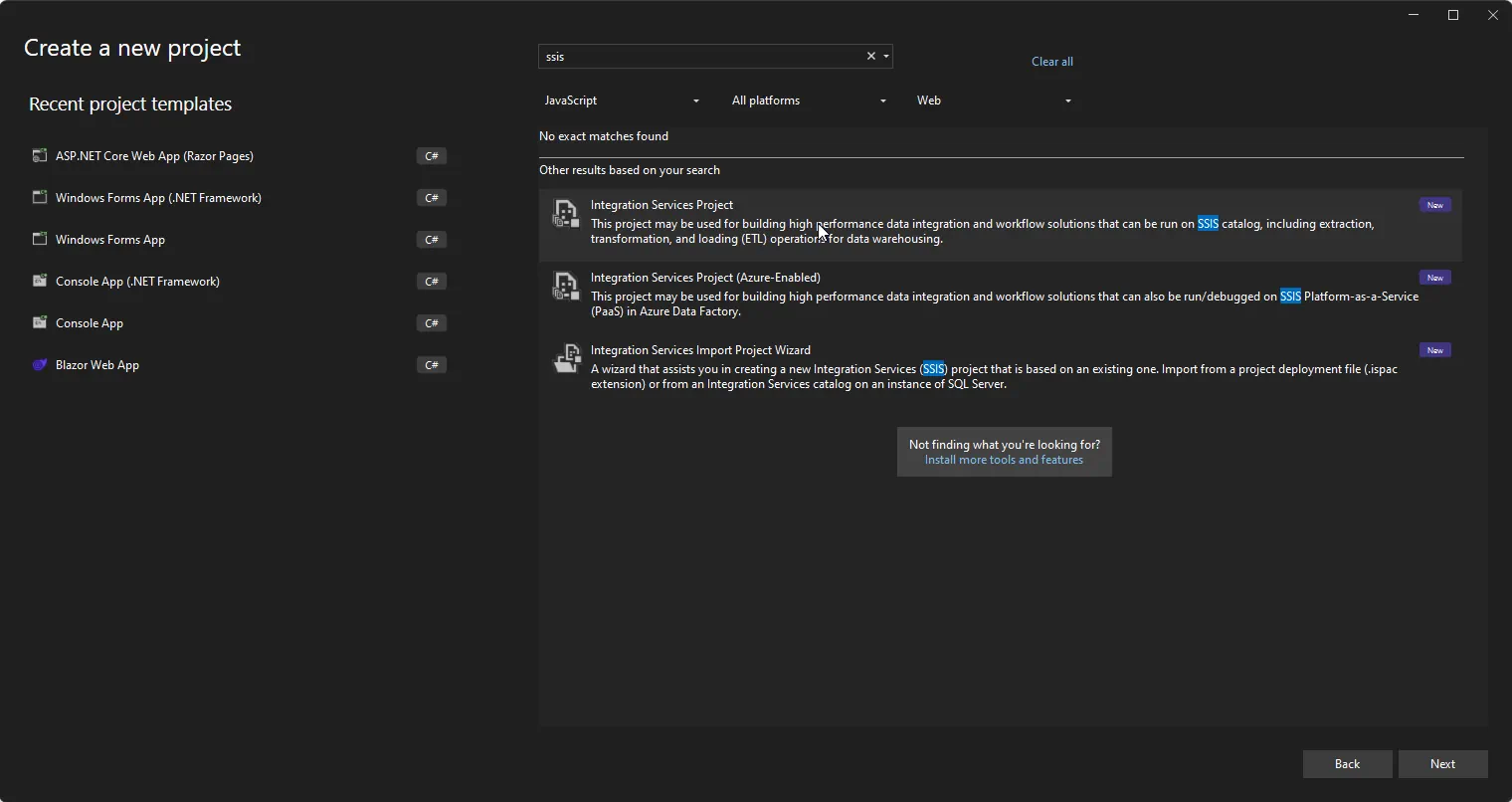
Open Visual Studio and create a new Integration Services Project.
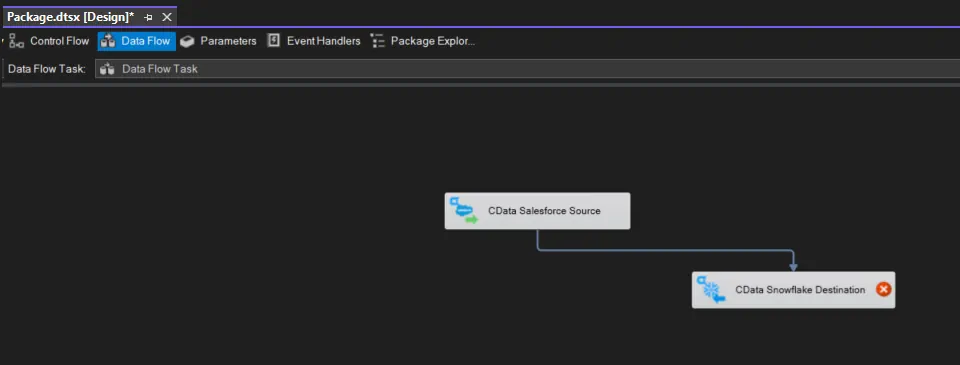
- Add a new Data Flow Task to the Control Flow screen and open the Data Flow Task.
-
Add a CData UKG Pro WFM Source control and a CData Snowflake Destination control to the data flow task.
Configure the UKG Pro WFM source
Follow the steps below to specify properties required to connect to UKG Pro WFM.
-
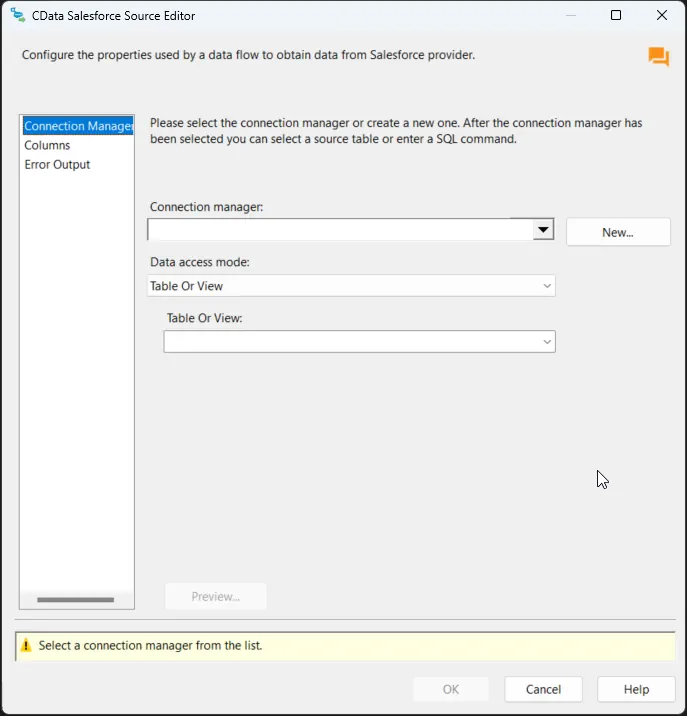
Double-click the CData UKG Pro WFM Source to open the source component editor and add a new connection.
-
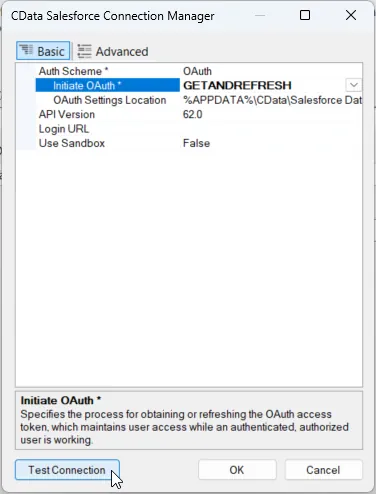
In the CData UKG Pro WFM Connection Manager, configure the connection properties, then test and save the connection.
Start by setting the Profile connection property to the location of the UKGProWFM Profile on disk (e.g. C:\profiles\UKGProWFM.apip). Next, set the ProfileSettings connection property to the connection string for UKGProWFM (see below).
UKGProWFM API Profile Settings
UKG Pro Workforce Management uses OAuth 2.0 with the Resource Owner Password Credentials grant (grant_type=password) to authorize access to the API. Unlike most OAuth-based profiles, this does not use a browser redirect/authorization-code step: the driver exchanges your UKG Pro WFM username, password, client ID, and client secret directly for an access token.
Set the following connection properties to authenticate:
- AuthScheme: Set this to OAuthPassword.
- Host: Set this to the hostname of your UKG Pro Workforce Management datacenter/tenant (for example, yourcompany.mykronos.com). Do not include the protocol (https://) or a trailing slash.
- OAuthClientId: Set this to the client ID issued for your UKG Pro Workforce Management OAuth application.
- OAuthClientSecret: Set this to the client secret issued for your UKG Pro Workforce Management OAuth application.
- User: Set this to your UKG Pro Workforce Management username.
- Password: Set this to your UKG Pro Workforce Management password.
Access tokens are obtained from https://{Host}/api/authentication/access_token. Refresh tokens issued by UKG Pro Workforce Management expire after 7 days; if a refresh attempt fails because the refresh token itself has expired, the driver must re-authenticate with your User/Password credentials to obtain a new access token.
-
After saving the connection, select "Table or view" and select the table or view to export into Snowflake, then close the CData UKG Pro WFM Source Editor.
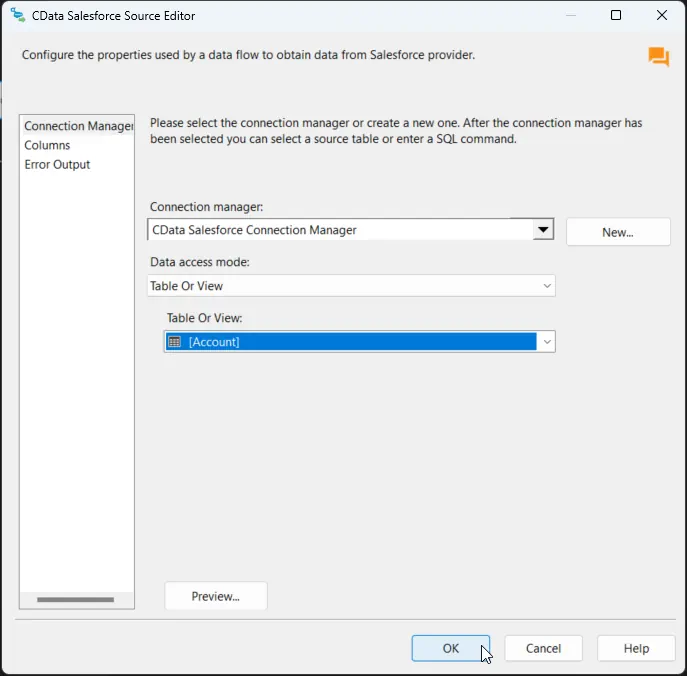
Configure the Snowflake destination
With the UKG Pro WFM Source configured, we can configure the Snowflake connection and map the columns.
-
Double-click the CData Snowflake Destination to open the destination component editor and add a new connection.
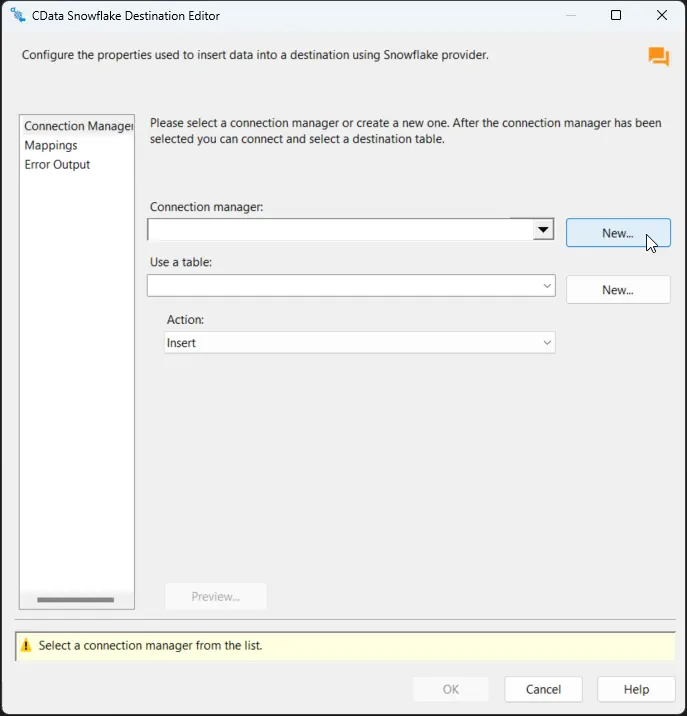
-
In the CData Snowflake Connection Manager, configure the connection properties, then test and save the connection.
- The component supports Snowflake user authentication, federated authentication, and SSL client authentication. To authenticate, set User and Password, and select the authentication method in the AuthScheme property. Starting with accounts created using Snowflake’s bundle 2024_08 (October 2024), password-based authentication is no longer supported due to security concerns. Instead, use alternative authentication methods such as OAuth or Private Key authentication.
Other helpful connection properties
- QueryPassthrough: When this is set to True, queries are passed through directly to Snowflake.
- ConvertDateTimetoGMT: When this is set to True, the components will convert date-time values to GMT, instead of the local time of the machine.
- IgnoreCase: A session parameter that specifies whether Snowflake will treat identifiers as case sensitive. Default: false(case is sensitive).
- BindingType: There are two kinds of binding types: DEFAULT and TEXT. DEFAULT uses the binding type DATE for the Date type, TIME for the Time type, and TIMESTAMP_* for the Timestamp_* type. TEST uses the binding type TEXT for Date, Time, and Timestamp_* types.
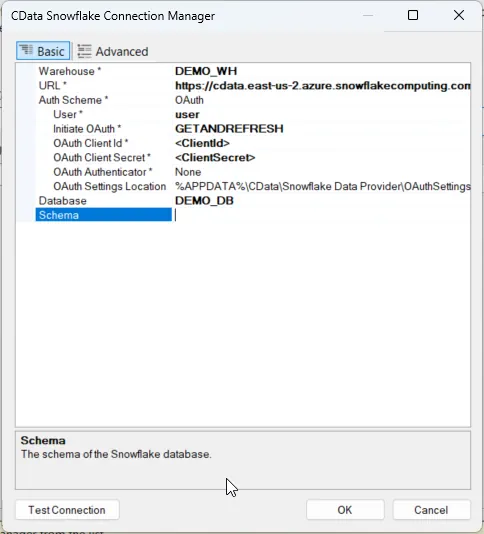
-
After saving the connection, select a table in the Use a Table menu and in the Action menu, select Insert.
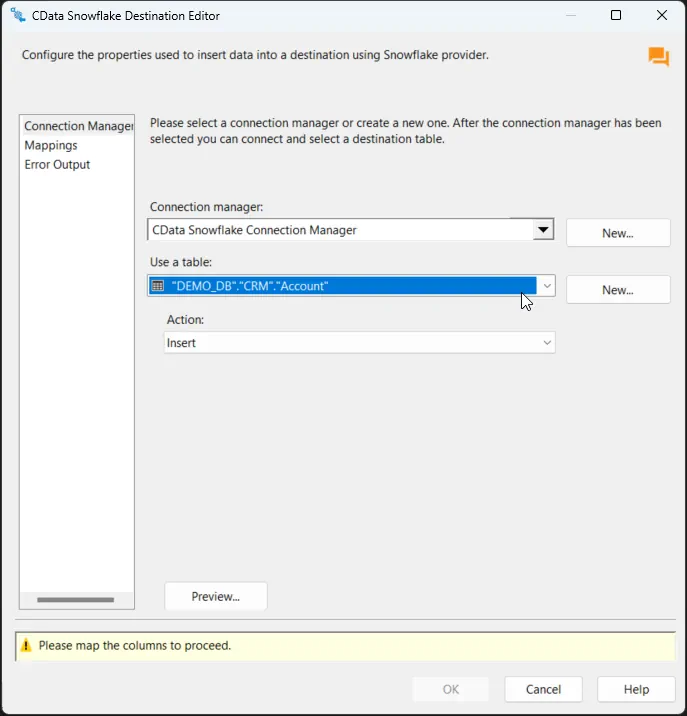
-
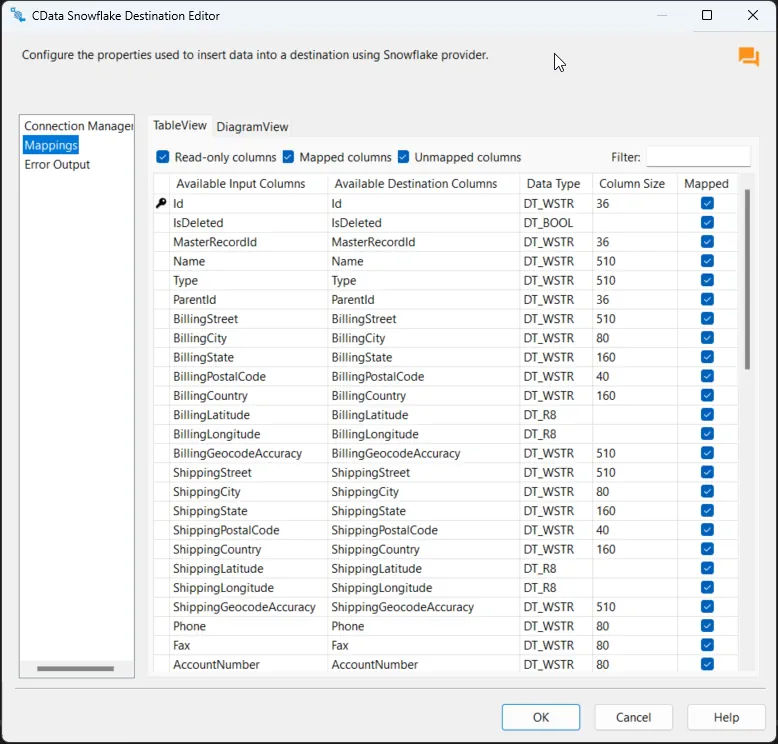
On the Column Mappings tab, configure the mappings from the input columns to the destination columns.
Run the project
You can now run the project. After the SSIS Task has finished executing, data from your SQL table will be exported to the chosen table.