




Publish UKG Pro WFM-Connected Dashboards in Tableau Server

Tableau Server is a visual analytics platform transforming the way businesses use data to solve problems. When paired with the CData API Driver for Tableau, you get access to live UKG Pro WFM data within Tableau Server. This article shows how to connect to UKG Pro WFM in Tableau Desktop, publish a Data Source to Tableau Server, and build a simple chart from that data.
The CData Tableau Connectors enable high-speed access to live UKG Pro WFM data in Tableau Server. Once you install the connector, you simply authenticate with UKG Pro WFM and you can immediately start building responsive, dynamic visualizations and dashboards. By surfacing UKG Pro WFM data using native Tableau data types and handling complex filters, aggregations, & other operations automatically, CData Tableau Connectors grant seamless access to UKG Pro WFM data.
NOTE: The CData Tableau Connectors require Tableau 2020.3 or higher. If you are using an older version of Tableau, you will need to use the CData JDBC Driver.
Enable Connectivity to UKG Pro WFM in Tableau Server
Start by installing the CData Tableau Connector on the machine hosting Tableau Server.
Installation on a Linux Machine:
- Unpack the setup.zip archive. Creating a directory for the connector like /opt/cdata/api is recommended, but the exact install location does not matter.
- Navigate to the lib subdirectory under the install directory. Generate a license file by running this command and following the prompts:
java -jar cdata.tableau.api.jar -l - Copy cdata.tableau.api.jar and cdata.tableau.api.lic into the drivers directory, /opt/tableau/tableau_driver/jdbc.
- Copy cdata.api.taco into the connectors directory, MyTableauServerRootDir/data/tabsvc/vizqlserver/Connectors. In most cases MyTableauServerRootDir is located at /var/opt/tableau/tableau_server.
- Restart Tableau Server.
If you cannot execute the java commmand from step 2, you will need to install a Java runtime environment. The name of this package differs on Red Hat-based and Debian-based systems:
| OS | Java Package |
|---|---|
| Ubuntu | openjdk-8-jre-headless |
| Debian | openjdk-8-jre-headless |
| RHEL | java-1.8.0-openjdk |
| CentOS | java-1.8.0-openjdk |
| Fedora | java-1.8.0-openjdk |
| SUSE | java-1_8_0-openjdk |
You can substitute Java 8 with a later Java release as needed.
Installation on a Windows Machine:
- Run the setup.exe installer. The driver JAR file will be automatically placed in the drivers directory, C:\Program Files\Tableau\Drivers.
- Navigate to the lib folder under the installation directory. By default the installation directory is a folder in C:\Program Files\CData.
- Copy cdata.tableau.api.lic into the drivers directory.
- Copy cdata.tableau.api.taco into the connectors directory, MyTableauServerRootDir/data/tabsvc/vizqlserver/Connectors. In most cases MyTableauServerRootDir is located under C:\ProgramData.
- Restart Tableau Server.
Connect to UKG Pro WFM in Tableau Desktop
Once the connectors are installed on the Server machine, we can configure a connection to UKG Pro WFM in Tableau Desktop and publish a UKG Pro WFM-based Data Source to Tableau Server.
- Open Tableau Desktop.
- Click More under Connect -> To a Server.
- Select "UKG Pro WFM by CData".
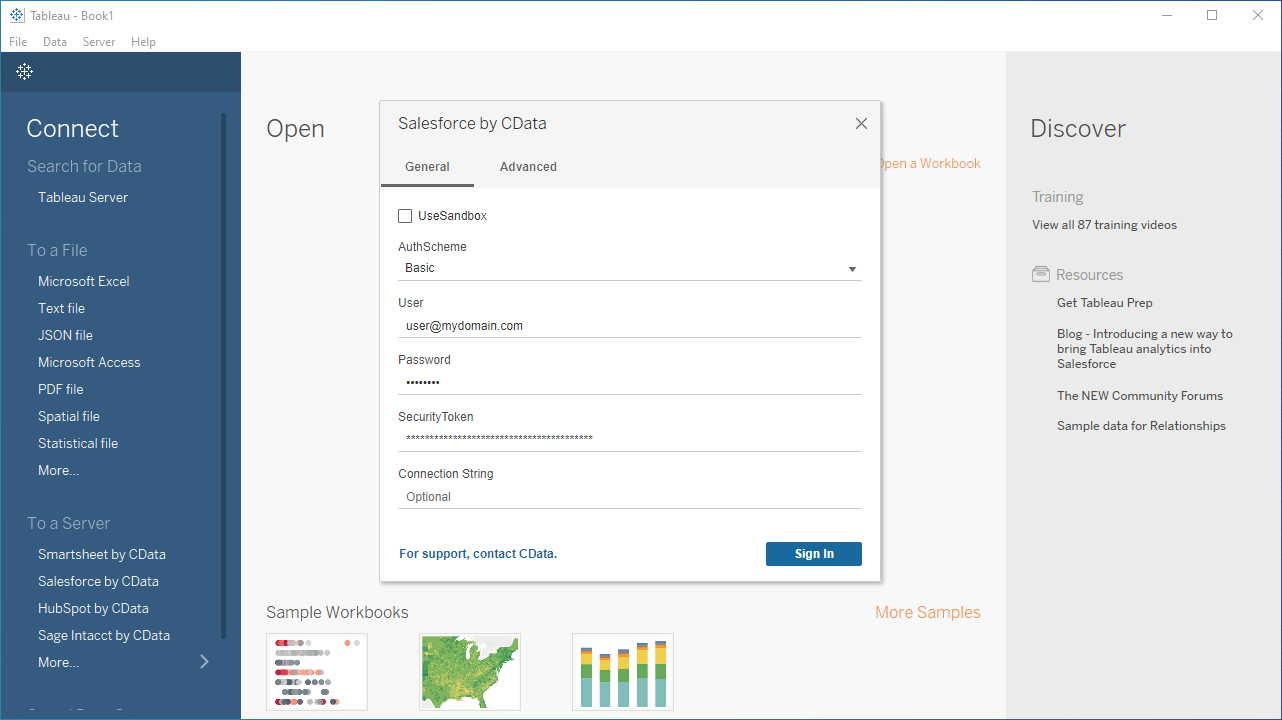
- Configure the connection to the data.
Start by setting the Profile connection property to the location of the UKGProWFM Profile on disk (e.g. C:\profiles\UKGProWFM.apip). Next, set the ProfileSettings connection property to the connection string for UKGProWFM (see below).
UKGProWFM API Profile Settings
UKG Pro Workforce Management uses OAuth 2.0 with the Resource Owner Password Credentials grant (grant_type=password) to authorize access to the API. Unlike most OAuth-based profiles, this does not use a browser redirect/authorization-code step: the driver exchanges your UKG Pro WFM username, password, client ID, and client secret directly for an access token.
Set the following connection properties to authenticate:
- AuthScheme: Set this to OAuthPassword.
- Host: Set this to the hostname of your UKG Pro Workforce Management datacenter/tenant (for example, yourcompany.mykronos.com). Do not include the protocol (https://) or a trailing slash.
- OAuthClientId: Set this to the client ID issued for your UKG Pro Workforce Management OAuth application.
- OAuthClientSecret: Set this to the client secret issued for your UKG Pro Workforce Management OAuth application.
- User: Set this to your UKG Pro Workforce Management username.
- Password: Set this to your UKG Pro Workforce Management password.
Access tokens are obtained from https://{Host}/api/authentication/access_token. Refresh tokens issued by UKG Pro Workforce Management expire after 7 days; if a refresh attempt fails because the refresh token itself has expired, the driver must re-authenticate with your User/Password credentials to obtain a new access token.
- Click "Sign In".
Discover Schemas and Query Data
Once you establish the connection to UKG Pro WFM data, you can configure which entities to visualize.
- Select CData from the Database pull-down menu.
- Select API from the Schema pull-down menu.
- Drag the tables and views you wish to visualize onto the join area. You can include multiple tables.
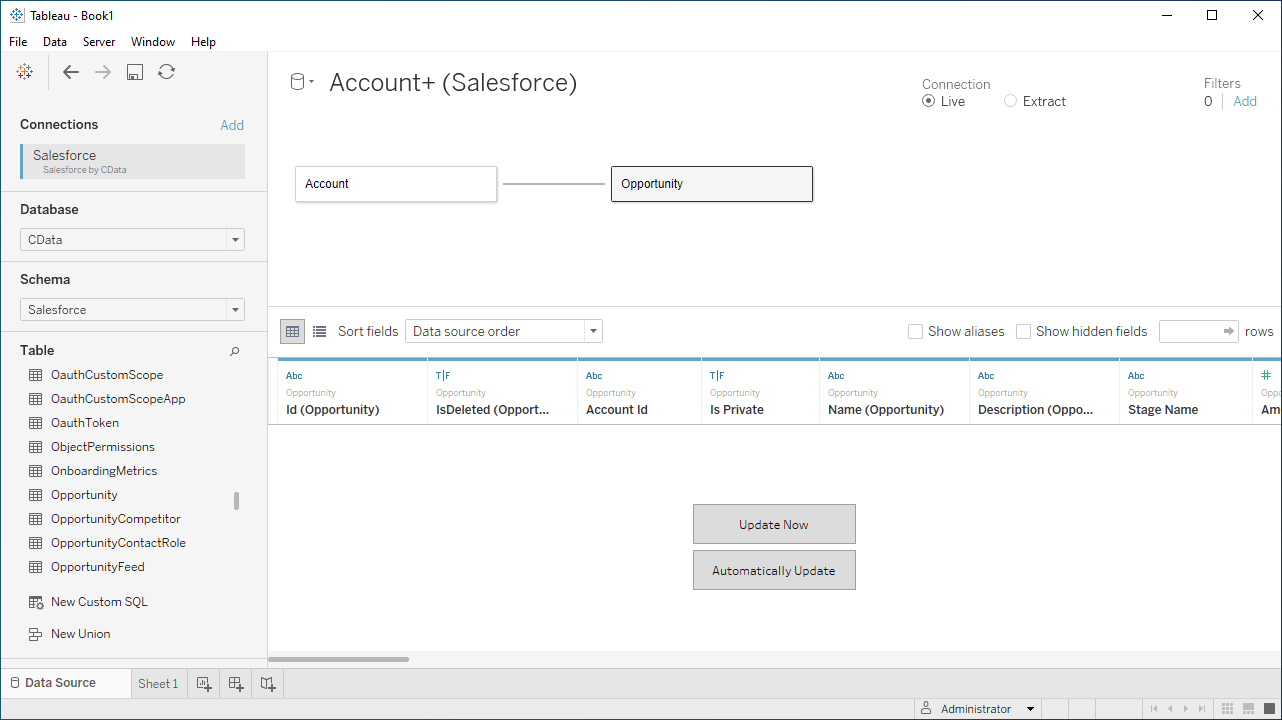
- Select Update Now or Automatically Update. Update Now lets you preview the first 10,000 rows of the data source (or enter the number of rows you want to see in the Rows text box). Automatically Update auto-loads the changes in the preview area.
Publish Data to Tableau Server
After you configure the data you wish to visualize, you can publish the Data Source to a Tableau Server instance. In Tableau Desktop:
- Click Server -> Sign In.
- Enter the URL for your Tableau Server.
- Authenticate with Tableau Server credentials.
- Click Server -> Publish Data Source and select your data source.
- Click Publish.
- Select the Project, name the Data Source, and optionally add a description.
- Click Publish.
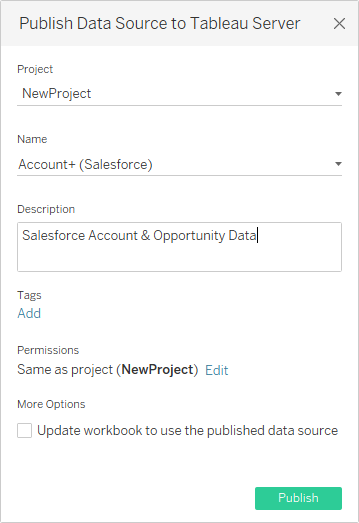
This creates a new entry under the server's data source list, from which you an change the data source's permissions, view its history, and perform other management tasks.
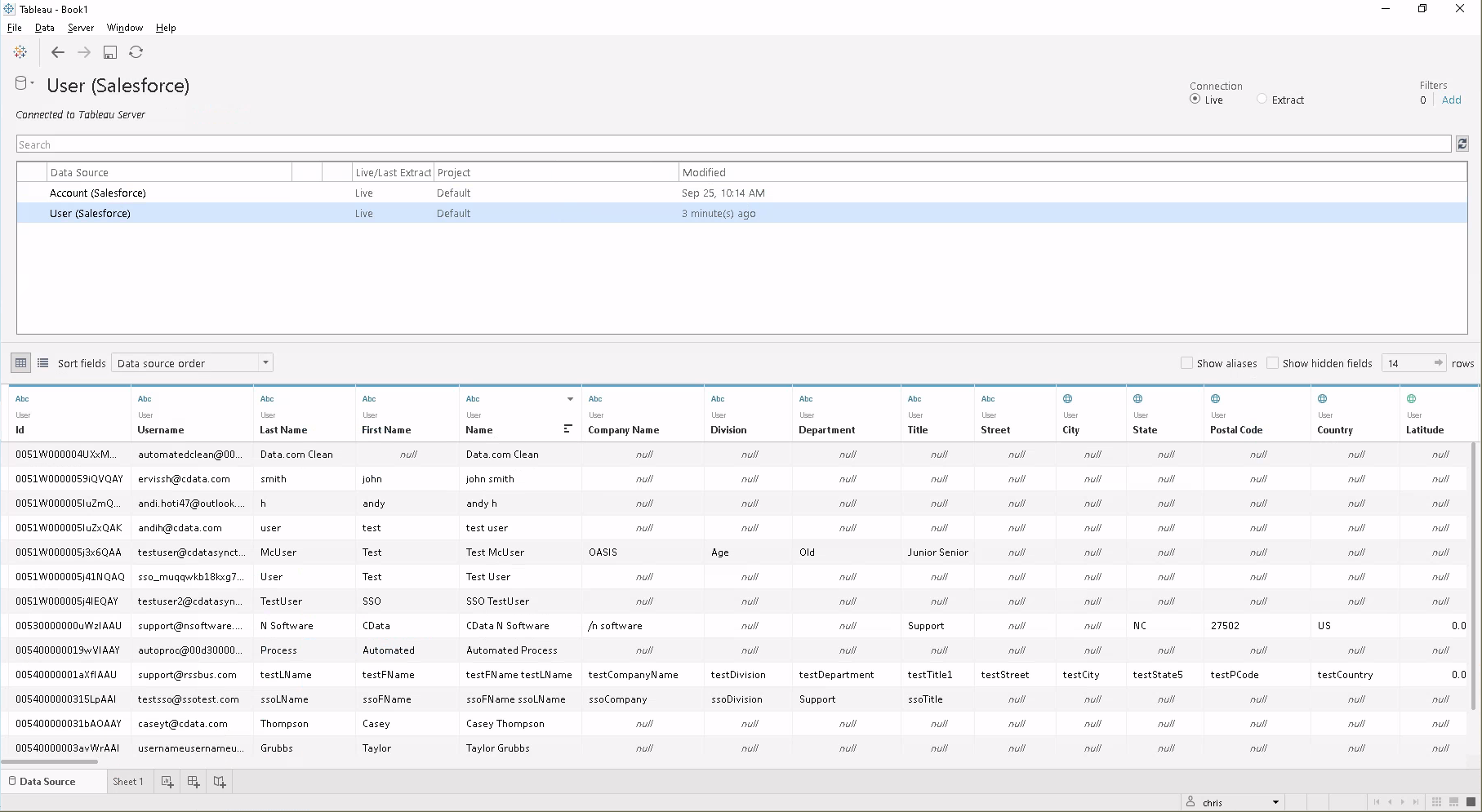
Note that workstation connected to the same server will be able to use the same source in Tableau Desktop, even if the connector isn't installed there. Also, workbooks created directly on Tableau Server (via the web interface) can use this source.
Visualize UKG Pro WFM Data in Tableau Server
With the Data Source published to Tableau Server, you are ready to visualize UKG Pro WFM data.
- Login to your Tableau Server instance.
- Connect to the remote source using the Search for Data -> Tableau Server in the Connect sidebar.
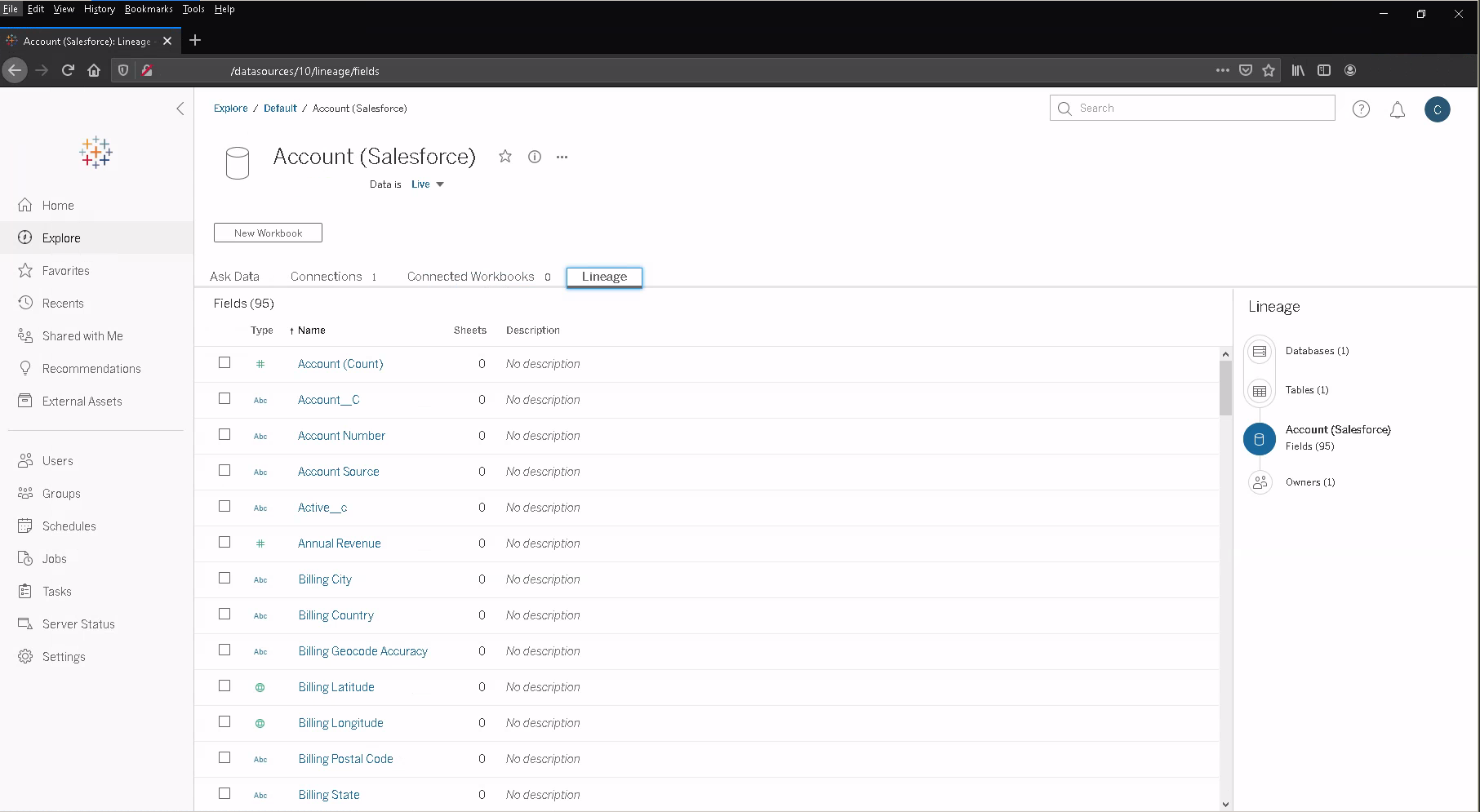
- Click the published Data Source.
- Click New Workbook.
- In the workbook, UKG Pro WFM fields are listed as Dimensions and Measures, depending on the data type. The CData Tableau Connector discovers data types automatically, allowing you to leverage the powerful data processing and visualization features of Tableau.
- Drag a field from the Dimensions or Measures area to Rows or Columns. Tableau creates column or row headers.
- Select one of the chart types from the Show Me tab. Tableau displays the chart type that you selected.
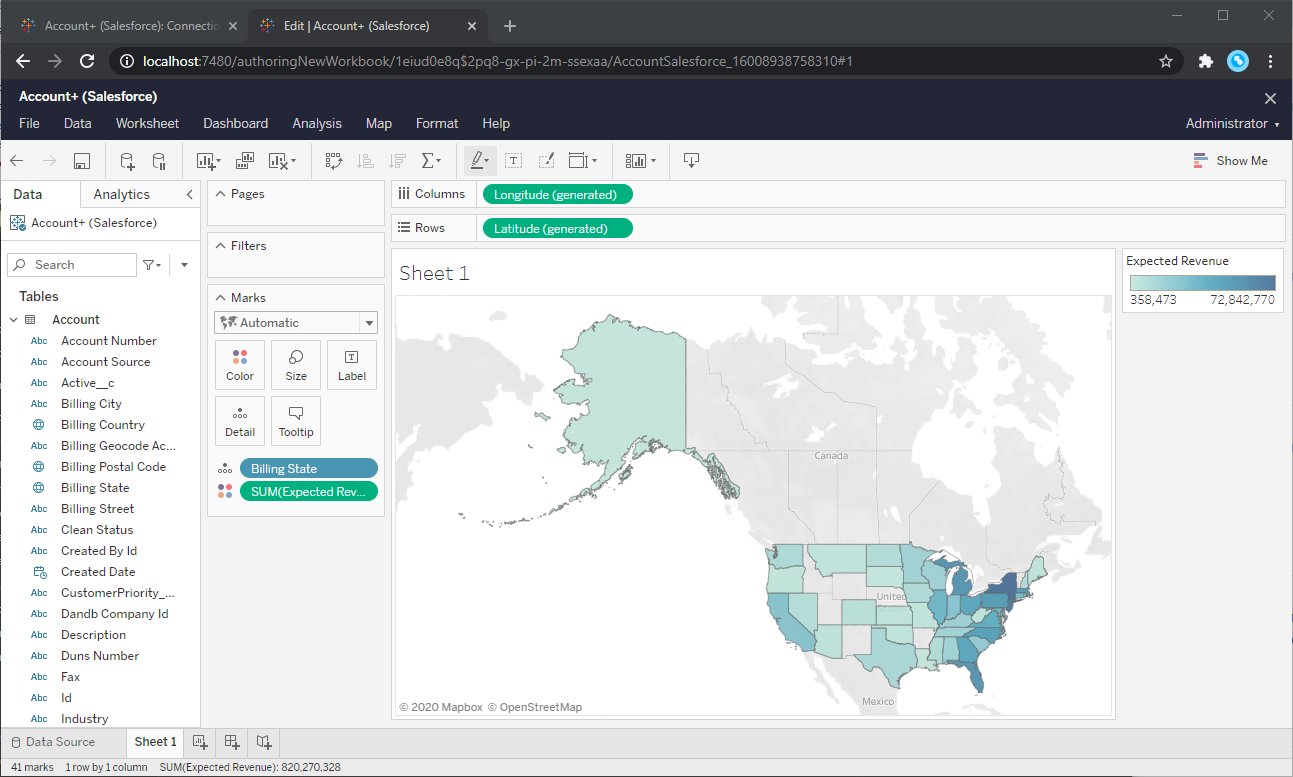
Using the CData API Driver for Tableau with Tableau Server, you can easily create robust visualizations and reports on UKG Pro WFM data. Download a free, 30-day trial and get started today.