






Build Vercel-Connected ETL Processes in Google Data Fusion

Google Data Fusion allows users to perform self-service data integration to consolidate disparate data. Uploading the CData API Driver for JDBC enables users to access live Vercel data from within their Google Data Fusion pipelines. While the CData JDBC Driver enables piping Vercel data to any data source natively supported in Google Data Fusion, this article explains how to pipe data from Vercel to Google BigQuery,
Upload the CData API Driver for JDBC to Google Data Fusion
Upload the CData API Driver for JDBC to your Google Data Fusion instance to work with live Vercel data. Due to the naming restrictions for JDBC drivers in Google Data Fusion, create a copy or rename the JAR file to match the following format driver-version.jar. For example: cdataapi-2020.jar
- Open your Google Data Fusion instance
- Click the to add an entity and upload a driver
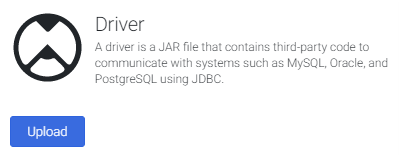
- On the "Upload driver" tab, drag or browse to the renamed JAR file.
- On the "Driver configuration" tab:
- Name: Create a name for the driver (cdata.jdbc.api) and make note of the name
- Class name: Set the JDBC class name: (cdata.jdbc.api.APIDriver)
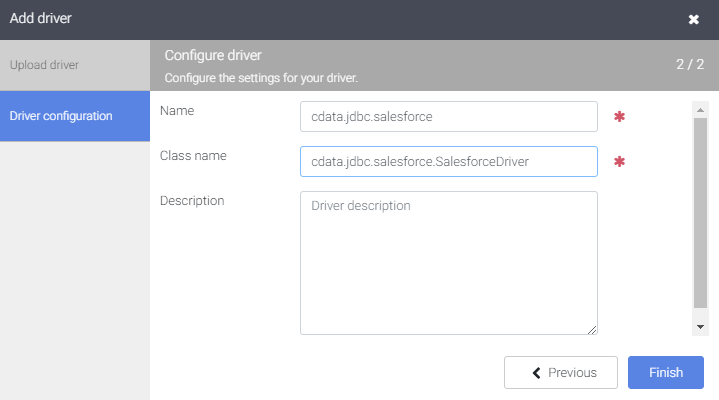
- Click "Finish"
Connect to Vercel Data in Google Data Fusion
With the JDBC Driver uploaded, you are ready to work with live Vercel data in Google Data Fusion Pipelines.
- Navigate to the Pipeline Studio to create a new Pipeline
- From the "Source" options, click "Database" to add a source for the JDBC Driver
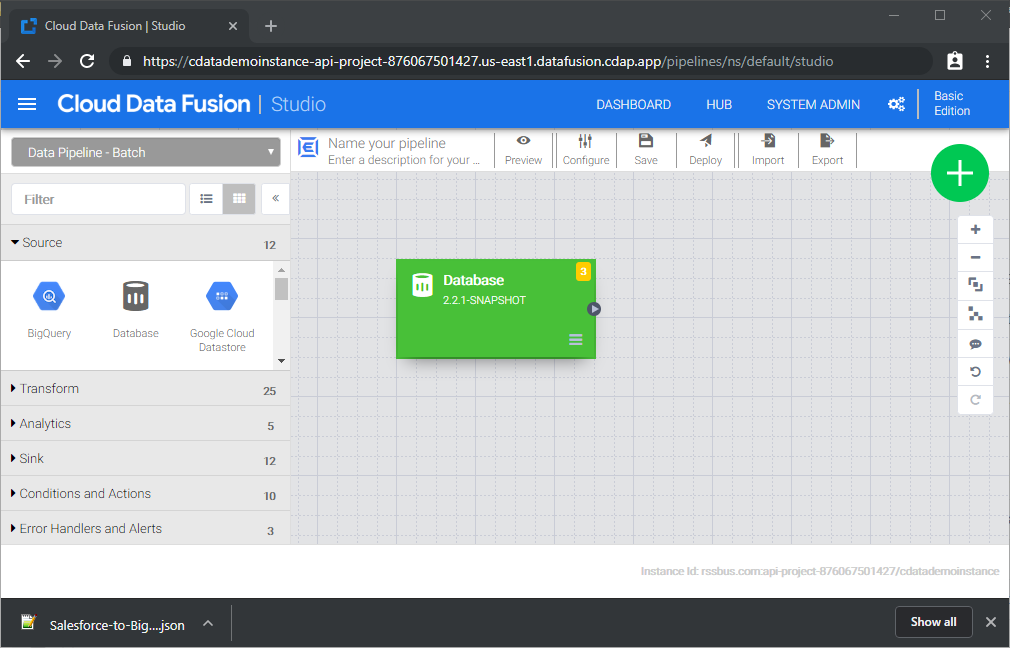
- Click "Properties" on the Database source to edit the properties
NOTE: To use the JDBC Driver in Google Data Fusion, you will need a license (full or trial) and a Runtime Key (RTK). For more information on obtaining this license (or a trial), contact our sales team.
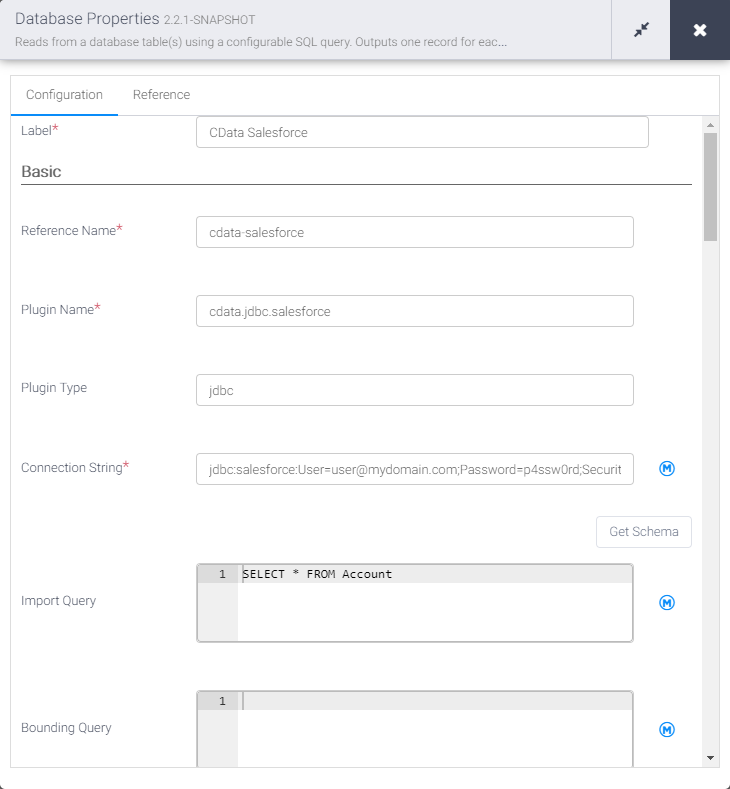
- Set the Label
- Set Reference Name to a value for any future references (i.e.: cdata-api)
- Set Plugin Type to "jdbc"
- Set Connection String to the JDBC URL for Vercel. For example:
jdbc:api:RTK=5246...;Profile=C:\profiles\Vercel.apip;AuthScheme=APIKey;APIKey=your_access_token;Using API Key Authentication
Vercel uses Bearer token authentication. You can use either a personal access token or an OAuth access token as the API key.
To obtain a personal access token:
- Log into your Vercel account at https://vercel.com/
- Navigate to Account Settings > Tokens.
- Click Create Token, enter a name and expiration, and click Create.
- Copy the generated token (it will only be shown once).
After obtaining your token, set the following connection properties:
- AuthScheme: Set this to APIKey.
- APIKey: Set this to your Vercel personal access token or OAuth access token.
Example Connection String
Profile=C:\profiles\Vercel.apip;AuthScheme=APIKey;APIKey=your_access_token;
Working with Teams
Many Vercel resources are scoped to a team. To scope all requests to a specific team, set the TeamId connection property to your team's ID. You can find your team ID by querying the Teams table or from the Vercel dashboard. Alternatively, you can specify TeamId in your SQL queries using the WHERE clause where supported.
Connecting to Vercel
Once the authentication is configured, you can connect to Vercel and query data from any of the available tables such as Projects, Deployments, Teams, and Domains.
Built-in Connection String Designer
For assistance in constructing the JDBC URL, use the connection string designer built into the Vercel JDBC Driver. Either double-click the JAR file or execute the jar file from the command-line.
java -jar cdata.jdbc.api.jarFill in the connection properties and copy the connection string to the clipboard.

- Set Import Query to a SQL query that will extract the data you want from Vercel, i.e.:
SELECT * FROM User
- From the "Sink" tab, click to add a destination sink (we use Google BigQuery in this example)
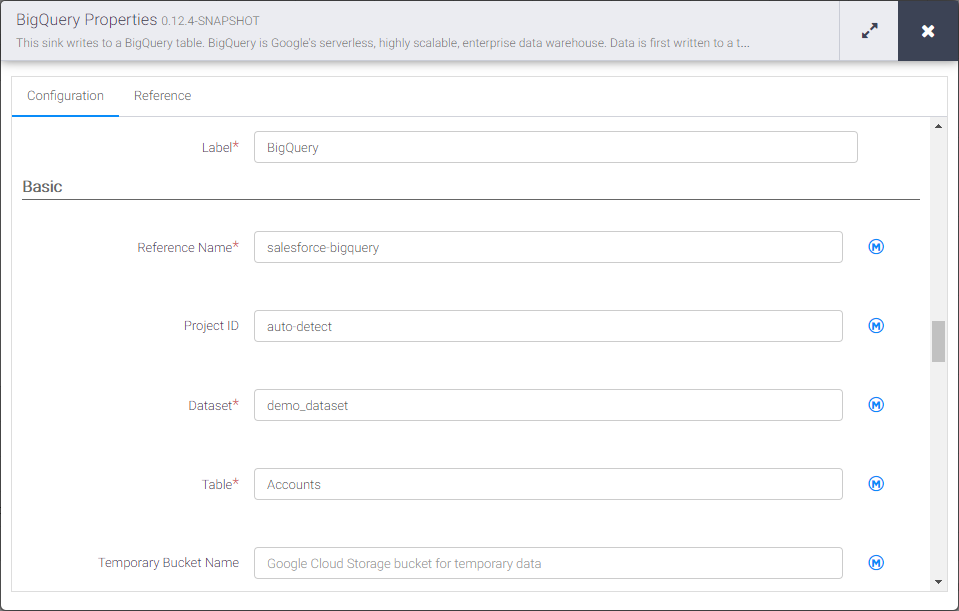
- Click "Properties" on the BigQuery sink to edit the properties
- Set the Label
- Set Reference Name to a value like api-bigquery
- Set Project ID to a specific Google BigQuery Project ID (or leave as the default, "auto-detect")
- Set Dataset to a specific Google BigQuery dataset
- Set Table to the name of the table you wish to insert Vercel data into
With the Source and Sink configured, you are ready to pipe Vercel data into Google BigQuery. Save and deploy the pipeline. When you run the pipeline, Google Data Fusion will request live data from Vercel and import it into Google BigQuery.
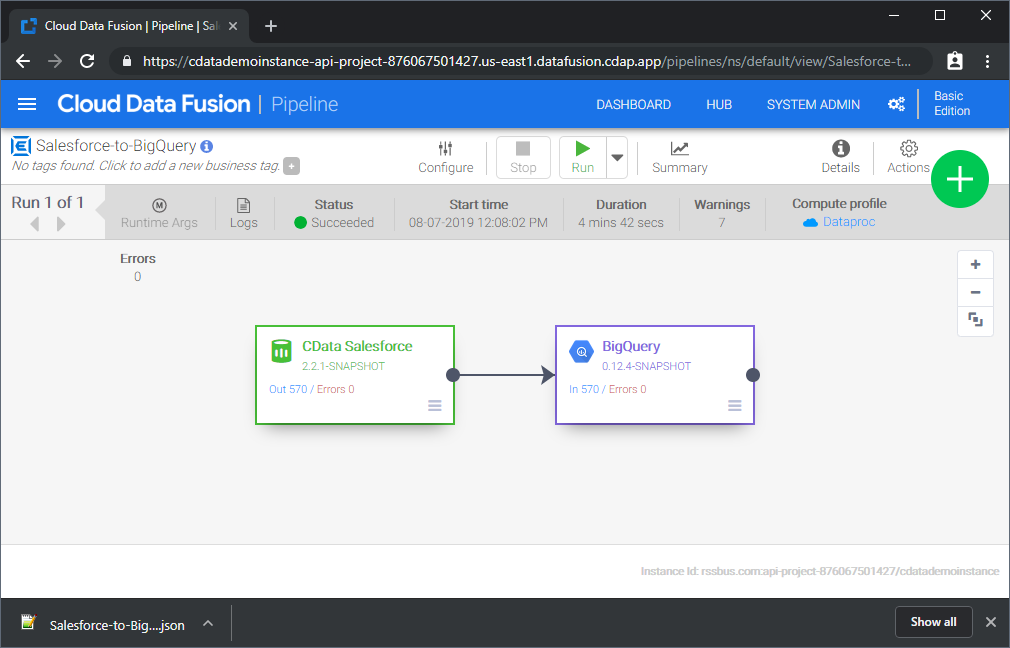
While this is a simple pipeline, you can create more complex Vercel pipelines with transforms, analytics, conditions, and more. Download a free, 30-day trial of the CData API Driver for JDBC and start working with your live Vercel data in Google Data Fusion today.