






Object-Relational Mapping (ORM) with Vercel Data Entities in Java

You can use Hibernate to map object-oriented domain models to a traditional relational database. The tutorial below shows how to use the CData JDBC Driver for Vercel to generate an ORM of your Vercel repository with Hibernate.
Though Eclipse is the IDE of choice for this article, the CData JDBC Driver for Vercel works in any product that supports the Java Runtime Environment. In the Knowledge Base you will find tutorials to connect to Vercel data from IntelliJ IDEA and NetBeans.
Install Hibernate
Follow the steps below to install the Hibernate plug-in in Eclipse.
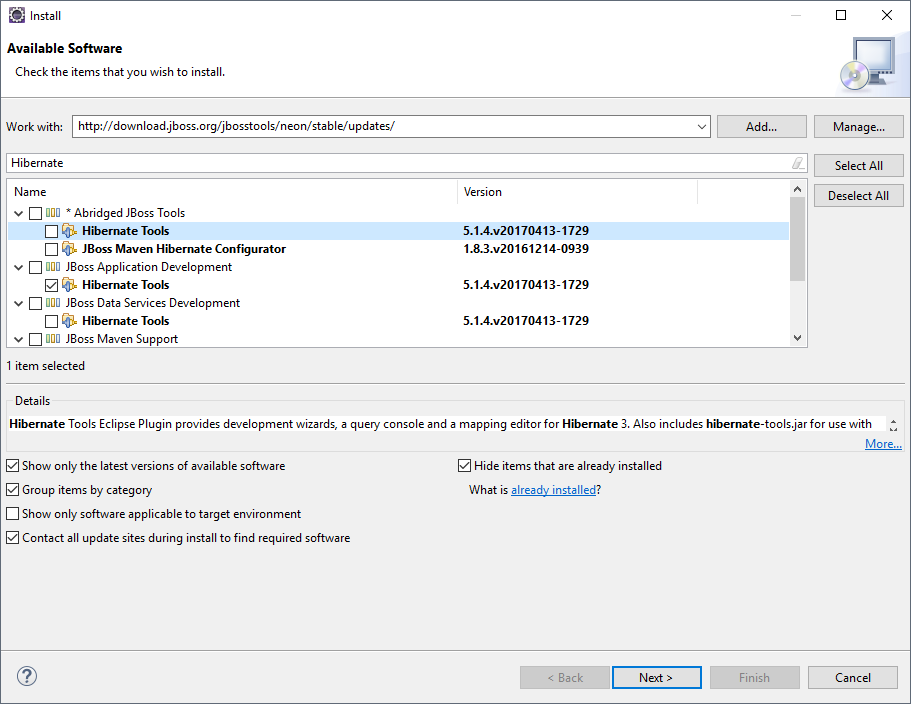
- In Eclipse, navigate to Help -> Install New Software.
- Enter "http://download.jboss.org/jbosstools/neon/stable/updates/" in the Work With box.
- Enter "Hibernate" into the filter box.
- Select Hibernate Tools.
Start A New Project
Follow the steps below to add the driver JARs in a new project.
- Create a new project. Select Java Project as your project type and click Next. Enter a project name and click Finish.
- Right-click the project and click Properties. Click Java Build Path and then open the Libraries tab.
- Click Add External JARs to add the cdata.jdbc.api.jar library, located in the lib subfolder of the installation directory.
Add a Hibernate Configuration File
Follow the steps below to configure connection properties to Vercel data.
- Right-click on the new project and select New -> Hibernate -> Hibernate Configuration File (cfg.xml).
- Select src as the parent folder and click Next.
Input the following values:
- Hibernate version:: 5.2
- Database dialect: Derby
- Driver class: cdata.jdbc.api.APIDriver
Connection URL: A JDBC URL, starting with jdbc:api: and followed by a semicolon-separated list of connection properties.
Using API Key Authentication
Vercel uses Bearer token authentication. You can use either a personal access token or an OAuth access token as the API key.
To obtain a personal access token:
- Log into your Vercel account at https://vercel.com/
- Navigate to Account Settings > Tokens.
- Click Create Token, enter a name and expiration, and click Create.
- Copy the generated token (it will only be shown once).
After obtaining your token, set the following connection properties:
- AuthScheme: Set this to APIKey.
- APIKey: Set this to your Vercel personal access token or OAuth access token.
Example Connection String
Profile=C:\profiles\Vercel.apip;AuthScheme=APIKey;APIKey=your_access_token;
Working with Teams
Many Vercel resources are scoped to a team. To scope all requests to a specific team, set the TeamId connection property to your team's ID. You can find your team ID by querying the Teams table or from the Vercel dashboard. Alternatively, you can specify TeamId in your SQL queries using the WHERE clause where supported.
Connecting to Vercel
Once the authentication is configured, you can connect to Vercel and query data from any of the available tables such as Projects, Deployments, Teams, and Domains.
Built-in Connection String Designer
For assistance in constructing the JDBC URL, use the connection string designer built into the Vercel JDBC Driver. Either double-click the JAR file or execute the jar file from the command-line.
java -jar cdata.jdbc.api.jar
Fill in the connection properties and copy the connection string to the clipboard.
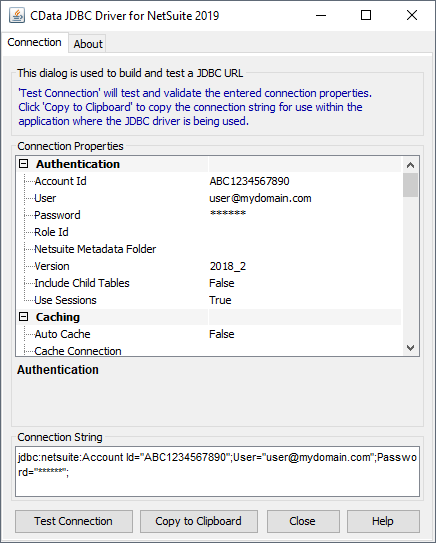
A typical JDBC URL is below:
jdbc:api:Profile=C:\profiles\Vercel.apip;AuthScheme=APIKey;APIKey=your_access_token;
Connect Hibernate to Vercel Data
Follow the steps below to select the configuration you created in the previous step.
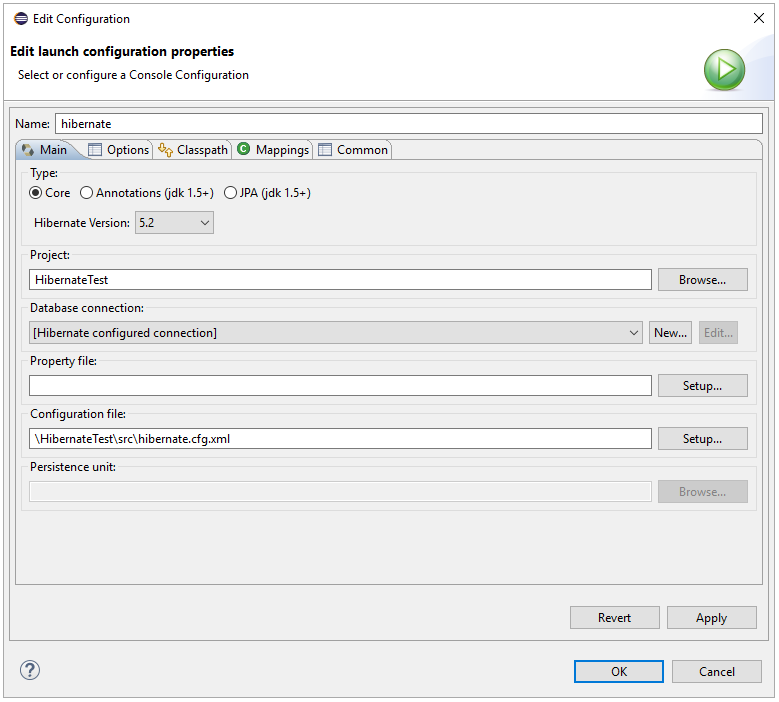
- Switch to the Hibernate Configurations perspective: Window -> Open Perspective -> Hibernate.
- Right-click on the Hibernate Configurations panel and click Add Configuration.
- Set the Hibernate version to 5.2.
- Click the Browse button and select the project.
- For the Configuration file field, click Setup -> Use Existing and select the location of the hibernate.cfg.xml file (inside src folder in this demo).
- In the Classpath tab, if there is nothing under User Entries, click Add External JARS and add the driver jar once more. Click OK once the configuration is done.
- Expand the Database node of the newly created Hibernate configurations file.
Reverse Engineer Vercel Data
Follow the steps below to generate the reveng.xml configuration file. You will specify the tables you want to access as objects.
- Switch back to the Package Explorer.
- Right-click your project, select New -> Hibernate -> Hibernate Reverse Engineering File (reveng.xml). Click Next.
- Select src as the parent folder and click Next.
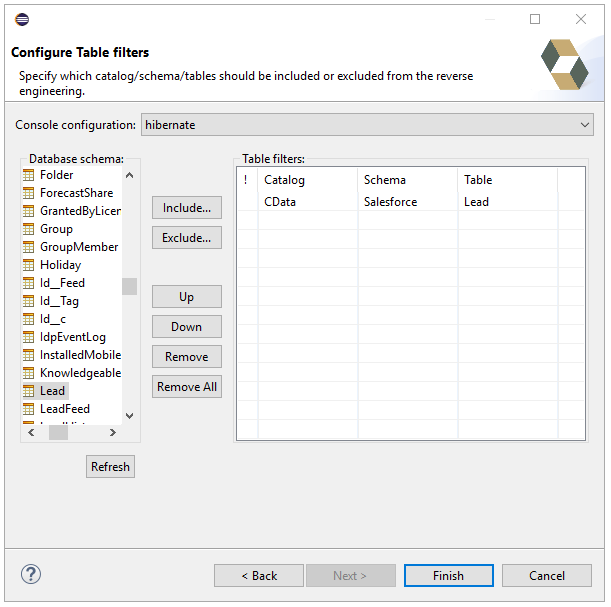
- In the Console configuration drop-down menu, select the Hibernate configuration file you created above and click Refresh.
- Expand the node and choose the tables you want to reverse engineer. Click Finish when you are done.
Configure Hibernate to Run
Follow the steps below to generate plain old Java objects (POJO) for the Vercel tables.
- From the menu bar, click Run -> Hibernate Code Generation -> Hibernate Code Generation Configurations.
- In the Console configuration drop-down menu, select the Hibernate configuration file you created in the previous section. Click Browse by Output directory and select src.
- Enable the Reverse Engineer from JDBC Connection checkbox. Click the Setup button, click Use Existing, and select the location of the hibernate.reveng.xml file (inside src folder in this demo).
- In the Exporters tab, check Domain code (.java) and Hibernate XML Mappings (hbm.xml).
- Click Run.
One or more POJOs are created based on the reverse-engineering setting in the previous step.
Insert Mapping Tags
For each mapping you have generated, you will need to create a mapping tag in hibernate.cfg.xml to point Hibernate to your mapping resource. Open hibernate.cfg.xml and insert the mapping tags as so:
      cdata.api.APIDriver


      jdbc:api:Profile=C:\profiles\Vercel.apip;AuthScheme=APIKey;APIKey=your_access_token;


      org.hibernate.dialect.SQLServerDialect
Execute SQL
Using the entity you created from the last step, you can now search Vercel data:
import java.util.*;
import org.hibernate.Session;
import org.hibernate.cfg.Configuration;
import org.hibernate.query.Query;

public class App {
  public static void main(final String[] args) {
    Session session =  new
    Configuration().configure().buildSessionFactory().openSession();
    String SELECT = "FROM User U WHERE  = :";
    Query q = session.createQuery(SELECT, User.class);
    q.setParameter("","");
    List<User> resultList = (List<User>) q.list();

    for(User s: resultList){
      System.out.println(s.get());
      System.out.println(s.get());
    }
  }
}