






Use the CData JDBC Driver for Vercel in MicroStrategy Desktop

MicroStrategy is an analytics and mobility platform that enables data-driven innovation. When you pair MicroStrategy with the CData JDBC Driver for Vercel, you gain database-like access to live Vercel data from MicroStrategy, expanding your reporting and analytics capabilities. In this article, we walk through adding Vercel as a data source in MicroStrategy Desktop and creating a simple visualization of Vercel data.
The CData JDBC Driver offers unmatched performance for interacting with live Vercel data in MicroStrategy due to optimized data processing built into the driver. When you issue complex SQL queries from MicroStrategy to Vercel, the driver pushes supported SQL operations, like filters and aggregations, directly to Vercel and utilizes the embedded SQL engine to process unsupported operations (often SQL functions and JOIN operations) client-side. With built-in dynamic metadata querying, you can use native MicroStrategy data types to visualize and analyze Vercel data.
Connect to and Visualize Vercel Data using MicroStrategy Desktop
In addition to connecting to Vercel in MicroStrategy enterprise products, you can connect to Vercel in MicroStrategy Desktop. Follow the steps below to add Vercel data as a dataset using JDBC and create visualizations and reports of Vercel data.
- Open MicroStrategy Desktop and create a new dossier.
- In the datasets panel, click New Data, select Databases, and choose Select a Table as the Import Option.
- Add a new data source and choose the DSN-less data sources option.
- Choose Generic in the Database menu and Generic DBMS in the Version menu.
- Click the link to show the connection string and opt to edit the connection string. In the Driver menu, select MicroStrategy Cassandra ODBC Driver. (MicroStrategy requires a certified driver to interface through JDBC; the actual driver will not be used.)
- Set the connection string as follows and click OK:
- Add the JDBC keyword to the connection string.
- Set MSTR_JDBC_JAR_FOLDER to the path of the JAR file for the JDBC driver. (C:\Program Files\CData JDBC Driver for Vercel\lib\ on Windows.)
- Set DRIVER to cdata.jdbc.api.APIDriver, the driver class.
- Set URL to the JDBC URL for the Vercel driver, setting the necessary connection properties.
Using API Key Authentication
Vercel uses Bearer token authentication. You can use either a personal access token or an OAuth access token as the API key.
To obtain a personal access token:
- Log into your Vercel account at https://vercel.com/
- Navigate to Account Settings > Tokens.
- Click Create Token, enter a name and expiration, and click Create.
- Copy the generated token (it will only be shown once).
After obtaining your token, set the following connection properties:
- AuthScheme: Set this to APIKey.
- APIKey: Set this to your Vercel personal access token or OAuth access token.
Example Connection String
Profile=C:\profiles\Vercel.apip;AuthScheme=APIKey;APIKey=your_access_token;
Working with Teams
Many Vercel resources are scoped to a team. To scope all requests to a specific team, set the TeamId connection property to your team's ID. You can find your team ID by querying the Teams table or from the Vercel dashboard. Alternatively, you can specify TeamId in your SQL queries using the WHERE clause where supported.
Connecting to Vercel
Once the authentication is configured, you can connect to Vercel and query data from any of the available tables such as Projects, Deployments, Teams, and Domains.
Built-in Connection String Designer
For assistance in constructing the JDBC URL, use the connection string designer built into the Vercel JDBC Driver. Either double-click the JAR file or execute the jar file from the command-line.
java -jar cdata.jdbc.api.jar
Fill in the connection properties and copy the connection string to the clipboard.

When you configure the JDBC URL, you may also want to set the Max Rows connection property. This will limit the number of rows returned, which is especially helpful for improving performance when designing reports and visualizations.
A typical connection string follows:
JDBC;MSTR_JDBC_JAR_FOLDER=PATH\TO\JAR\;DRIVER=cdata.jdbc.api.APIDriver;URL={jdbc:api:Profile=C:\profiles\Vercel.apip;AuthScheme=APIKey;APIKey=your_access_token;};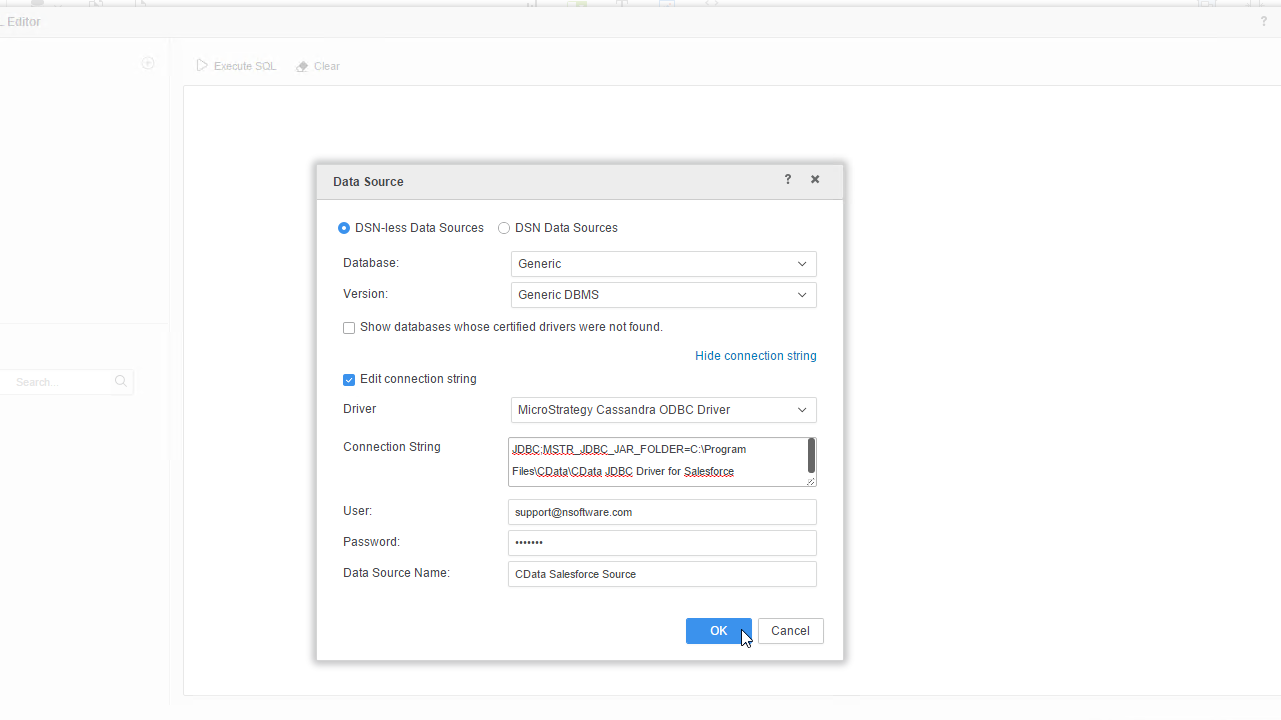
- Right-click on the new data source, and choose Edit catalog options.
- Edit the SQL Statement to SELECT * FROM SYS_SCHEMAS to read the metadata from the JDBC Driver.
- Select the new data source to view the available tables. You may need to manually click the search icon in the Available Tables section to see the tables.
- Drag tables into the pane to import them.
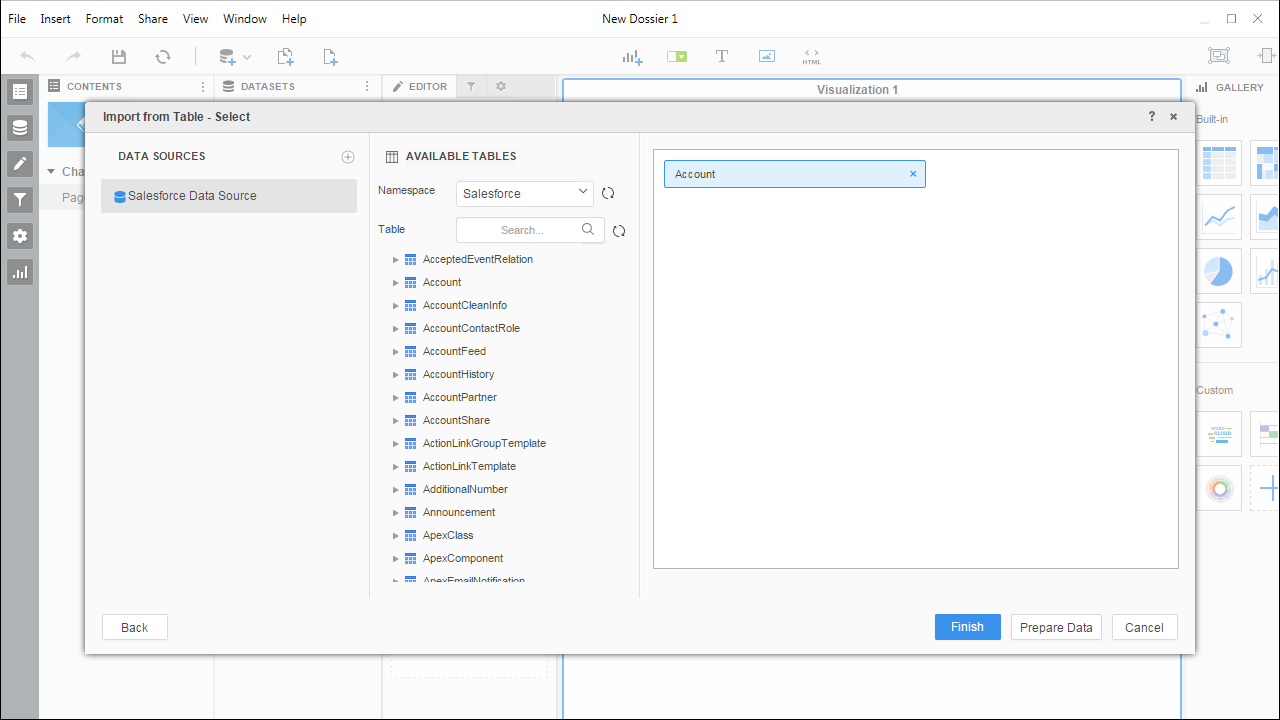 Note: Since we create a live connection, we can import whole tables and utilize the filtering and aggregation features native to the MicroStrategy products.
 - Click Finish and choose the option to connect Live. Live connections are possible and effective, thanks to the high-performance data processing native to CData JDBC Drivers.
- Choose a visualization, choose fields to display, and apply any filters to create a new visualization of Vercel data. Data types are discovered automatically through dynamic metadata discovery. Where possible, the complex queries generated by the filters and aggregations will be pushed down to Vercel, while any unsupported operations (which can include SQL functions and JOIN operations) will be managed client-side by the CData SQL engine embedded in the driver.
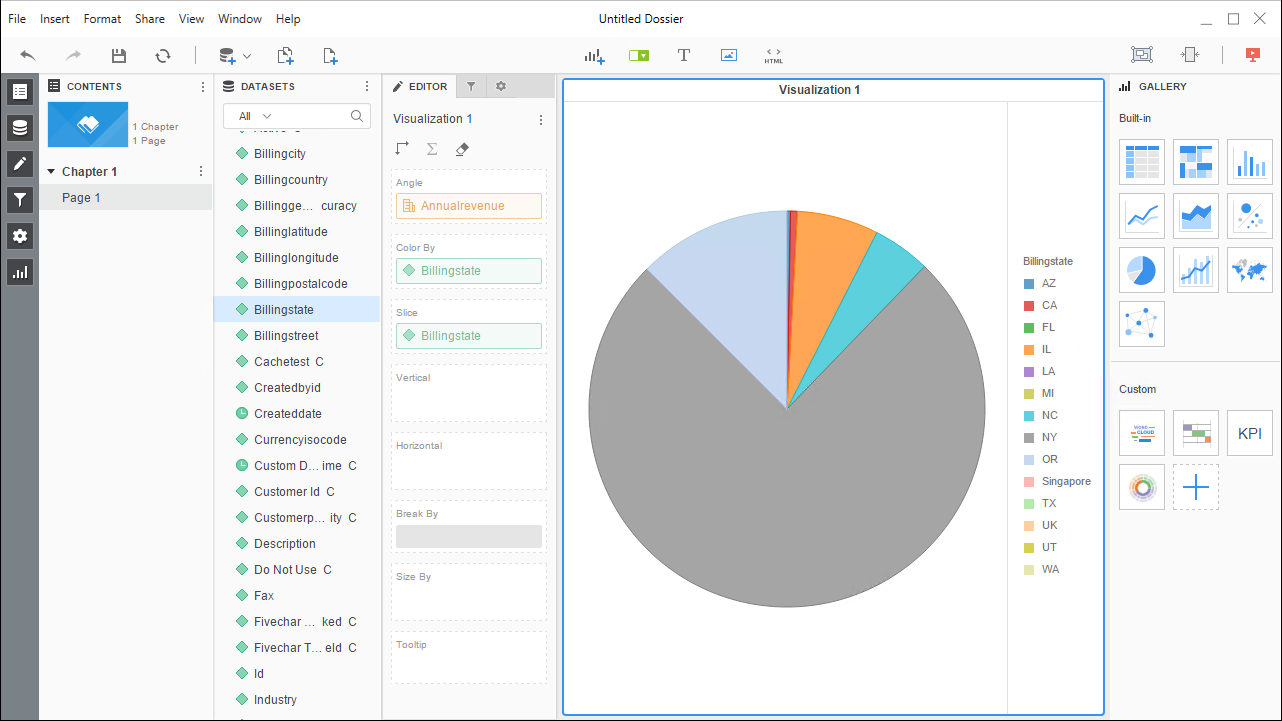
- Once you are finished configuring the dossier, click File -> Save.
Using the CData JDBC Driver for Vercel in MicroStrategy Desktop, you can easily create robust visualizations and reports on Vercel data. Read our other articles for connecting to Vercel data in MicroStrategy Developer and connecting to Vercel data in MicroStrategy Web for more examples.