Consume Vercel OData Feeds in SAP Lumira

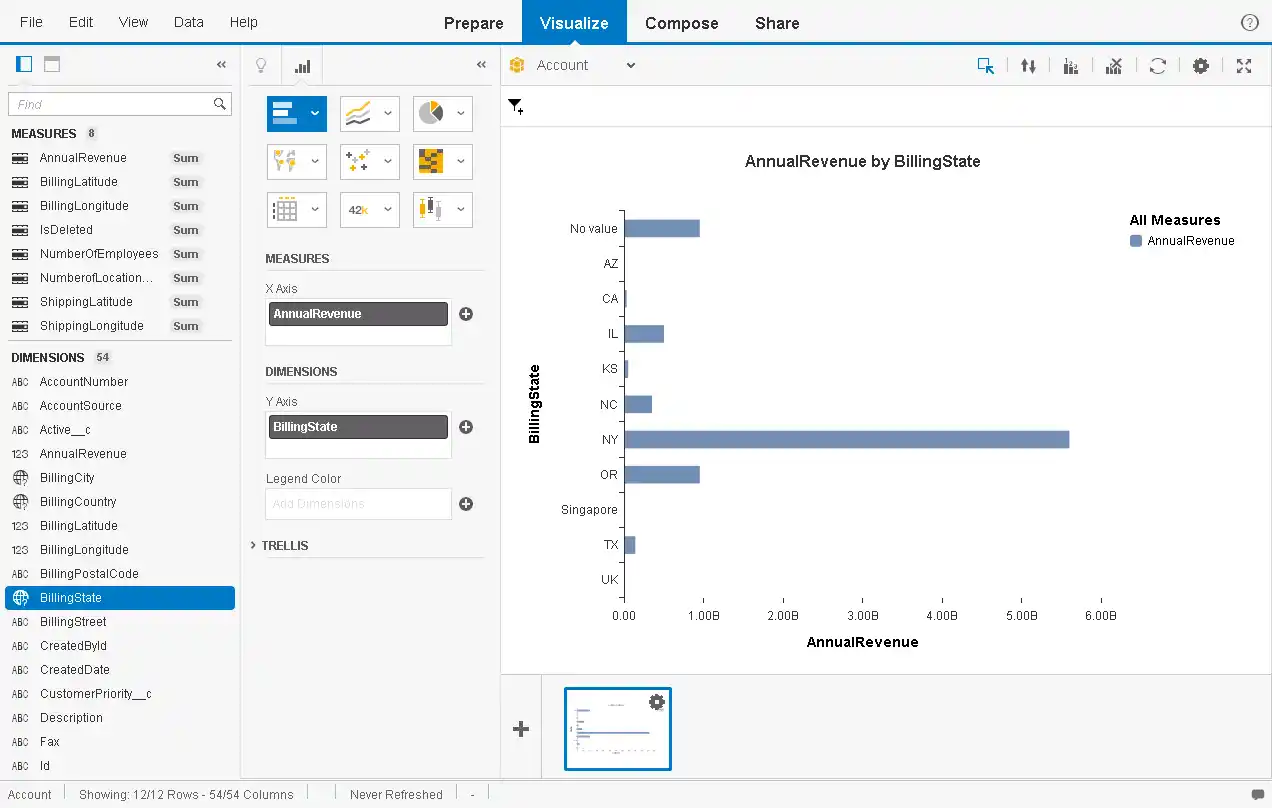
You can use the CData API Server to create data visualizations based on Vercel data in SAP Lumira. The API Server enables connectivity to live data: dashboards and reports can be refreshed on demand. This article shows how to create a chart that is always up to date.
Set Up the API Server
If you have not already done so, download the CData API Server. Once you have installed the API Server, follow the steps below to begin producing secure Vercel OData services:
Connect to Vercel
To work with Vercel data from SAP Lumira, we start by creating and configuring a Vercel connection. Follow the steps below to configure the API Server to connect to Vercel data:
- First, navigate to the Connections page.
-
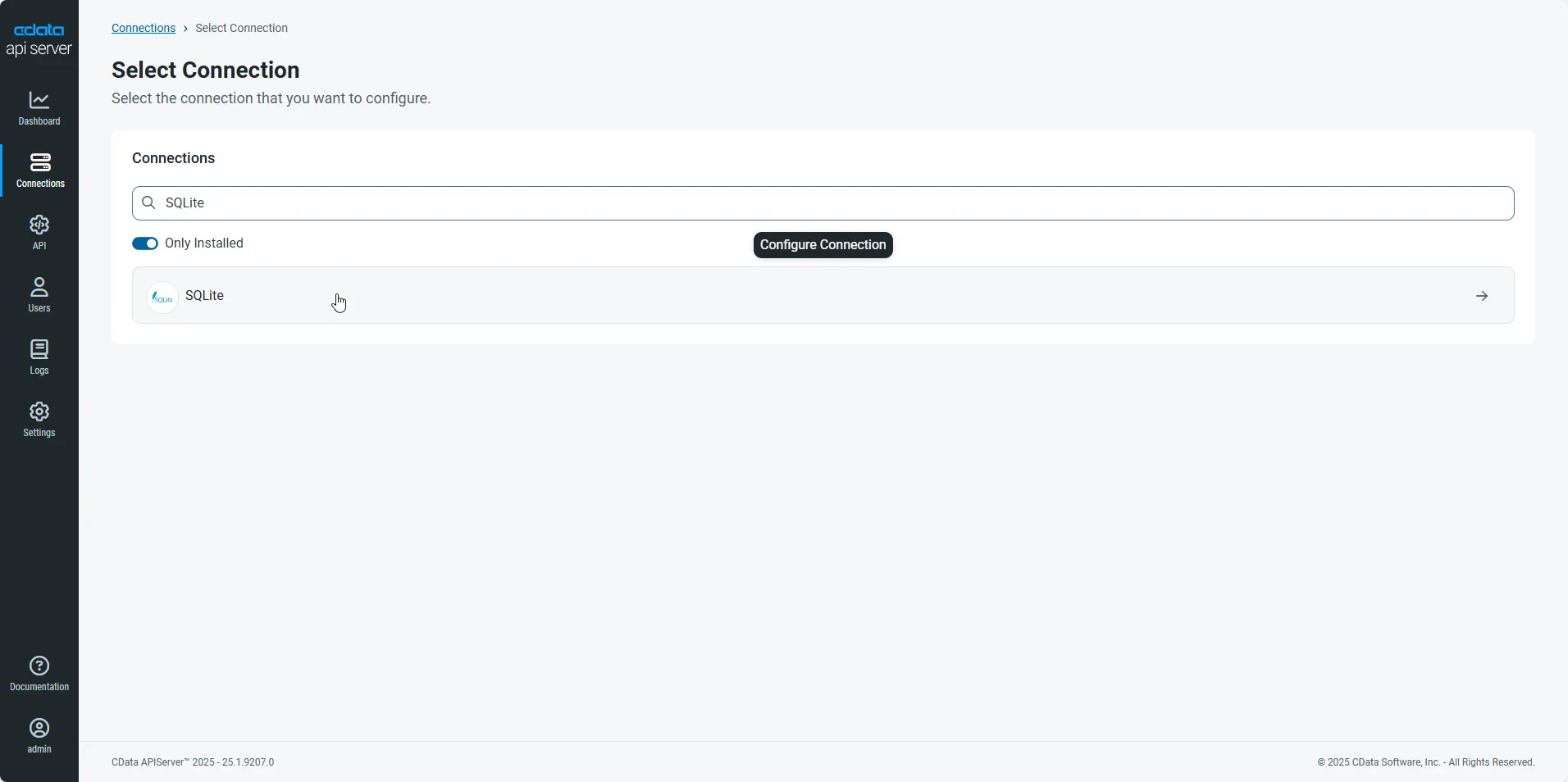
Click Add Connection and then search for and select the Vercel connection.
-
Enter the necessary authentication properties to connect to Vercel.
Using API Key Authentication
Vercel uses Bearer token authentication. You can use either a personal access token or an OAuth access token as the API key.
To obtain a personal access token:
- Log into your Vercel account at https://vercel.com/
- Navigate to Account Settings > Tokens.
- Click Create Token, enter a name and expiration, and click Create.
- Copy the generated token (it will only be shown once).
After obtaining your token, set the following connection properties:
- AuthScheme: Set this to APIKey.
- APIKey: Set this to your Vercel personal access token or OAuth access token.
Example Connection String
Profile=C:\profiles\Vercel.apip;AuthScheme=APIKey;APIKey=your_access_token;
Working with Teams
Many Vercel resources are scoped to a team. To scope all requests to a specific team, set the TeamId connection property to your team's ID. You can find your team ID by querying the Teams table or from the Vercel dashboard. Alternatively, you can specify TeamId in your SQL queries using the WHERE clause where supported.
Connecting to Vercel
Once the authentication is configured, you can connect to Vercel and query data from any of the available tables such as Projects, Deployments, Teams, and Domains.
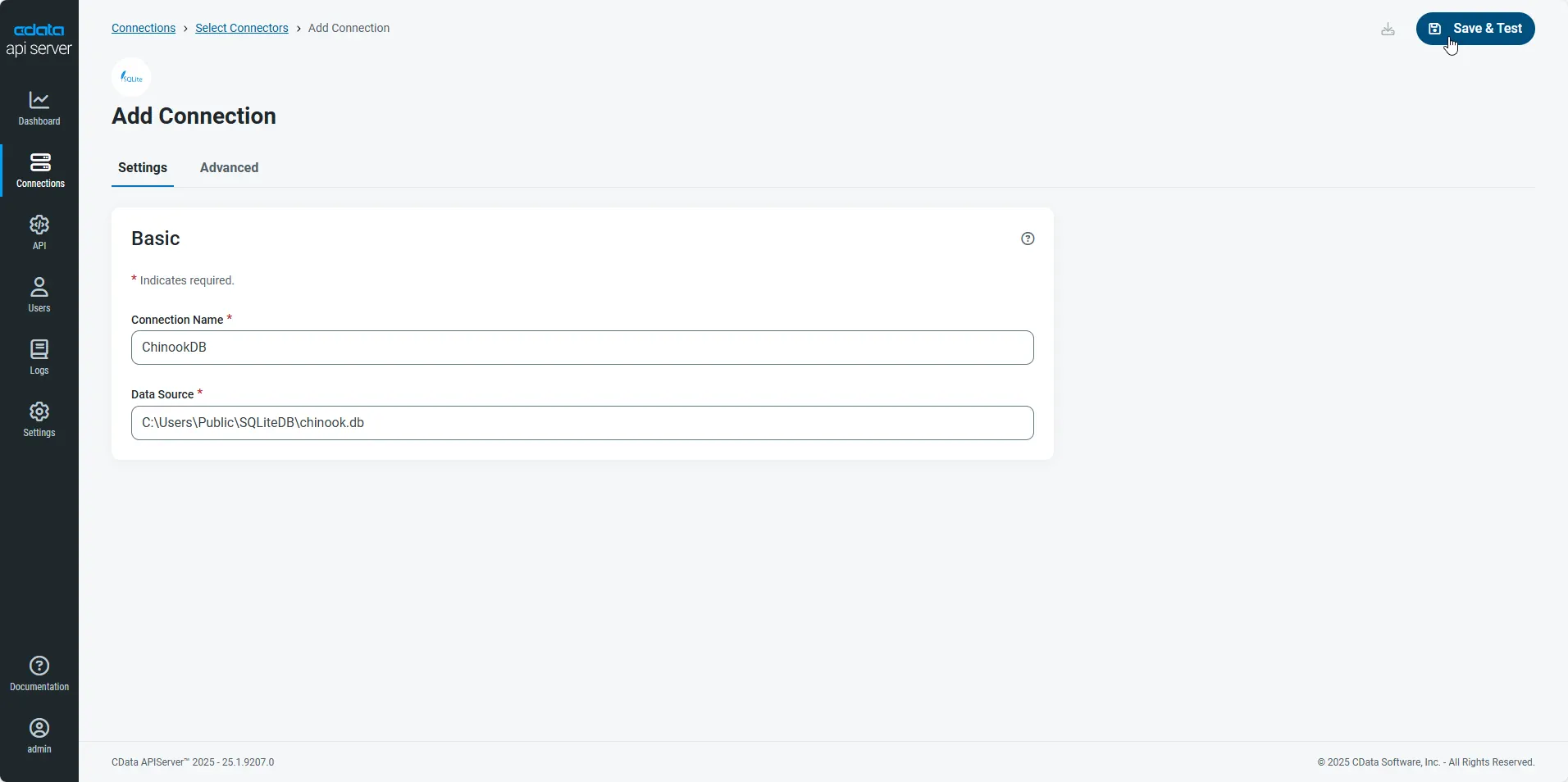
- After configuring the connection, click Save & Test to confirm a successful connection.
Configure API Server Users
Next, create a user to access your Vercel data through the API Server. You can add and configure users on the Users page. Follow the steps below to configure and create a user:
- On the Users page, click Add User to open the Add User dialog.
-
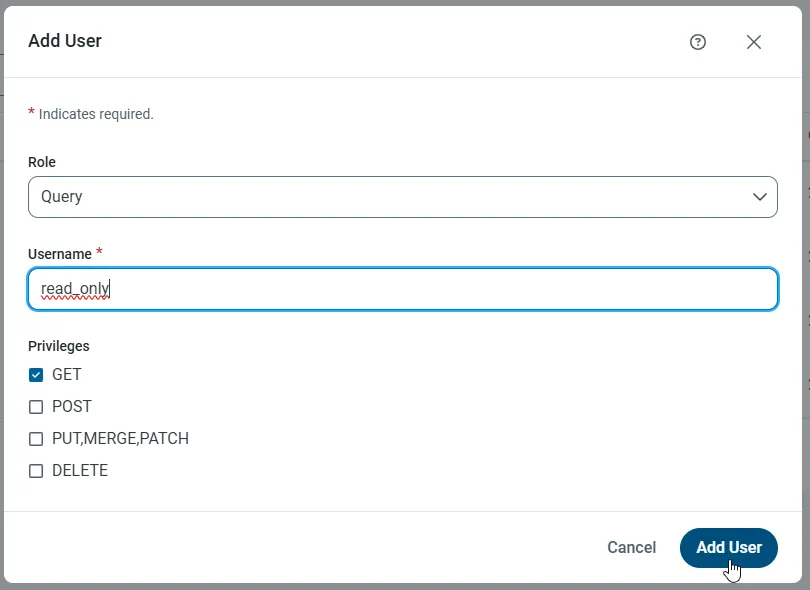
Next, set the Role, Username, and Privileges properties and then click Add User.
-
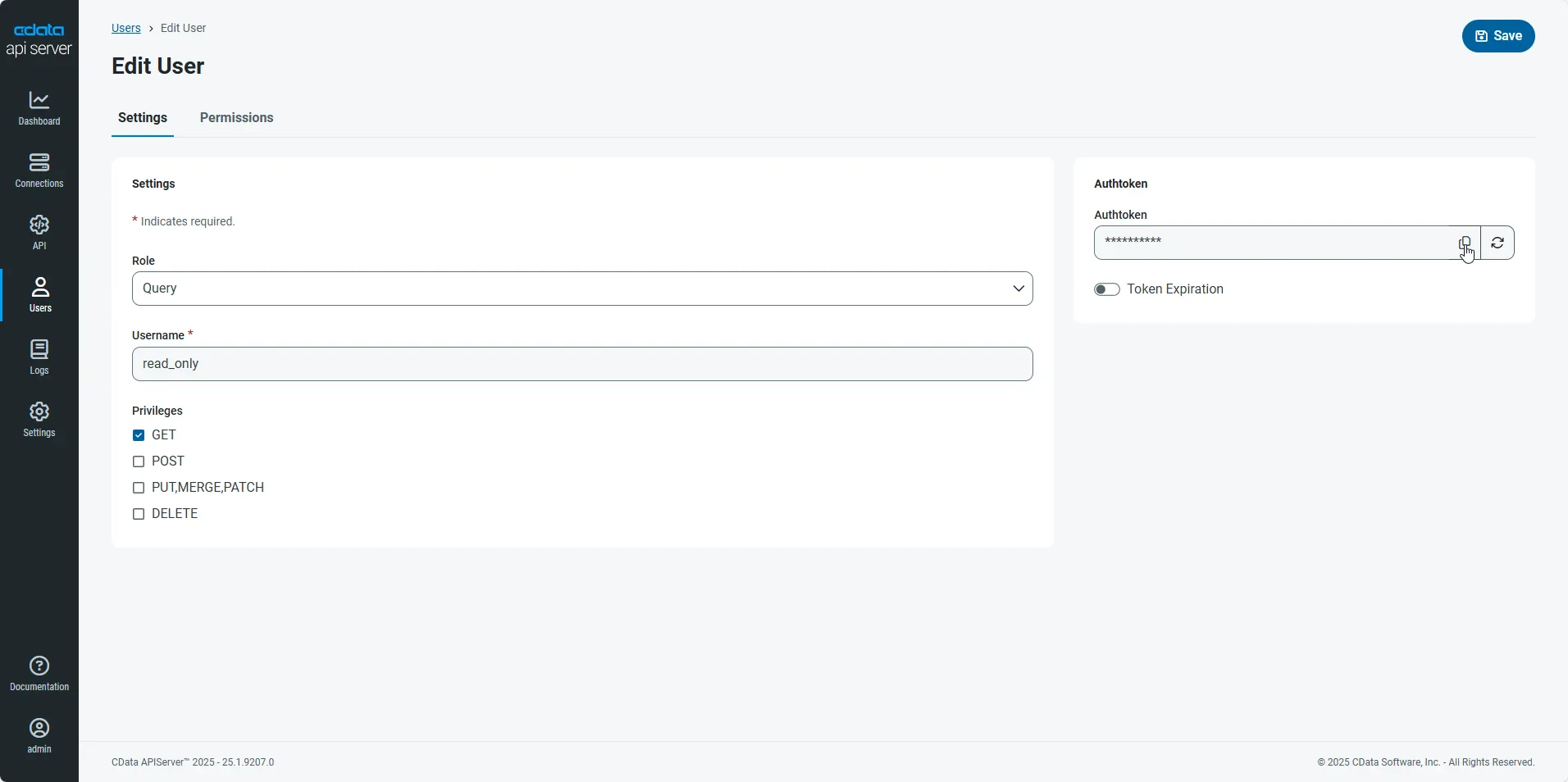
An Authtoken is then generated for the user. You can find the Authtoken and other information for each user on the Users page:
Creating API Endpoints for Vercel
Having created a user, you are ready to create API endpoints for the Vercel tables:
-
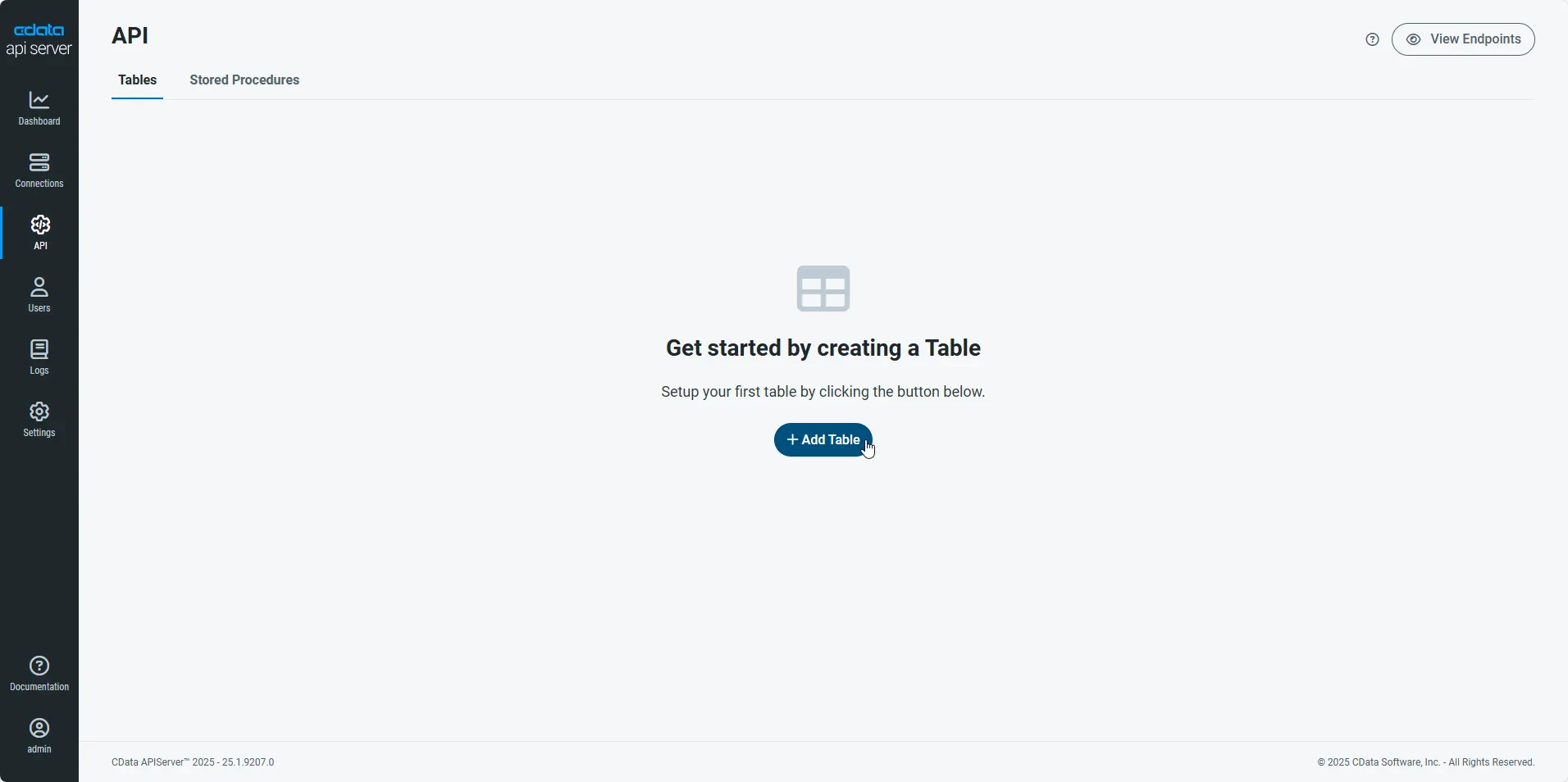
First, navigate to the API page and then click
Add Table
.
-
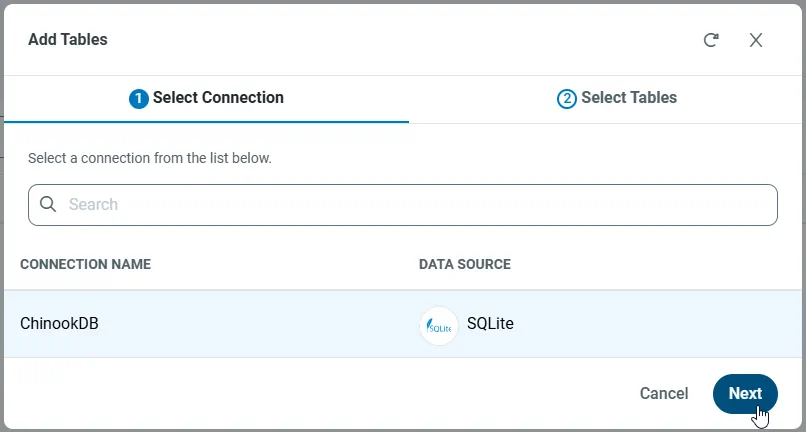
Select the connection you wish to access and click Next.
-
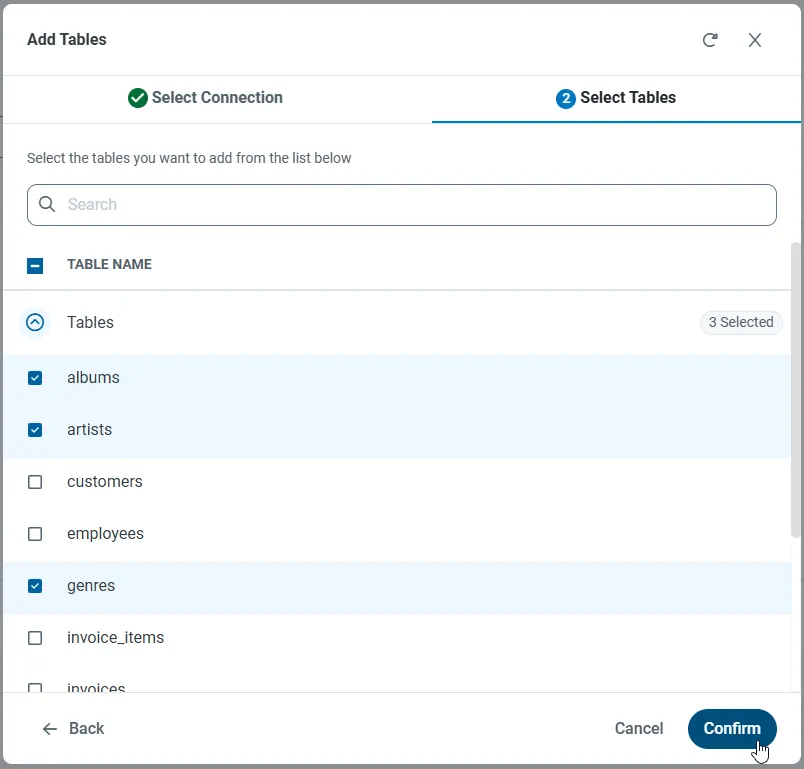
With the connection selected, create endpoints by selecting each table and then clicking Confirm.
Gather the OData Url
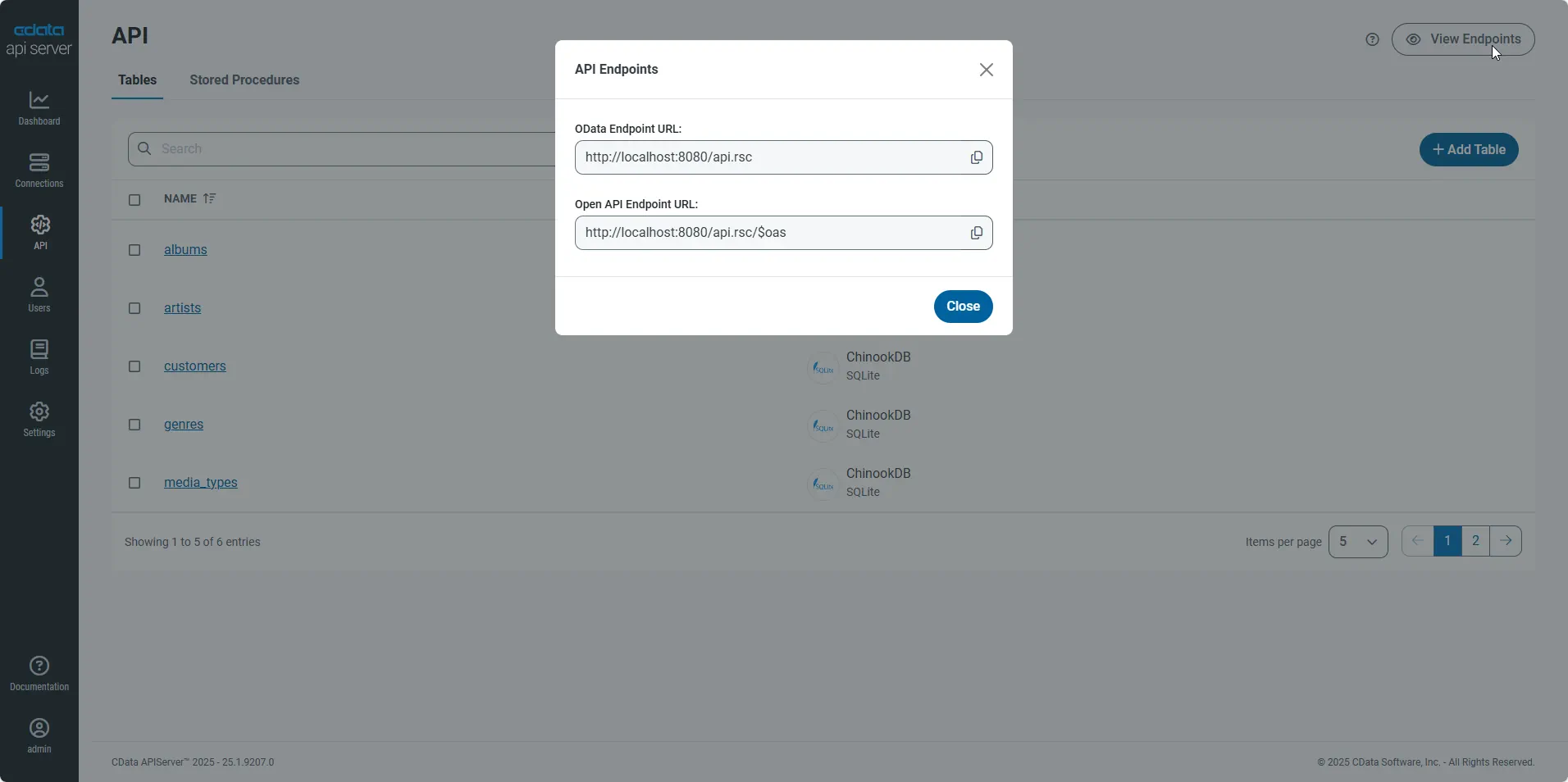
Having configured a connection to Vercel data, created a user, and added resources to the API Server, you now have an easily accessible REST API based on the OData protocol for those resources. From the API page in API Server, you can view and copy the API Endpoints for the API:
Connect to Vercel from SAP Lumira
Follow the steps below to retrieve Vercel data into SAP Lumira. You can execute an SQL query or use the UI.
- In SAP Lumira, click File -> New -> Query with SQL. The Add New Dataset dialog is displayed.
- Expand the Generic section and click the Generic OData 2.0 Connector option.
-
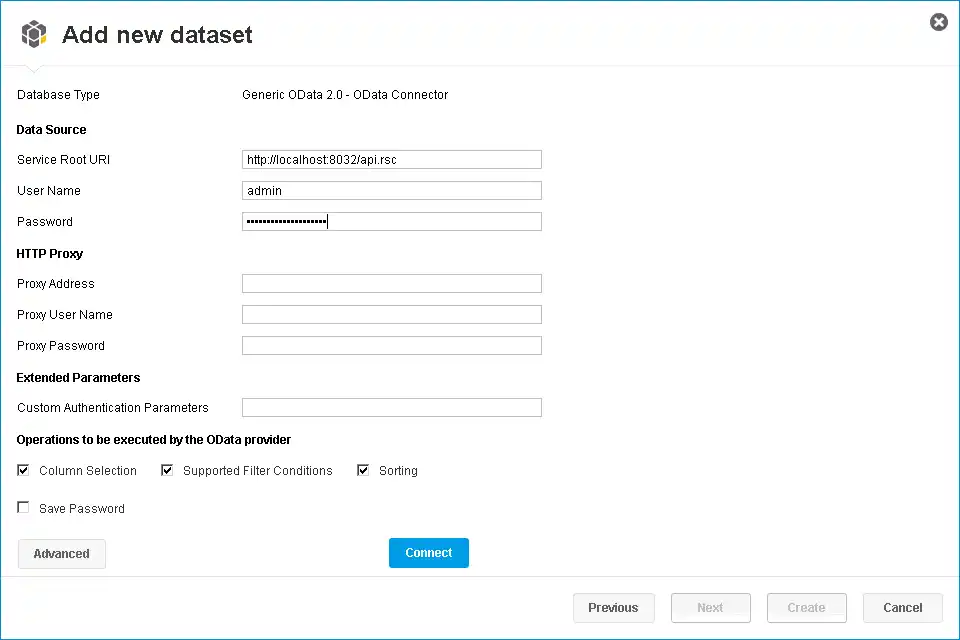
In the Service Root URI box, enter the OData endpoint of the API Server. This URL will resemble the following:
https://your-server:8080/api.rsc
-
In the User Name and Password boxes, enter the username and authtoken of an API user. These credentials will be used in HTTP Basic authentication.
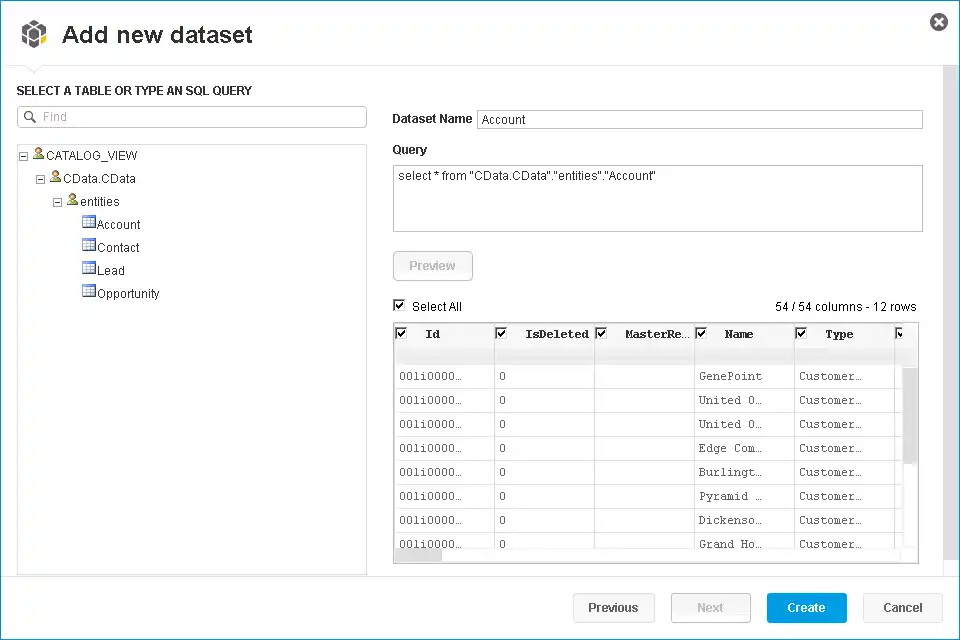
Select entities in the tree or enter an SQL query. This article imports Vercel User entities.
-
When you click Connect, SAP Lumira will generate the corresponding OData request and load the results into memory. You can then use any of the data processing tools available in SAP Lumira, such as filters, aggregates, and summary functions.
Create Data Visualizations
After you have imported the data, you can create data visualizations in the Visualize room. Follow the steps below to create a basic chart.
In the Measures and Dimensions pane, drag measures and dimensions onto the x-axis and y-axis fields in the Visualization Tools pane. SAP Lumira automatically detects dimensions and measures from the metadata service of the API Server.
By default, the SUM function is applied to all measures. Click the gear icon next to a measure to change the default summary.
- In the Visualization Tools pane, select the chart type.
- In the Chart Canvas pane, apply filters, sort by measures, add rankings, and update the chart with the current Vercel data.