Access Live Vercel Data in SAS JMP via ODBC

You can use the CData API Driver for ODBC to integrate live data into your statistical analysis with SAS JMP. The driver proxies your queries directly to the Vercel API, ensuring that your analysis reflects any changes to the data. The CData ODBC Driver supports the standard SQL used by JMP in the background as you design reports.
This article shows how to access Vercel data into a report and create data visualization. It also shows how to use SQL to query Vercel data from the JMP Query Builder.
Access Vercel Data as an ODBC Data Source
If you have not already, first specify connection properties in an ODBC DSN (data source name). This is the last step of the driver installation. You can use the Microsoft ODBC Data Source Administrator to create and configure ODBC DSNs.
Using API Key Authentication
Vercel uses Bearer token authentication. You can use either a personal access token or an OAuth access token as the API key.
To obtain a personal access token:
- Log into your Vercel account at https://vercel.com/
- Navigate to Account Settings > Tokens.
- Click Create Token, enter a name and expiration, and click Create.
- Copy the generated token (it will only be shown once).
After obtaining your token, set the following connection properties:
- AuthScheme: Set this to APIKey.
- APIKey: Set this to your Vercel personal access token or OAuth access token.
Example Connection String
Profile=C:\profiles\Vercel.apip;AuthScheme=APIKey;APIKey=your_access_token;
Working with Teams
Many Vercel resources are scoped to a team. To scope all requests to a specific team, set the TeamId connection property to your team's ID. You can find your team ID by querying the Teams table or from the Vercel dashboard. Alternatively, you can specify TeamId in your SQL queries using the WHERE clause where supported.
Connecting to Vercel
Once the authentication is configured, you can connect to Vercel and query data from any of the available tables such as Projects, Deployments, Teams, and Domains.
When you configure the DSN, you may also want to set the Max Rows connection property. This will limit the number of rows returned, which is especially helpful for improving performance when designing reports and visualizations.
Import Vercel Data with the Query Builder
After you have created the Vercel DSN, you can use SQL to invoke the capabilities of the Vercel API. Follow the steps below to execute some supported queries in the Query Builder:
- In SAS JMP, click File -> Database -> Query Builder. The Select Database Connection dialog is displayed.
- Click New Connection.
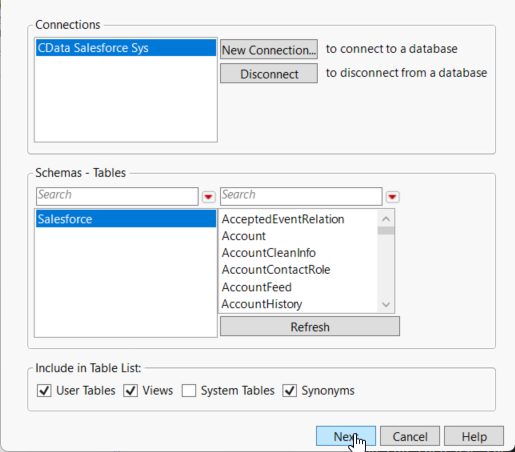
- On the Machine Data Source tab, select the ODBC DSN you configured and then click Next.
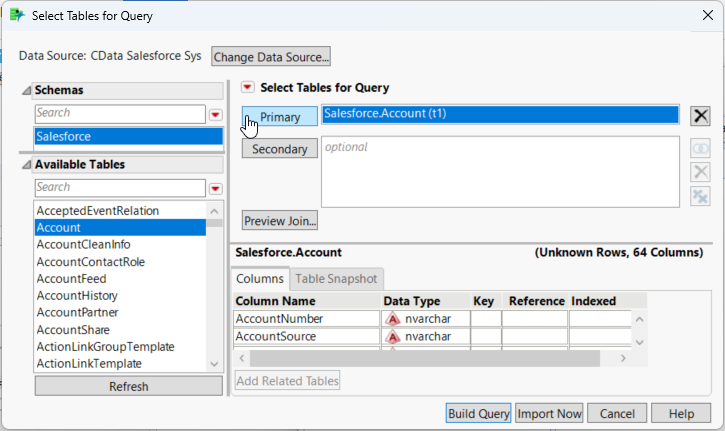
- The Select Tables for Query dialog is displayed and in the Available Tables section, select a table and click Primary. After choosing the primary table, click Build Query to open the Query Builder.
- As you drag Available Columns to the Included Columns tab, the underlying SQL query is updated and you can view the generated SQL Query in the SQL tab.
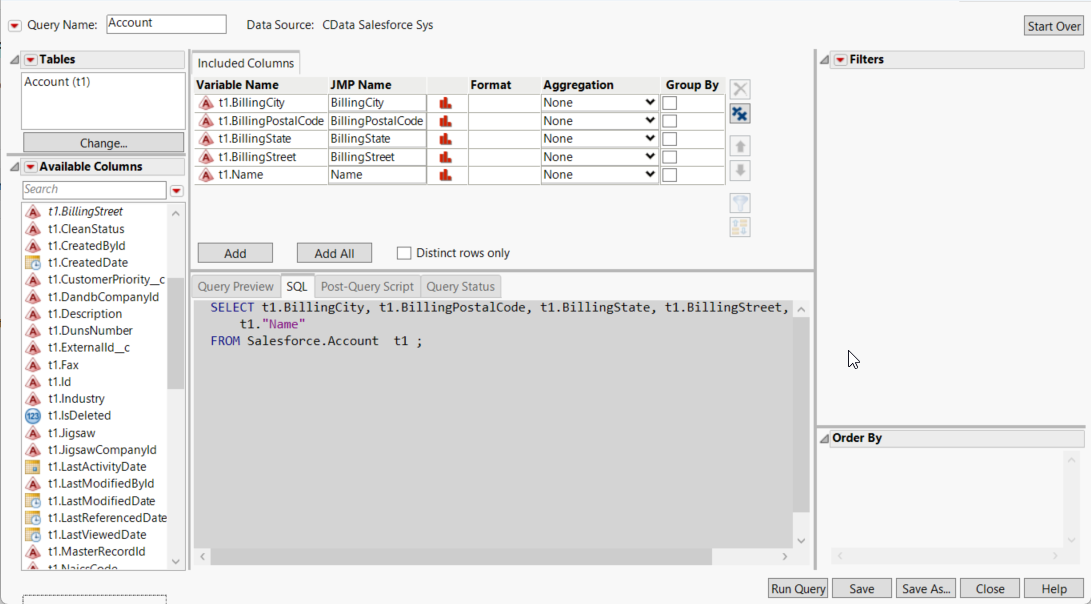
- Click Run Query to display the data.
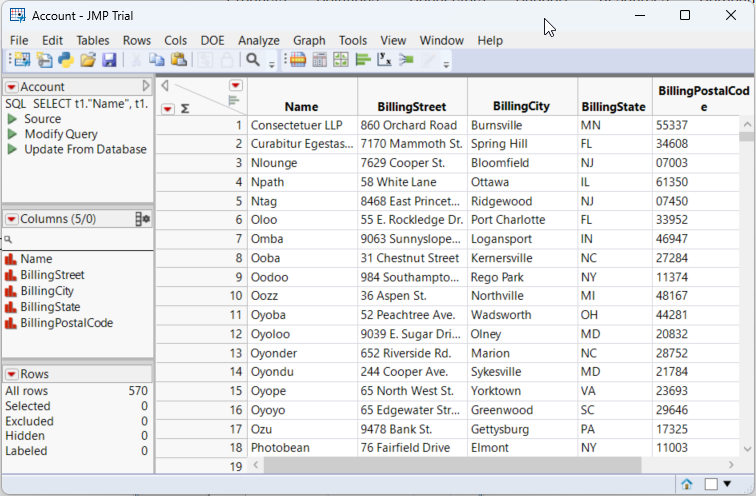
- To refresh the results with the current data, right-click Update from Database and click Run Script.
Visualize Vercel Data
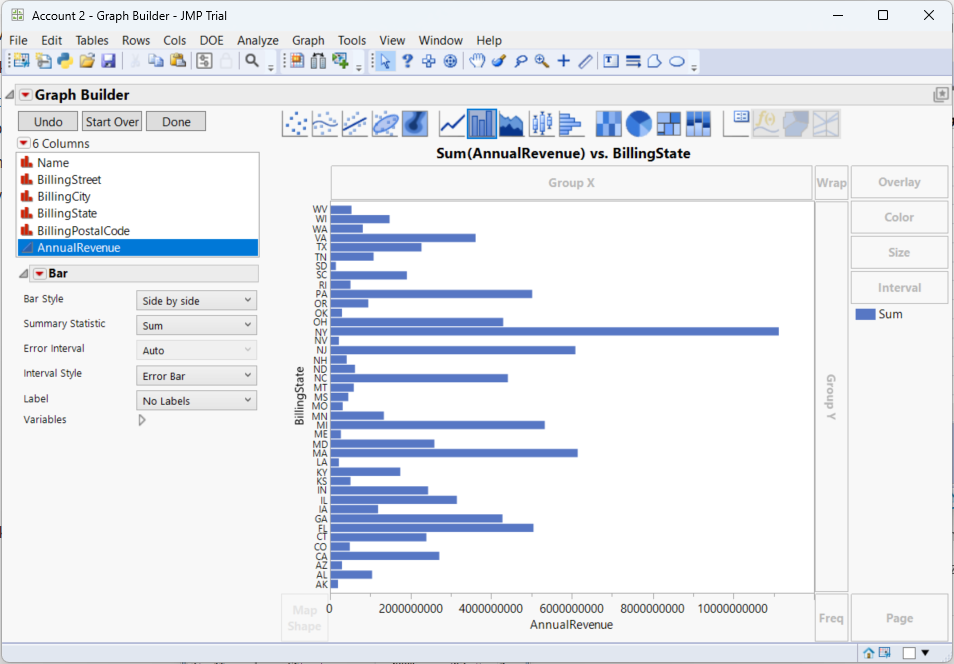
After importing, you can use the Graph Builder to create graphs visually. To open the Graph Builder, click the Graph Builder button in the toolbar.
- Drag a dimension column onto the x axis. For example, .
- Drag a measure column onto the y axis. For example, .
- Select a chart type. For example, a bar chart.